Understanding the problem
A software fault and a physical fault leave different fingerprints because they live in different places. A driver problem belongs to a particular system, so it stays behind when the hardware is moved and often appears right after an update or change. A hardware fault belongs to the device, so it travels wherever the device goes and tends to worsen with heat, age, or handling. By watching whether the trouble follows the system or the part, and whether a restart briefly revives it, you are effectively asking which layer holds the fault rather than guessing.
Symptoms
- A device fails consistently after a software change but worked before
- The same hardware works perfectly on a different system
- Problems clear up temporarily after a restart
- Error messages point to software rather than physical failure
Likely causes
- 1A driver fault that travels with the system, not the hardware
- 2A genuine hardware failure that follows the device wherever it goes
- 3A configuration change mistaken for a broken component
- 4Intermittent connections that mimic a software glitch
- 5An update altering how the system talks to working hardware
What to observe and check
- Note whether the fault follows the hardware or stays with the system
- Observe if the problem coincided with a software change
- Consider whether other devices of the same kind behave normally
- Watch whether a restart restores function, hinting at software
Step-by-step repair
 1
1Note when the fault appears
Record whether the trouble began right after a software change, since a fault tied to a particular system points toward the driver rather than the part.
 2
2Try the hardware elsewhere
Connect the same device to a different system to see whether the fault travels with it, which would suggest a genuine hardware failure.
 3
3Restart and watch the result
Restart the system and note whether function returns even briefly, a common sign that the fault lives in software.
 4
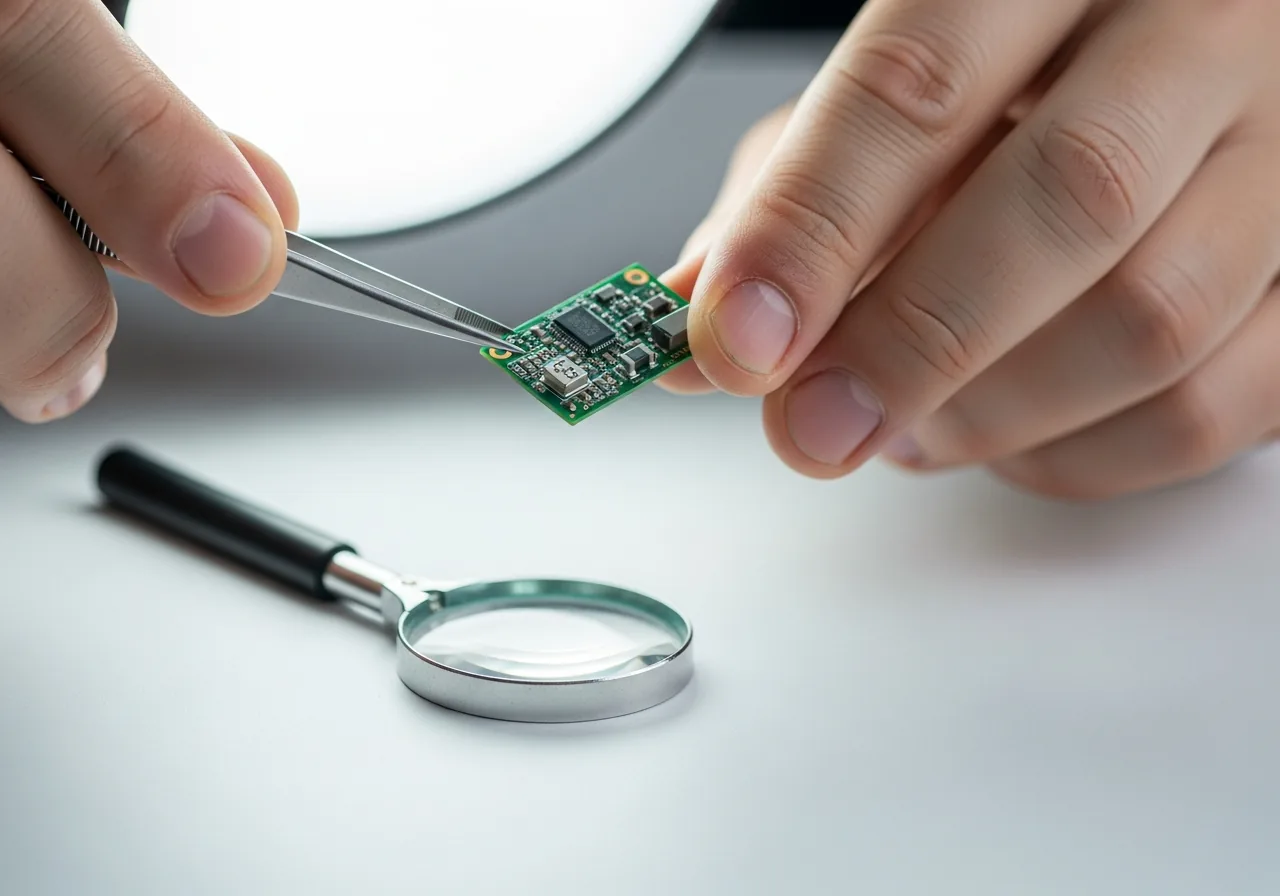
4Check for physical warning signs
Look for heat, an unusual smell, or visible damage; if any are present, stop and treat it as a possible hardware fault needing qualified help.
 5
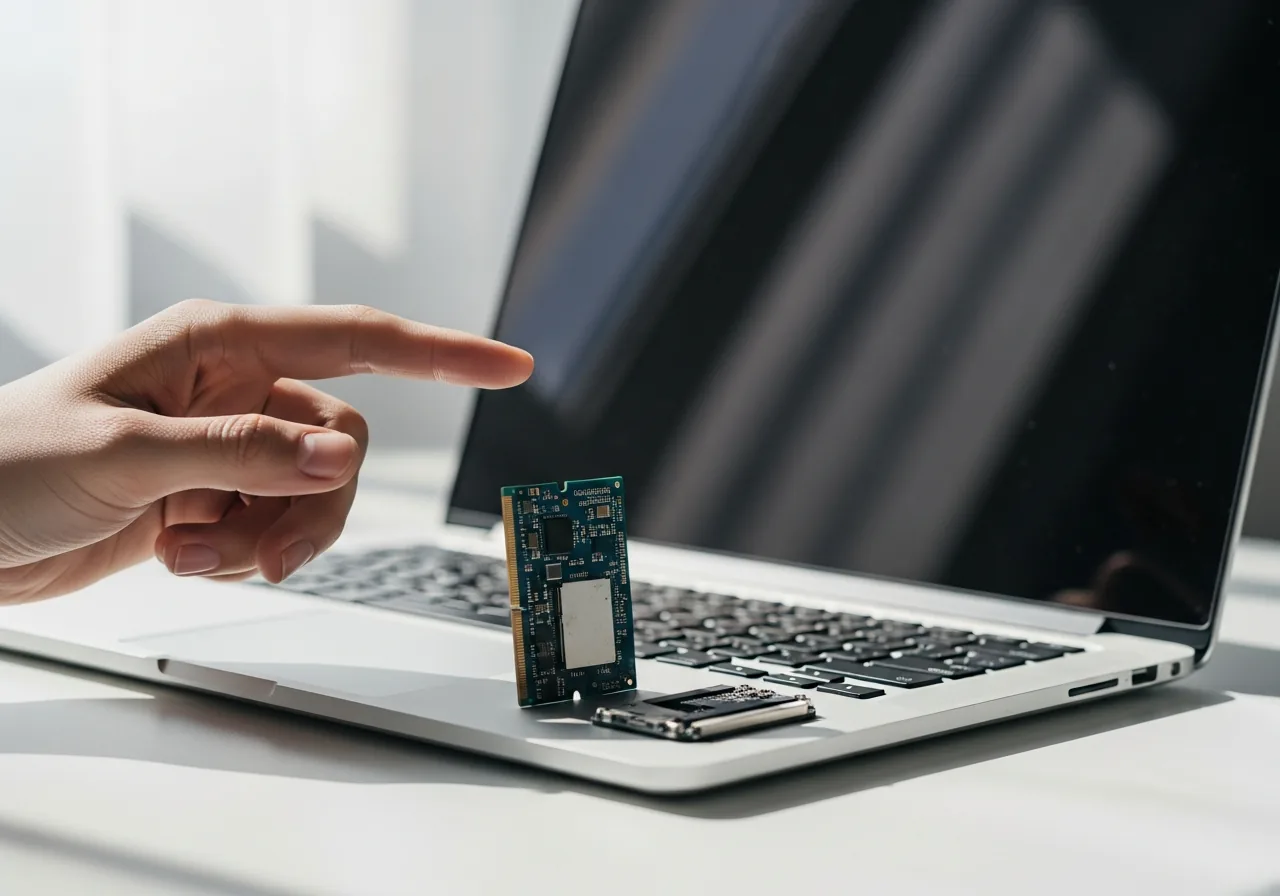
5Decide which layer holds the fault
Weigh whether the trouble follows the system or the part to settle on a software or a hardware explanation before acting further.
When to seek help
If testing suggests the hardware itself is failing, especially with heat, smell, or physical damage, stop and have it inspected by a qualified technician.
Reducing the chance it returns
Making this distinction easier in future is mostly about keeping good habits before trouble strikes. Note when devices last worked and what changed around that time, so any new fault has a clear before and after. Where you can, keep a second compatible system or a known-good cable nearby for quick comparison testing. Introduce software changes one at a time rather than in a rush, which keeps cause and effect visible. Handle hardware gently and keep it cool, so that genuine physical wear stays rare and the software explanation remains the more likely one.
Repair110 is a free, informational resource. These steps describe a careful, general approach — every device is a little different, so work slowly, back up anything you value, and prioritise your own safety. If a step feels beyond your comfort, stop and consult a qualified technician.