Repair scene
Clear, brand-free repair guides

Understand your devices.
Repair with confidence.

Repair110 is a free knowledge hub explaining how electronic repairs work — from laptops and PCs to the device drivers that keep everything running.

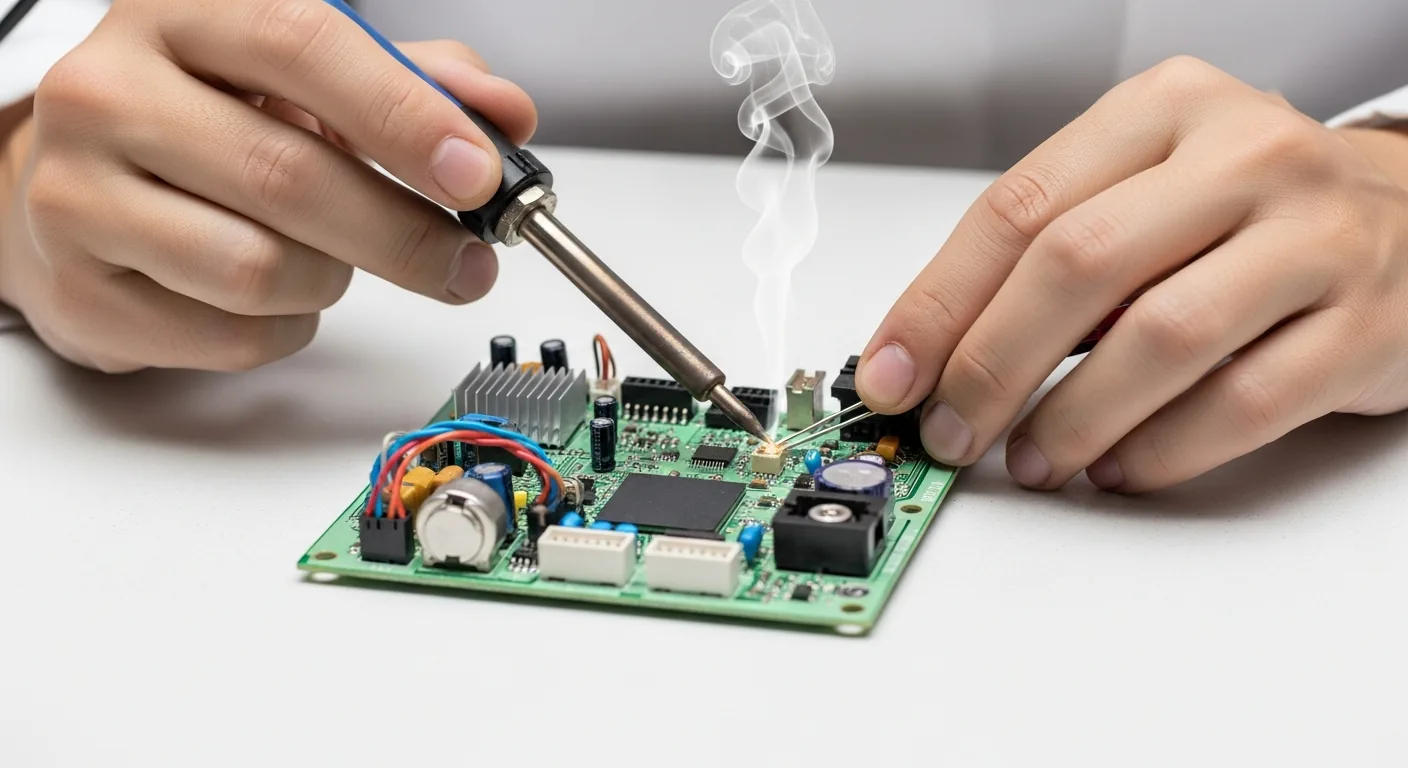
A repair technician carefully working on a device at a tidy, well-lit workbench

Free forever

No account, no catch

Why People Read Repair110

Repair knowledge you can actually trust

No sales pitch, no jargon wall, no pressure to buy anything. Just clear, honest explanations written to help you understand your own devices and make calmer, better-informed decisions.

Written in plain language

Every idea is explained in everyday words, so you can follow along whether or not you have ever held a screwdriver.

Nothing to sell you

No products, no prices, no brands, no affiliate links. The only goal here is understanding, not a transaction.

Serious about drivers

We give the software side of repair the attention it deserves, because that is exactly where most people get stuck.

Safety comes first

Honest guidance on when a fault is simple to handle and when the wise move is to stop and step back.

Why learn with us

Built to help you fix it yourself

Five quick reasons people learn to repair with us — clear knowledge, practical steps, and the confidence to fix things yourself.

Learn. Fix. Understand.
Repair with confidence.

Step-by-step guides, tips, and walkthroughs to help you understand and repair almost anything.

Step-by-step guides
Troubleshooting tips
How it works
Expert knowledge

Clear guides.

Real solutions.

Better repairs.

What is Repair110

A library of repair knowledge, not a shop

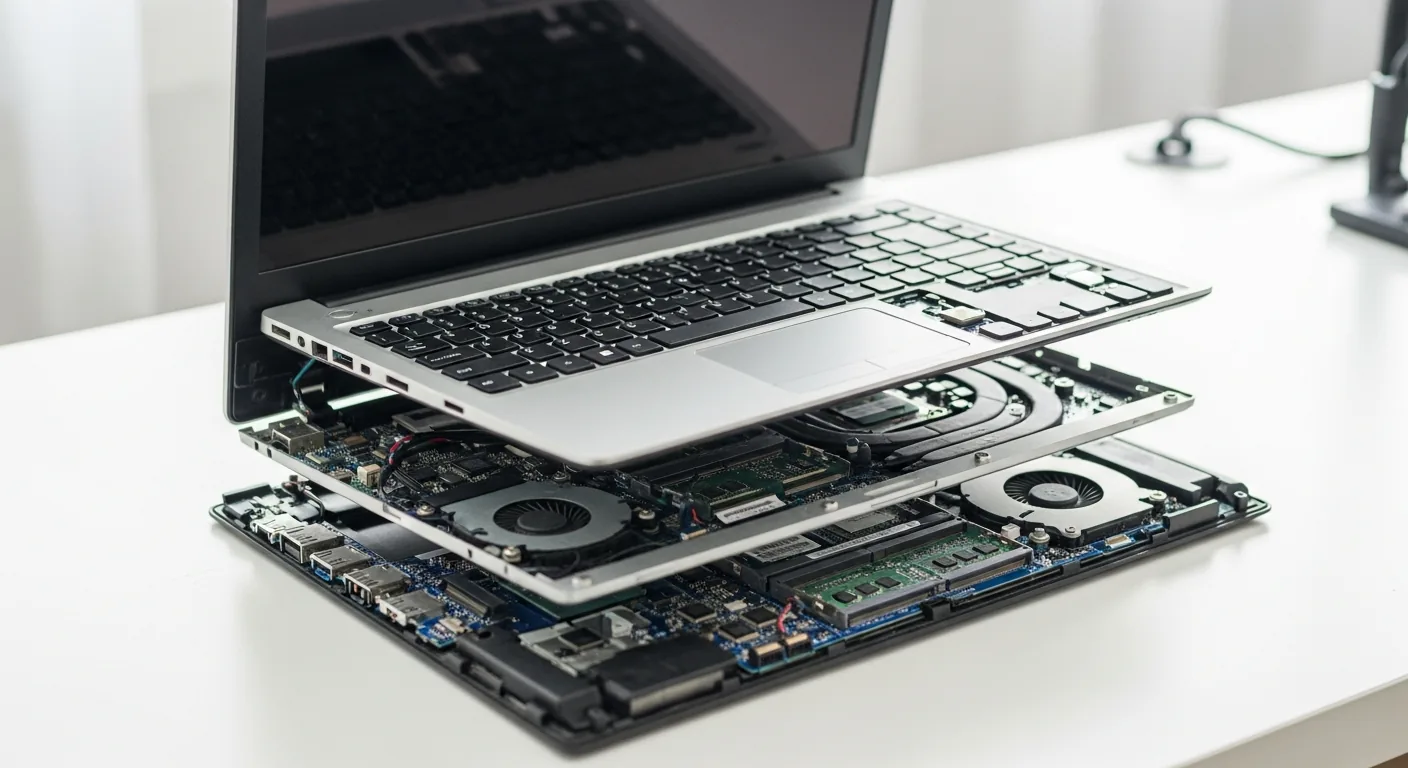
The internal components of an open laptop

Repair110 exists for one simple reason: electronics fail, and most people have no clear, honest place to learn what is actually happening inside their devices. We are not a shop and we sell nothing. We are a plain-language library of repair knowledge. Whether a laptop refuses to start, a mouse behaves erratically, or a screen flickers after an update, the goal here is the same — to help you understand the problem before you ever touch a screwdriver. Knowledge lowers stress, prevents costly mistakes, and helps you make better decisions about your own hardware.

Why Repair Matters

Repair saves money, waste, and working hardware

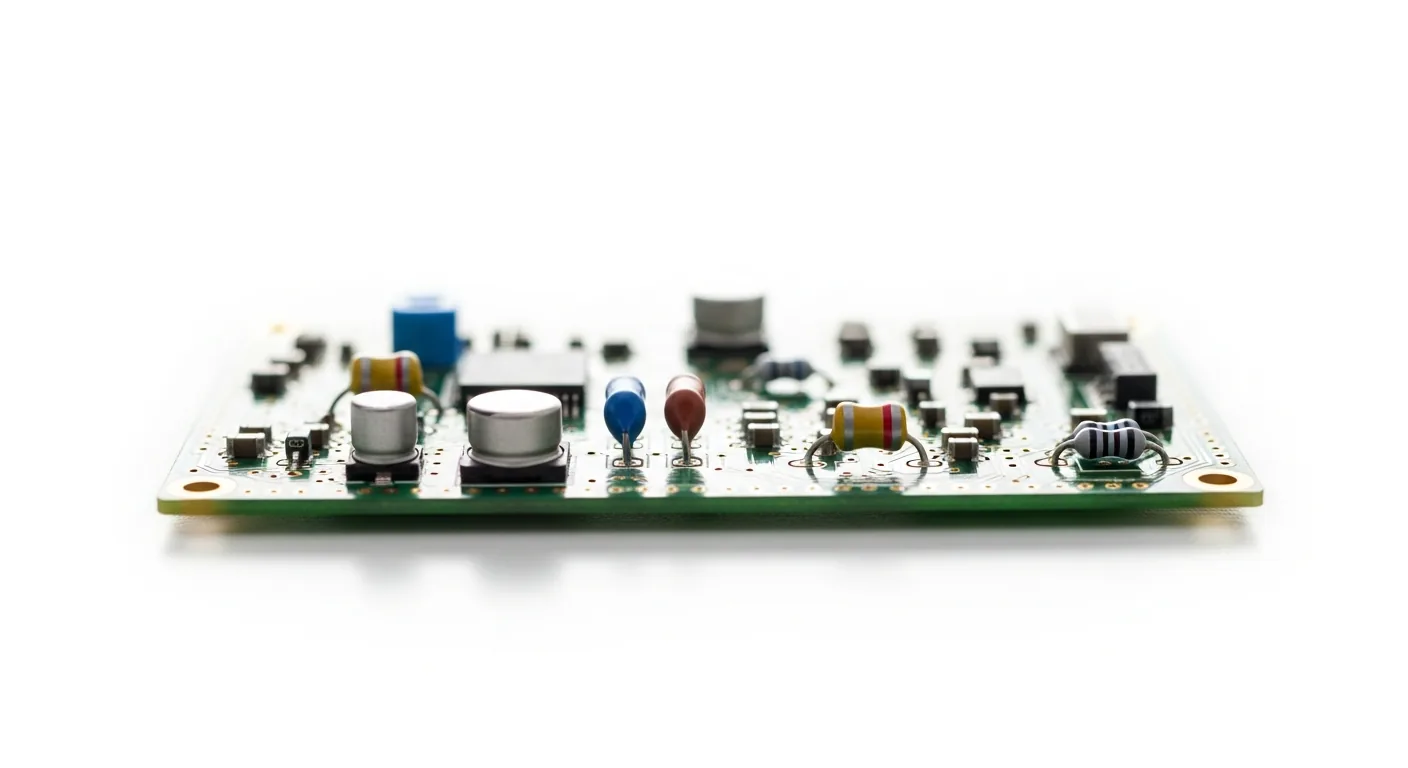
A technician closely inspecting a circuit board during a repair

Every year, an enormous volume of working or nearly-working electronics is thrown away simply because the owner did not understand a fixable fault. Repair matters because it saves money, reduces electronic waste, and extends the useful life of devices you already own and trust. A failing fan, a loose connector, a corrupted driver, or a swollen battery is often a small, well-documented issue — not the end of the device. When you understand repair, you stop seeing a broken laptop as garbage and start seeing it as a machine with a specific, identifiable problem.

There is also a confidence factor. People who understand how their devices work ask better questions, avoid being talked into unnecessary replacements, and recognise when a fault is genuinely beyond home repair. Repair literacy is a quiet form of self-reliance. It puts you back in control of the technology you depend on every single day.

~0%

of common device faults trace back to a handful of repeatable causes.

Millions

of devices are retired early due to issues that were never diagnosed.

0

A single faulty driver can imitate a "dead" piece of hardware.

Observation

Most repairs begin not with tools, but with careful observation.

These are general educational figures, presented as awareness points, not guarantees.

Types of Repairs

One mindset across every device

From modular desktops to sealed laptops and the smallest peripherals, the same logic applies — observe, isolate, test.

Reading the Signs

What your device is trying to tell you

A device in trouble is rarely silent. Long before any tool comes out, the symptoms themselves carry most of the diagnostic information you need. Learning to read these signals turns a vague sense of dread into a short list of likely causes. None of the patterns below is a guaranteed diagnosis — they are starting points for thinking clearly about what changed and where to look first.

Nothing happens at all

No lights, no fans, no sound. This usually points to power: the source, the cable, a connector, or the internal supply — not necessarily the device itself.

Powers on, but the screen stays black

If you hear fans and see lights but no image, the machine is likely alive while the display, the graphics path, or a driver is failing to deliver a picture.

Random shutdowns or restarts

Sudden, unpredictable power-offs frequently trace back to overheating, a struggling battery, or unstable power delivery rather than total failure.

Sluggish under load

A machine that crawls only when working hard is often throttling itself to fight heat, or wrestling with software — not necessarily a worn-out processor.

Loud or constant fans

Fans that never settle are a classic sign of a clogged cooling path. The cooling system is working overtime because dust has narrowed the airflow.

No network or wireless

Connectivity that vanishes is one of the most common driver-related faults of all. The adapter is usually fine; its software translator has stopped speaking.

A device is no longer detected

When the system stops recognising a piece of hardware, the cause may be a loose connection, a worn port, or a missing or corrupted driver.

Strange noises or smells

Grinding, buzzing, or any hint of burning is the one category to treat seriously and immediately. Stop, power down, and investigate before continuing.

Quick Fault Finder

Tell us what's acting up

Pick the device that is giving you trouble and see the faults we explain most often for it. Every result opens a plain-language guide — no sign-up, nothing to buy.

The Knowledge Base

110 faults, each with its own plain-language guide

Browse the full library by category, or search a symptom and read straight through. Every guide breaks a fault into its symptoms, likely causes, and the calm checks that point to the real problem.

Flagship Topic

Understanding Device Drivers

A computer motherboard, where drivers connect software to hardware

What is a driver?

A driver is a small piece of software that acts as a translator between your operating system and a piece of hardware. Your computer does not inherently know how to speak to a particular printer, graphics chip, network adapter, or mouse. The driver provides that vocabulary. When the driver is healthy, the hardware "just works" and you never think about it. When the driver is broken, the very same hardware can appear faulty, unstable, or invisible — even though nothing physical has gone wrong.

Why drivers matter so much in repair

A huge number of so-called hardware failures are actually driver failures wearing a disguise. A screen that suddenly shows the wrong resolution, audio that vanishes, a network adapter that disappears, or a touchpad that stops responding are all classic symptoms that frequently come down to software rather than a soldering iron. Learning to tell the difference is one of the single most valuable repair skills you can develop, because it prevents people from replacing perfectly good parts.

Common driver problems

Drivers can become outdated when the rest of the system moves forward without them. They can become corrupted during an interrupted update or a sudden shutdown. They can conflict when two pieces of software try to control the same hardware. And occasionally a freshly released driver introduces a new bug, which is why "newest" is not always "best." Recognising these patterns turns confusing, intermittent faults into something you can reason about calmly.

The general approach to driver issues

The healthy mindset is methodical: confirm the symptom, check whether the system still detects the hardware at all, consider what changed recently, and treat the software layer before assuming the physical layer has died. If the system recognises the device but it misbehaves, the problem is far more likely to live in the driver or settings than in the metal. This is educational guidance, not a step-by-step repair guarantee — every system behaves a little differently.

Why this knowledge protects you

Understanding drivers means you will never again throw away a "broken" component without first asking whether the brain, not the body, is the real problem. It is the difference between guessing and diagnosing.

Plain-Language Glossary

The words behind every fault

Repair has its own quiet vocabulary, and a handful of words explain a surprising share of what goes wrong. None of these are complicated once they are stated plainly. Keep them in mind and confusing fault descriptions start to make far more sense.

Memory modules, a common computer component
Driver
A small piece of software that translates between the operating system and a piece of hardware so the two can understand each other.
Firmware
Software baked directly into a device that controls its most basic behaviour, sitting a layer below the programs you normally see.
Thermal throttling
When a device deliberately slows itself down to lower its temperature and protect its components from sustained heat.
Power-on self-test
The quick internal check a computer runs the instant it powers on, often signalled by lights or tones, to confirm the essentials are present.
Capacitor
A small component that stores and releases energy. As devices age, capacitors are a common and recognisable point of failure.
Driver conflict
What happens when two software components try to control the same hardware at once, producing intermittent and confusing faults.
Boot loop
A device that restarts over and over without ever finishing startup, usually pointing to a software or power problem rather than dead hardware.
Static discharge
A sudden, invisible jolt of static electricity that can quietly damage sensitive components, which is why static-safe handling matters.
How a Repair Works

The repair loop, step by step

Every good repair follows the same backbone, from a stuck key to a complex board fault.

A person carefully opening a device with a precision screwdriver during a repair
  1. 01

    Diagnose

    Describe the symptom precisely. "It's broken" is not a diagnosis; "it powers on but the screen stays black" is.

  2. 02

    Inspect

    Look and listen before touching. Smell for burning, watch for lights, feel for heat.

  3. 03

    Plan

    Decide what to test first, and in what order, so you change one variable at a time.

  4. 04

    Repair

    Address the most likely cause, working gently and reversibly wherever possible.

  5. 05

    Test

    Confirm the fix under real conditions, not just for a moment.

  6. 06

    Maintain

    Prevent the fault from returning: clean dust, manage heat, keep software healthy.

This loop is the backbone of every good repair, from a stuck key to a complex board fault.

Know the Effort

How hard is a repair, really?

Not every repair asks the same of you. Knowing roughly how involved a fix is — before you start — is one of the calmest decisions you can make.

Beginner-friendly

Low risk, no opening required. These are the first things worth trying, and they resolve a surprising number of faults on their own.

  • Clearing dust from vents
  • Reseating a loose cable
  • Updating or rolling back a driver

A little patience

Light disassembly with accessible parts. Take your time, keep track of screws, and most people manage these comfortably.

  • Swapping a removable battery
  • Replacing a storage drive
  • Cleaning a fan assembly

Steady hands

Deeper access and delicate connectors. The right technique matters more than strength, and rushing is the main cause of new damage.

  • Reapplying thermal paste
  • Replacing a laptop keyboard
  • Opening a sealed chassis

Specialist territory

Fine, high-stakes work that usually calls for specialist equipment and experience. Knowing when to step back is its own kind of skill.

  • Board-level component work
  • Screen panel bonding
  • Recovery after liquid damage

These tiers are a general guide to effort and risk, not a promise about any specific device. When a repair feels beyond your comfort, that instinct is worth trusting.

A methodical repair setup with an open checklist notebook beside a device being inspected
The Repairer's Approach

Preparation beats improvisation

Good repair is far more about mindset than equipment, but a calm, well-prepared approach makes everything easier. These are the general categories of care that separate a smooth repair from a frustrating one — described as principles, not a shopping list.

Precision and the right fit

Tools that match the fastener exactly protect both the screw and your patience. Forcing the wrong fit is how small jobs turn into stripped, stubborn ones.

Static-safe handling

Sensitive components can be harmed by static you cannot feel. Working on a static-safe surface and grounding yourself first is cheap insurance.

Gentle cleaning

Most preventive repair is simply removing dust from where it does not belong. Gentle, controlled cleaning keeps airflow open and components cool.

Heat awareness

Understanding where heat builds up, and how a device moves it away, explains a large share of performance and longevity problems.

Light and magnification

You cannot fix what you cannot see clearly. Good lighting and a closer look reveal the loose cable, the burnt mark, or the bent pin.

Patience and order

Keeping screws organised, documenting each step, and changing one thing at a time is the quiet discipline behind almost every successful repair.

Repair vs Replace

Decide with clear eyes, not fear

Not everything should be repaired, and not everything should be replaced. The honest answer depends on the cost, the effort, the safety risk, and how much life the device has left. As a rule of thumb, simple, low-risk faults — dust, drivers, connections, settings — almost always favour repair. Faults involving serious internal damage, swelling batteries, liquid intrusion, or safety risk may favour responsible replacement or professional help. The point of understanding repair is not to fix everything yourself; it is to make that decision with clear eyes instead of fear.

Hands carefully working on a device during a repair

Usually favours repair

  • Dust buildup and clogged cooling
  • Outdated, corrupted, or conflicting drivers
  • Loose cables and connections
  • Software and configuration settings
  • Worn switches and simple mechanical parts

May favour replacement

  • Serious internal or board-level damage
  • Swelling, hot, or leaking batteries
  • Liquid intrusion across components
  • Any fault that carries a safety risk
  • Repairs that cost more than the device is worth
Preventive Care

Small habits, far longer life

The cheapest repair is the one you never need. Most device failures are gradual, which means a few simple habits can prevent a great deal of frustration. None of this requires special skill — only a little regular attention.

Keep the airways clear

Dust is the slow enemy of every device. Clearing vents and fans occasionally keeps temperatures down and performance steady.

Give devices room to breathe

Soft surfaces and cramped spaces trap heat. A hard, open surface lets the cooling system do the job it was designed for.

Keep software healthy

Many faults are never physical. Keeping drivers and software in good order prevents a large category of confusing problems before they start.

Mind the battery

Batteries age with every cycle. Avoiding extreme heat and constant full discharges helps them last longer and stay safe.

Handle cables and ports gently

Connectors wear out from rough use. Pulling by the plug, not the cable, and seating connections squarely avoids a surprising number of faults.

Protect what matters

Hardware can be repaired or replaced; lost information often cannot. Keeping a copy of important files turns a disaster into an inconvenience.

Clearing dust from a cooling fan to keep airflow open
Safety & Best Practices

Work safely, work reversibly

  • Power down and disconnect before opening anything.
  • Respect stored energy; some components hold charge even when unplugged.
  • Work on a clean, static-safe, well-lit surface.
  • Keep screws organised and document each step you take.
  • Never force a part — resistance usually means you missed a clip or a cable.
  • If a battery is swollen, hot, or leaking, stop and treat it as a safety hazard.
  • Know your limit; recognising "this needs a professional" is itself a skill.
A power adapter — handle electrical parts with care

Knowing when a task needs a professional is itself a skill.

Myths, Cleared Up

What people get wrong about repair

A lot of perfectly good hardware is discarded because of beliefs that simply are not true. Clearing up a few persistent myths is one of the fastest ways to repair smarter and waste less.

Myth

A device that won't turn on is dead.

Reality

Far more often it is a power problem — a source, cable, connector, or supply — than a device that has genuinely failed.

Myth

The newest driver is always the best one.

Reality

A freshly released driver can introduce new bugs. Newest is not automatically most stable, and sometimes a known-good version is wiser.

Myth

Repair is only for experts.

Reality

Many of the most common faults are simple and well understood. Understanding the problem is most of the work, and that is open to anyone.

Myth

Slow performance means you need a new device.

Reality

Heat, dust, and software are the usual culprits. A machine that feels finished is often just a machine that needs attention.

Myth

If nothing is physically broken, software can't be the cause.

Reality

Software and drivers routinely imitate hardware failure. A flawless component can still appear completely dead to the system.

Myth

Cleaning out dust is purely cosmetic.

Reality

Dust directly chokes airflow and raises temperatures. Clearing it is one of the most effective forms of preventive repair there is.

FAQ

Questions, answered plainly

Curiosity is the first repair tool.

Keep learning how your devices really work.

Explore the Blog

Repair110 uses only the essential cookies needed for the site to work. If you reached us through an advertisement, optional cookies may be used to measure ad performance — only with your consent. Read our Privacy Policy.