Understanding the problem
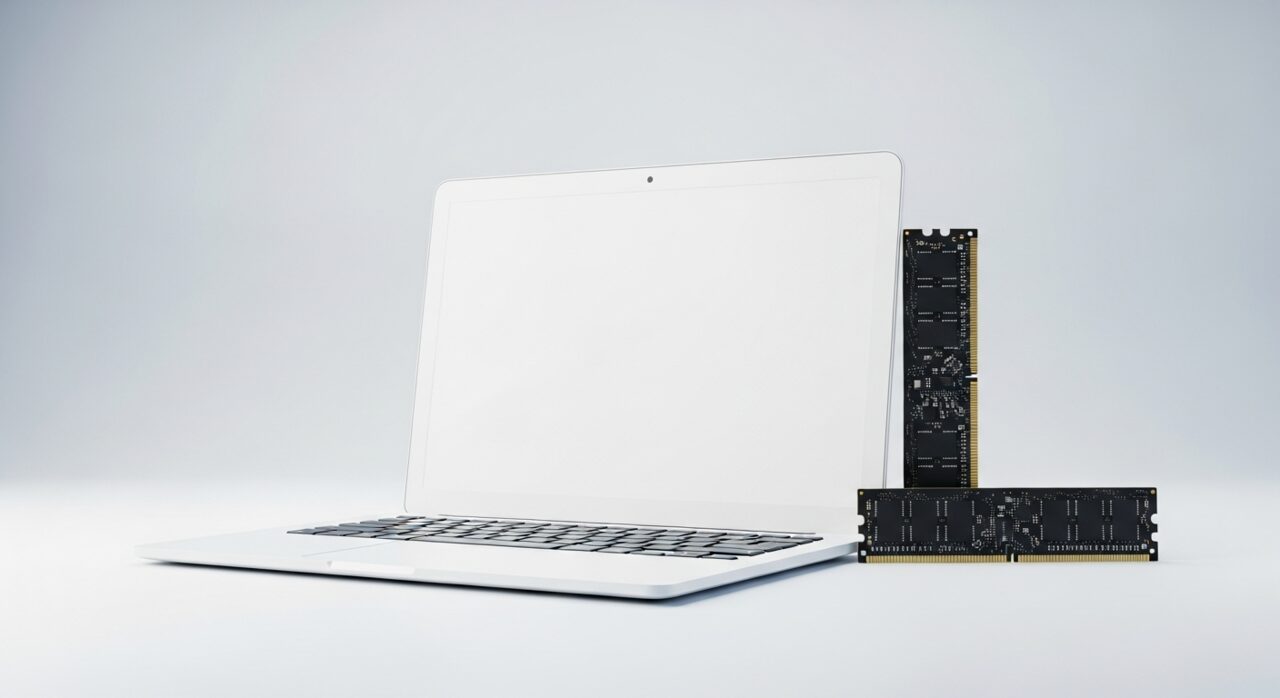
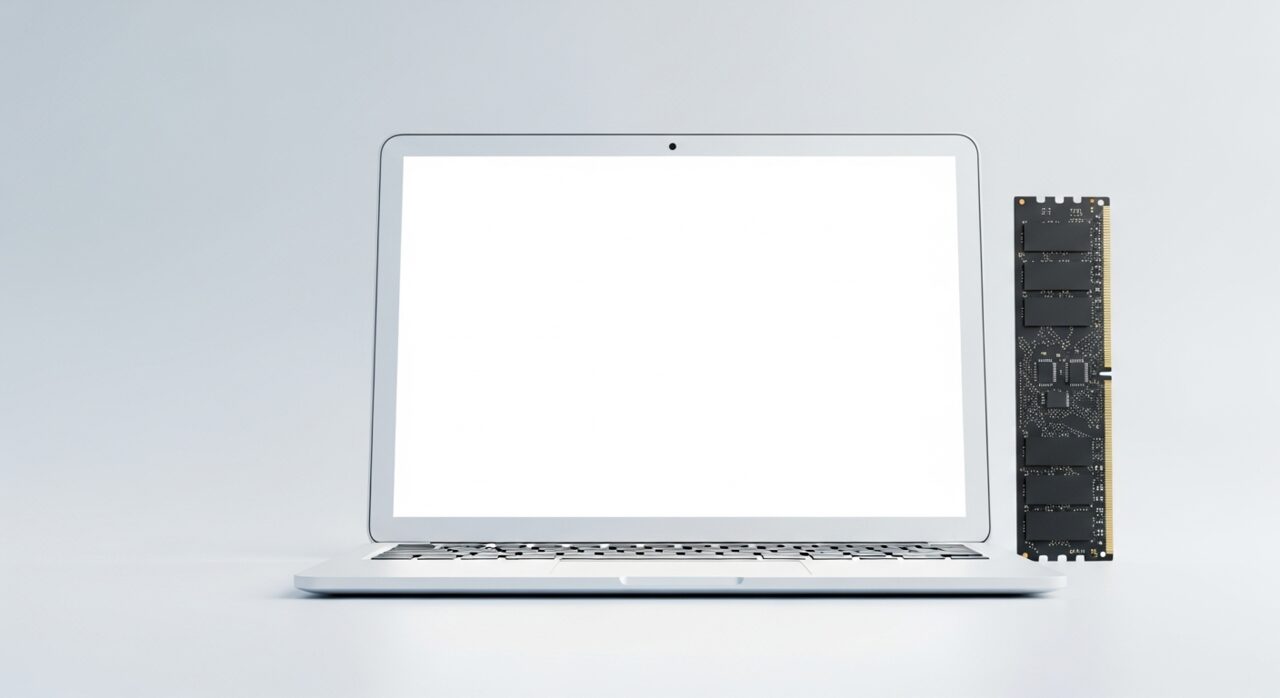
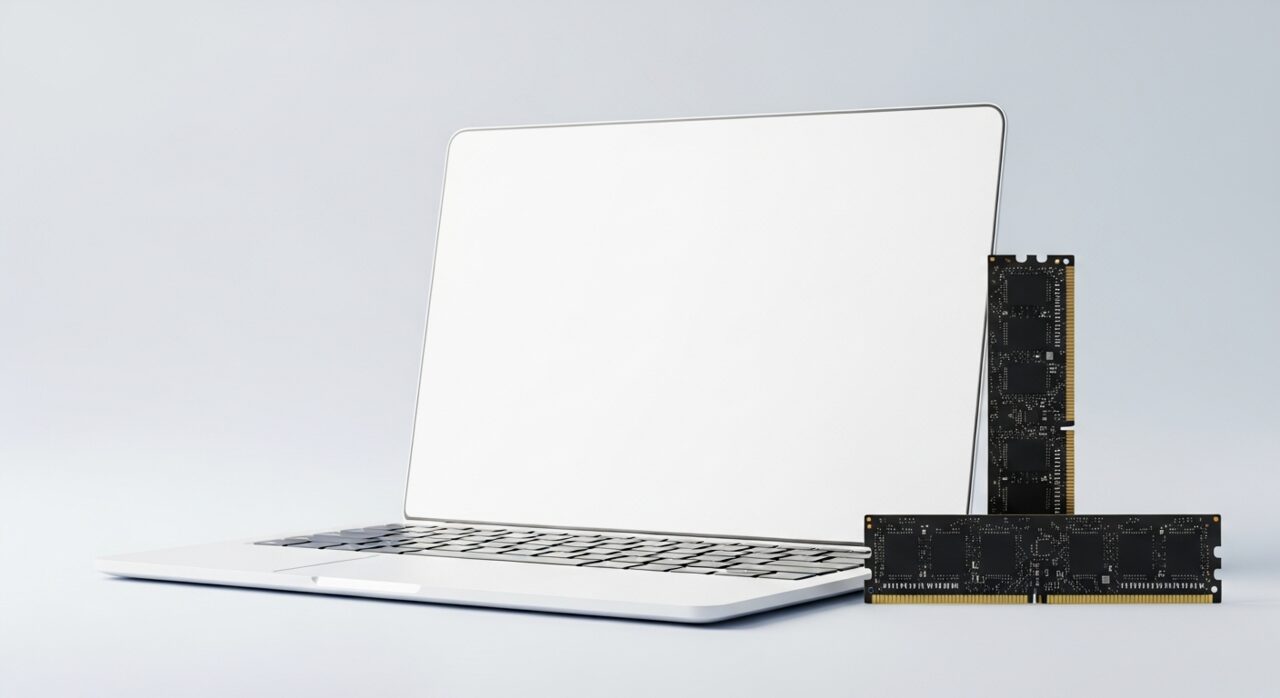
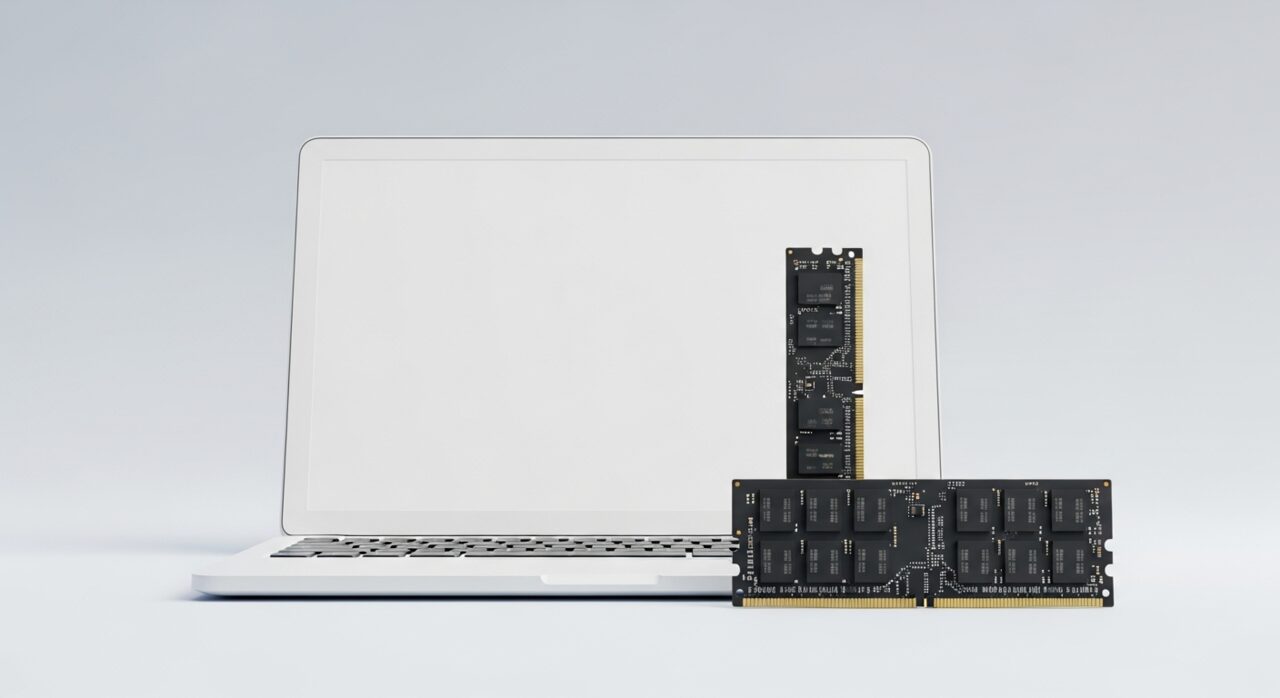
Inside the machine, the processor and memory work together to keep the tasks you want close at hand. When too many programs load at once, memory fills and the system begins parking idle data on the much slower storage drive, then fetching it back as you switch around. Each of those swaps adds a small wait, and the waits stack up into the lag you feel. A nearly full drive worsens this, because the system has little spare room to lay down the temporary working files it constantly relies on.
Symptoms
- On-screen windows and menus take noticeably longer to open than they used to
- Typing or clicking is followed by a short, frustrating delay
- The storage indicator stays lit almost constantly during normal use
- Switching between tasks feels jerky rather than instant
Likely causes
- 1Too many programs loading automatically and competing for memory at startup
- 2A storage device that is nearly full, leaving little room for temporary work files
- 3Background updates or indexing quietly consuming processor time
- 4An ageing mechanical drive that simply reads and writes data slowly
- 5An operating system layer cluttered with leftover services from past installations
What to observe and check
- Note whether the slowness is constant or only appears soon after powering on
- Observe how much free space remains on the main storage device
- Watch which activity indicator stays busy when the lag occurs, storage or processor
- Consider whether the slowdown began after a particular program was added
- Compare performance when only one task is open versus many at once
Step-by-step repair
 1
1Watch the resource indicators
Observe whether memory fills or the storage stays busy during the lag, telling you which resource is being stretched.
 2
2Free up storage space
Clear out files you no longer need so the system has room to lay down the temporary working files it constantly relies on.
 3
3Trim startup programs
Reduce how many programs launch automatically, since each one quietly reserves memory before you have asked for anything.
 4
4Close idle applications and restart
Shut programs you have finished with and restart the machine to release memory the system has been parking on slow storage.
 5
5Confirm everyday tasks feel quicker
Open and switch between a few windows to check that the lag has eased after freeing memory and space.
When to seek help
If the machine grows hot, makes unusual grinding noises from the drive, or slows further despite a clear workload, have it examined before data is at risk.
Reducing the chance it returns
Keeping the main drive comfortably below full gives the system room to breathe, so leave a generous margin of free space and clear out files you no longer need. Be selective about which programs are allowed to launch at startup, since each one quietly reserves memory before you have asked for anything. Close applications you have finished with rather than leaving dozens open, and restart the machine regularly so accumulated background work is cleared. These small, steady habits keep everyday resources available for the task in front of you.
Repair110 is a free, informational resource. These steps describe a careful, general approach — every device is a little different, so work slowly, back up anything you value, and prioritise your own safety. If a step feels beyond your comfort, stop and consult a qualified technician.