Understanding the problem
Short-range pairing is a brief, careful handshake in which two devices agree to trust each other and exchange a shared key. For that to begin, the accessory must be openly announcing itself in discoverable mode; if it is not, nothing appears to connect to. An old saved record can clash with a fresh attempt, leaving the two sides expecting different keys, and an accessory already linked nearby will quietly ignore new requests. Because the handshake is delicate and low-powered, distance or interference can interrupt it partway, so pairing starts hopefully and then falls silent.
Symptoms
- The accessory never appears in the list of available devices
- Pairing starts then fails before completing
- The device connects once but will not reconnect later
- It pairs with one machine but not another
Likely causes
- 1The accessory not placed into discoverable mode
- 2An old or corrupted pairing record confusing the connection
- 3The accessory already linked to another nearby device
- 4An outdated short-range wireless driver in the operating system
- 5Distance or interference disrupting the brief pairing handshake
What to observe and check
- Observe whether the accessory's pairing indicator confirms it is discoverable
- Note if removing a stale saved entry lets a fresh pairing succeed
- Watch whether the device is already connected elsewhere and holding the link
- Check whether moving the two items closer together completes the pairing
Step-by-step repair
 1
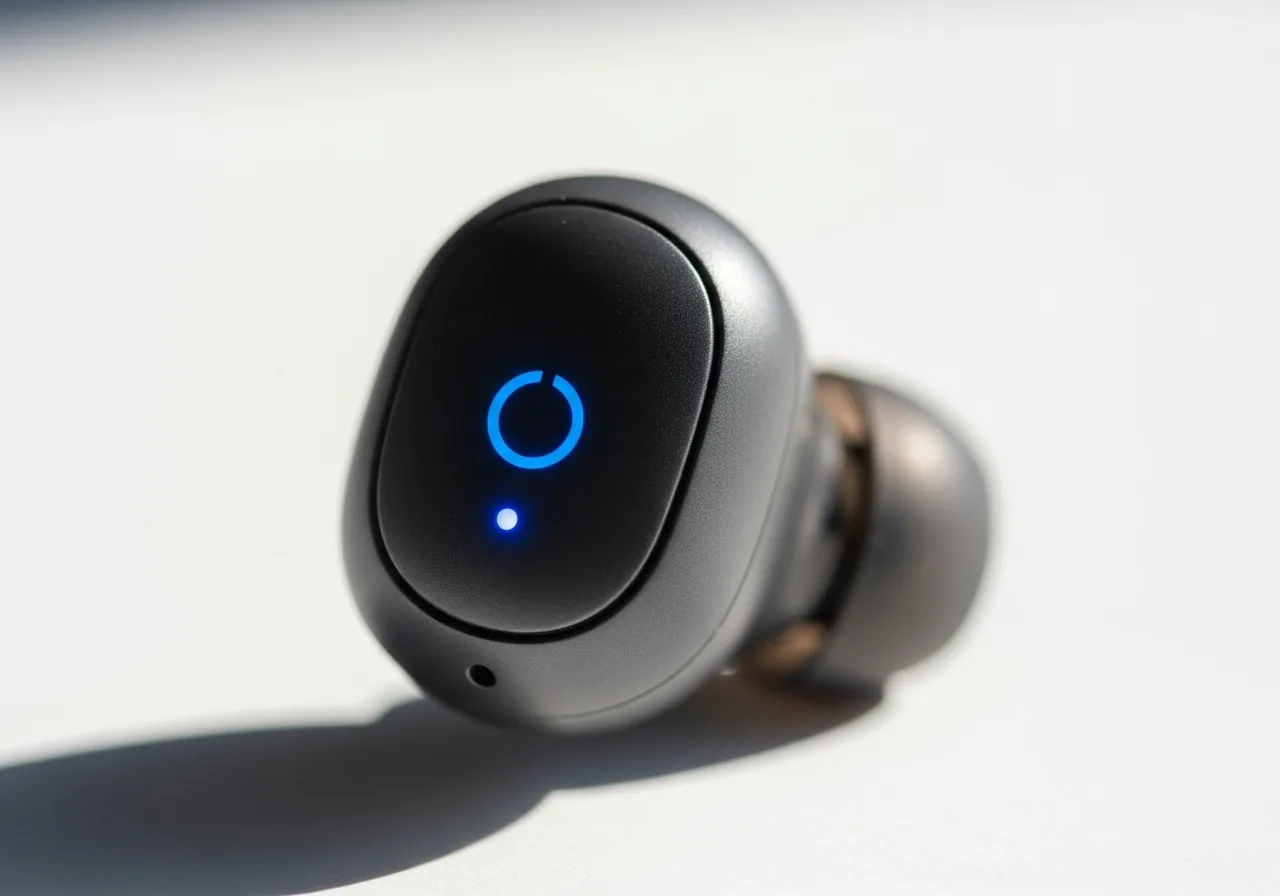
1Check the discoverable indicator
Confirm the accessory's pairing light shows it is openly announcing itself, since nothing can connect to a device that is not in discoverable mode.
 2
2Remove a stale pairing entry
Delete any old saved record for the accessory, as a leftover entry can clash with a fresh attempt and leave the two sides expecting different keys.
 3
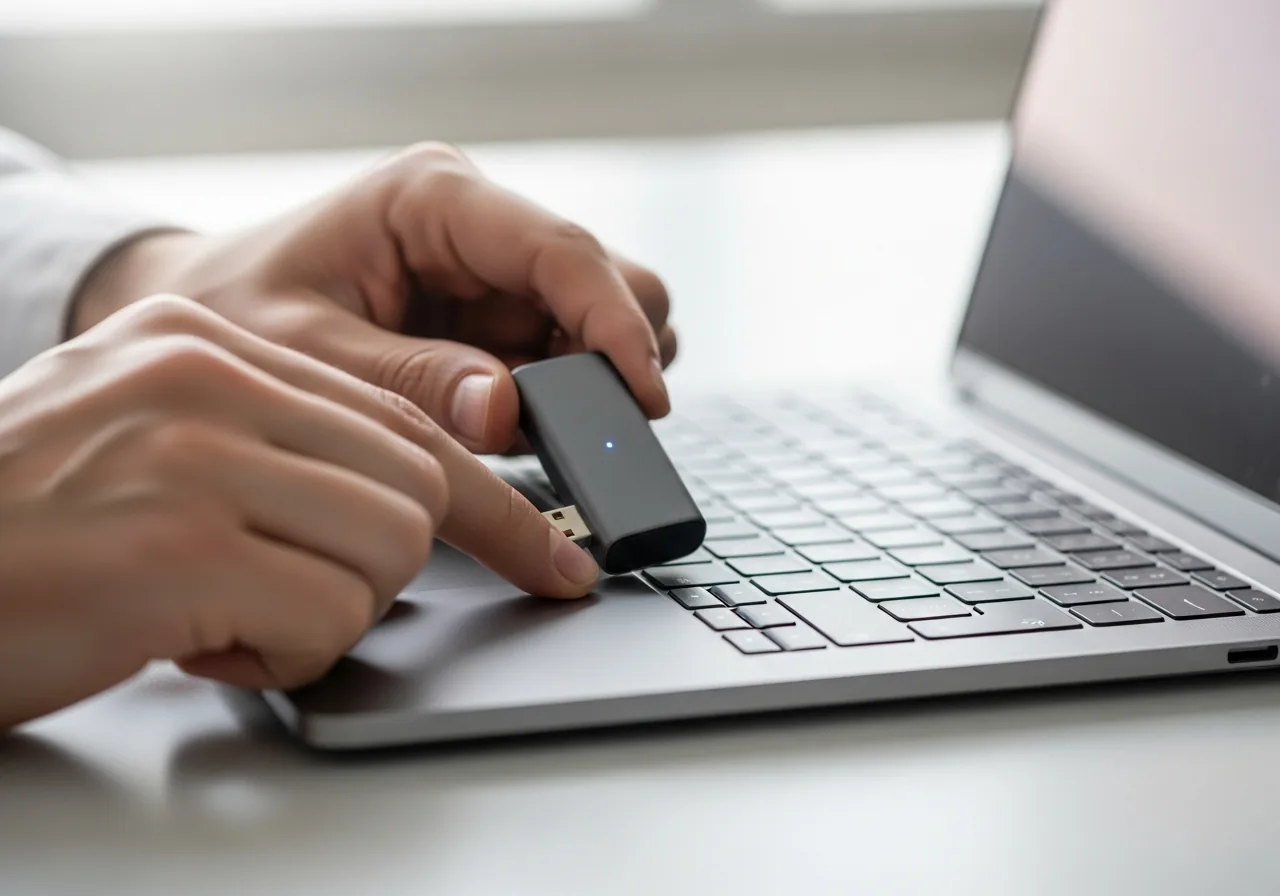
3Move the two items closer
Bring the accessory and the machine near each other, free of obstacles, so the brief, low-powered handshake is not cut short by distance or interference.
 4
4Update the short-range driver
Refresh the short-range wireless driver so the pairing handshake follows the latest rules.
 5
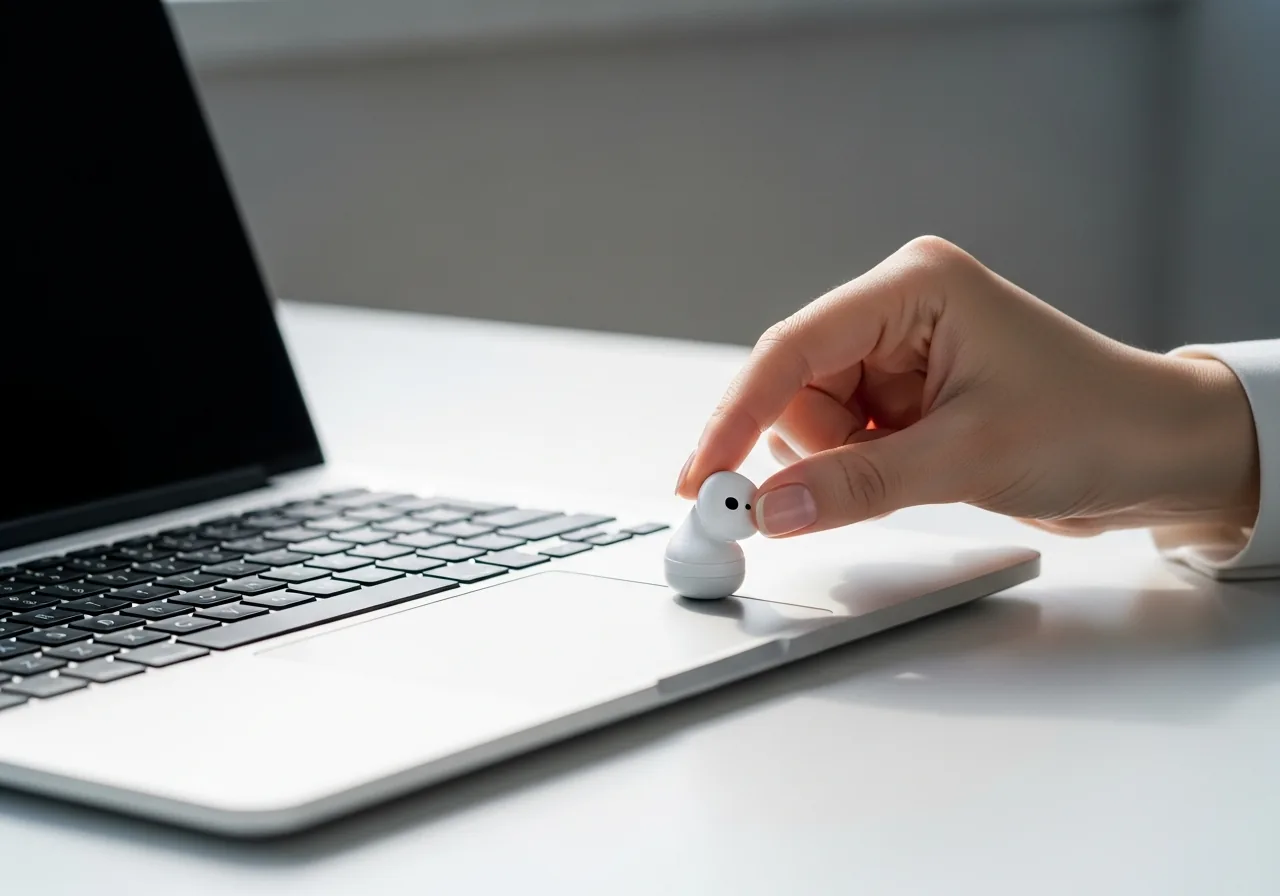
5Confirm the pairing completes
Pair again and check that the accessory connects fully and reconnects cleanly on the next attempt.
When to seek help
If a wireless accessory grows hot while charging or its battery looks swollen, stop using it and have it handled by someone qualified.
Reducing the chance it returns
Keep the two items close and free of obstacles during that first handshake so the brief exchange is not cut short. When an accessory will move between machines, remove the old saved entry on the one you are leaving so it does not cling to a single host. Charge accessories before a long session, since a weak battery can interrupt pairing, and keep the short-range driver current so the handshake follows the latest rules. Putting the accessory deliberately into discoverable mode each time avoids the most common false start.
Repair110 is a free, informational resource. These steps describe a careful, general approach — every device is a little different, so work slowly, back up anything you value, and prioritise your own safety. If a step feels beyond your comfort, stop and consult a qualified technician.