Understanding the problem
A connected icon only confirms that your device has joined the router; it says nothing about the journey beyond. Once joined, the device still needs a valid address handed to it and a working translator that turns site names into numbers. If either step stalls, or the router has joined your devices yet lost its own line to the outside, traffic reaches a dead end. The signal looks healthy because the short hop to the router succeeded, while the longer chain of handoffs that actually carries pages quietly failed somewhere further along.
Symptoms
- The wireless icon shows a full connection yet pages fail to load
- Apps report no internet despite a working signal
- The problem affects every device or just one on the same network
- A warning appears that the connection has no internet access
Likely causes
- 1The line beyond the home router has gone down at the provider
- 2An address assignment problem leaving the device without valid network settings
- 3A name-resolution failure stopping addresses from being looked up
- 4Outdated network settings cached in the operating system
- 5A router that is online for local devices but has lost its uplink
What to observe and check
- Observe whether every device loses internet or only one, separating the router from the device
- Note if restarting brings it back briefly, hinting at an address or session issue
- Watch whether the router's own status indicators show a healthy outside connection
- Check whether the fault began after a settings change on the affected device
Step-by-step repair
 1
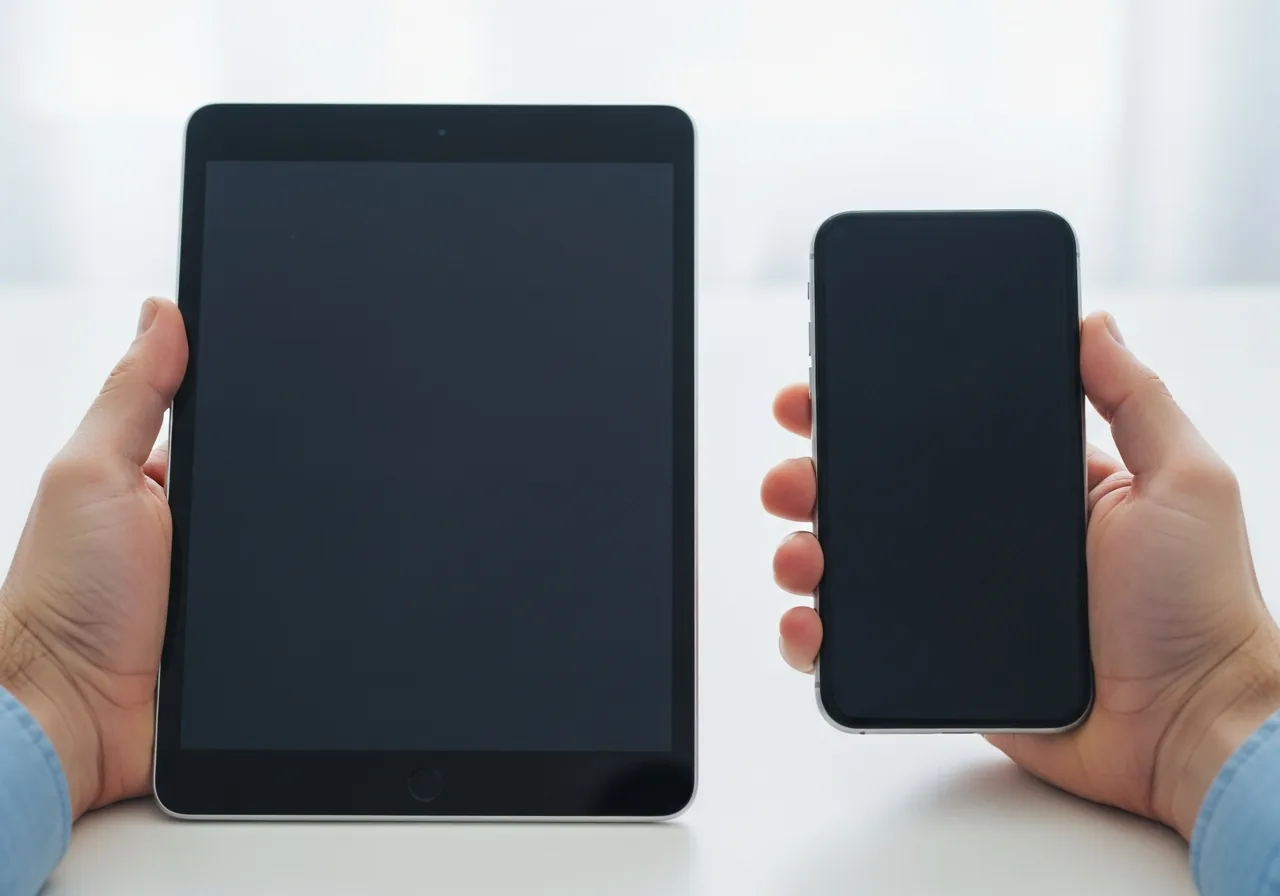
1Test on a second device
Try loading a page on another device on the same network to learn whether the problem affects everything, pointing at the router, or just one machine.
 2
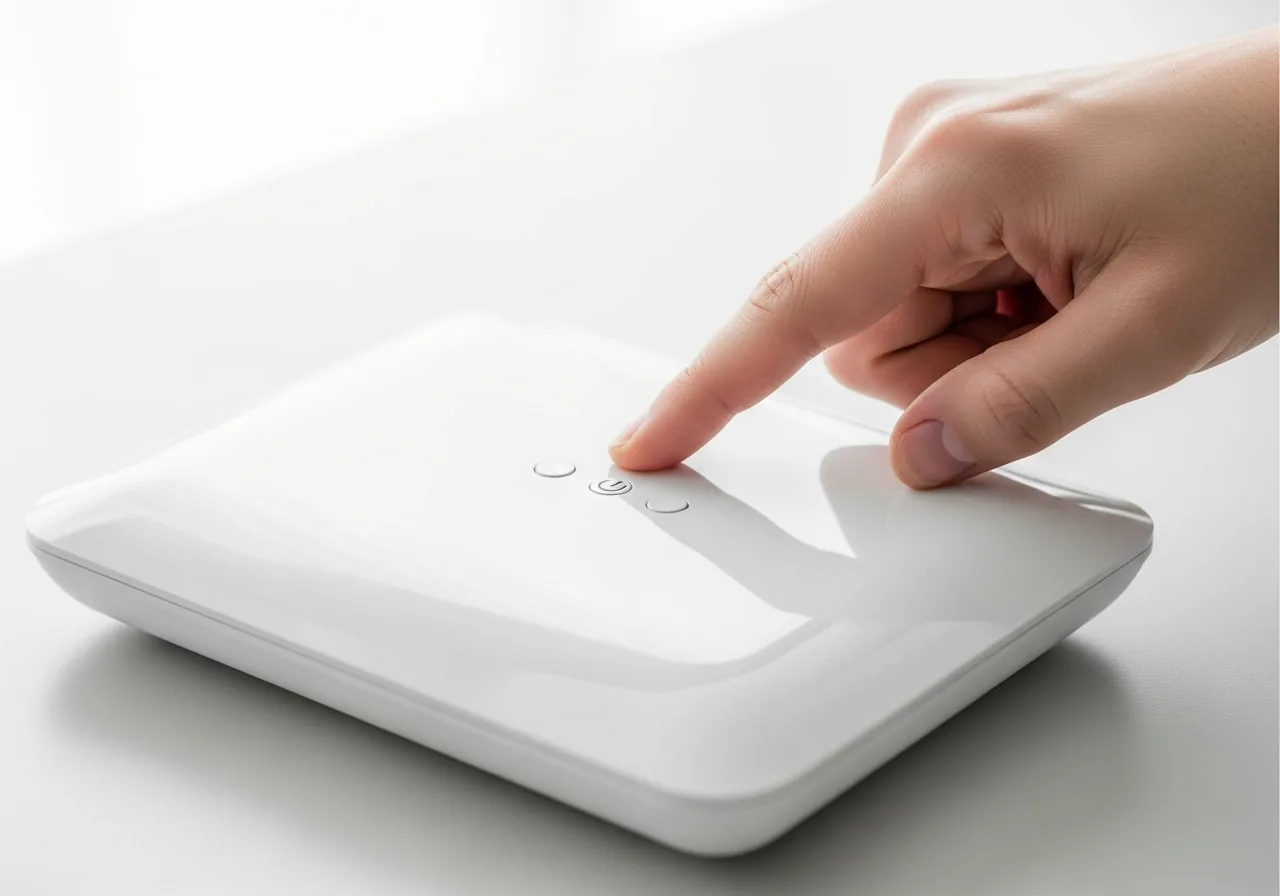
2Restart the router
Power the router off for a short moment then on again so its address tables and outside session refresh rather than staying stale.
 3
3Renew the network address
Have the affected device request a fresh address, leaving automatic assignment in place, since hand-typed settings are a common source of silent breaks.
 4
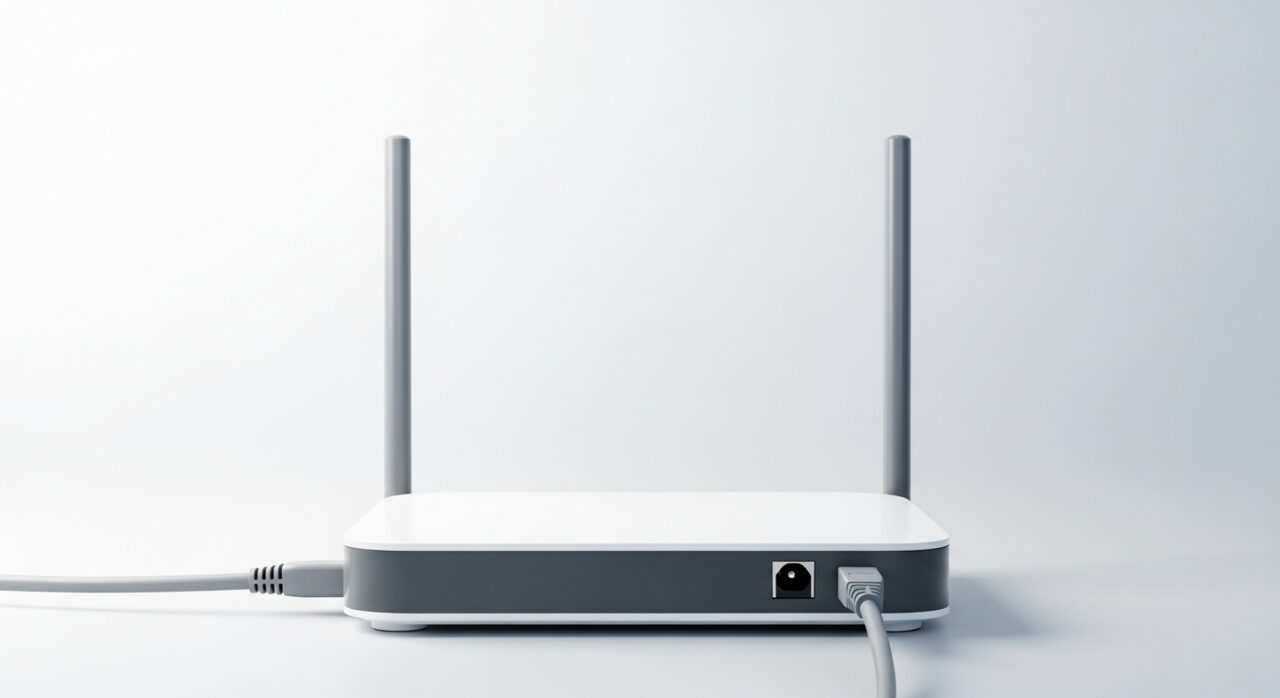
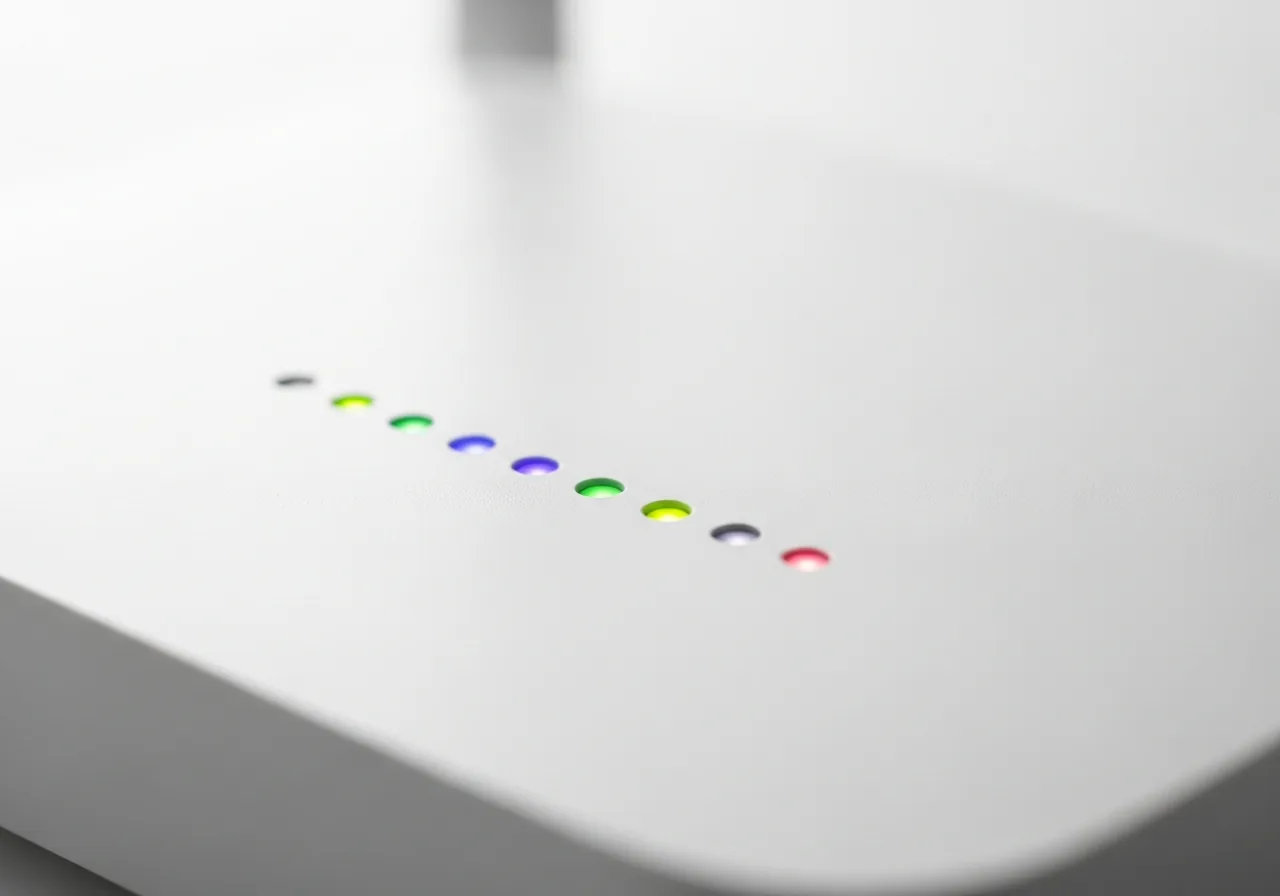
4Check the router's uplink lights
Look at the router's status indicators to confirm its line to the outside is healthy and it has not simply lost its own uplink.
 5
5Reload a page to confirm
Open a website again and check that pages load normally rather than reporting no internet access.
When to seek help
If router hardware feels hot, smells burnt, or shows scorch marks, unplug it and seek qualified help before powering it on again.
Reducing the chance it returns
Give the router a calm, ventilated spot and an occasional restart so its address tables and outside session stay fresh rather than slowly drifting. Leave automatic address assignment in place unless you have a clear reason to change it, since hand-typed settings are the usual source of silent breaks. When the wider line is the weak point, note when outages happen so a pattern becomes visible. Keeping a second way online, such as a phone link, lets you tell a passing outside fault from something on your own equipment.
Repair110 is a free, informational resource. These steps describe a careful, general approach — every device is a little different, so work slowly, back up anything you value, and prioritise your own safety. If a step feels beyond your comfort, stop and consult a qualified technician.