Understanding the problem
Over months and years, a device quietly gathers weight. Each program added leaves something behind that loads at startup, temporary files and caches pile up unseen, and successive system updates layer fresh code over old. At the same time, dust settles into the cooling pathways and raises temperatures, while a storage device slowly tires as it nears the end of its working life. None of these changes is dramatic on its own, but together they explain why a machine that once felt instant now carries a steady, growing delay through everyday tasks.
Symptoms
- Tasks that once felt instant now carry a steady, growing delay
- Startup takes considerably longer than it did when the device was new
- Free storage space has shrunk while everyday habits stayed the same
- The device runs warmer and noisier during ordinary work than before
Likely causes
- 1Years of installed programs each adding their own startup load
- 2Temporary files, caches, and logs building up across the system
- 3Cooling pathways gradually clogged with dust, raising temperatures
- 4An ageing storage device slowing as it nears the end of its life
- 5An operating system layer carrying the weight of many past updates
What to observe and check
- Compare current startup time with how the device behaved when newer
- Observe how much storage has filled up relative to a year ago
- Note whether the decline was gradual or stepped after a particular change
- Consider whether the device has ever had its vents cleared of dust
- Reflect on how many programs now launch automatically at startup
Step-by-step repair
 1
1Remove programs no longer used
Uninstall software you have stopped using rather than letting it linger and load quietly in the background.
 2
2Trim the startup list
Reduce the items that launch automatically so the machine begins its day light and starts up more quickly.
 3
3Clear temporary files
Remove the temporary files, caches, and logs that build up unseen, and keep a healthy margin of free storage.
 4
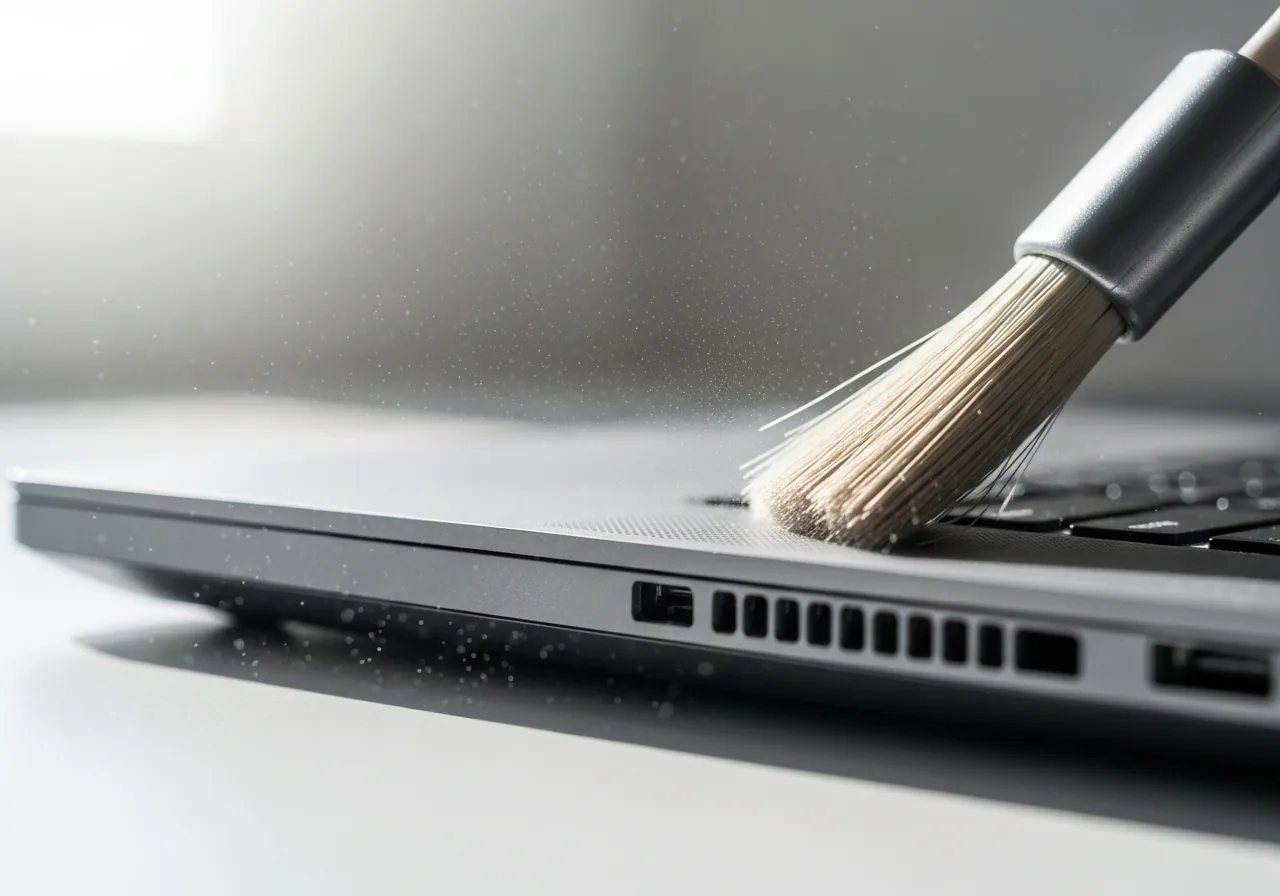
4Clear dust from the vents
Wipe dust from the cooling pathways on a regular schedule, since clean airflow protects both speed and the device's lifespan.
 5
5Confirm everyday speed improves
Run a few familiar tasks and compare against recent sluggishness to check the upkeep has lifted the drift.
When to seek help
If a gradual decline turns into sudden freezes, unusual drive noises, or shutdowns from heat, have the device inspected so worn hardware can be ruled out.
Reducing the chance it returns
A little routine upkeep slows this gentle decline considerably. Remove programs you no longer use rather than letting them linger, and trim the list of items that launch at startup so the machine begins its day light. Clear away temporary files periodically and keep a healthy margin of free storage. Wipe dust from the vents on a regular schedule, since clean airflow protects both speed and lifespan. Keeping an eye on the storage device as it ages lets you plan calmly, well before tiredness turns into outright trouble.
Repair110 is a free, informational resource. These steps describe a careful, general approach — every device is a little different, so work slowly, back up anything you value, and prioritise your own safety. If a step feels beyond your comfort, stop and consult a qualified technician.