Understanding the problem
A wired connection depends on an unbroken electrical path from the device, through the lead, to the socket at the other end. The small clip on the connector holds the contacts firmly together, and when it wears or snaps the pins lose their grip and the link never registers. A bent or crushed cable, a tired wall point, or a port that has been switched off in software all break that path in different places. The device simply reports no cable because, electrically, it can see nothing reliable on the line at all.
Symptoms
- Plugging in the cable produces no connection at all
- The port shows no activity lights when a lead is attached
- The system reports no cable connected despite a firm plug
- The same port works with one cable but not another
Likely causes
- 1A damaged cable or a connector clip that no longer holds
- 2A faulty socket on the wall, switch, or computer
- 3A disabled wired adapter in the operating system settings
- 4An outdated or missing wired-adapter driver
- 5A failing network port on the device itself
What to observe and check
- Observe whether the port's activity lights respond when a known-good cable is used
- Note if a different socket restores the connection, isolating the wall point
- Watch whether the adapter appears as enabled in system settings
- Check whether another device works on the same cable and socket
Step-by-step repair
 1
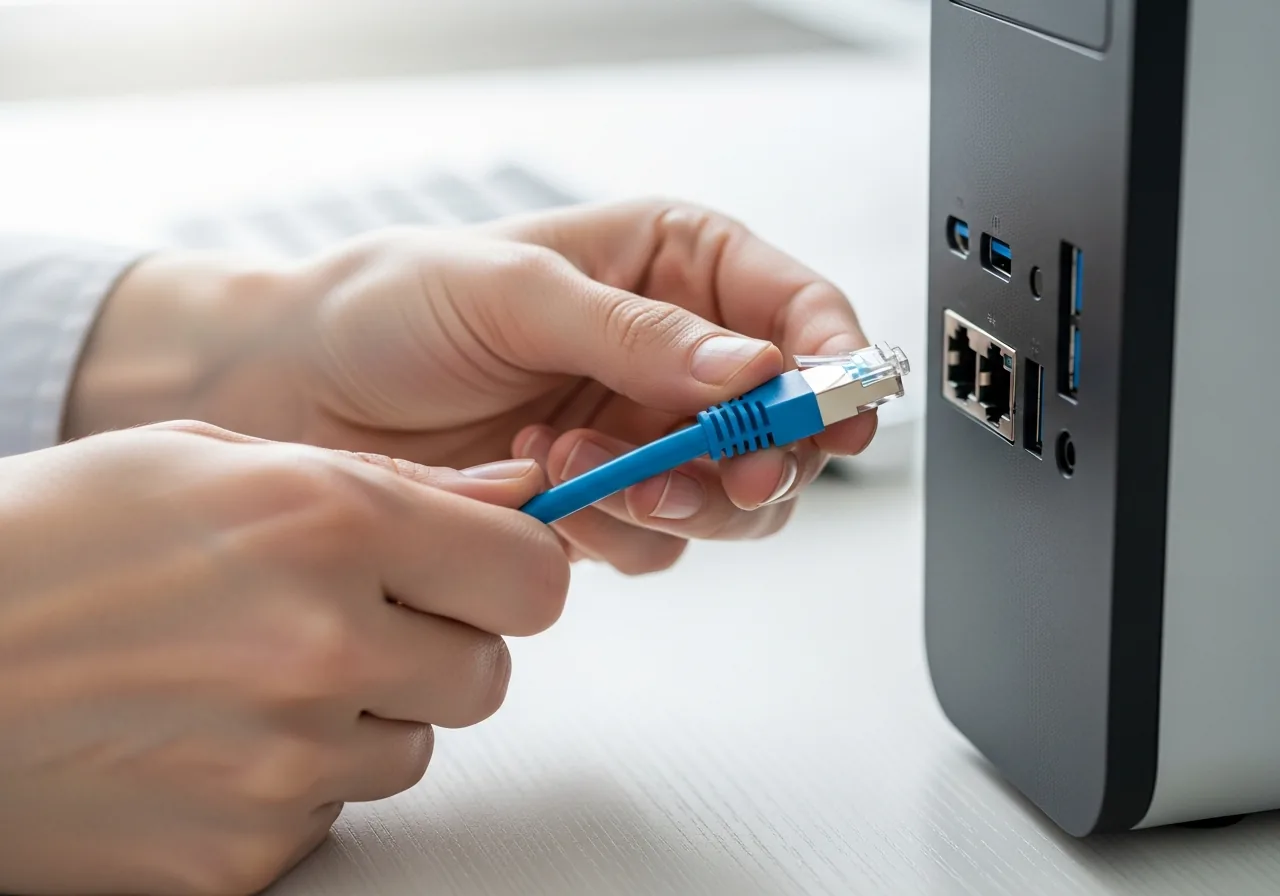
1Swap in a known-good cable
Replace the lead with one proven to work, since a crushed or bent cable breaks the electrical path and the link never registers.
 2
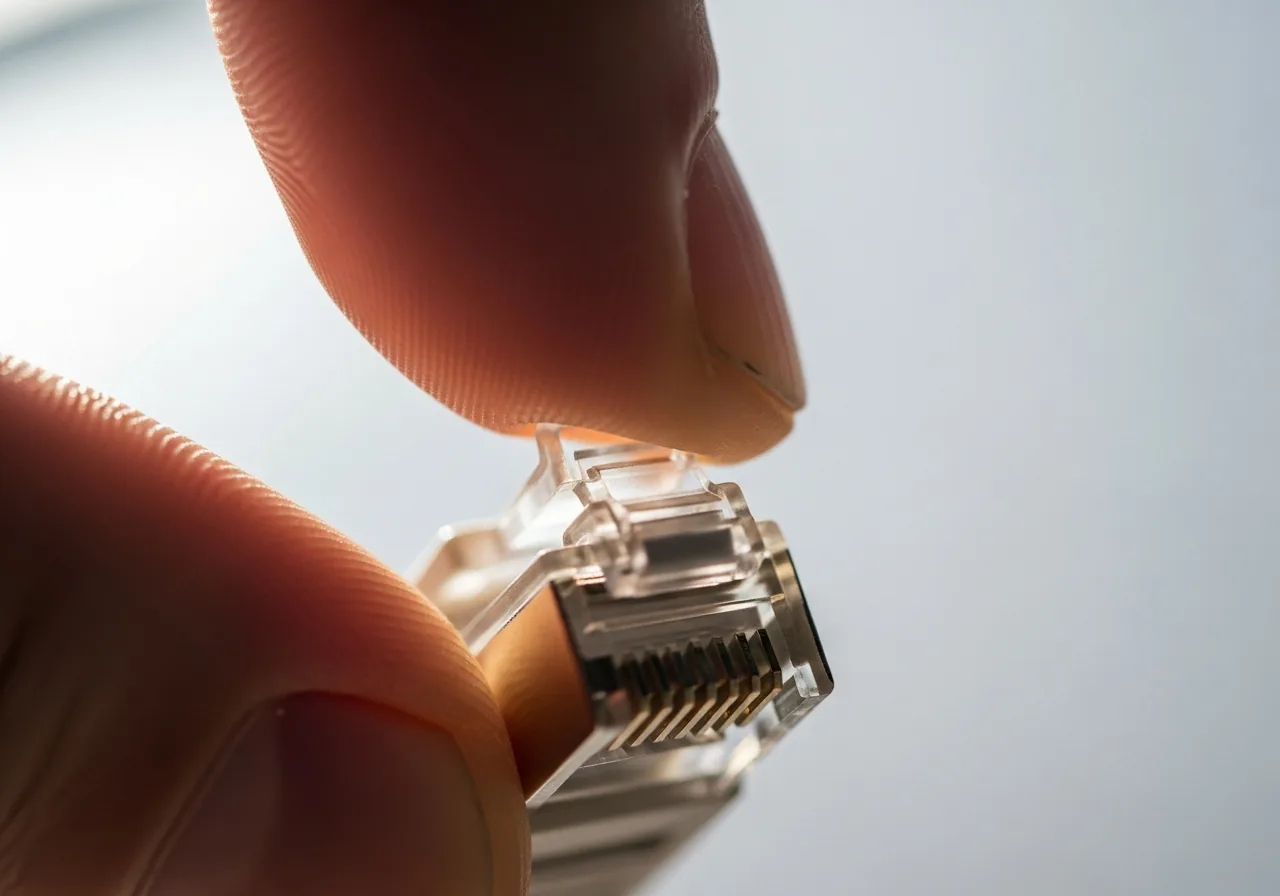
2Inspect the connector clip
Look at the small latch on each plug; when it wears or snaps the pins lose their grip and the contacts no longer hold firmly together.
 3
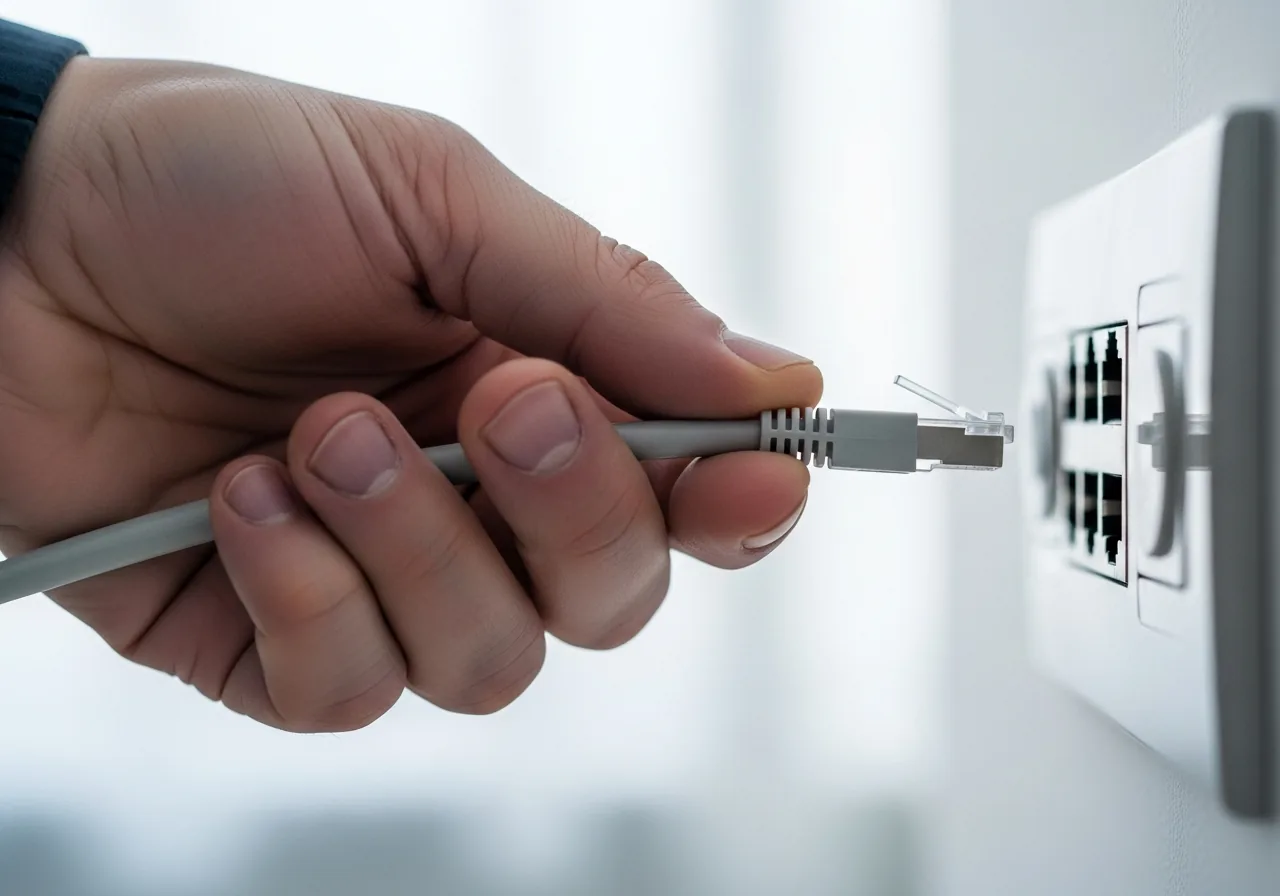
3Try a different socket
Move the lead to another wall point or port to learn whether a tired socket, rather than the cable, is breaking the path.
 4
4Enable the wired adapter
Check the operating system settings and switch the wired adapter back on if it has been disabled in software.
 5
5Update the adapter driver
Refresh or install the wired-adapter driver so a missing one no longer stops the connection from registering.
 6
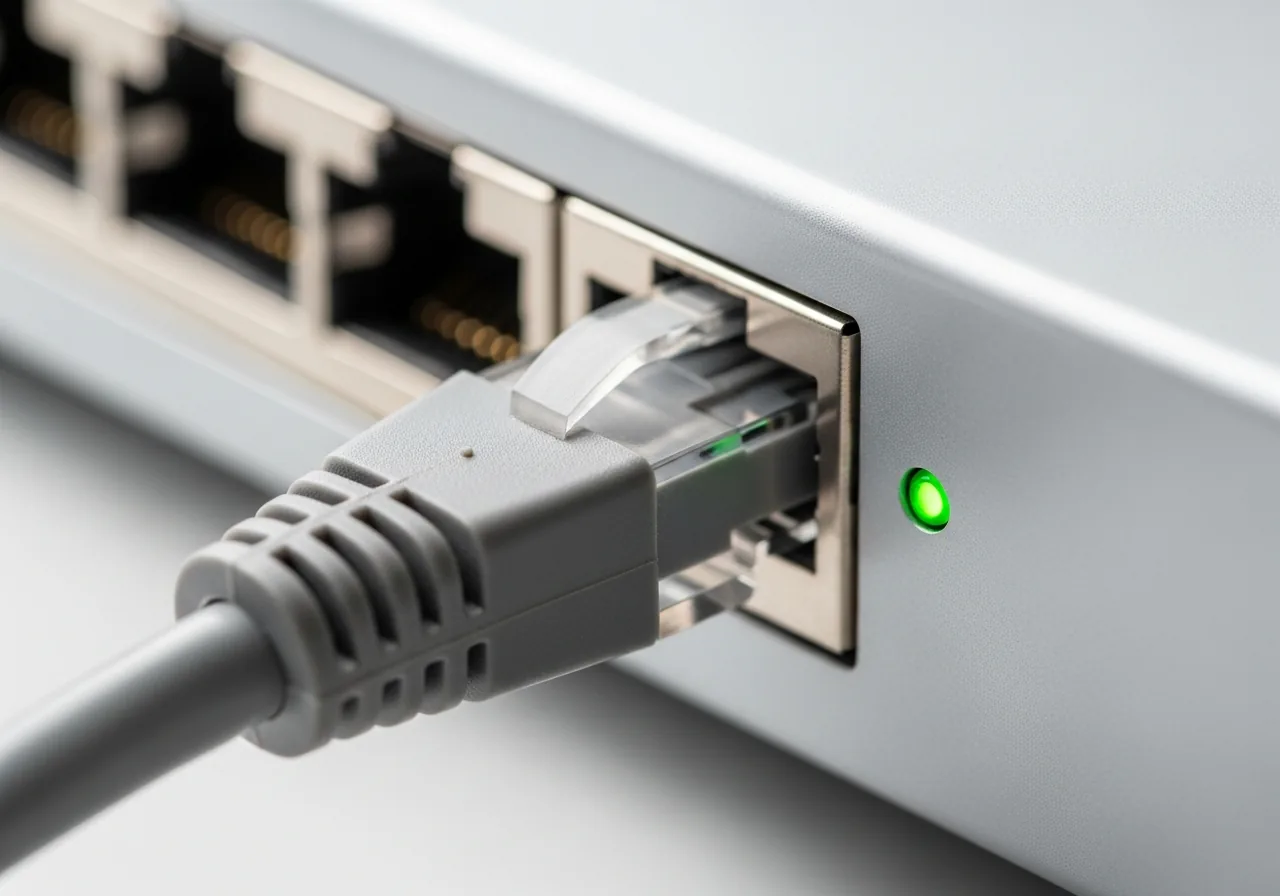
6Confirm the link registers
Plug in and check that the port's activity lights respond and the system reports a connected cable.
When to seek help
If a port shows scorching, the cable feels hot, or you notice a burnt smell, stop using it and seek qualified assistance.
Reducing the chance it returns
Route cables so they are not pinched under furniture, stretched taut, or bent sharply where they enter the connector, since that is where the clip and wires fail first. Push each plug home until it clicks and check that the latch is intact before relying on it. Keep spare leads in good order so a suspect one can be swapped quickly, and leave the wired adapter enabled in settings so it is ready when needed. Treating sockets and connectors gently, rather than tugging on the cable, keeps the path dependable.
Repair110 is a free, informational resource. These steps describe a careful, general approach — every device is a little different, so work slowly, back up anything you value, and prioritise your own safety. If a step feels beyond your comfort, stop and consult a qualified technician.