Understanding the problem
When a file is deleted, the data itself is usually left untouched at first; the system merely marks the space it occupies as free to reuse. The entry that pointed to the file is removed, so it vanishes from view, but the underlying bytes often remain intact and recoverable. Trouble begins only when something new is written into that freed space, overwriting the old contents for good. This is why the early minutes matter so much: the file is not gone, only unprotected, and every new write to the drive narrows the window in which it can return.
Symptoms
- A file or folder you needed has suddenly disappeared
- A storage area was emptied or reformatted before you meant to
- Files were dragged or moved somewhere and cannot be located
- An overwrite replaced a document with a blank or wrong version
Likely causes
- 1A misplaced click or keystroke removing the wrong item
- 2Emptying a recycling area without checking its contents first
- 3Saving a new file over an existing one with the same name
- 4Synchronisation propagating a deletion across linked copies
- 5Reformatting or clearing the wrong storage location by mistake
What to observe and check
- Note exactly when the deletion happened and what was lost
- Observe whether the file still sits in a recycling or recovery area
- Consider stopping further use of that storage to protect the data
- Understand that new writes can permanently overwrite recoverable files
- Watch whether a backup or earlier copy already holds the file
Step-by-step repair
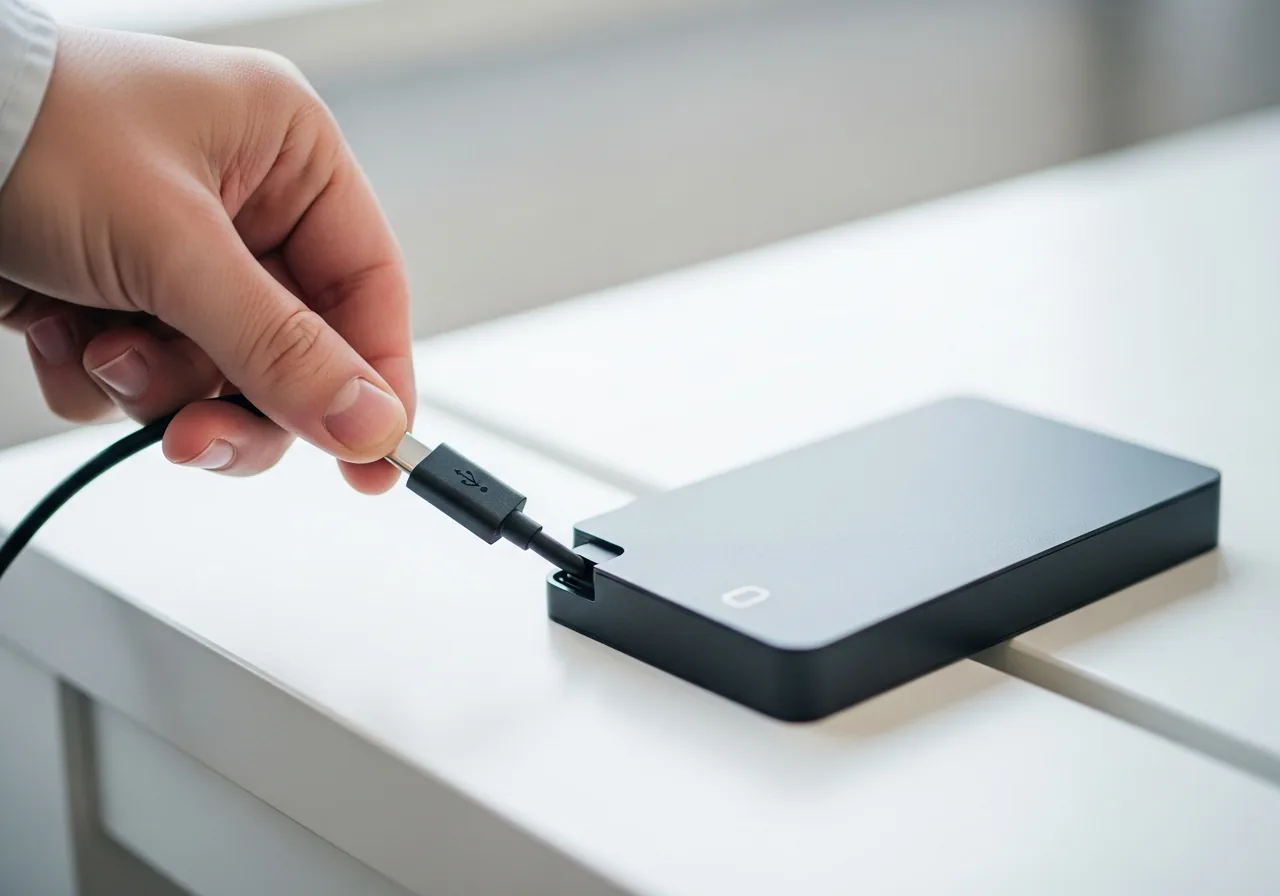 1
1Stop using that storage
Pause any further activity on the affected drive at once, since every new file written can overwrite the deleted data for good.
 2
2Check the recovery area
Look in the recycling or recovery area first, where a recently deleted item often still sits and can simply be put back.
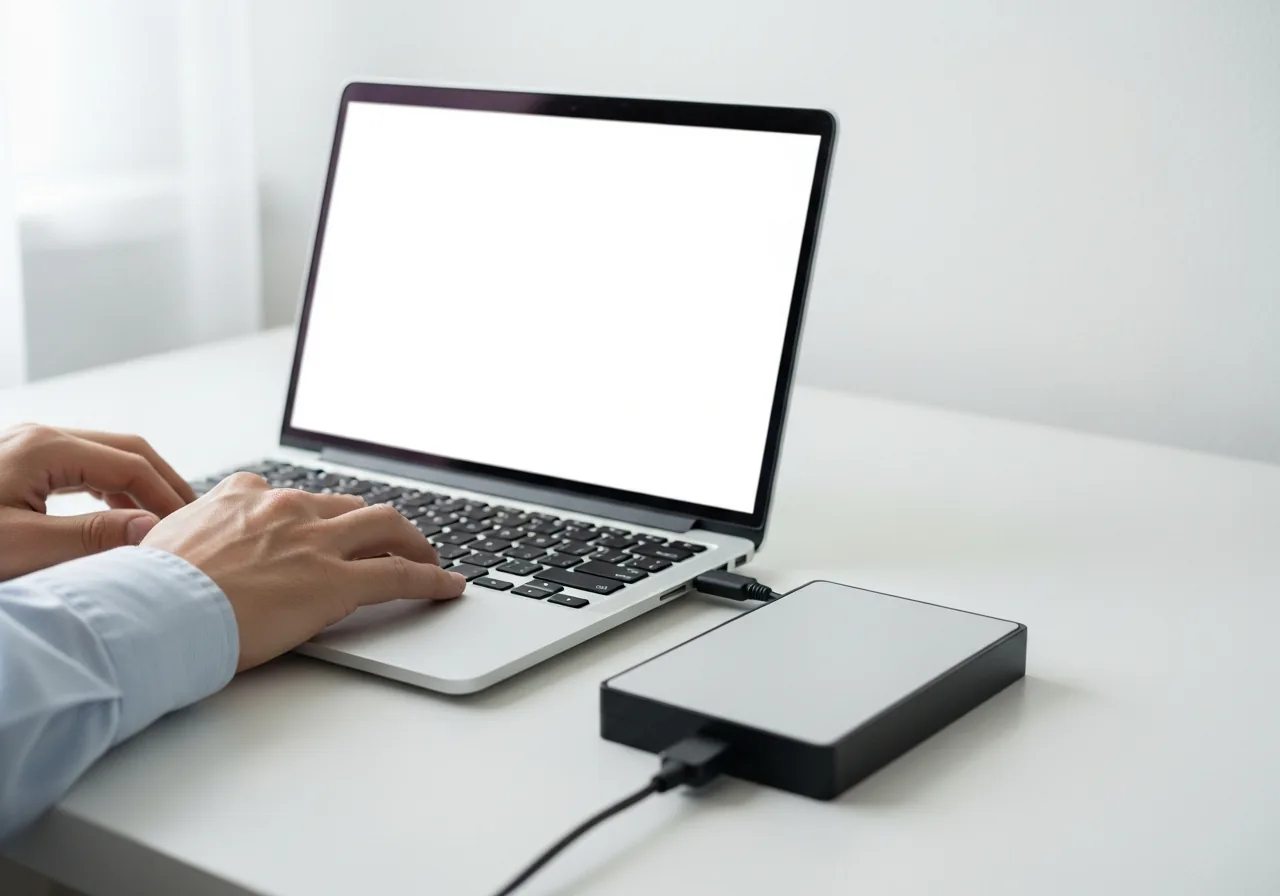 3
3Look for an existing copy
Search any backup or earlier version for the lost file, which turns an anxious recovery into a quick and certain restore.
 4
4Avoid new writes meanwhile
Refrain from saving, installing, or copying anything onto that storage until the file is recovered, to keep the freed space intact.
 5
5Confirm the file is back
Open the recovered file to check it is complete and readable, rather than assuming its return from the listing alone.
When to seek help
If deleted data is irreplaceable and no backup exists, stop using the device immediately and consult a recovery professional; every new file written lowers the chance of recovery.
Reducing the chance it returns
The kindest habit is to slow down around anything that removes files, pausing to read what is selected before confirming. Keep a recycling or recovery area enabled so a stray click is easily undone rather than final. Be especially careful when emptying that area or reformatting storage, and double-check the location first. Where synchronisation is in use, remember that a deletion can travel to every linked copy, so keep an independent copy that does not follow along. Maintaining recent backups means an accidental deletion becomes a quick restore rather than an anxious recovery attempt.
Repair110 is a free, informational resource. These steps describe a careful, general approach — every device is a little different, so work slowly, back up anything you value, and prioritise your own safety. If a step feels beyond your comfort, stop and consult a qualified technician.