
Understanding the problem
A file is simply a long sequence of bytes arranged in a precise structure that a program knows how to read. Corruption means that structure has been disturbed, so the program reaches a point where the data no longer makes sense and gives up. This usually happens when writing is interrupted partway, when a storage error records the wrong values, or when a transfer copies only part of the whole. The file is not haunted; a few wrong or missing bytes are simply enough to break the pattern the software depends upon.
Symptoms
- A file refuses to open or reports that it is damaged
- Content appears scrambled, incomplete, or full of unreadable characters
- A program freezes or closes whenever that one file is loaded
- The file size looks wrong, far too small or oddly large
Likely causes
- 1Power loss or a crash while the file was being saved
- 2Storage errors writing the data incorrectly to the drive
- 3An interrupted transfer leaving the file only partly copied
- 4Software in the system layer writing the file in an inconsistent state
- 5A failing storage device introducing errors as it ages
What to observe and check
- Note whether only one file is affected or many at once
- Observe whether the corruption followed a crash or interrupted save
- Consider whether a backup or earlier version of the file exists
- Understand that widespread corruption often points to the drive itself
- Watch whether newly created files also become corrupted
Step-by-step repair
 1
1Check how widespread it is
Note whether only one file refuses to open or many do at once, since widespread damage often points to the storage rather than the file.
 2
2Look for an earlier copy
Search any backup or previous version for an undamaged copy of the file, which is often the quickest path back to its contents.
 3
3Let saves finish cleanly
Allow writes and transfers to complete before closing programs, removing drives, or cutting power, since interrupted saves are a common cause.
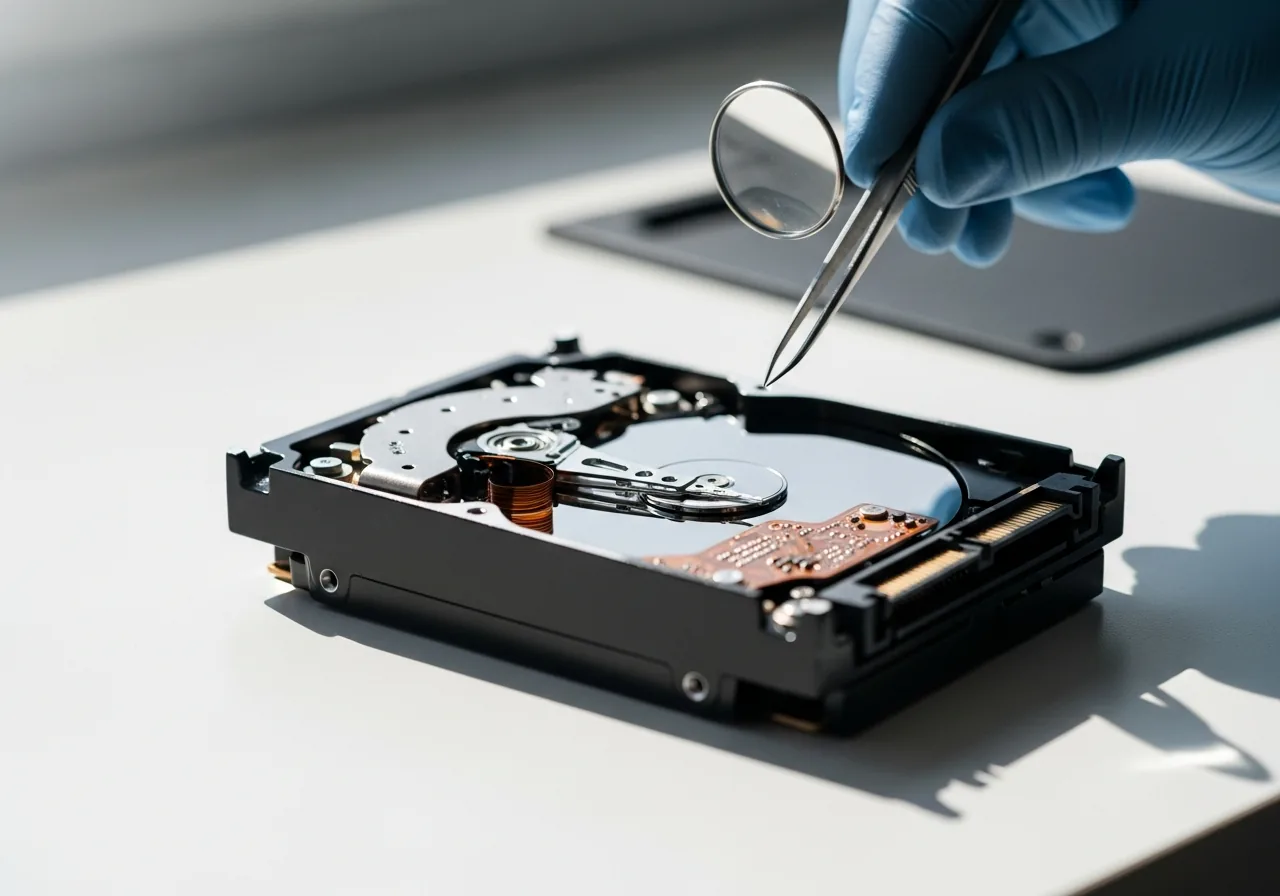 4
4Watch for repeat damage
Keep an eye on whether newly created files also corrupt, as repeated damage is the drive itself signalling that it needs attention.
 5
5Confirm new files save well
Create and reopen a fresh file to check it saves and reads correctly, confirming the problem was isolated rather than spreading.
When to seek help
If files corrupt repeatedly across the device, the storage may be failing; back up what remains readable and seek qualified help before the problem spreads further.
Reducing the chance it returns
Most corruption traces back to writing that never finished cleanly, so the strongest habit is to let saves and transfers complete before closing programs, removing drives, or cutting the power. Guard against sudden shutdowns where you can, since an unexpected loss of power mid-write is a common culprit. Keep earlier versions or copies of files that matter, so a single damaged one is never the only one. And watch a drive that corrupts files more than once, because repeated damage is the storage itself signalling that it needs attention before the pattern spreads.
Repair110 is a free, informational resource. These steps describe a careful, general approach — every device is a little different, so work slowly, back up anything you value, and prioritise your own safety. If a step feels beyond your comfort, stop and consult a qualified technician.