Understanding the problem
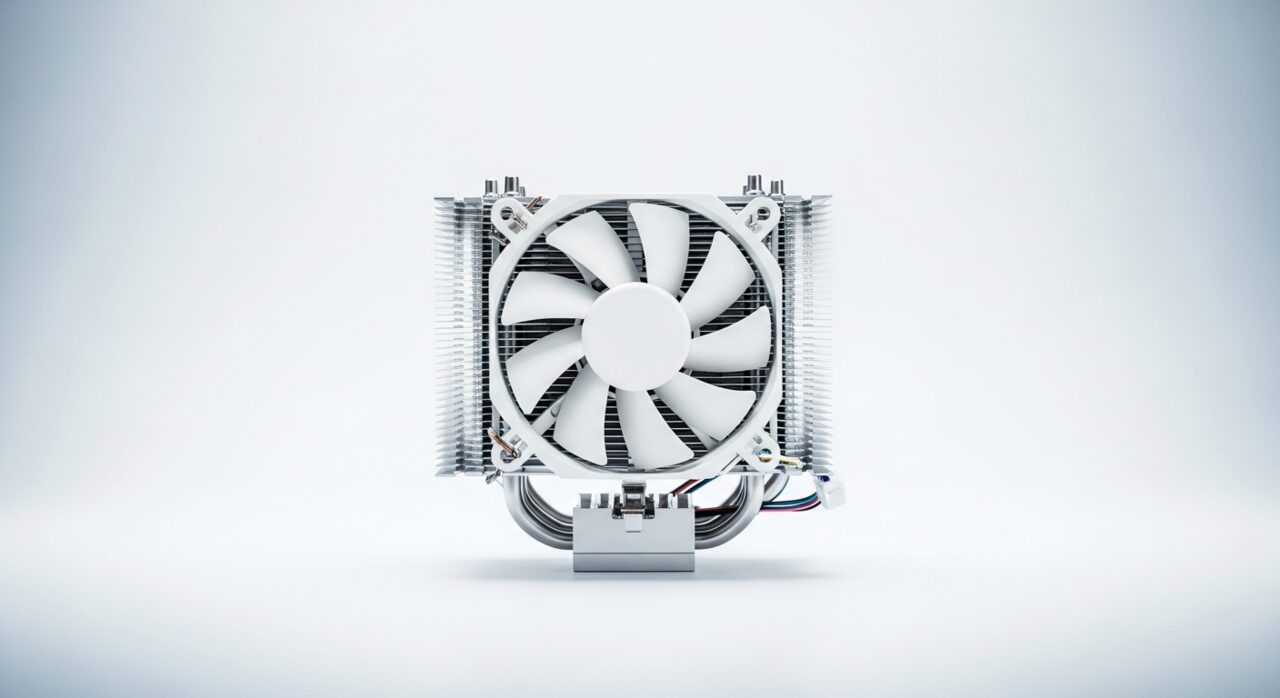
Every working chip turns electricity into heat, which a heatsink and fan are meant to carry away as fast as it forms. A device runs hotter when that balance tips, so heat builds inside instead of escaping. Usually the path out has narrowed, perhaps from dust on the fins, a blocked vent, or thermal paste that has dried and conducts poorly. Sometimes the cause is on the input side, with software keeping the processor busy and generating more heat than the cooling was ever designed to remove in calm conditions.
Symptoms
- The casing feels noticeably warm to the touch during ordinary use
- Fans spin up sooner and stay loud for longer than they used to
- Performance dips when the device has been running for a while
- The underside or vent area becomes uncomfortable to rest against
Likely causes
- 1Dust gradually coating the heatsink fins and slowing heat transfer
- 2Vents resting against soft surfaces that block the flow of air
- 3Background tasks keeping the processor busier than you expect
- 4Aged thermal paste that no longer carries heat efficiently to the heatsink
- 5Ambient room temperature higher than the cooling was designed for
What to observe and check
- Note whether the warmth appears at idle or only under heavy work
- Observe if raising the device onto a hard, flat surface changes how hot it gets
- Listen to whether the fans react to the heat or stay strangely quiet
- Consider whether the change followed a software update or a new habit of use
Step-by-step repair
 1
1Check when the heat appears
Notice whether the device runs warm even at rest or only under heavy work, as this points to either constant background load or a cooling path that has narrowed.
 2
2Free the vents and surface
Lift the device onto a firm, flat surface so the vents are not smothered by bedding or a lap, and confirm warm air can leave freely.
 3
3Review background activity
Look for tasks that linger after you finish with them and keep the processor busier than expected, then close any that no longer need to run.
 4
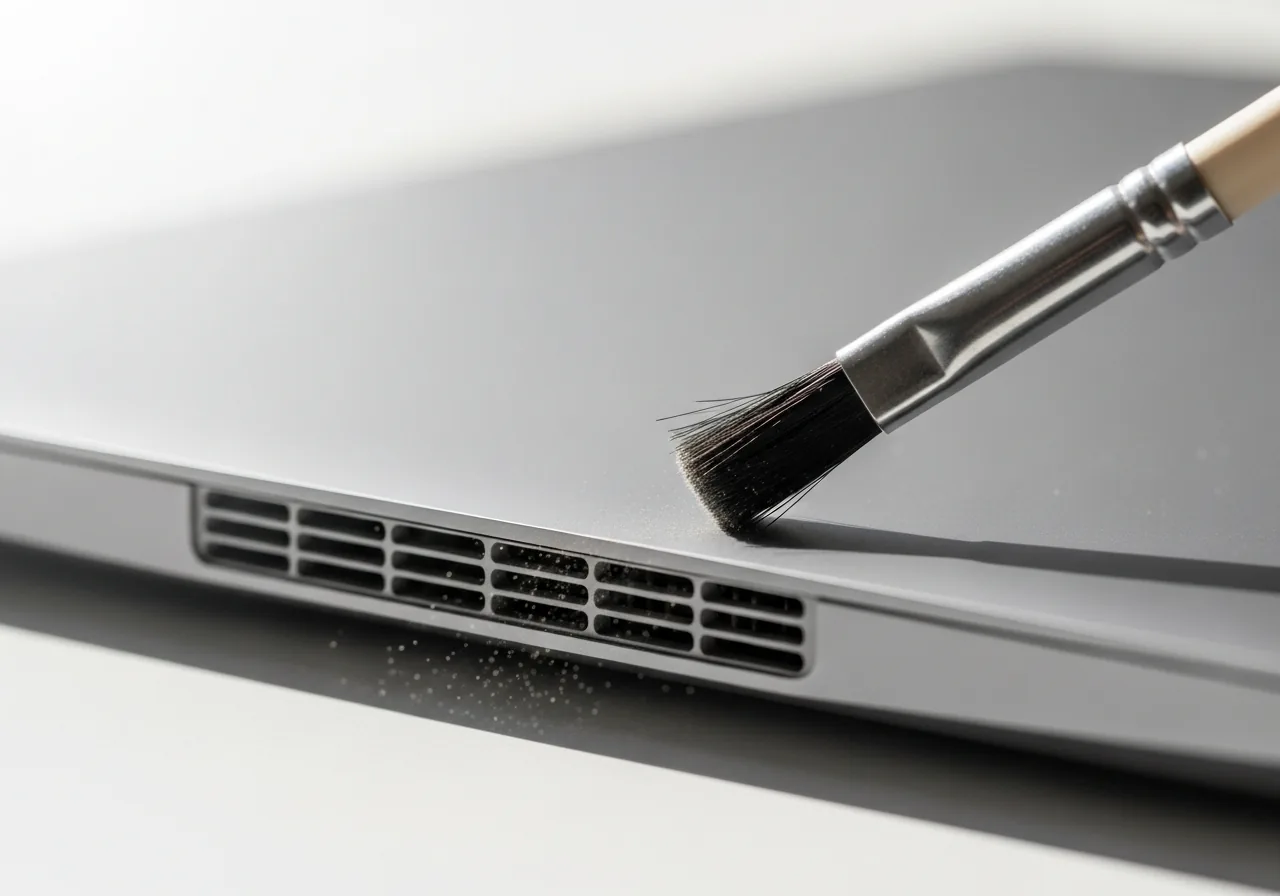
4Clear dust from the vents
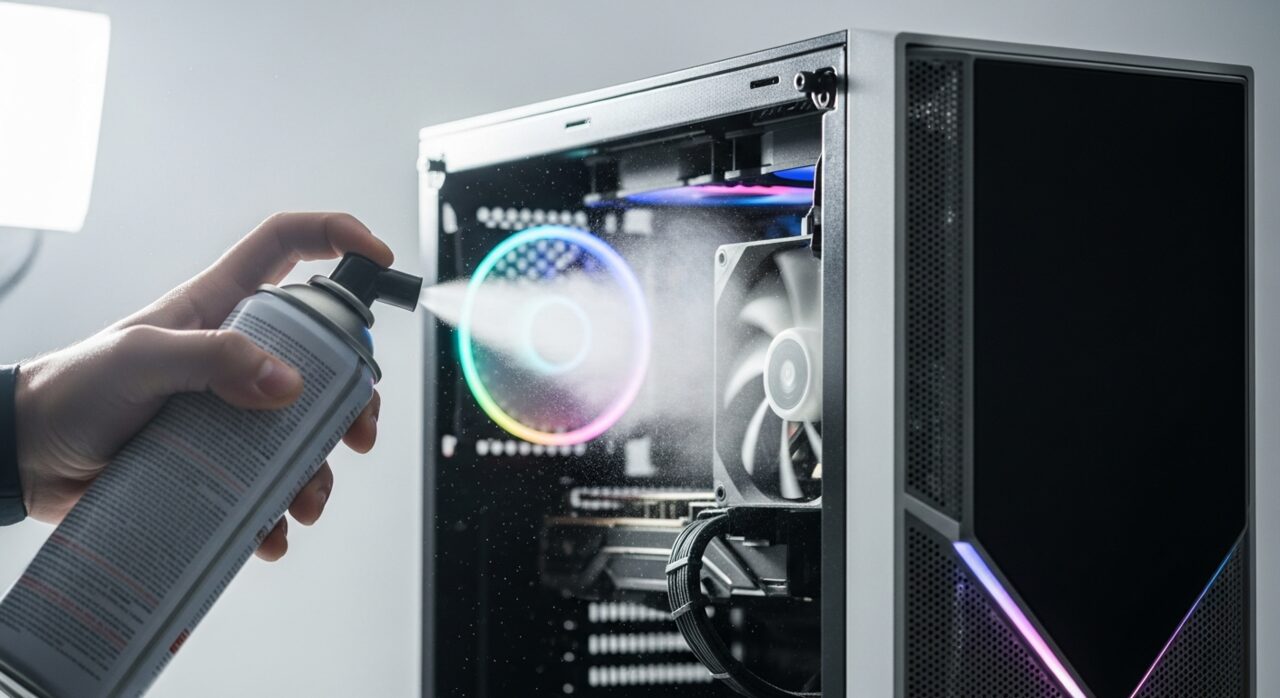
With the device powered off and unplugged, gently remove settled dust from the grilles so heat can escape; take care not to force debris deeper inside.
 5
5Confirm temperatures settle
Use the device for a while and check that it warms less and the fans calm down, showing heat is leaving as quickly as it forms again.
When to seek help
If the device becomes too hot to hold, shuts down unexpectedly, or gives off any burning smell, stop using it and have it examined by a qualified technician.
Reducing the chance it returns
Give the device room to breathe by using it on a firm, level surface where the vents stay clear rather than on bedding or a lap that smothers them. Keep the surrounding air cool and well circulated, since a warm room steals away the margin cooling relies on. Clear settled dust before it thickens, and keep an eye on which background tasks linger after you finish with them. Small, steady habits like these stop heat from creeping back up and keep the device working within the range it was built for.
Repair110 is a free, informational resource. These steps describe a careful, general approach — every device is a little different, so work slowly, back up anything you value, and prioritise your own safety. If a step feels beyond your comfort, stop and consult a qualified technician.