Understanding the problem
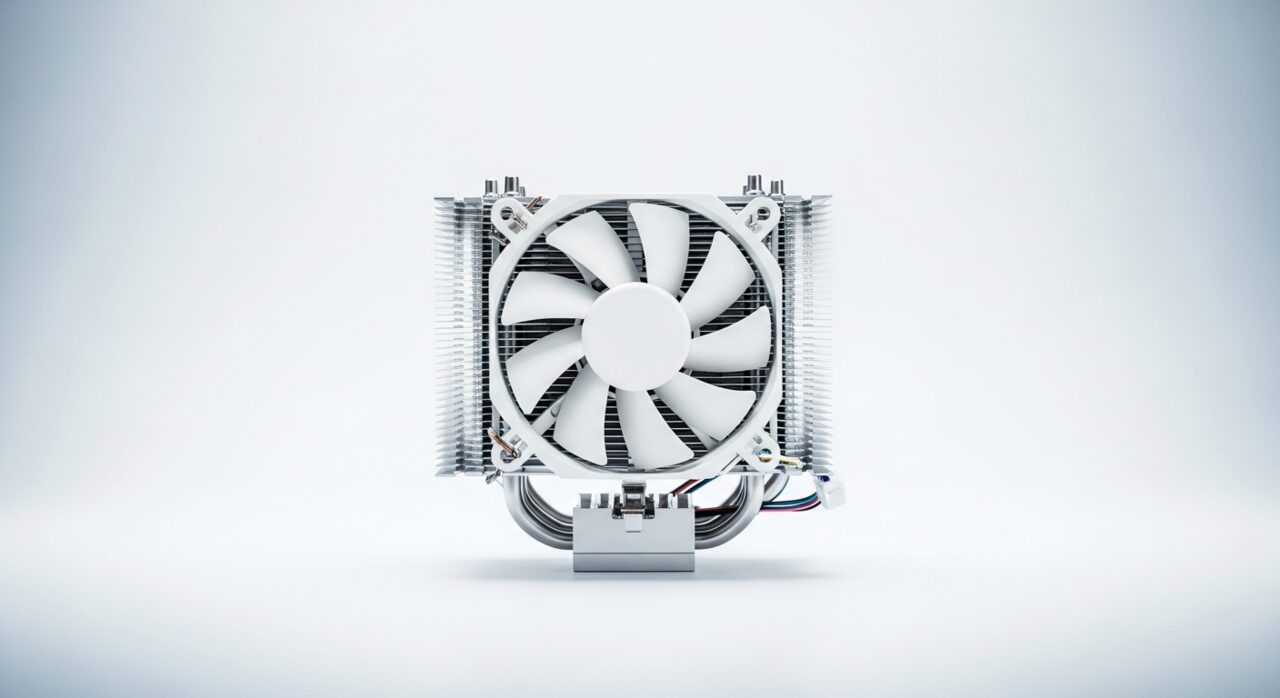
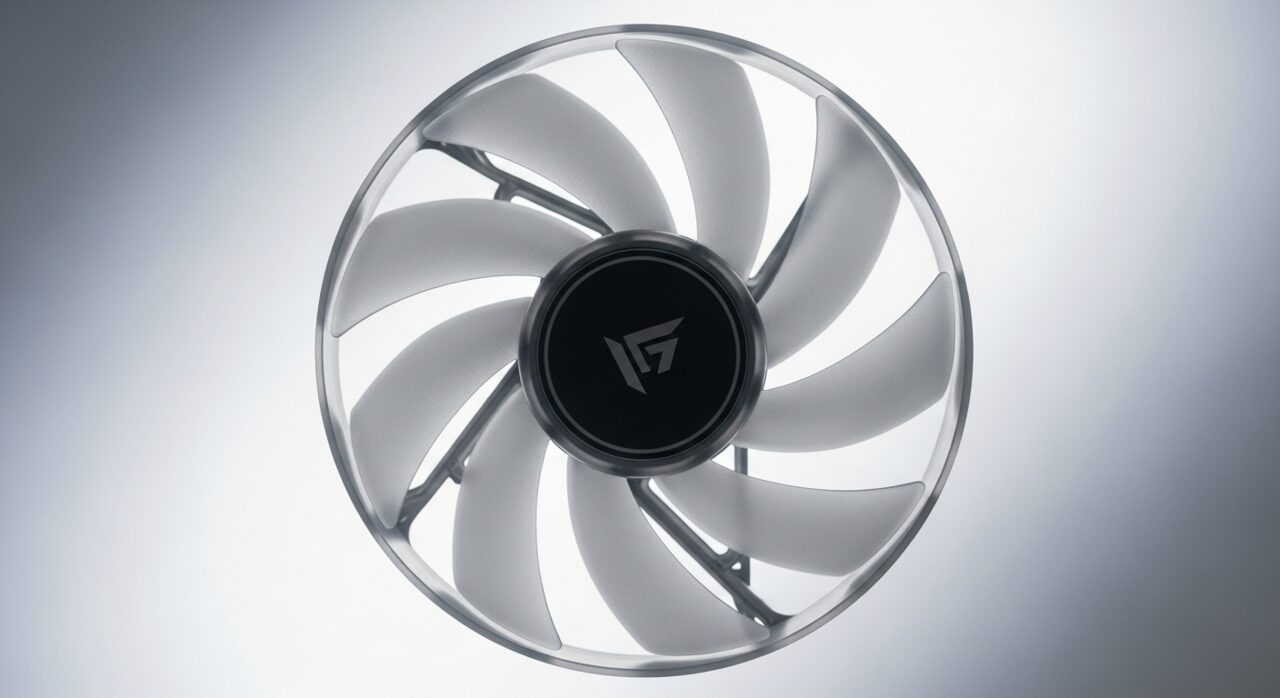
A fan moves air across the heatsink so heat can be carried out of the casing; without that flow, warmth simply collects around the hottest parts. When a fan refuses to turn, the cause is usually mechanical or electrical: a bearing seized by debris, a cable knocked loose during handling, or a motor that has finally worn out. Less obviously, some designs deliberately keep the fan still until a set temperature is reached, and a faulty sensor can hold that trigger back. Either way, heat that should be swept away instead lingers and climbs.
Symptoms
- No air movement felt at the vents even when the device is working hard
- The fan stays motionless while the casing grows steadily warmer
- Unexpected shutdowns occur after a few minutes of demanding use
- An absence of the usual whirring sound during start-up
Likely causes
- 1A jammed bearing or debris physically preventing the blades from turning
- 2A disconnected or damaged fan cable inside the chassis
- 3Control software set to keep the fan off until a high temperature is reached
- 4A failed fan motor that no longer responds to power
- 5Faulty sensor readings telling the system that cooling is unnecessary
What to observe and check
- Note whether the fan ever spins briefly at power-on then stops
- Observe how quickly the device heats up with no airflow present
- Consider whether some designs intentionally idle the fan when cool
- Listen for any grinding or stuttering that hints at a seized bearing
Step-by-step repair
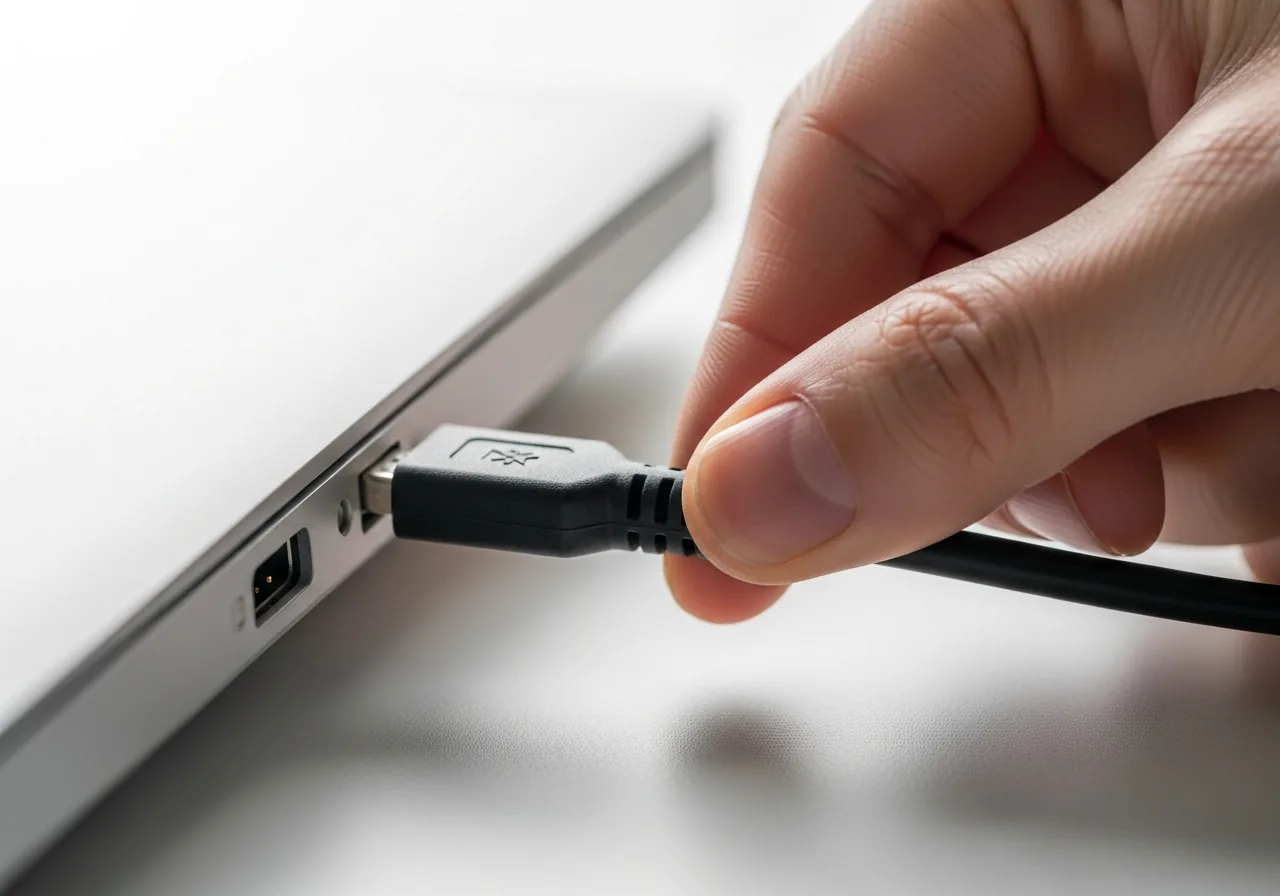 1
1Power off and disconnect fully
Shut the device down and remove it from power before opening it, since a fan can start unexpectedly and stored charge can remain inside.
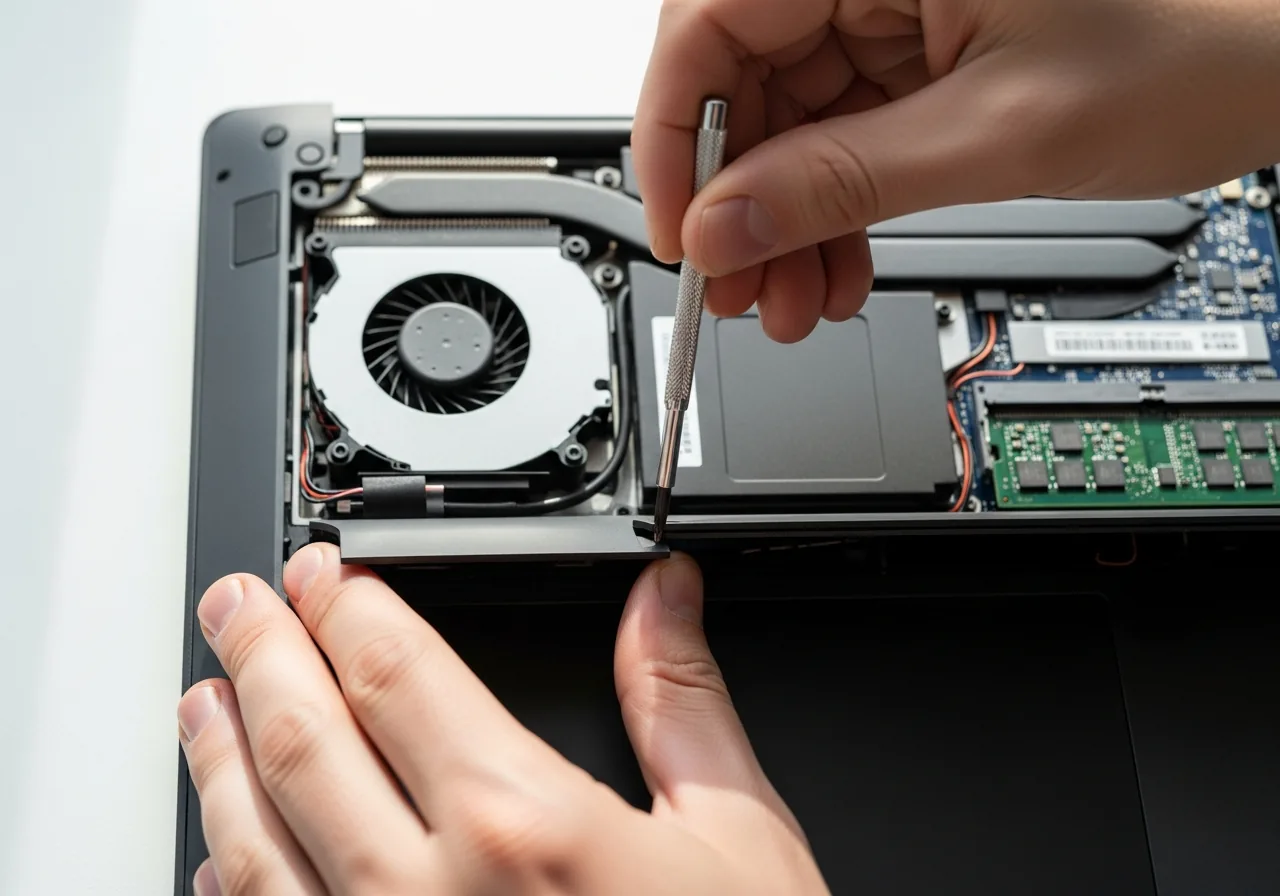 2
2Open the case to reach the fan
Remove the panel or screws covering the cooling area so you can see the fan, its blades, and the small cable that feeds it.
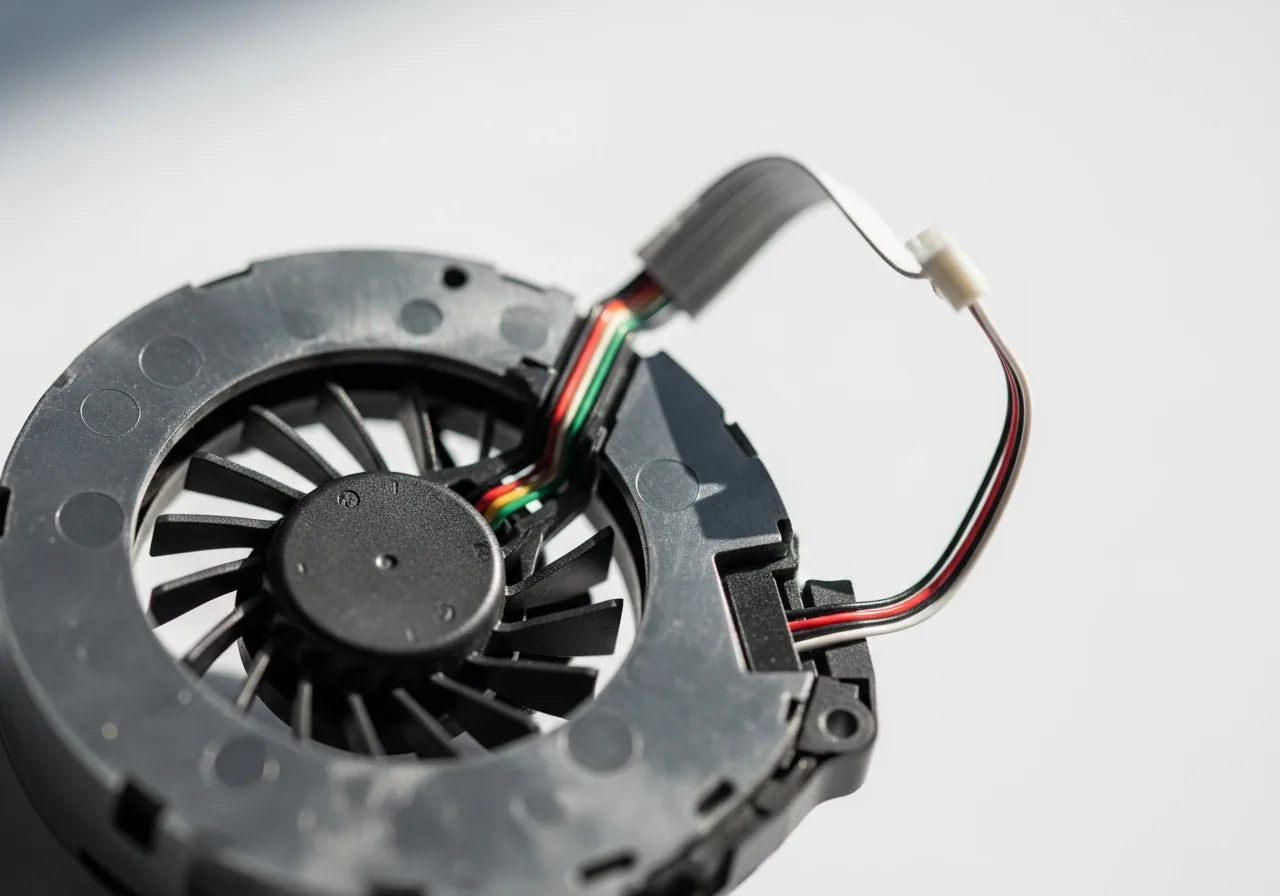 3
3Inspect the blades and cable
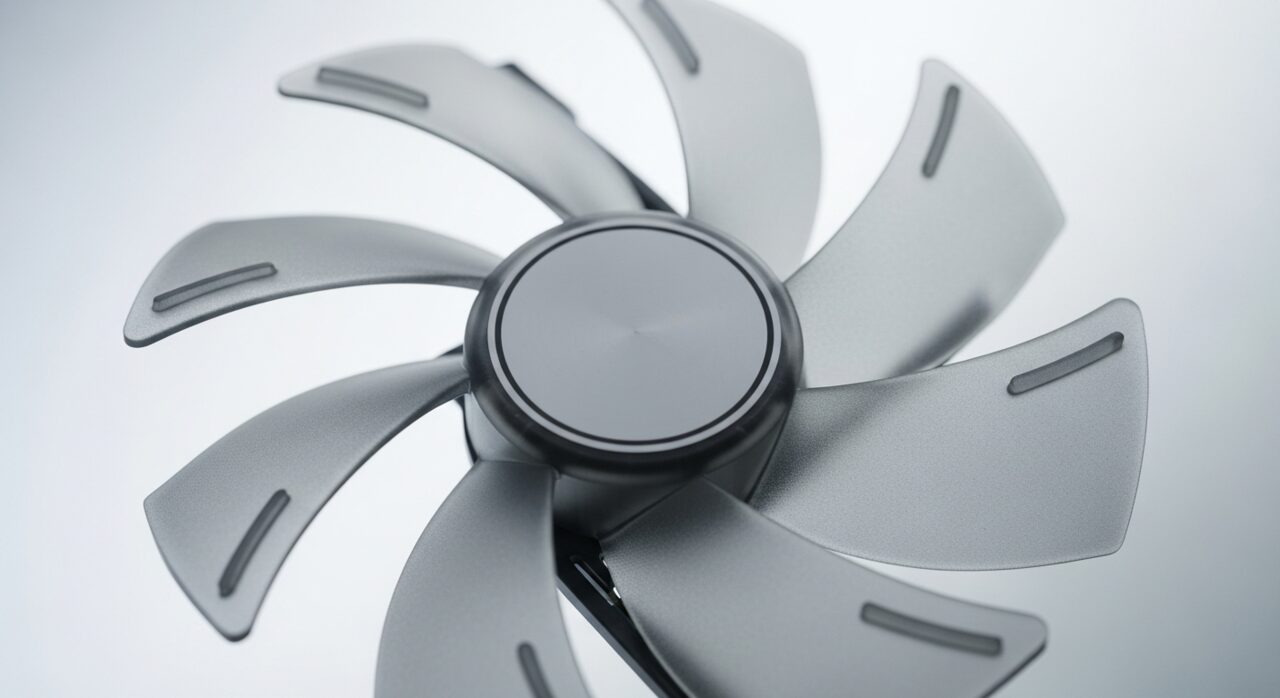
Look for debris jamming the blades or a fan cable that has worked loose, and check whether the bearing turns freely or feels seized.
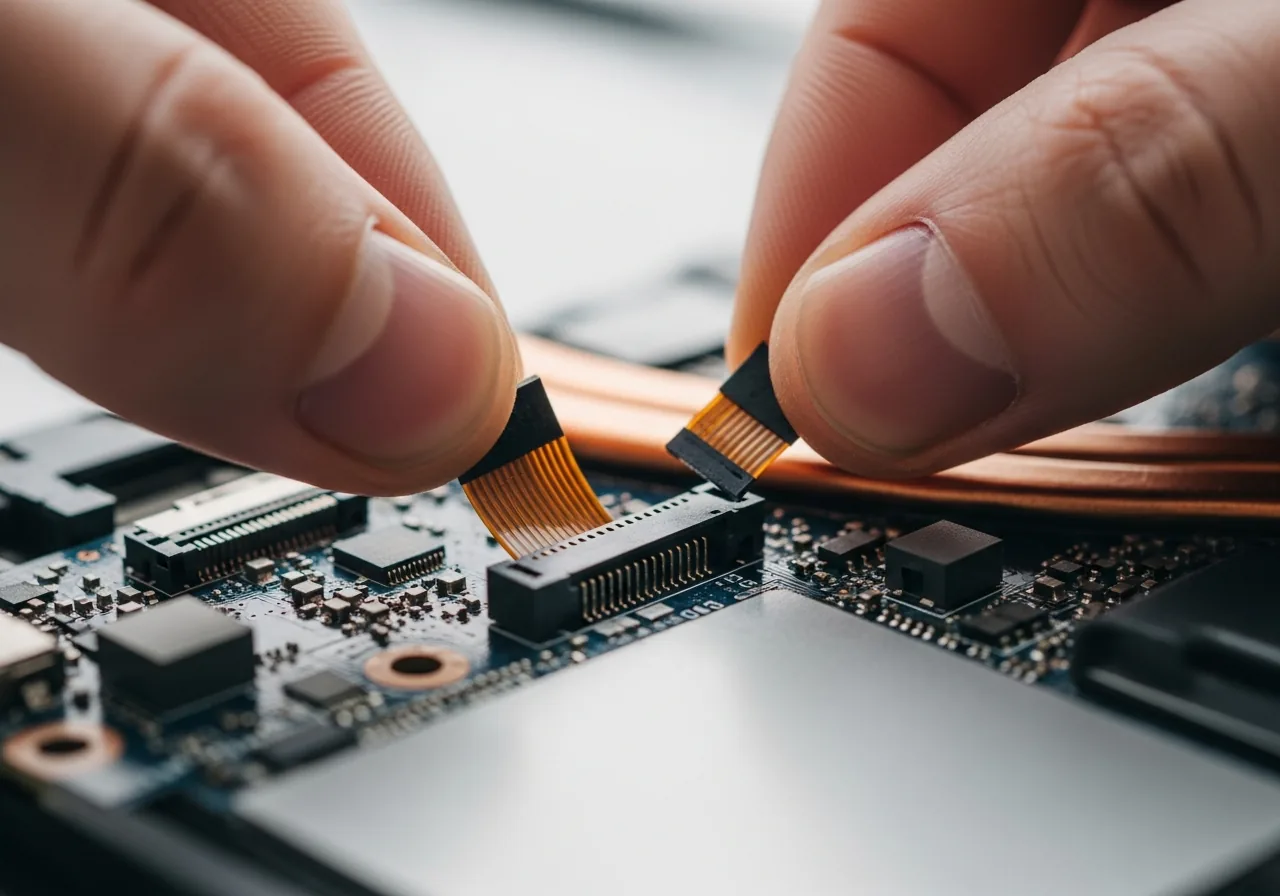 4
4Reseat the fan connector
Press the fan cable firmly back into its header so a knocked-loose connection is restored before you decide the motor itself has failed.
 5
5Close the device back up
Refit the panel and screws once the fan turns freely and the cable is secure, making sure nothing is pinched as you close it.
 6
6Confirm airflow returns
Power on and feel for steady air at the vents under load, checking the fan spins reliably rather than staying still as heat builds.
When to seek help
If the fan stays still while the device overheats or powers off, stop using it and seek qualified help, since stored heat can damage internal components.
Reducing the chance it returns
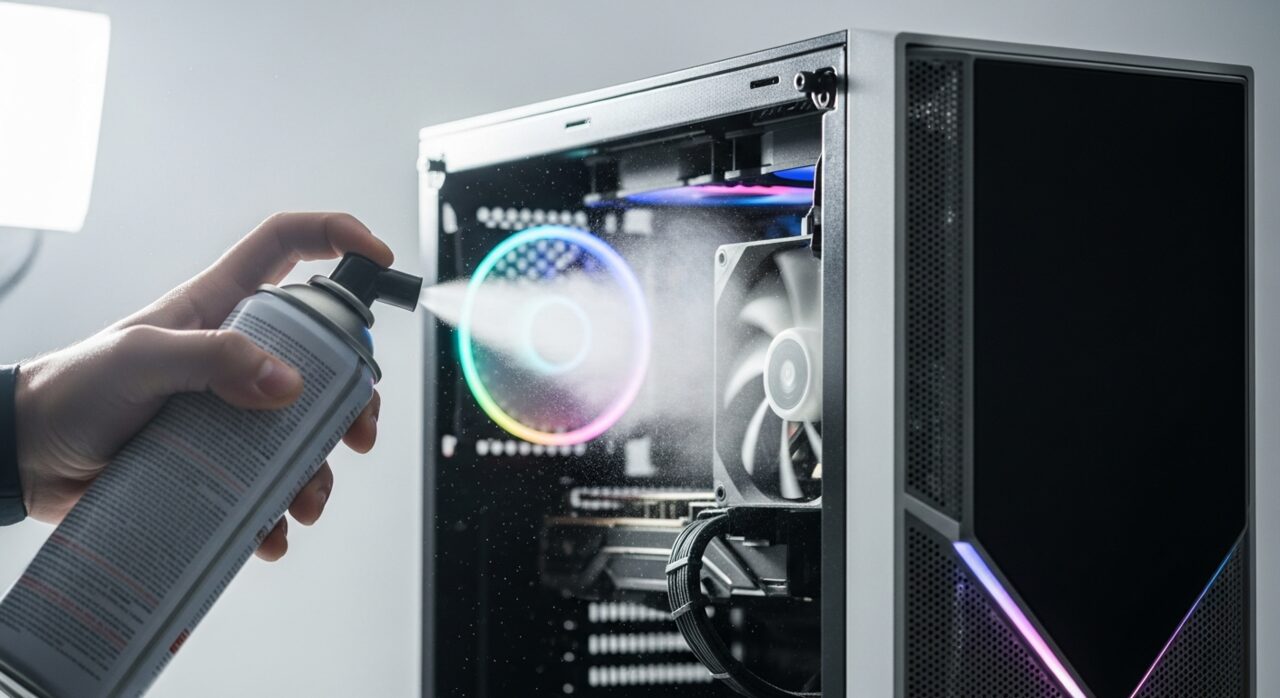
Keep the inside reasonably free of dust and lint, since the grit that drifts onto a bearing is what eventually stops the blades turning. Use and store the device in a clean, dry place rather than on the floor or among fabric that sheds fibres. Treat sudden silence as a prompt to check airflow rather than something to enjoy, and avoid rough handling that can unseat a delicate fan cable. Listening out for the familiar whir at start-up gives you an early, gentle warning long before a stalled fan lets heat build unchecked.
Repair110 is a free, informational resource. These steps describe a careful, general approach — every device is a little different, so work slowly, back up anything you value, and prioritise your own safety. If a step feels beyond your comfort, stop and consult a qualified technician.