Understanding the problem
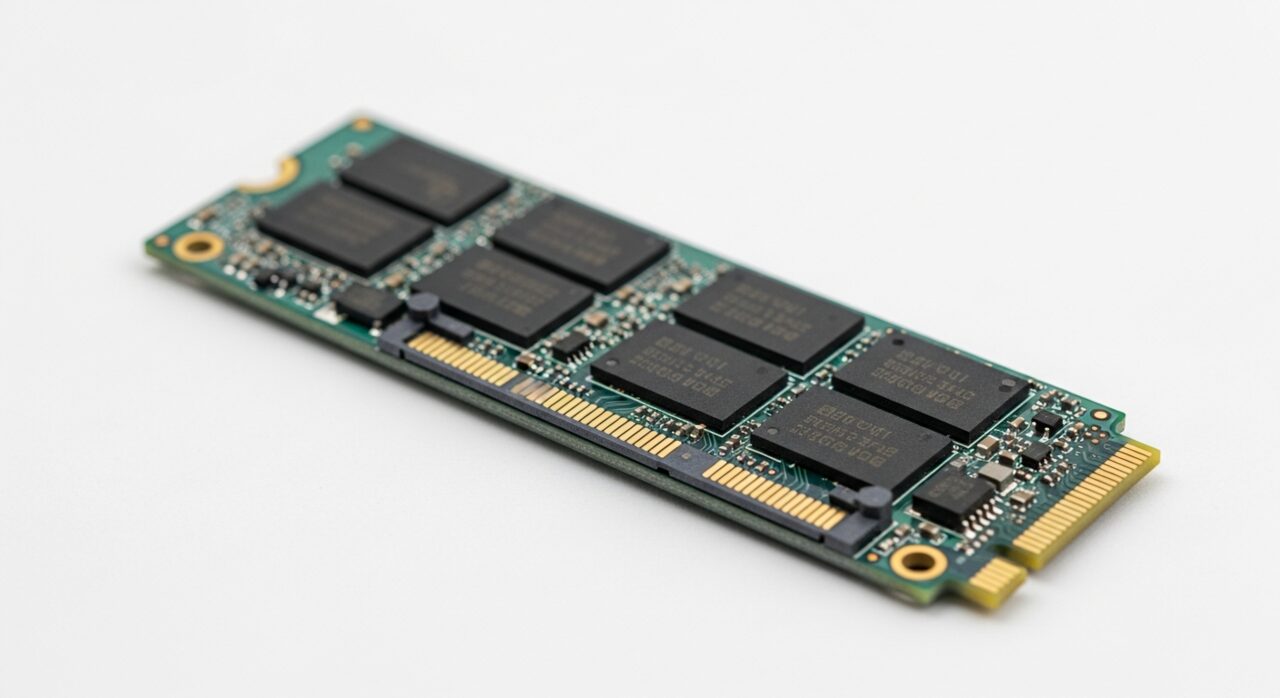
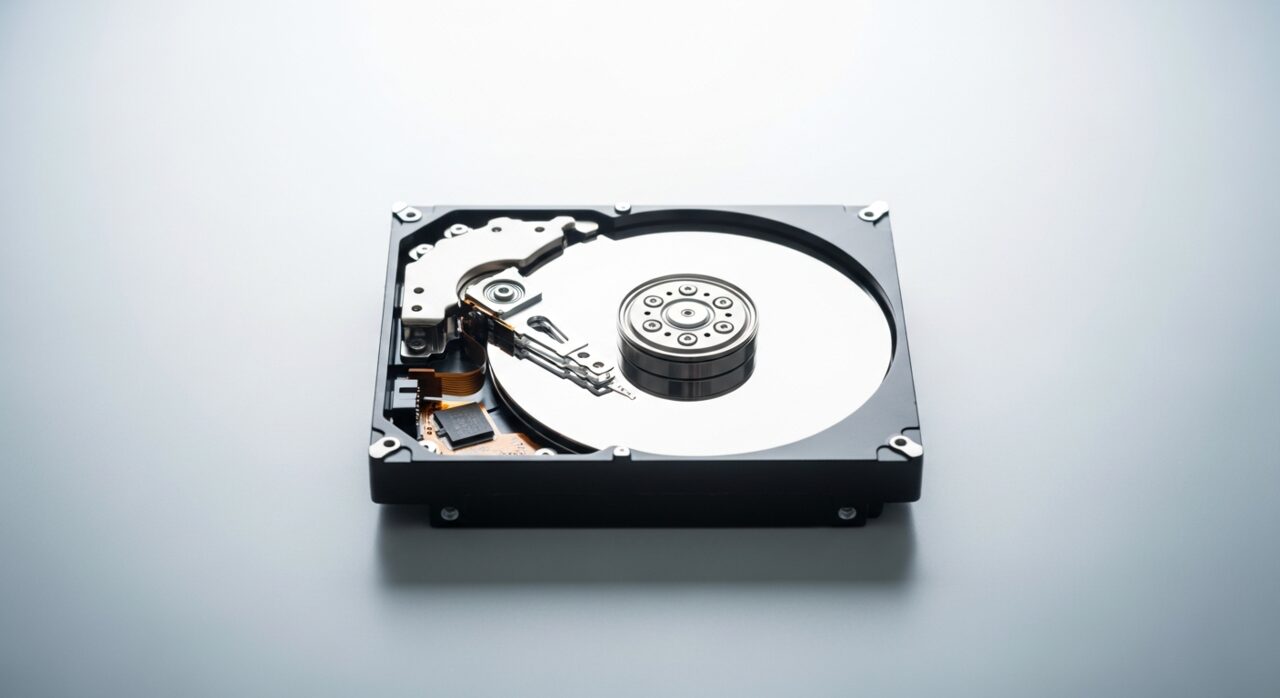
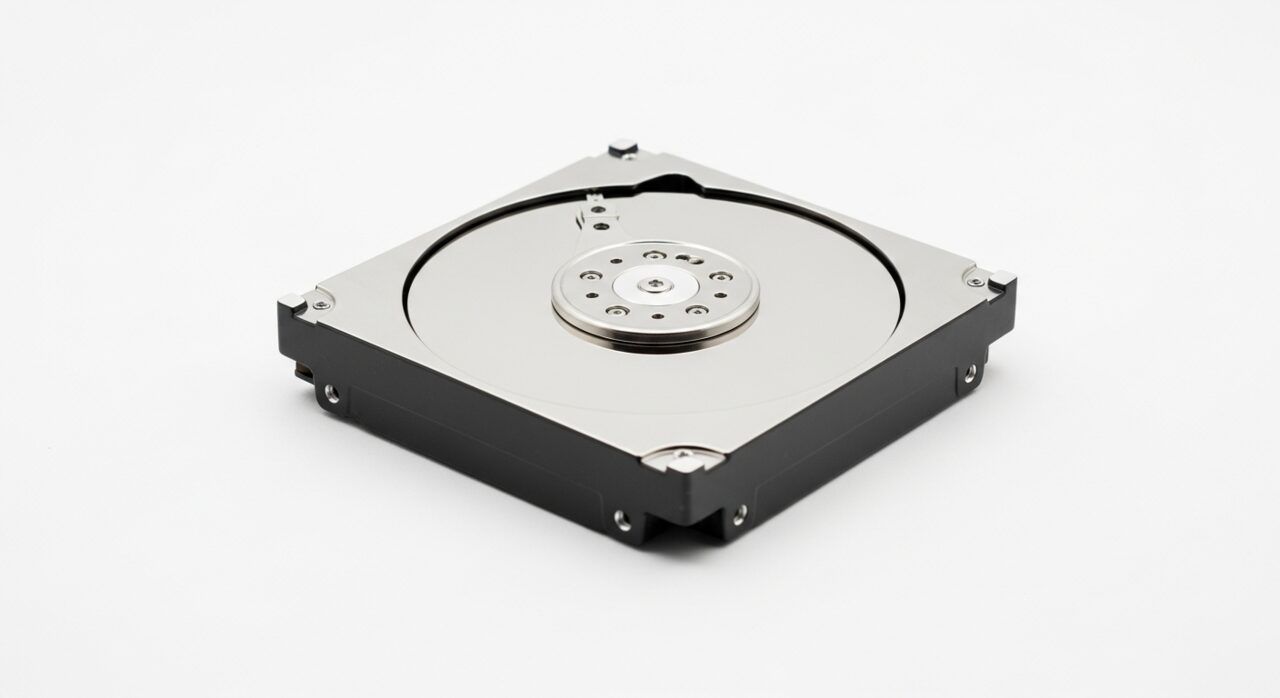
Reading and writing data is rarely limited by the drive alone. Information passes through the file system, caches, and the system's queue of pending tasks before it ever reaches the disk surface. When a drive fills up, there is less free room for it to arrange new data efficiently, so it works harder for each operation. Mechanical disks also slow as moving parts wear, and background scanning competes for the same access. The result is delay that builds gradually, because each layer adds a little friction until the whole transfer feels heavy.
Symptoms
- Copying files takes far longer than it once did
- Programs and documents take noticeable seconds to open
- Transfer speed starts well then collapses partway through
- The system feels unresponsive while reading or writing data
Likely causes
- 1A drive that is nearly full and has little room to work efficiently
- 2Background indexing or scanning competing for access to the disk
- 3An ageing mechanical drive slowing as it wears
- 4Fragmented or poorly organised data on a traditional disk
- 5Driver or file-system issues interrupting smooth data flow
What to observe and check
- Note whether the slowness affects all files or only very large ones
- Observe if performance recovers after background tasks finish
- Consider how much free space remains on the drive
- Watch whether one particular drive lags while others stay quick
Step-by-step repair
 1
1Check whether all files lag
Notice whether the slowness affects every file or only very large ones, and whether one drive lags while others stay quick, to locate where the delay sits.
 2
2Let background scans finish
Allow any indexing or scanning to complete, since these compete for access to the disk and can collapse transfer speed partway through.
 3
3Free up room on the drive
Clear media and downloads you no longer need so the drive has space to arrange new data efficiently rather than scraping its last corners.
 4
4Check drivers and file-system health
Make sure storage drivers are current and the file system is sound, as either can interrupt the smooth flow of data.
 5
5Confirm load times improve
Copy a file and open a program again to check transfers run steadily and the system no longer feels heavy while reading or writing.
When to seek help
If slowness arrives alongside errors, unusual noises, or files that occasionally vanish, back up what you can and have the drive assessed by a professional.
Reducing the chance it returns
Leave a comfortable margin of free space so the drive always has room to organise new data efficiently rather than scraping the last corners. Clear away media and downloads you no longer need before the disk grows tight, and let background indexing finish during quiet periods instead of fighting it mid-task. Restarting occasionally clears stalled processes that quietly hold the disk busy. If a drive is ageing, keeping its workload modest and its contents tidy helps it stay responsive far longer than running it constantly full.
Repair110 is a free, informational resource. These steps describe a careful, general approach — every device is a little different, so work slowly, back up anything you value, and prioritise your own safety. If a step feels beyond your comfort, stop and consult a qualified technician.