Understanding the problem
At the very first moment of starting, the device draws its heaviest sudden demand for power and runs a rapid self-check of its core parts. If the supply cannot hold a steady level under that surge, or a protective circuit detects a fault, the safest response is to cut power at once and try again. A loose component breaking contact as current flows, or heat already too high from a blocked cooling path, can trigger the same instant shutdown. The speed of the cut-off shows the trouble is found in those earliest fractions of a second.
Symptoms
- The device powers on then turns off again within seconds
- It restarts before any image reaches the screen
- The cycle may repeat a few times before stopping or settling
- Fans or lights flicker briefly with each short attempt
Likely causes
- 1A power supply unable to deliver steady energy at start-up
- 2A protective shutdown triggered by an immediate fault detection
- 3Overheating prompting the system to cut power straight away
- 4A loose component breaking contact as the device draws power
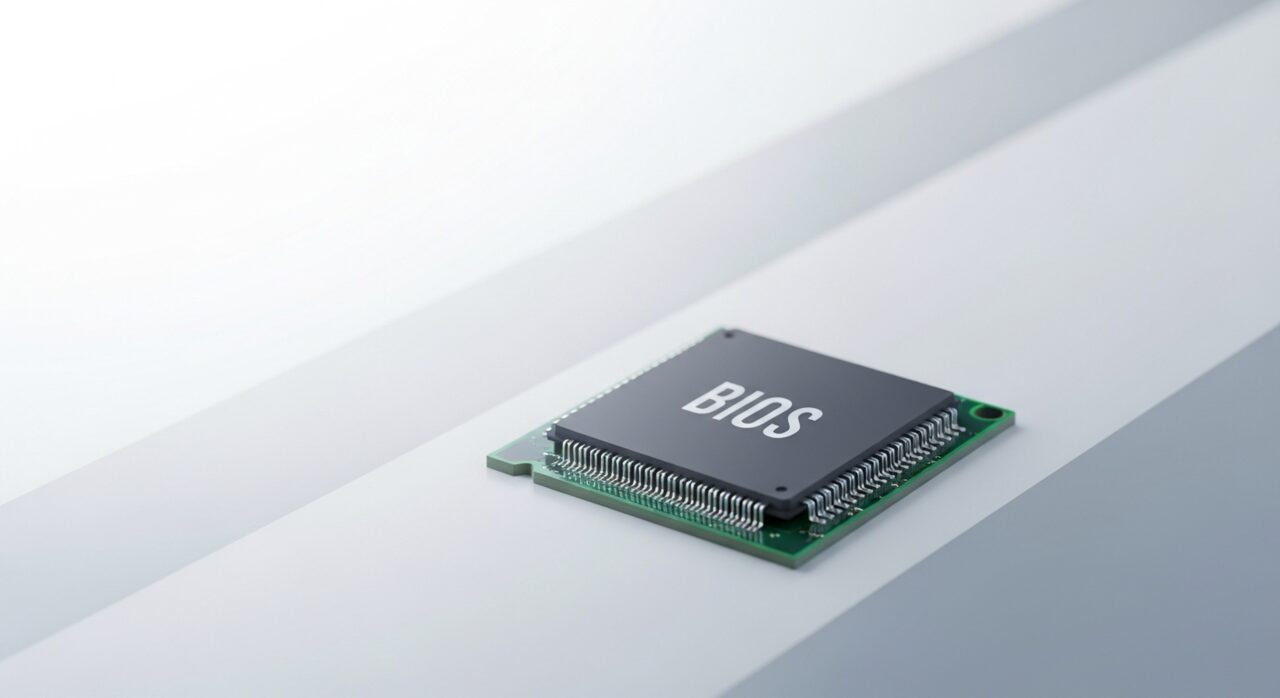
- 5Firmware or configuration errors forcing an early reset
What to observe and check
- Note exactly how many seconds pass before it cuts out
- Observe whether it ever gets further on some attempts than others
- Consider whether the device was recently opened or moved
- Watch whether it feels hot or smells unusual during the attempts
Step-by-step repair
 1
1Disconnect power and wait
Remove the power source and let the device sit fully off, since it draws its heaviest demand at start-up and you want no current present before handling it.
 2
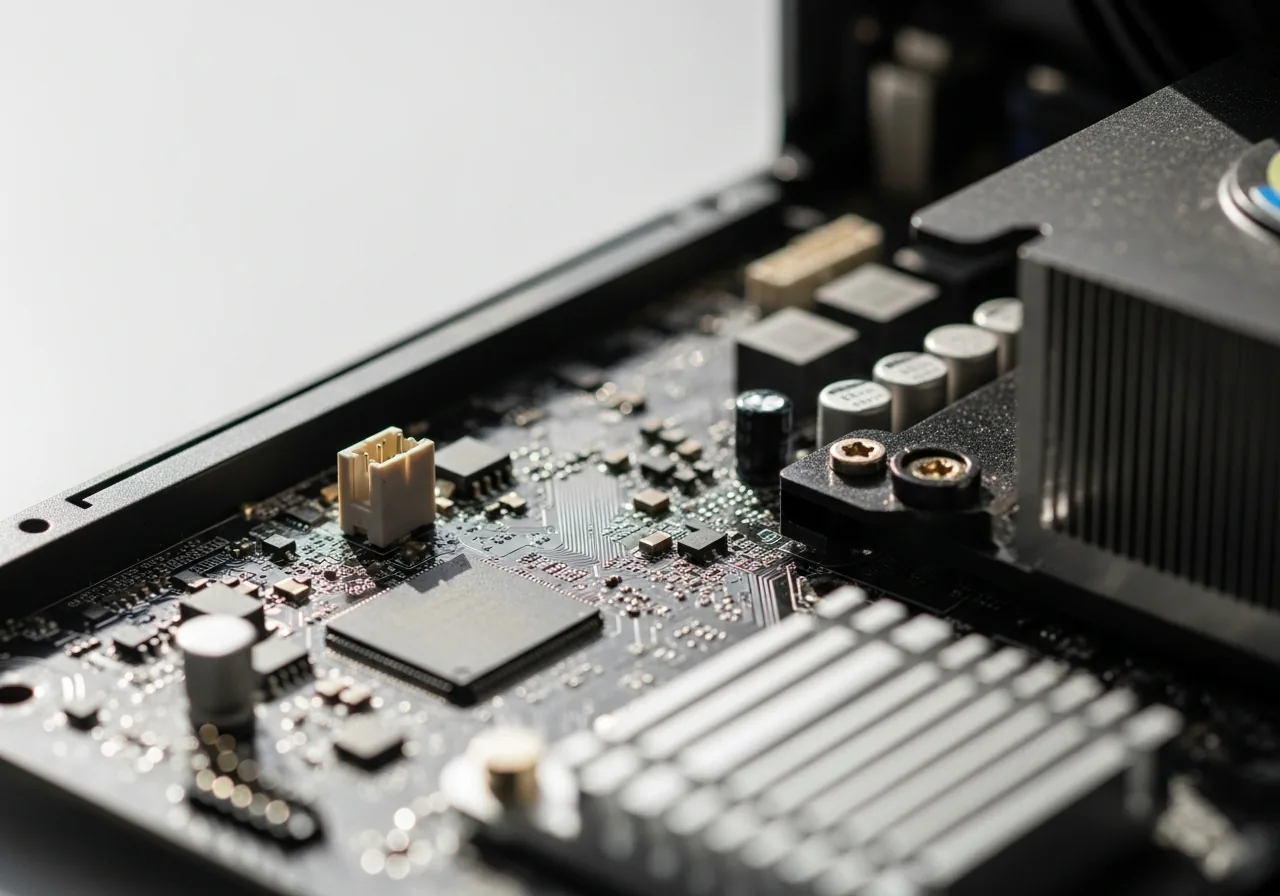
2Look for heat or damage
Check whether the device feels hot or smells unusual; if you notice a burning smell or any swelling, stop at once and seek qualified help rather than retrying.
 3
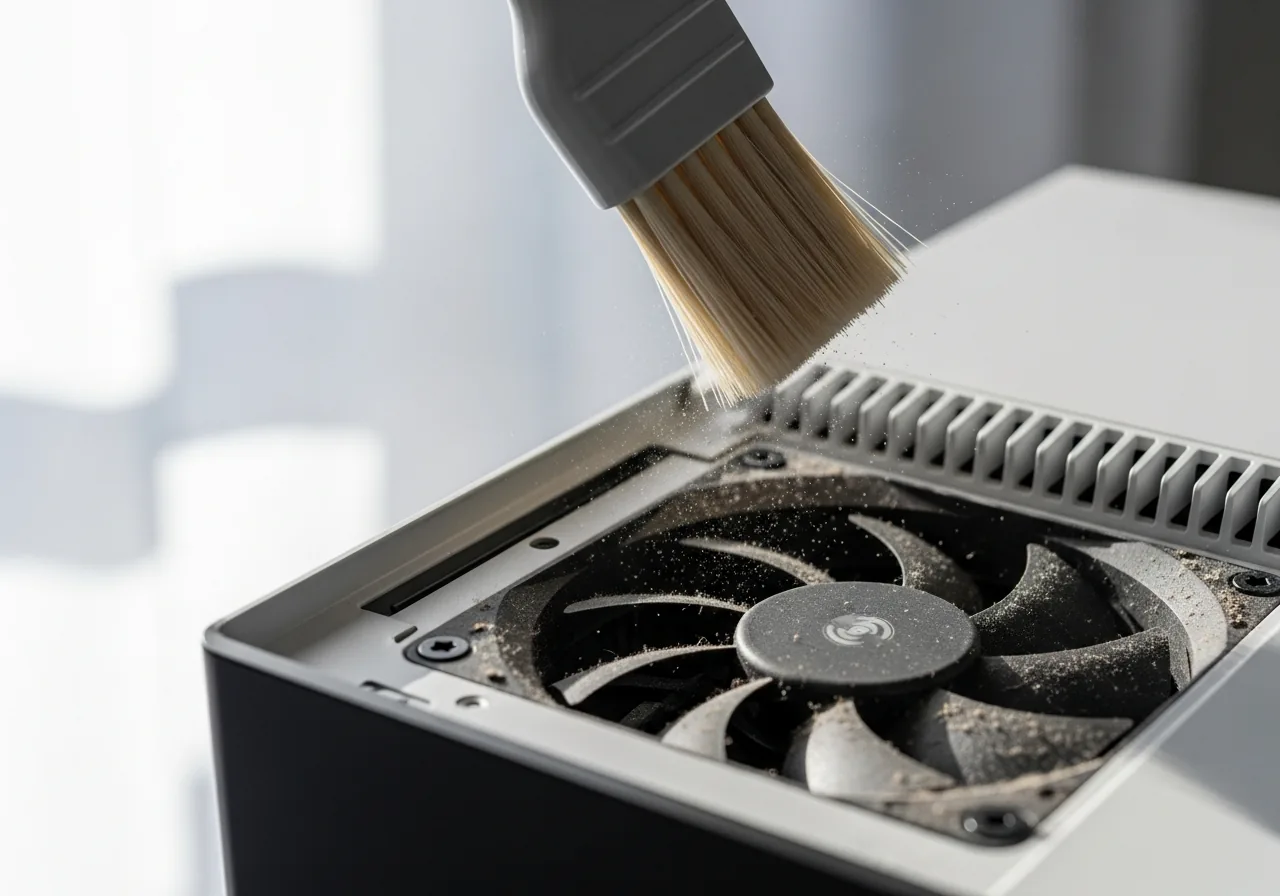
3Clear blocked cooling paths
Gently remove dust from the vents and fans so the device is not starting already too warm to stay running past the first seconds.
 4
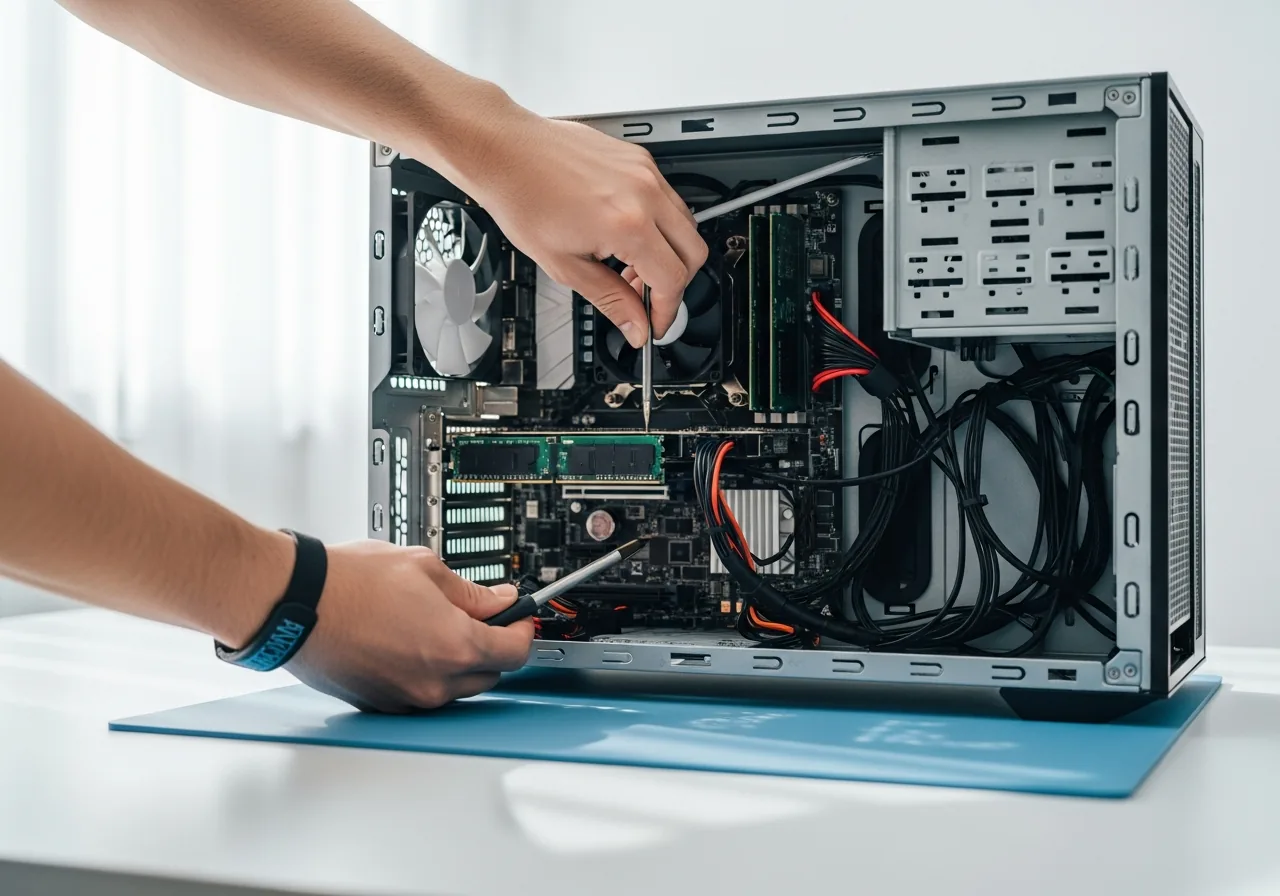
4Reseat loose components and cables
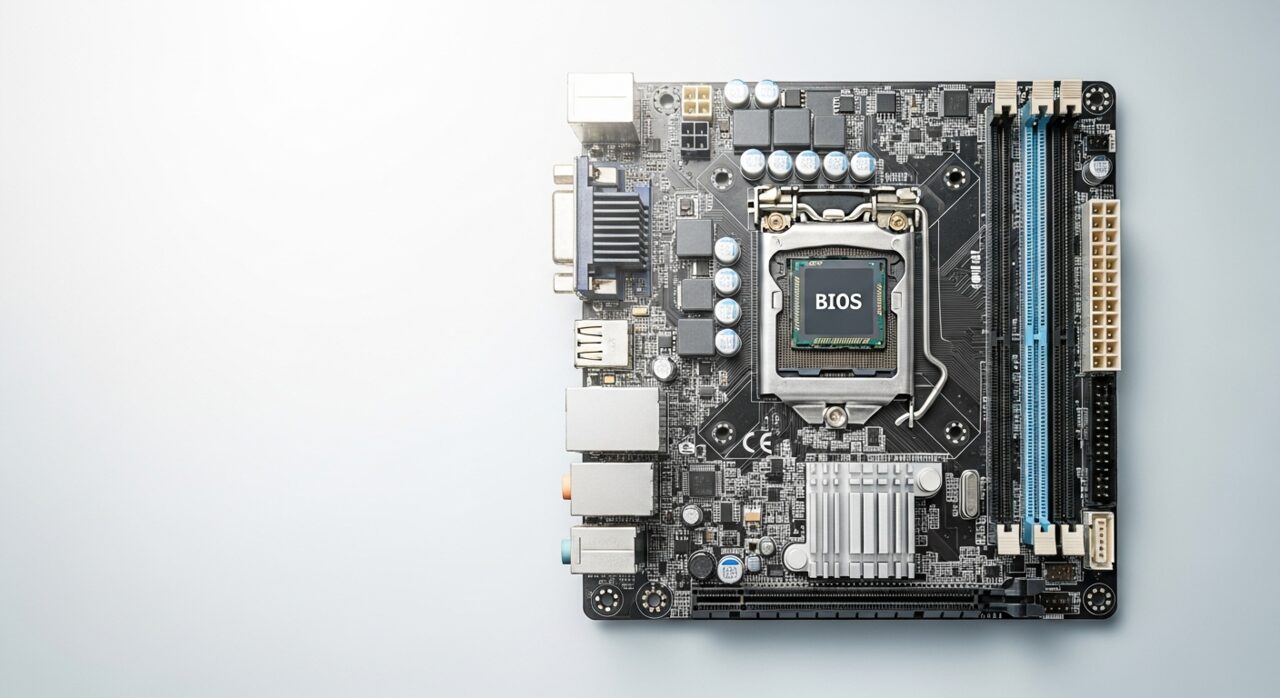
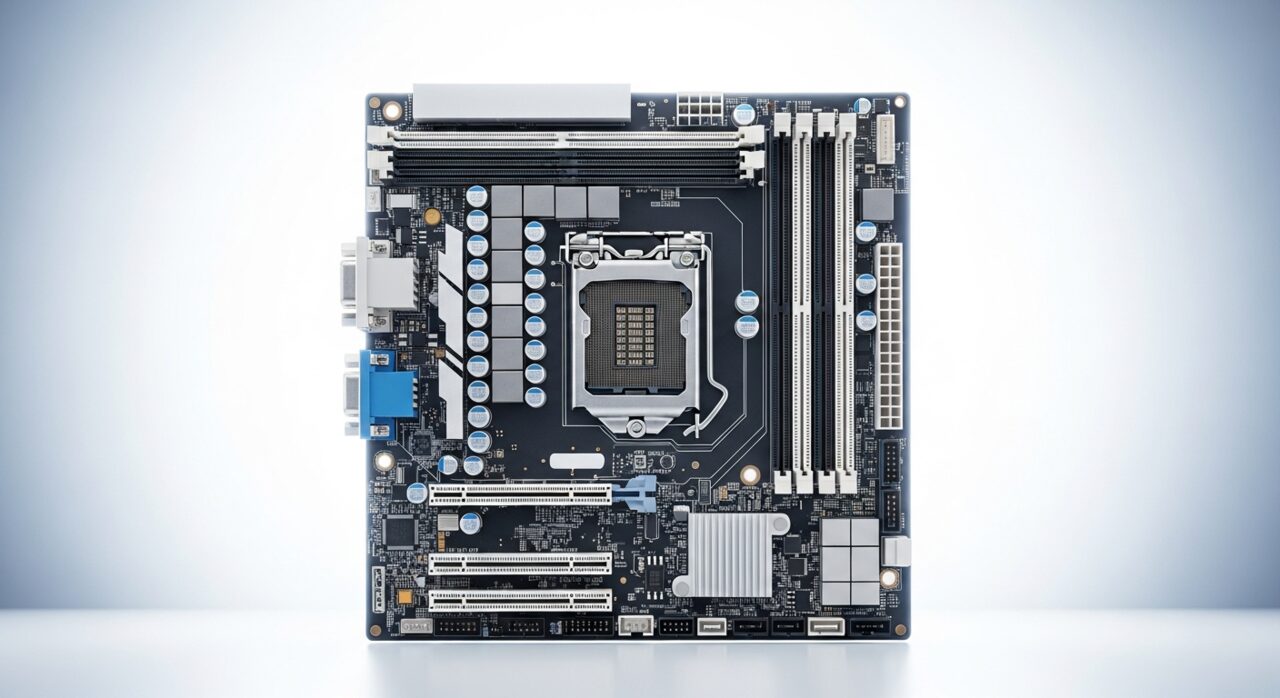
On a clean, static-safe surface, open the device and firmly reconnect parts that may have broken contact, which can cut power the instant current flows.
 5
5Close the device back up
Refit panels and screws and make sure every connection is secure before applying power again.
 6
6Power on and watch
Start the device and confirm it stays on well past the first few seconds instead of cutting out and restarting.
When to seek help
If you notice any burning smell, swelling, or signs of stored energy, stop immediately and seek qualified help rather than repeating the start-up attempts.
Reducing the chance it returns
Use a sound, well-matched power source and steady connections, so the device meets no sudden shortfall during its demanding first moment. Keep cooling paths clear of dust, since a machine that starts already warm has less margin before a protective shutdown. After any work inside, check that components and cables are seated firmly, as a part that loses contact under load can cut power instantly. Handling the device gently and giving it clean, stable power both reduce the early faults that prompt these immediate, self-protective restarts.
Repair110 is a free, informational resource. These steps describe a careful, general approach — every device is a little different, so work slowly, back up anything you value, and prioritise your own safety. If a step feels beyond your comfort, stop and consult a qualified technician.