Understanding the problem
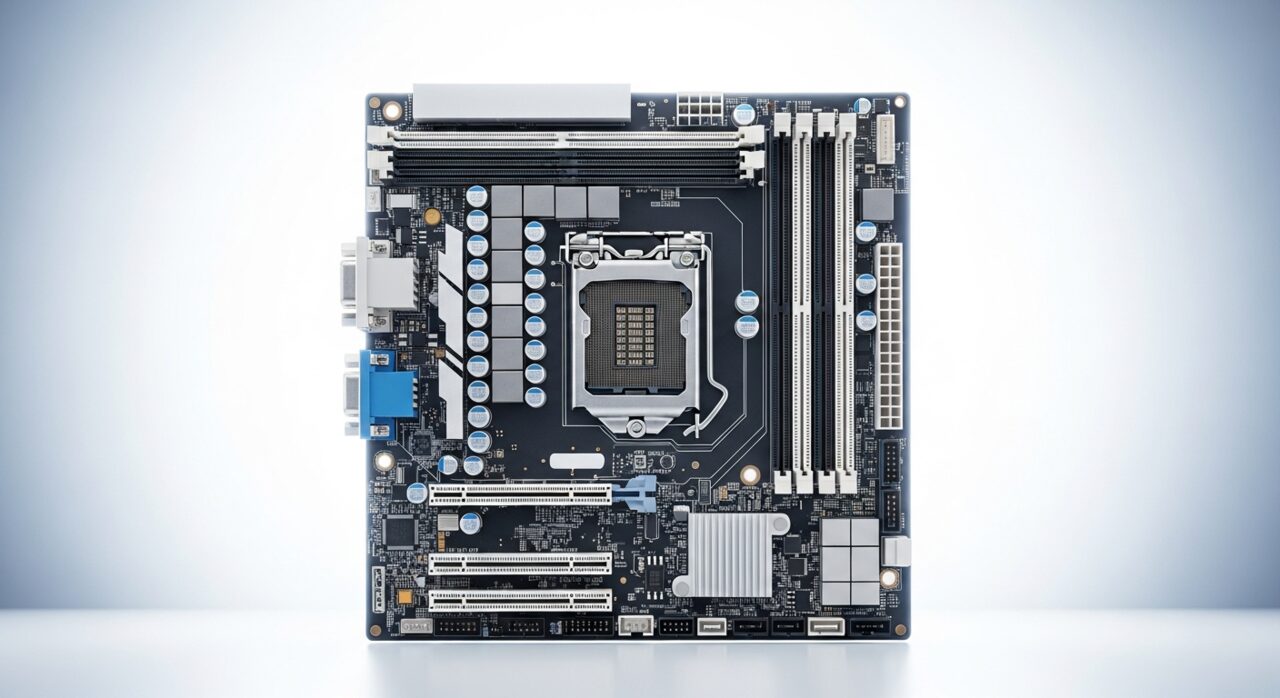
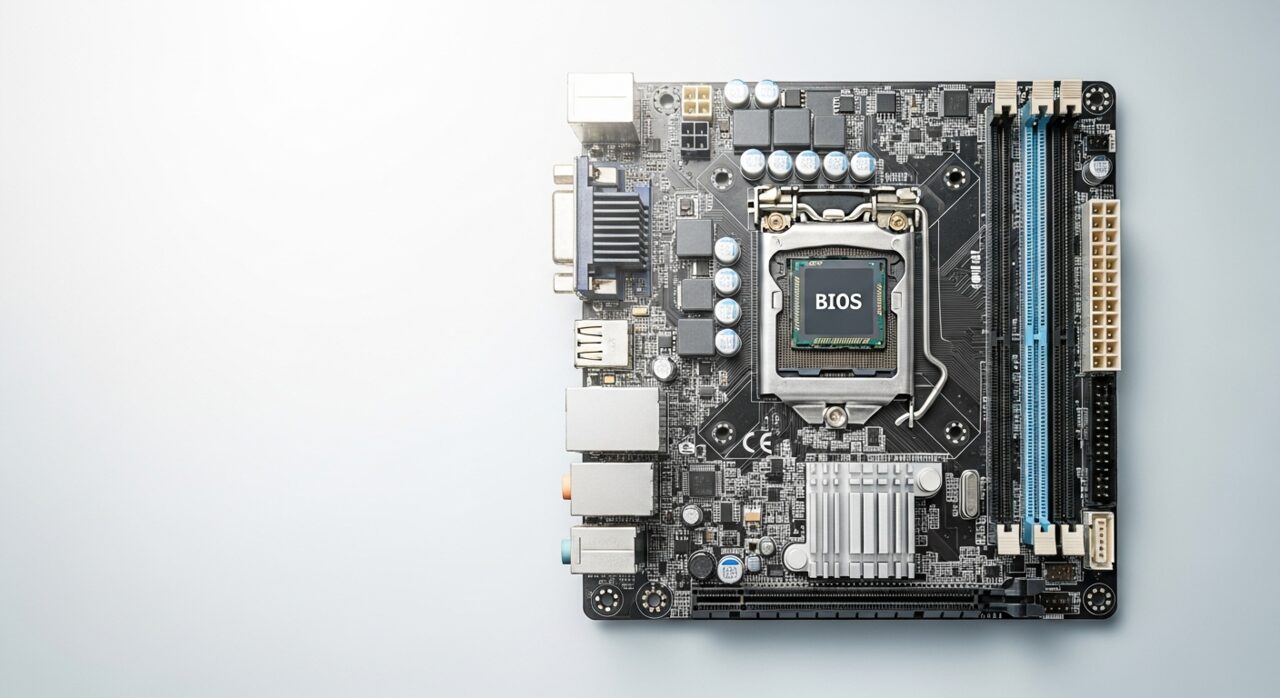
The logo appears once the built-in firmware has powered the essentials and begun handing control to the storage drive. To move past it, the firmware must read a small set of start-up instructions and confirm the system files are intact. A freeze here means that handover stalled: the drive answers too slowly, the early instructions are damaged, or a connected device keeps demanding attention during the checks. The image stays because the screen was already drawn, while the work behind it has quietly halted before the operating system could take over.
Symptoms
- The opening logo appears and then never progresses
- The screen stays on the same image for several minutes
- No loading indicator or further activity follows the logo
- The device may feel warm and active despite the frozen display
Likely causes
- 1The system unable to find or read its start-up files
- 2A connected device interrupting the early hardware checks
- 3A storage drive that responds too slowly or not at all
- 4Corrupted start-up data left by an interrupted update
- 5A hardware fault detected during the initial self-test
What to observe and check
- Note whether removing external devices lets the start-up continue
- Observe if the freeze happens every time or only occasionally
- Consider whether it began after an update or sudden power loss
- Watch whether any drive activity light flickers or stays dark
Step-by-step repair
 1
1Force a full shutdown
Hold the power button until the device switches off completely, then remove its power source so it can attempt a fresh start rather than resuming the frozen state.
 2
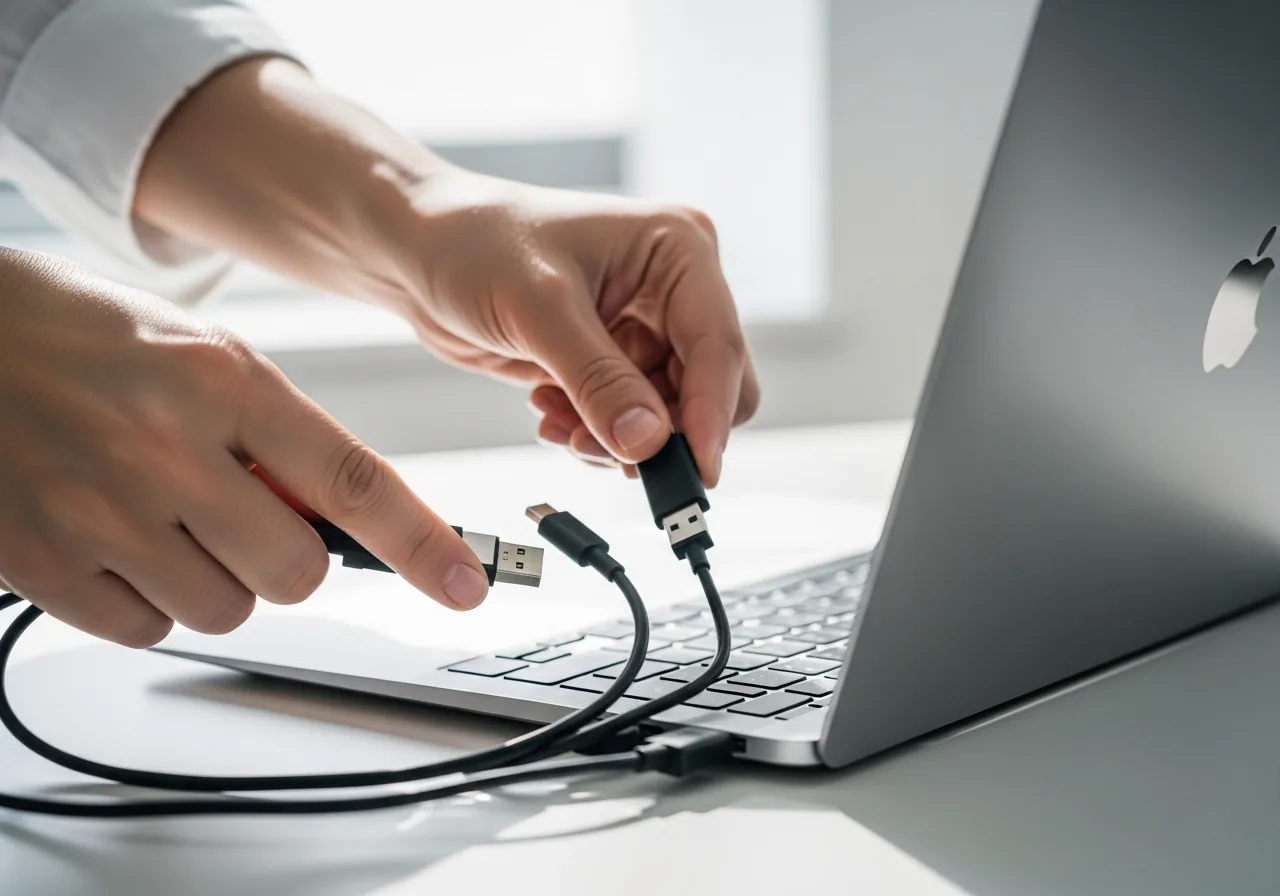
2Disconnect every external device
Unplug drives, memory sticks, and accessories so none of them can keep demanding attention during the early checks that are holding up the logo.
 3
3Consider what changed recently
Think about whether the freeze began after an update or a sudden power loss, since interrupted start-up files are a common reason the handover stalls here.
 4
4Power on and watch closely
Start the device again and watch whether it moves past the logo and whether any drive activity light flickers, confirming the start-up can now continue.
When to seek help
If the device remains stuck after disconnecting extras, or shows signs of overheating, have it examined by a qualified technician before forcing repeated restarts.
Reducing the chance it returns
Allow updates to finish completely before moving or switching off the device, since an interrupted update is a common reason the early files become unreadable. Shut down properly rather than holding the power button, which gives the drive time to settle its data. Keep only the devices you need attached during start-up, as spare hardware can distract the early checks. Treating the machine gently and giving it steady power both make a clean, uninterrupted handover from firmware to system far more likely each time.
Repair110 is a free, informational resource. These steps describe a careful, general approach — every device is a little different, so work slowly, back up anything you value, and prioritise your own safety. If a step feels beyond your comfort, stop and consult a qualified technician.