Understanding the problem
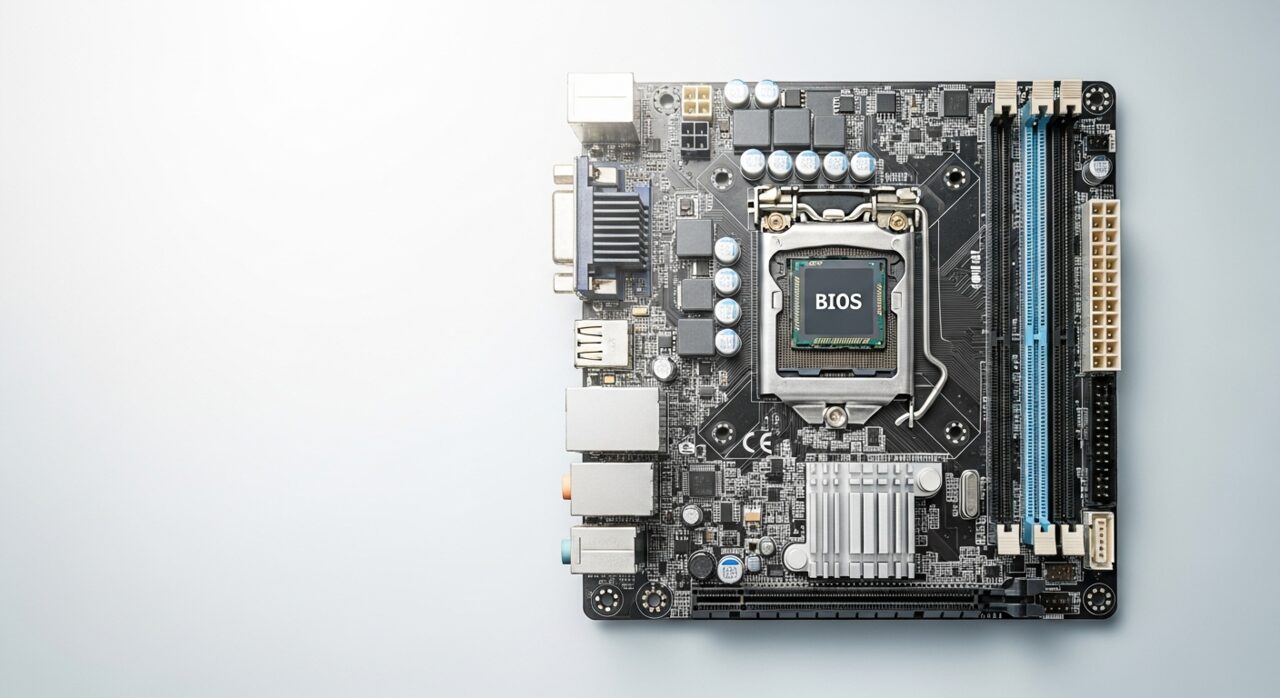
Starting up is a sequence of small jobs: the firmware checks the hardware, the system loads its core, and then a queue of programs and services wake one after another. Each addition to that queue costs a little time, and over months the queue grows as more software asks to launch automatically. A drive that is ageing or nearly full reads more slowly, stretching every step. The result feels like a single slow start, but it is really many minor delays stacked together, with background checks and updates often competing for attention at the worst moment.
Symptoms
- The device takes far longer to become usable than it once did
- Long pauses appear at one particular stage of starting up
- The system is sluggish for several minutes even after reaching the desktop
- Start-up gradually grew slower over weeks rather than suddenly
Likely causes
- 1Many programs set to launch automatically at start-up
- 2An ageing or nearly full storage drive slowing to load
- 3Background updates or checks running during the start-up phase
- 4Driver or configuration issues adding delay before the system settles
- 5A drive developing slow areas that take longer to read
What to observe and check
- Note whether the delay sits before or after the operating system loads
- Observe how many programs spring to life once it is ready
- Consider whether the slowdown built up gradually or arrived suddenly
- Watch whether the storage drive stays busy long after start-up
Step-by-step repair
 1
1Find where the time goes
Note whether the long pause sits before or after the operating system loads, so you know whether the firmware stage or the program queue needs attention.
 2
2Trim the start-up program list
Look through the programs set to launch automatically and switch off the ones you do not need waking with the device, shortening the queue.
 3
3Free up storage space
Remove files you no longer need so the drive is not crowded to its limit, since a nearly full drive reads more slowly at every step.
 4
4Let background tasks settle
Allow pending updates and checks to finish at a quiet moment rather than competing with start-up for the drive's attention.
 5
5Restart and time it
Restart the device and confirm it becomes usable noticeably sooner than before.
When to seek help
If start-up becomes extremely slow alongside errors or unusual drive noises, have the storage checked by a professional before it deteriorates further.
Reducing the chance it returns
Review now and then which programs are set to launch on their own, and let only the ones you truly need start with the device. Keep some free space on the storage drive, since a drive crowded to its limits slows every read it performs. Allow background updates to run at quieter moments rather than competing with start-up. Restarting occasionally clears accumulated clutter, and removing software you no longer use shortens the wake-up queue, keeping the whole sequence brisk and the device usable sooner.
Repair110 is a free, informational resource. These steps describe a careful, general approach — every device is a little different, so work slowly, back up anything you value, and prioritise your own safety. If a step feels beyond your comfort, stop and consult a qualified technician.