Understanding the problem
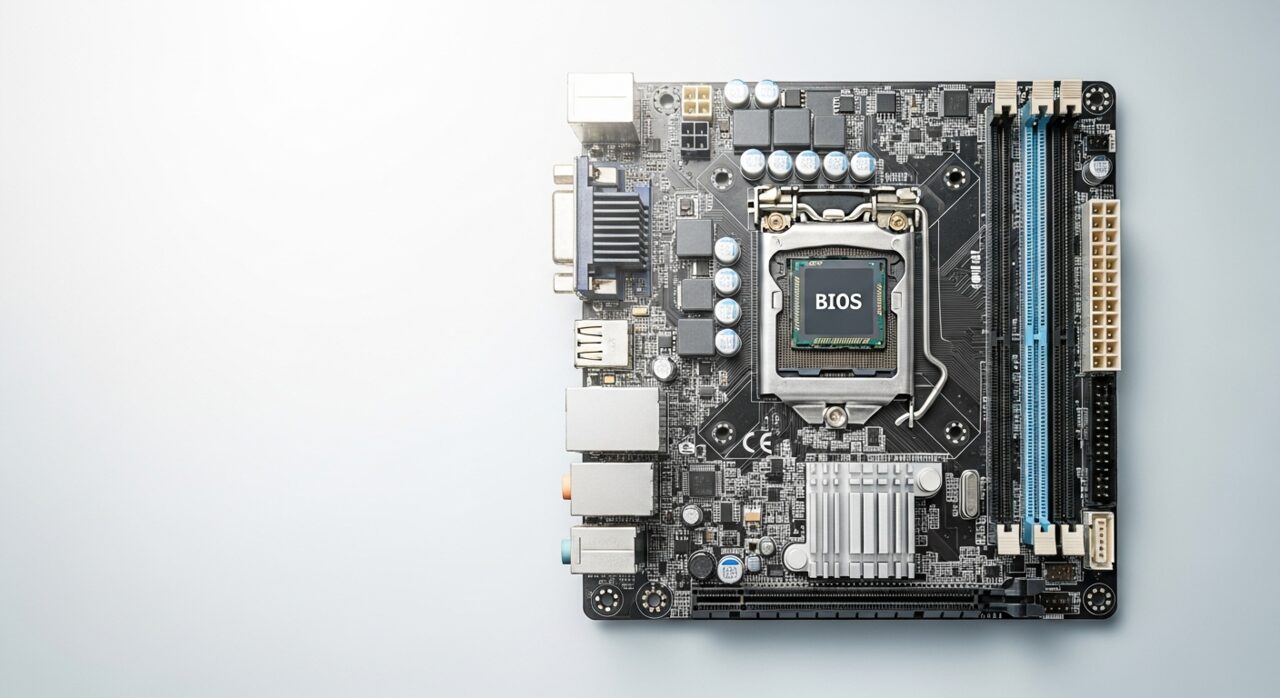
Showing the logo proves the firmware and basic hardware are working, because the screen received and displayed an image. The darkness that follows belongs to the next stage, when the operating system should load and paint its own interface. Two broad things can break here: the system itself may stall on a damaged file or an unresponsive driver, or the system may run perfectly while the picture is sent to a display that is not active. The hardware succeeded at the easy part and then lost its way precisely where the software was due to take the screen.
Symptoms
- The opening logo shows, then the screen goes dark
- The device seems powered on but displays nothing useful
- A faint backlight may glow with no image on it
- No further sounds or activity follow the dark screen
Likely causes
- 1The operating system failing to load after the early checks pass
- 2A display or graphics issue leaving the screen blank while the system runs
- 3Corrupted system files interrupting the next stage of start-up
- 4A driver problem stalling the device just as the interface should appear
- 5An output sent to a display that is not currently connected
What to observe and check
- Note whether any backlight or faint glow suggests the screen has power
- Observe if the device makes its usual ready sounds despite the dark screen
- Consider whether an external display shows an image when the built-in one does not
- Watch whether the black screen follows a recent update or change
Step-by-step repair
 1
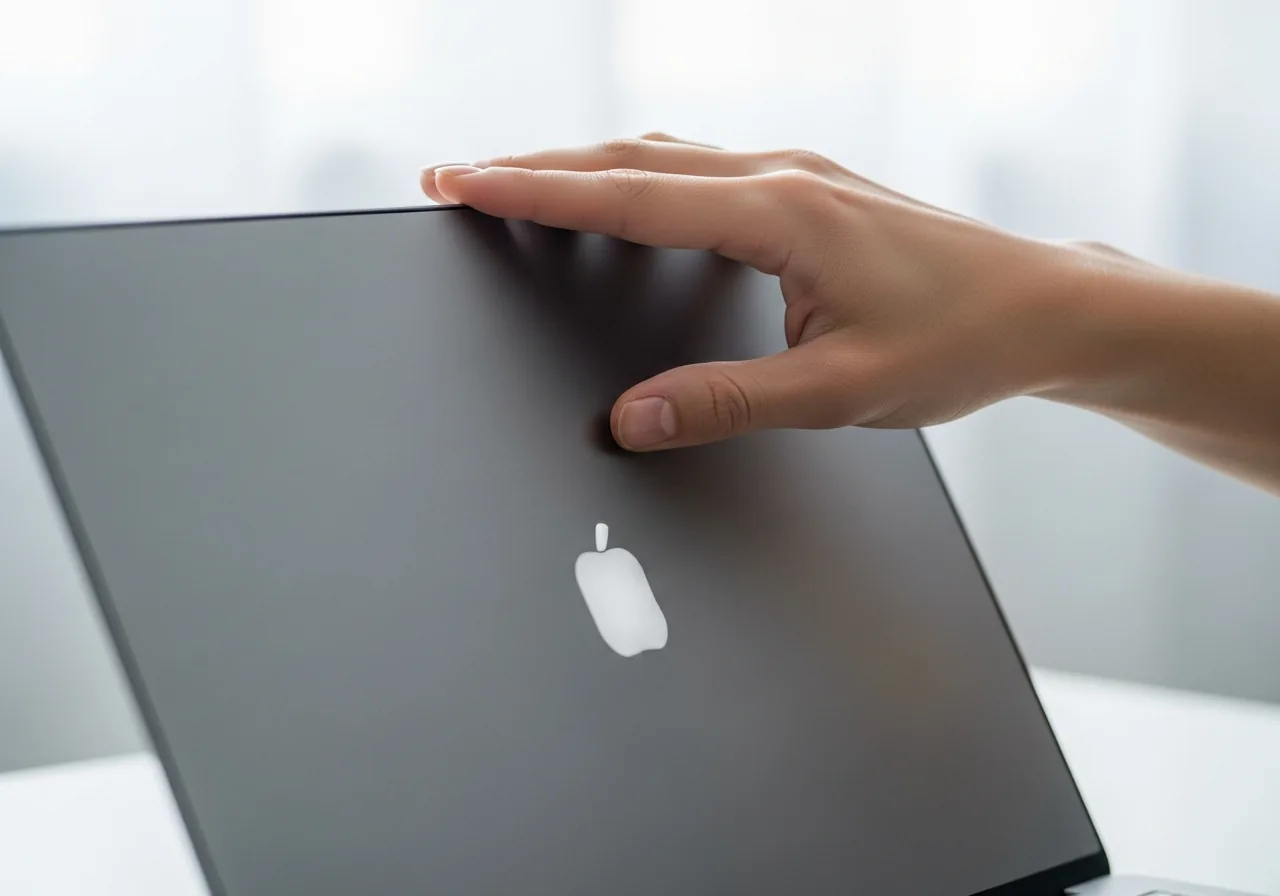
1Check for signs of life
Look for a faint backlight glow and listen for the usual ready sounds to tell whether the system is running behind a dark screen or has stalled.
 2
2Try an external display
Connect another screen to see whether the picture is simply being sent to an inactive display while the system runs fine.
 3
3Recall any recent change
Consider whether the dark screen followed a graphics driver change or a system update, which points to where the next stage broke.
 4
4Refresh the display driver
If you can reach the system, reinstall or roll back the graphics driver that may be stalling just as the interface should appear.
 5
5Restart and watch the screen
Start the device again and confirm the interface now appears after the logo rather than fading to black.
When to seek help
If the device stays dark after the logo and shows no response, a qualified technician can tell whether the fault lies with the display or the system itself.
Reducing the chance it returns
Keep graphics drivers updated carefully and note when you change them, since a mismatched display driver is a common reason the picture vanishes at this stage. When you finish using an external display, set the device back to its own screen before shutting down, so it does not later send the image to something absent. Allow system updates to complete fully, protecting the files the next stage needs. These small habits keep the handover from logo to interface smooth, so the screen stays lit rather than falling dark.
Repair110 is a free, informational resource. These steps describe a careful, general approach — every device is a little different, so work slowly, back up anything you value, and prioritise your own safety. If a step feels beyond your comfort, stop and consult a qualified technician.