Understanding the problem
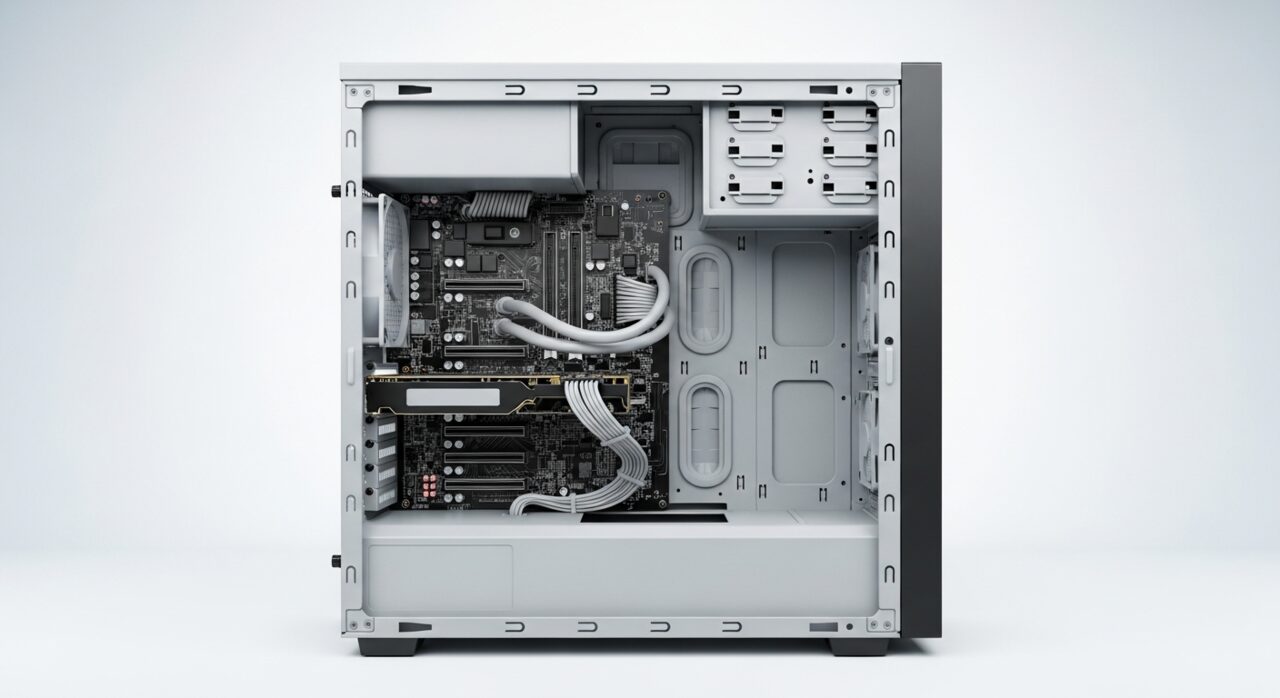
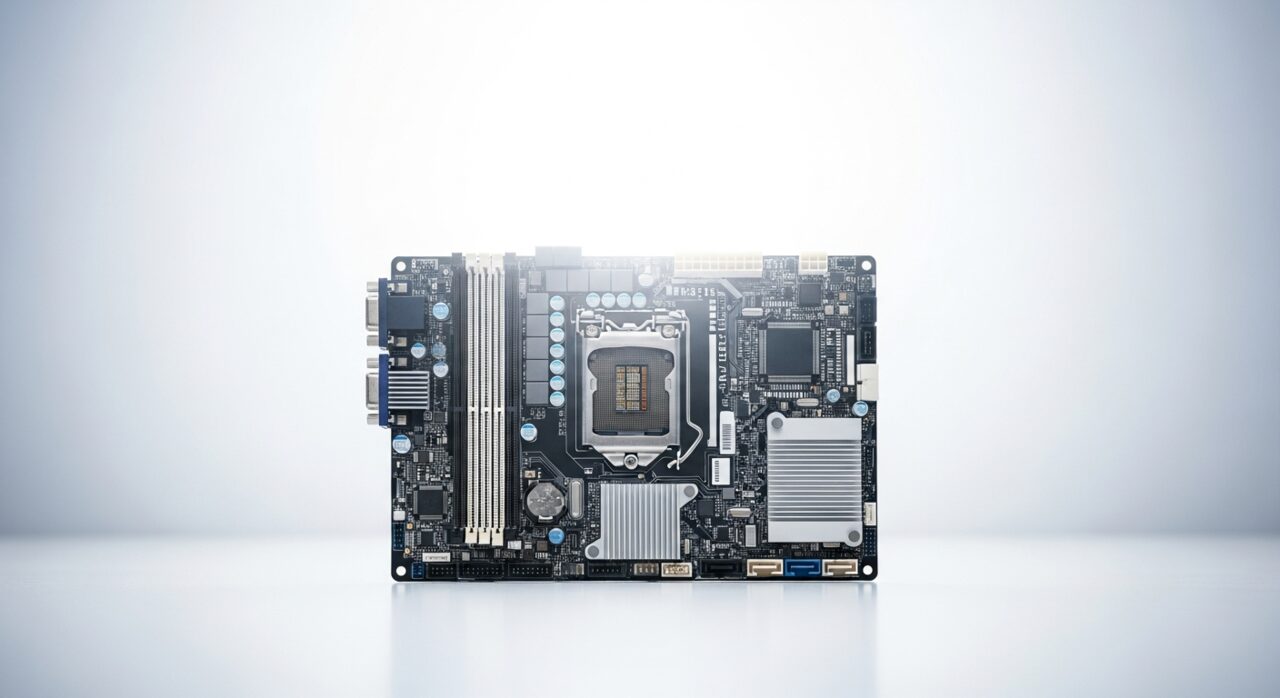
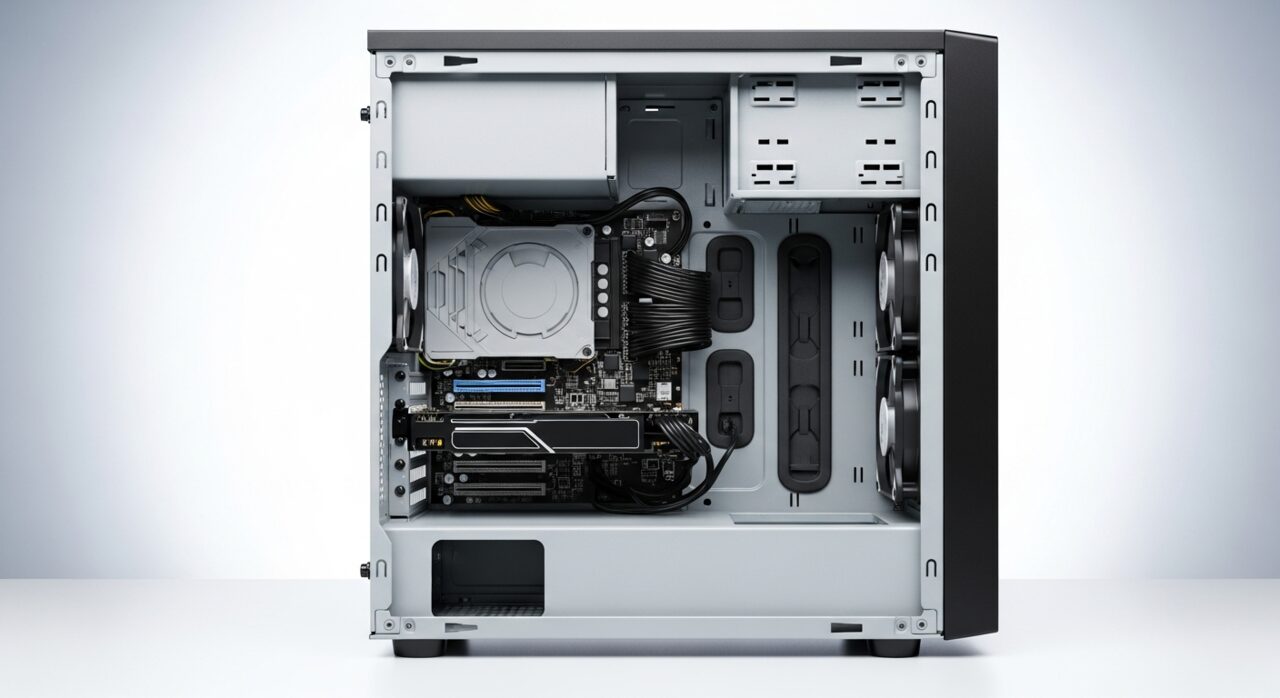
A reboot with no error is usually a safety reflex. The board constantly monitors temperatures and supply voltages, and when either strays outside a safe window it cuts power instantly rather than risk damage. Heat builds when dust chokes airflow or a cooler loses contact; voltage sags when the supply cannot hold a steady level under demand; a loose memory module can corrupt a calculation in an instant. Each of these crosses an invisible threshold, and the system answers the only way it safely can, by restarting before the fault can do lasting harm.
Symptoms
- The machine reboots without warning during normal use
- Restarts cluster around demanding tasks or get worse over time
- No error appears; the screen simply goes black and returns
- The fault may follow heat, load, or a particular program
Likely causes
- 1An overheating processor or graphics chip tripping a safety reset
- 2A power supply struggling to hold steady voltage under load
- 3Unstable memory modules or a loose connection on the board
- 4A driver or operating system fault forcing an abrupt reboot
- 5Dust and poor airflow letting components run too hot
What to observe and check
- Note whether restarts coincide with heavy load or rising temperatures
- Observe if a specific task reliably triggers the reboot
- Watch whether the fault eases when the case runs cool and clean
- Consider whether a recent driver or system update preceded the trouble
- Listen for fans surging just before each restart
Step-by-step repair
 1
1Watch for the restart trigger
Note whether reboots cluster around heavy load or rising heat, and whether one task reliably sets them off, which points toward cooling, power, or memory in turn.
 2
2Review recent driver or system changes
If the restarts began soon after a driver or operating system update, undo that change to rule out software forcing the abrupt reboot.
 3
3Power off and clear the cooling
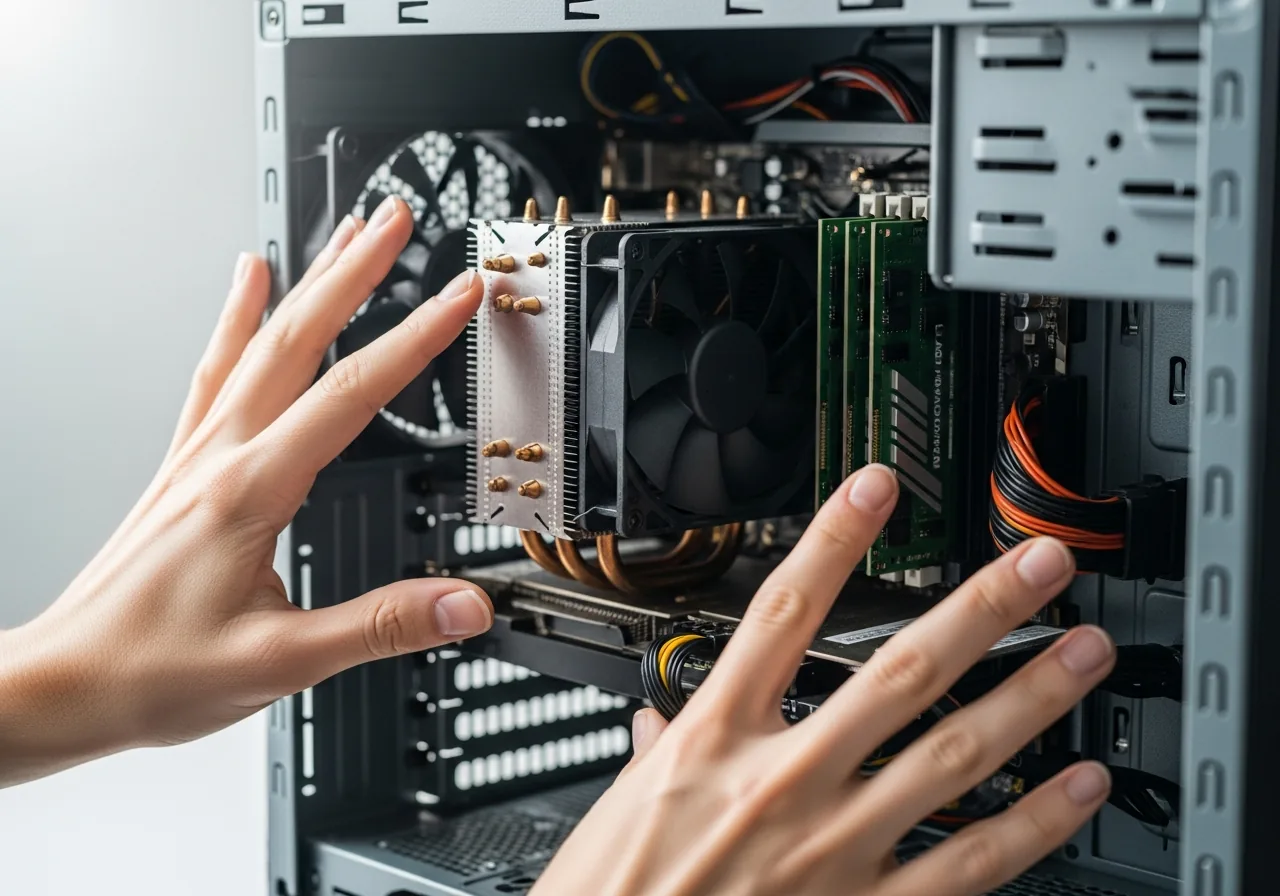
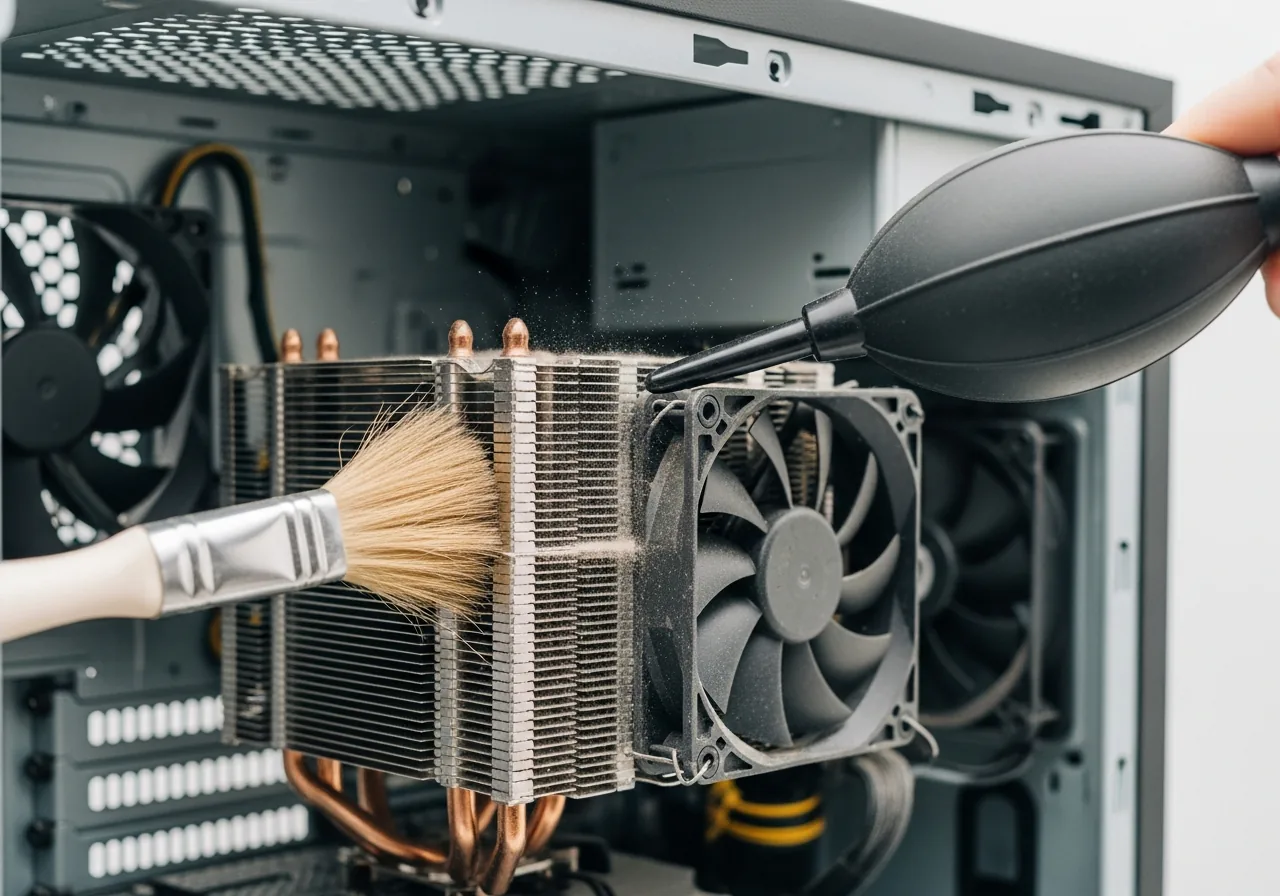
Switch off and unplug the tower, then clear dust from the filters, fans, and cooler so heat can escape rather than tripping a protective reset under load.
 4
4Reseat the memory modules
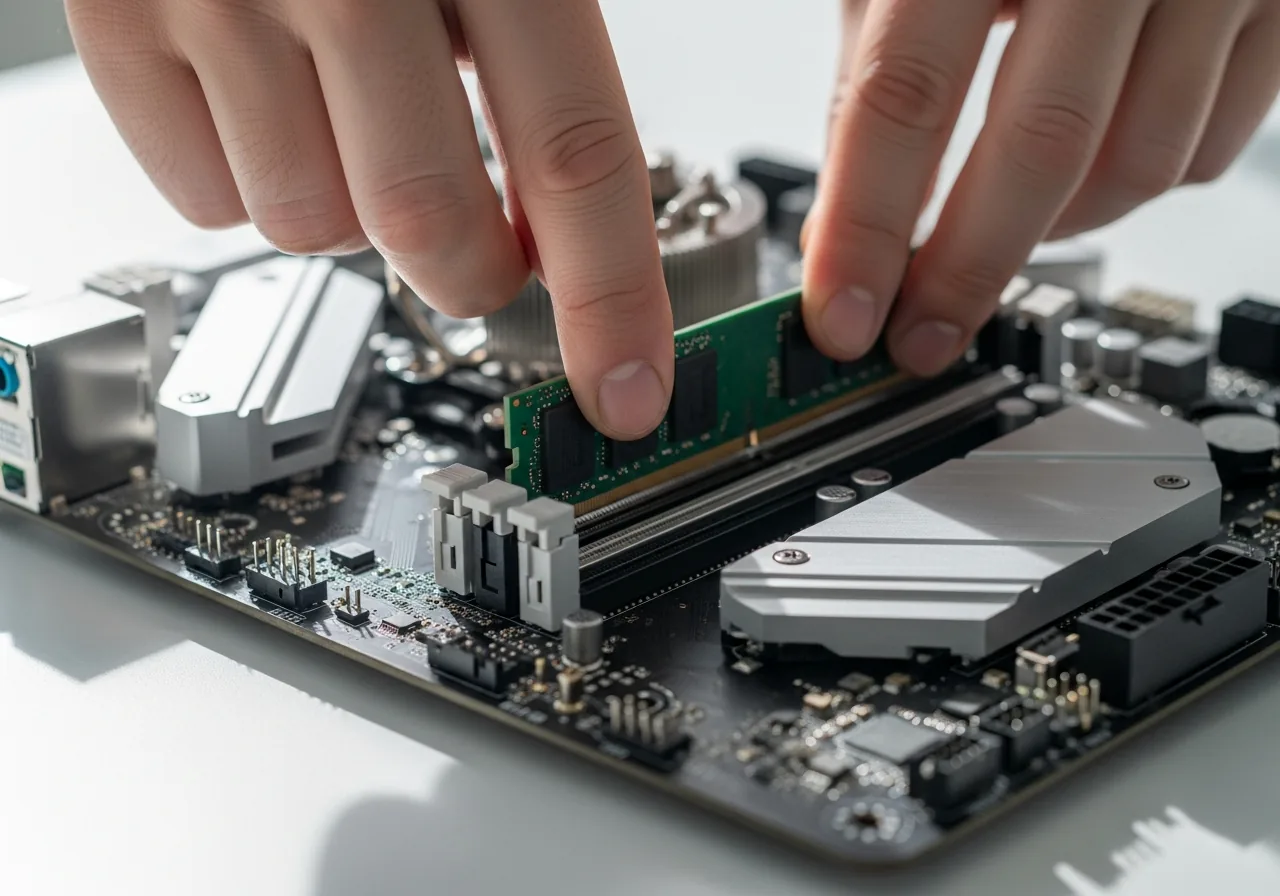
With the mains disconnected and grounded hands, press each memory module firmly back into its slot, since a loose module can corrupt a calculation and force a reset.
 5
5Confirm stability over time
Reconnect, run the machine through the tasks that used to trigger it, and watch whether it now stays up without the screen going black and returning.
When to seek help
If restarts are paired with burning smells, scorch marks, or a buzzing power supply, stop using the machine and seek qualified help, since a struggling supply can be a safety risk.
Reducing the chance it returns
Steady temperatures and steady power keep these resets at bay. Clear dust from filters, fans, and the cooler on a regular schedule so heat can always escape, and leave a hand's width of clearance around the case for airflow. Give the supply room to breathe rather than tucking the tower into a sealed cabinet. When you add a hungry component, make sure the supply can comfortably feed it. Apply system and driver updates thoughtfully, noting when each was installed, so a fresh change can be undone quickly if restarts begin soon after.
Repair110 is a free, informational resource. These steps describe a careful, general approach — every device is a little different, so work slowly, back up anything you value, and prioritise your own safety. If a step feels beyond your comfort, stop and consult a qualified technician.