Understanding the problem
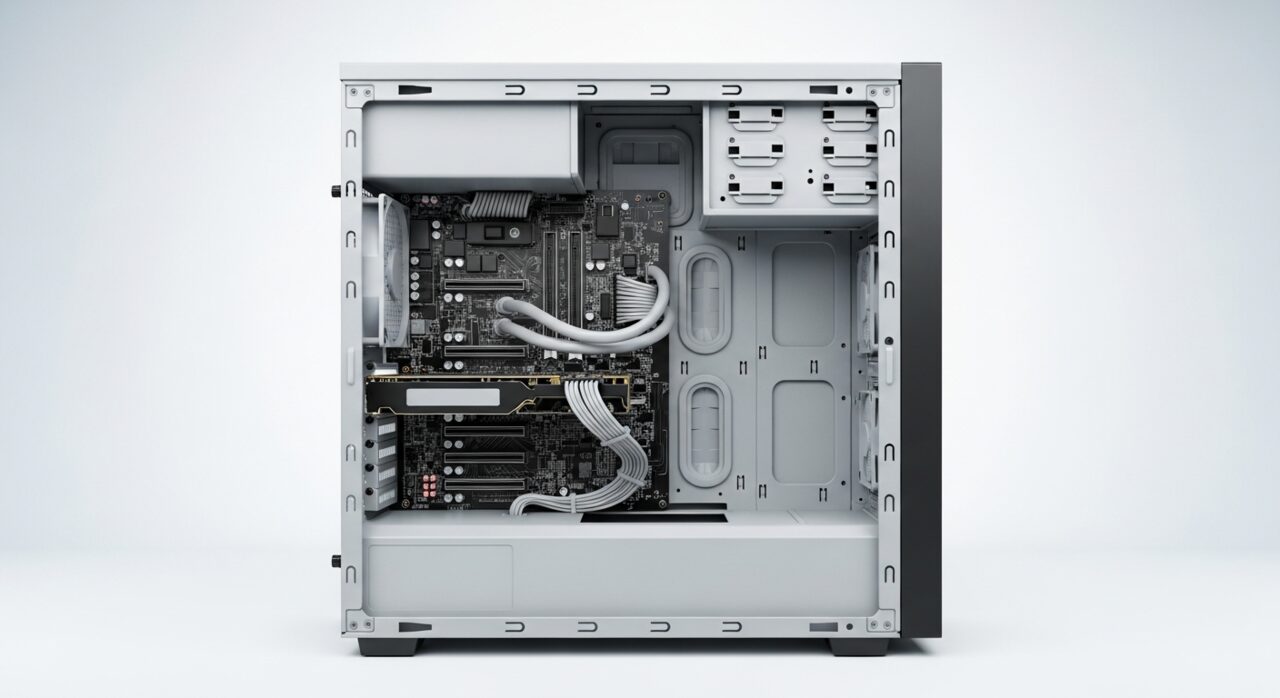
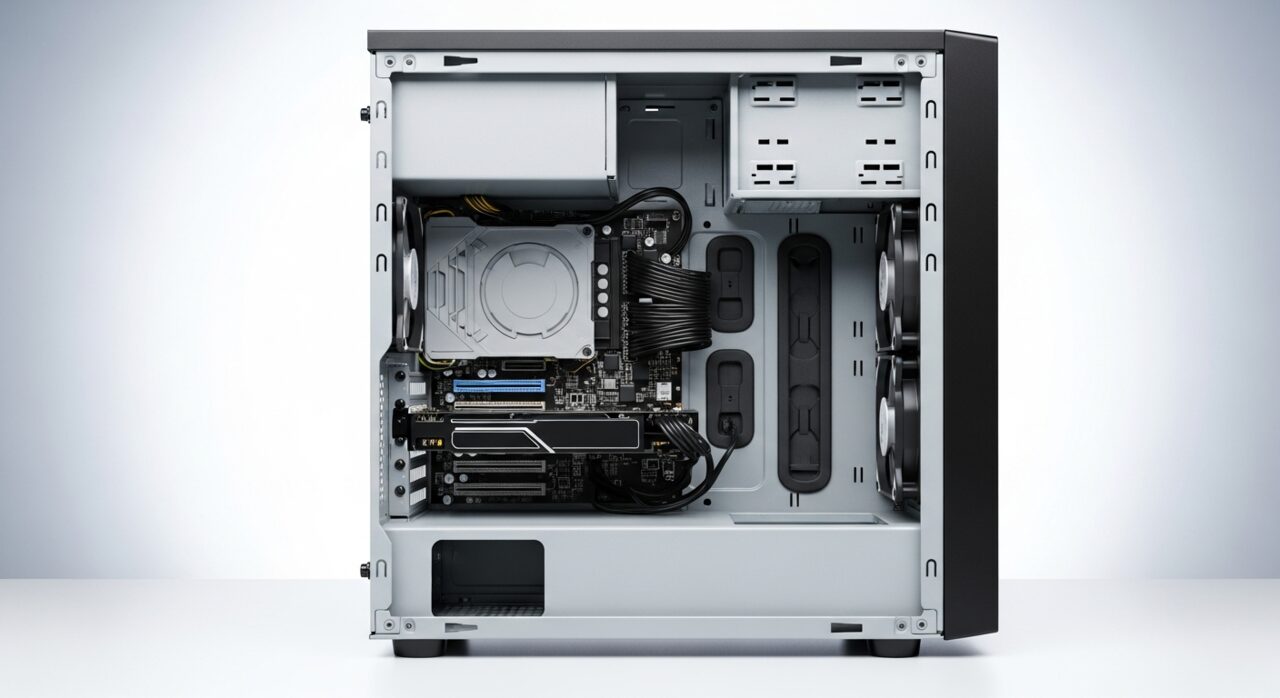
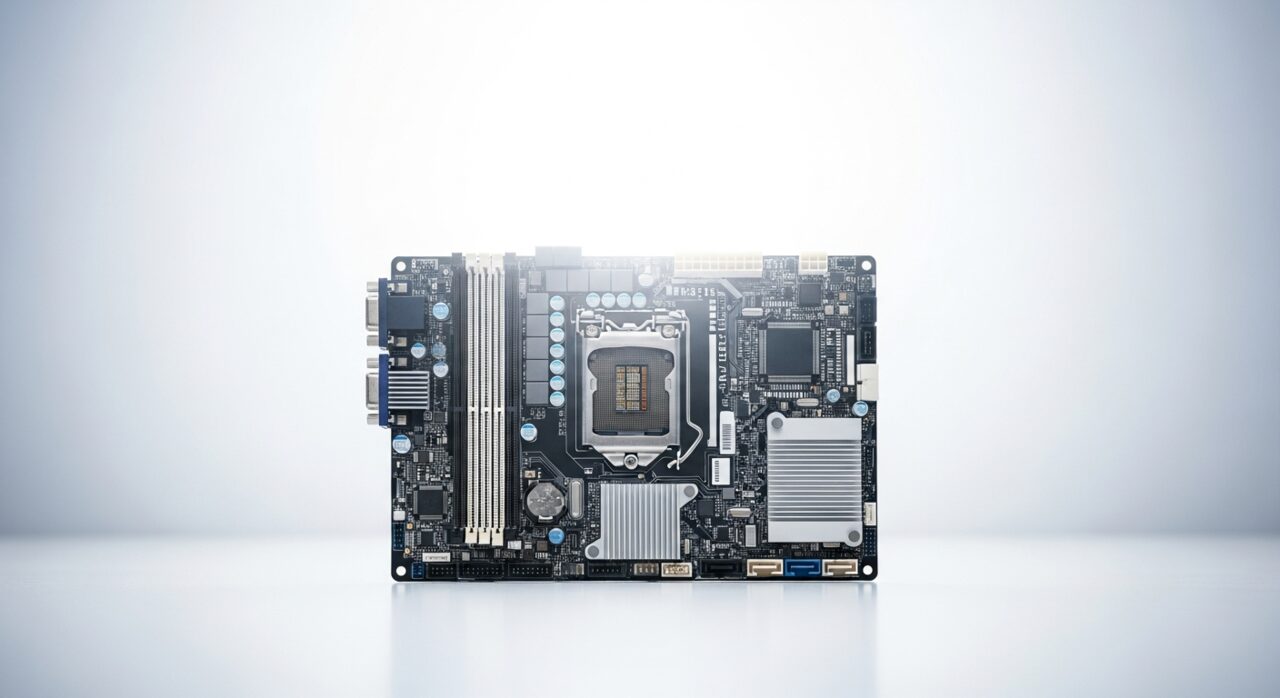
At power-on the board runs a self-check, confirming that essential parts respond before it ever tries to draw a picture. If memory or the graphics card fails to answer, there is no screen yet on which to print a warning, so the board falls back on a small speaker and a coded sequence of tones. A particular rhythm of long and short beeps names the part that did not reply. The machine then halts on purpose, refusing to go further until the missing piece is found, which is why a patterned beep so often arrives with a stubbornly blank display.
Symptoms
- A repeating or patterned beep sounds when power is applied
- The display stays blank while the beeping continues
- The system halts before any logo or text appears
- Beeps may change after the case is moved or reseated
Likely causes
- 1Memory modules unseated or not making proper contact
- 2A graphics card loose in its slot or not detected
- 3A processor or its power connection not recognized at startup
- 4Dust or oxidation on contacts breaking a critical connection
- 5A board fault halting the start-up self-check
What to observe and check
- Count the beep pattern carefully, noting long and short tones
- Observe whether the beeps began after adding or moving hardware
- Note if the pattern changes when the machine is gently reseated
- Watch whether the fault is consistent on every power attempt
- Consider whether transport or cleaning preceded the beeping
Step-by-step repair
 1
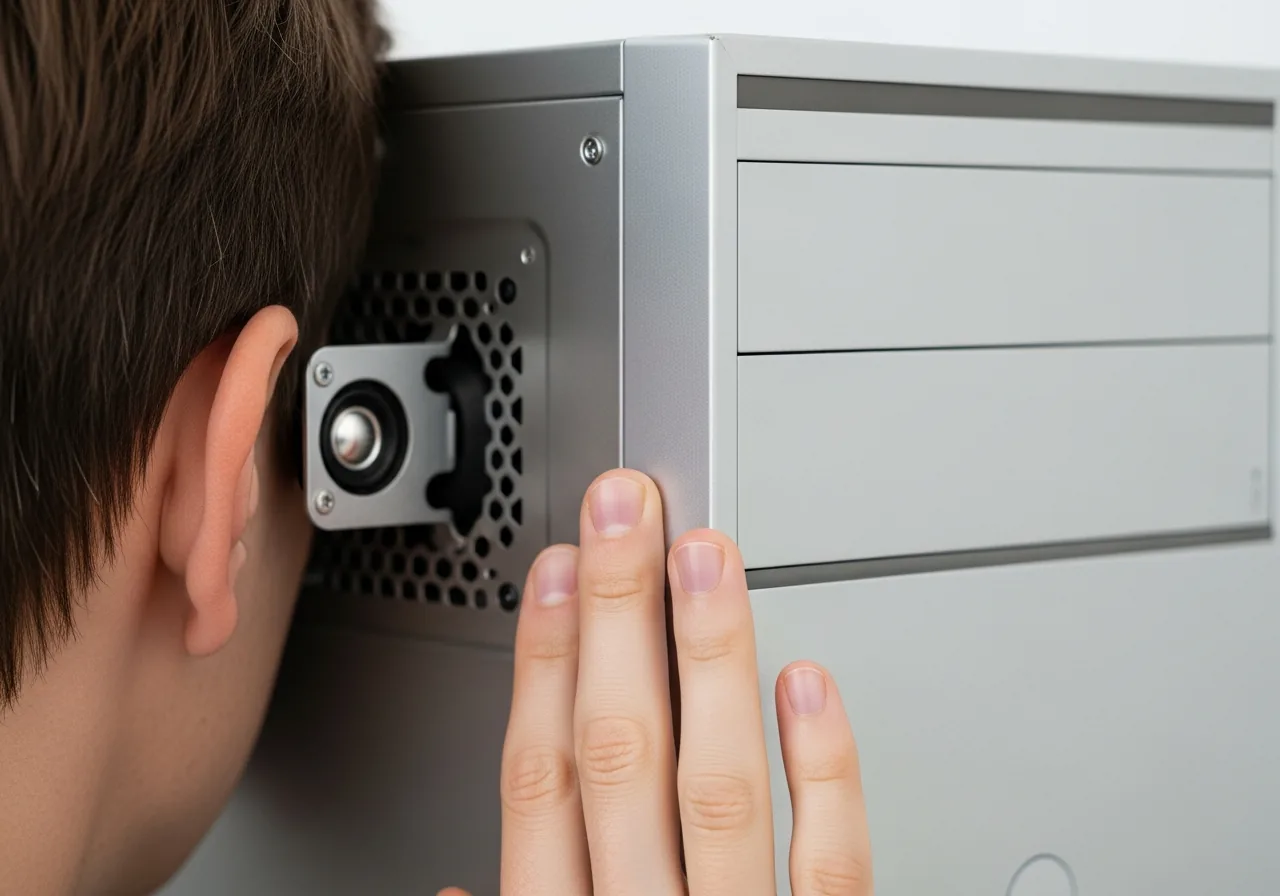
1Count the beep pattern
Listen carefully and note the rhythm of long and short tones, since the coded sequence names the part that failed to answer the start-up self-check.
 2
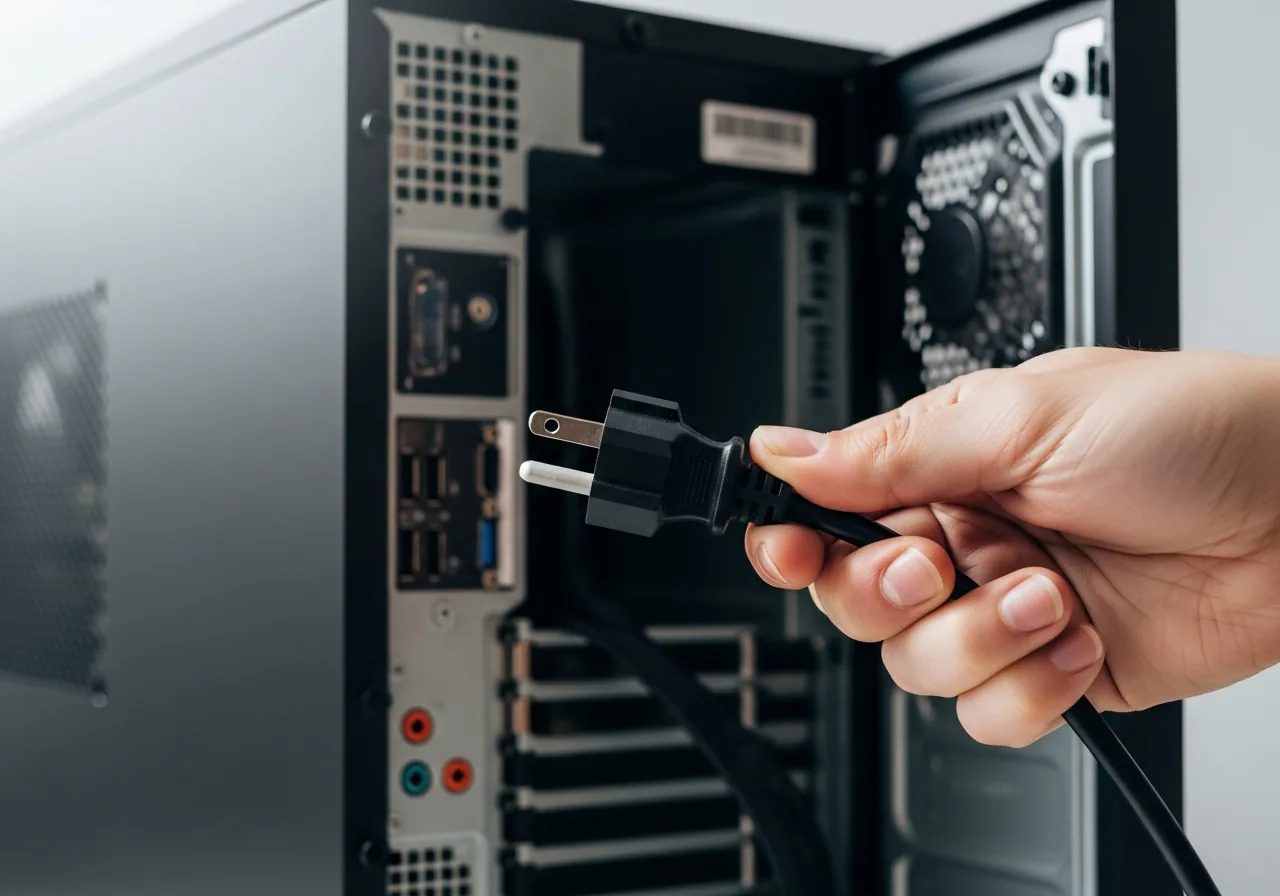
2Unplug before opening the case
Switch off and disconnect the mains lead before removing the panel, and let the machine reach room temperature if it has come in from the cold.
 3
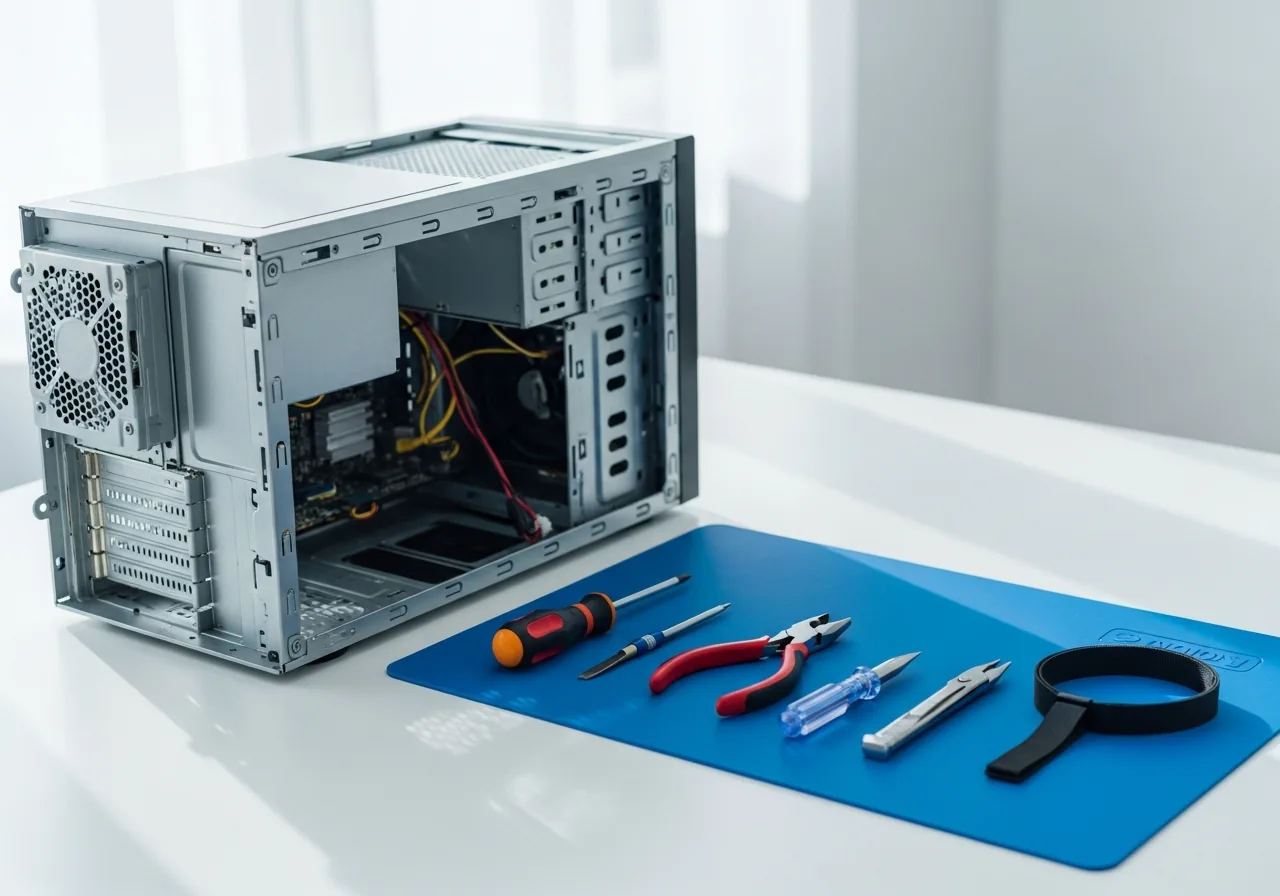
3Prepare a static-safe workspace
Work on a flat, well-lit surface with grounded hands so static cannot harm the delicate parts the self-check relies on.
 4
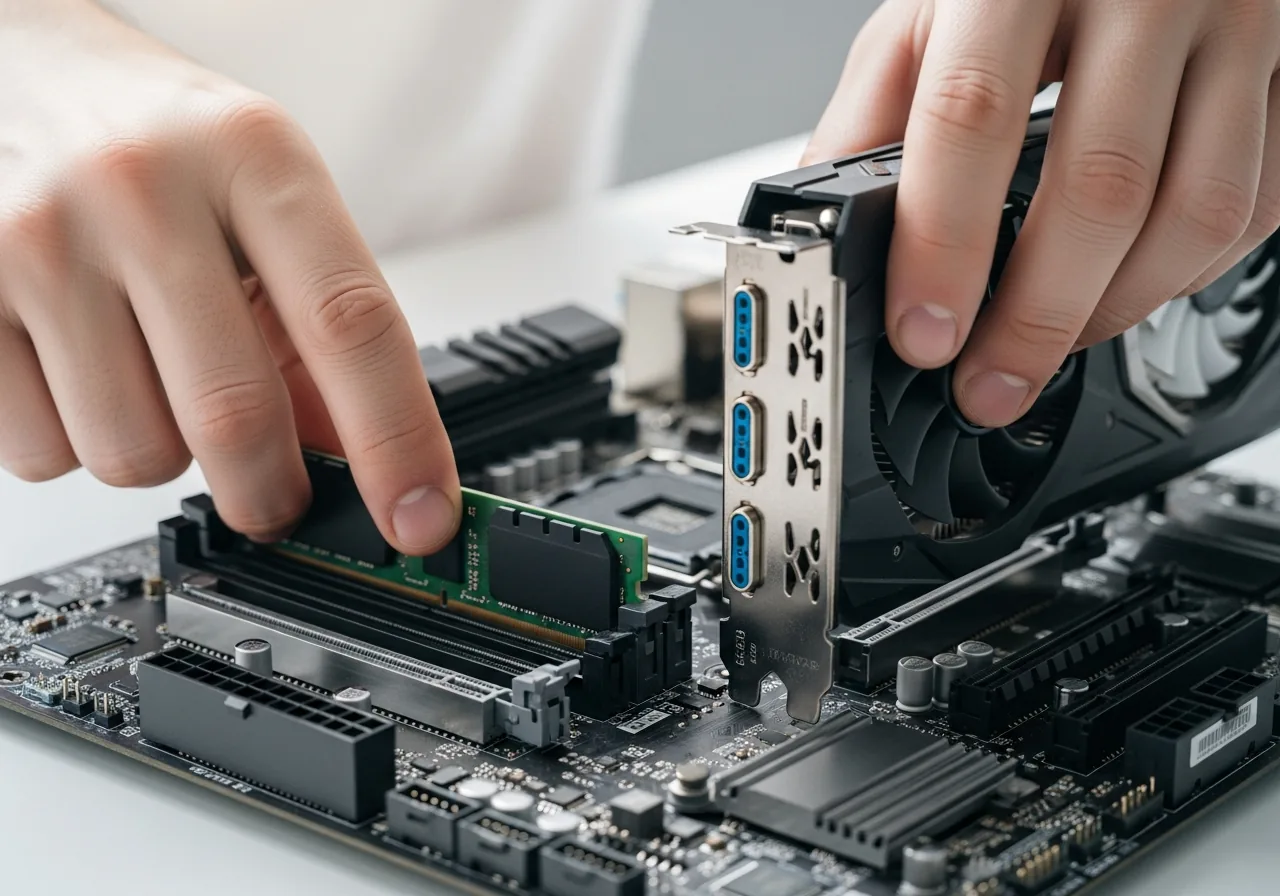
4Reseat memory and the graphics card
Press each memory module and the graphics card firmly into their slots until the latches close, since a part worked loose in transit is the usual cause of the beeps.
 5
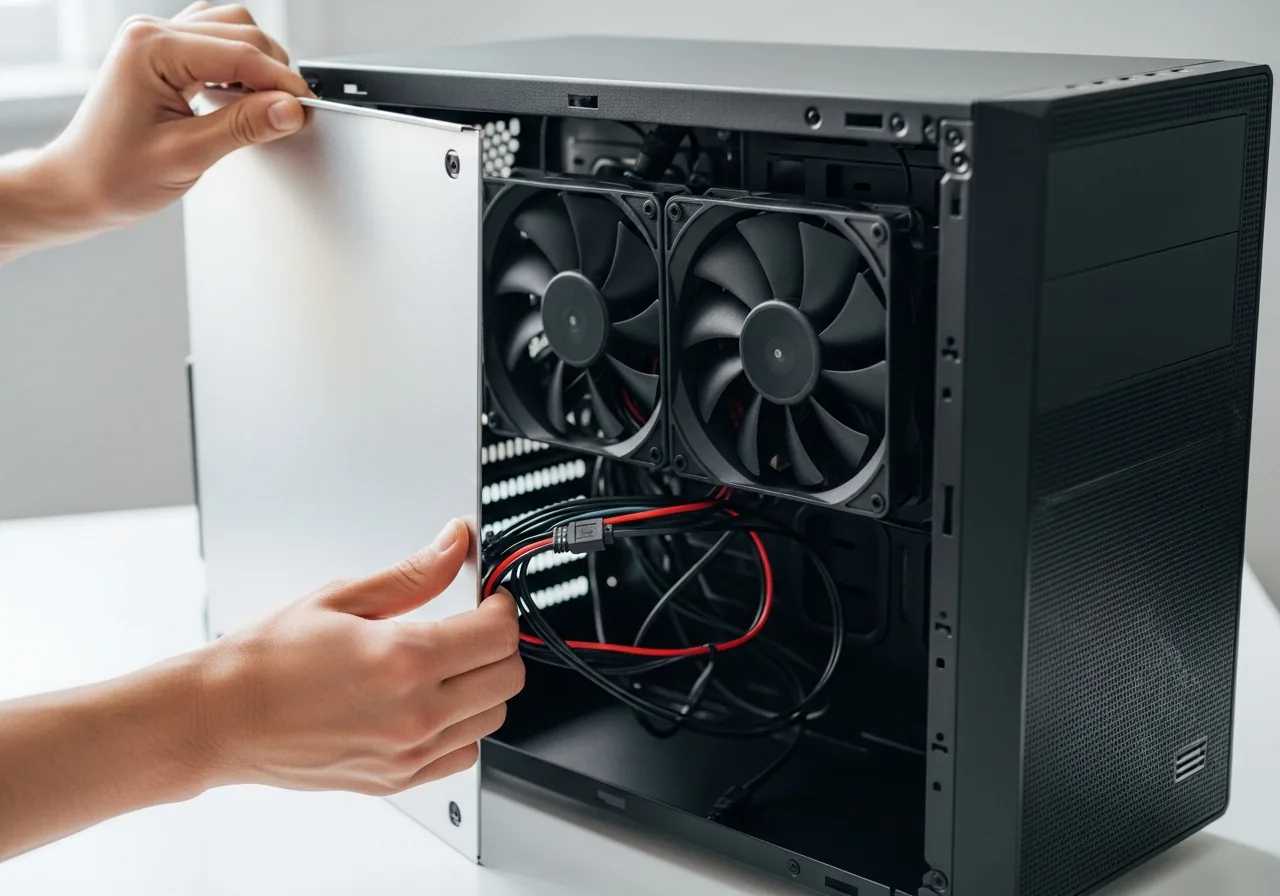
5Close the case
Refit the side panel and tidy any cables clear of the fans before reconnecting the mains lead.
 6
6Test and listen again
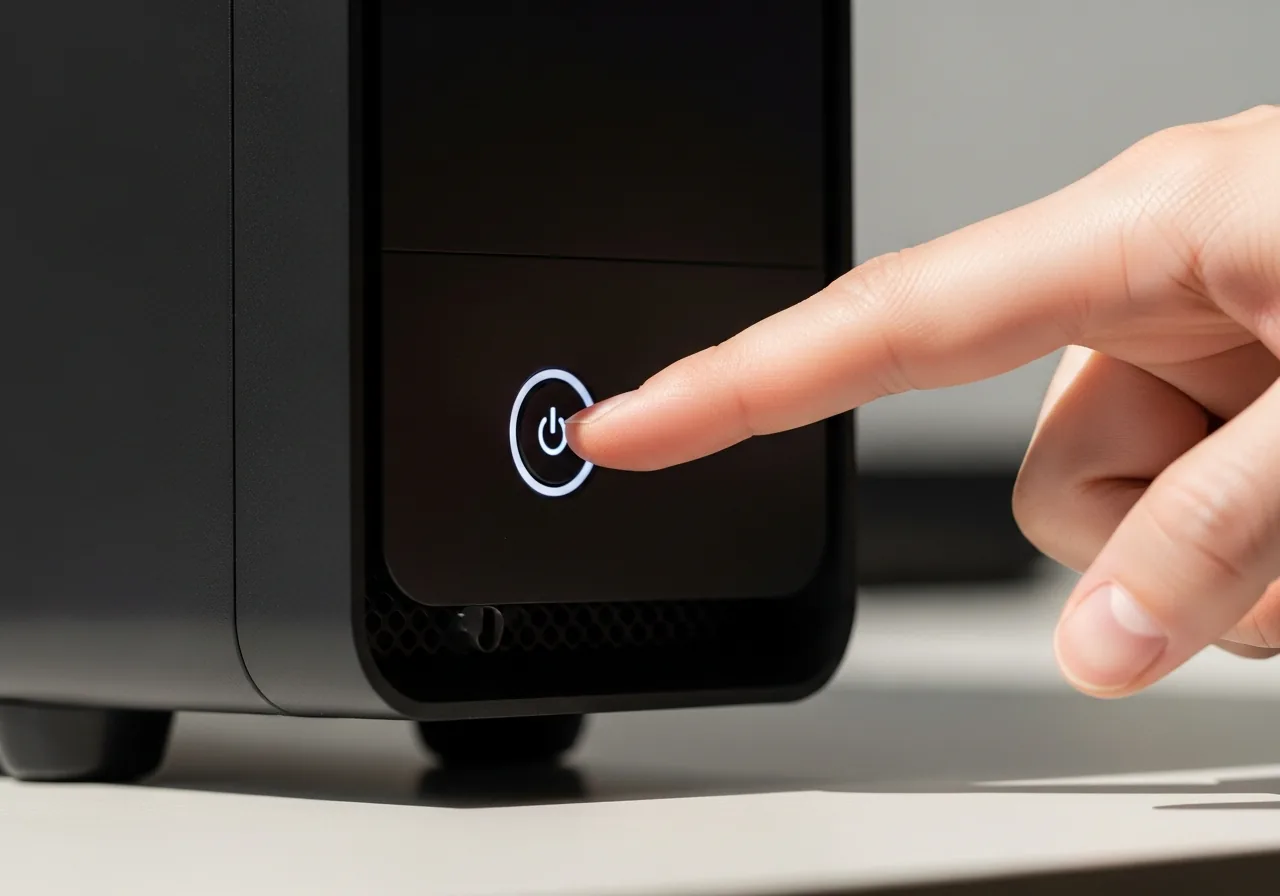
Power on and listen for whether the beeping has stopped and the machine now completes its self-check and reaches a display.
When to seek help
If the beep pattern persists after careful reseating, a technician can interpret the code and test each component safely rather than risking damage through repeated trial and error.
Reducing the chance it returns
Because these tones usually point to a part that has worked loose, handle the inside of the case with care. When fitting memory or a card, press until it seats fully and any latches close, then give a gentle tug to confirm it holds. Before transporting the tower, support heavy components and avoid knocks that can ease a module from its slot. Keep contacts clean and dry, and let the machine reach room temperature before powering on after a cold journey. Working with grounded hands also protects the delicate parts the self-check relies upon.
Repair110 is a free, informational resource. These steps describe a careful, general approach — every device is a little different, so work slowly, back up anything you value, and prioritise your own safety. If a step feels beyond your comfort, stop and consult a qualified technician.