Understanding the problem
A speaker reproduces sound cleanly only within the limits of its small moving cone and the power feeding it. Push the volume past that point and the signal is clipped, its smooth waves flattened into harsh edges the ear hears as distortion. Software effects can overdrive the signal in the same way before it ever reaches the speaker. A muffled, covered quality instead points to dust or debris over the grille, blocking the higher frequencies. As a cone ages or tears, it loses its clean motion, so worsening fuzz can also mark a speaker beginning to fail.
Symptoms
- Sound is fuzzy, harsh, or lacks clarity
- Audio seems muffled as if covered by a cloth
- Distortion worsens as the volume rises
- Certain frequencies sound thin or buzz unpleasantly
Likely causes
- 1Dust or debris covering a speaker grille or opening
- 2Volume pushed beyond what the speaker can cleanly reproduce
- 3Audio enhancements or effects distorting the output in software
- 4An outdated or mismatched sound driver
- 5A damaged speaker element beginning to fail
What to observe and check
- Observe whether the distortion only appears above a certain volume
- Note if disabling audio effects restores clear sound, pointing at software
- Watch whether headphones sound clean while speakers do not, isolating the hardware
- Check whether a speaker opening is blocked by dust or covering
Step-by-step repair
 1
1Lower the volume below clipping
Bring the level down to a comfortable range, since pushing past what the cone can reproduce flattens the signal into harsh distortion.
 2
2Disable audio enhancements
Switch off any effects or enhancements, as these can overdrive the signal in software before it ever reaches the speaker.
 3
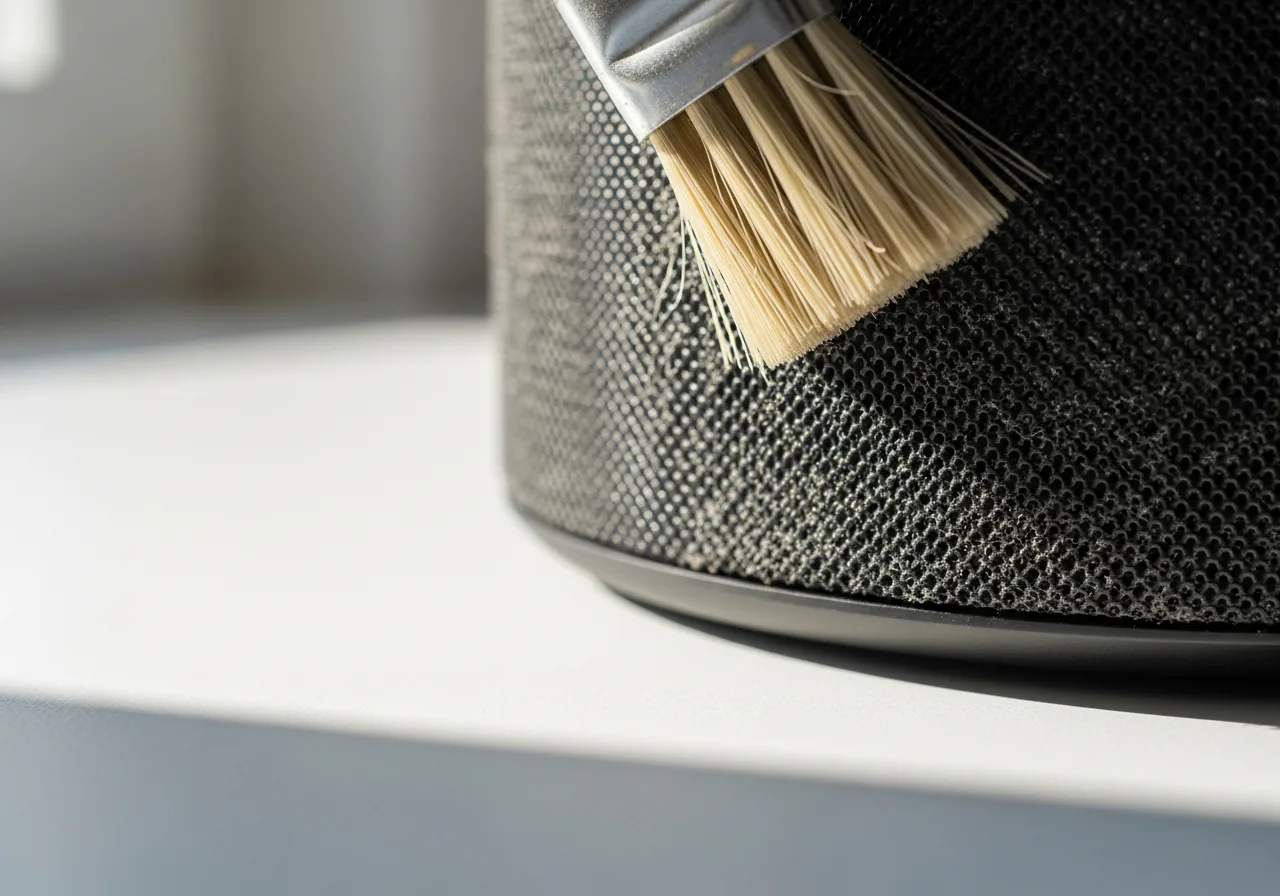
3Gently clean the speaker grille
Wipe away dust or debris covering the grille, which muffles the higher frequencies and gives sound a covered quality.
 4
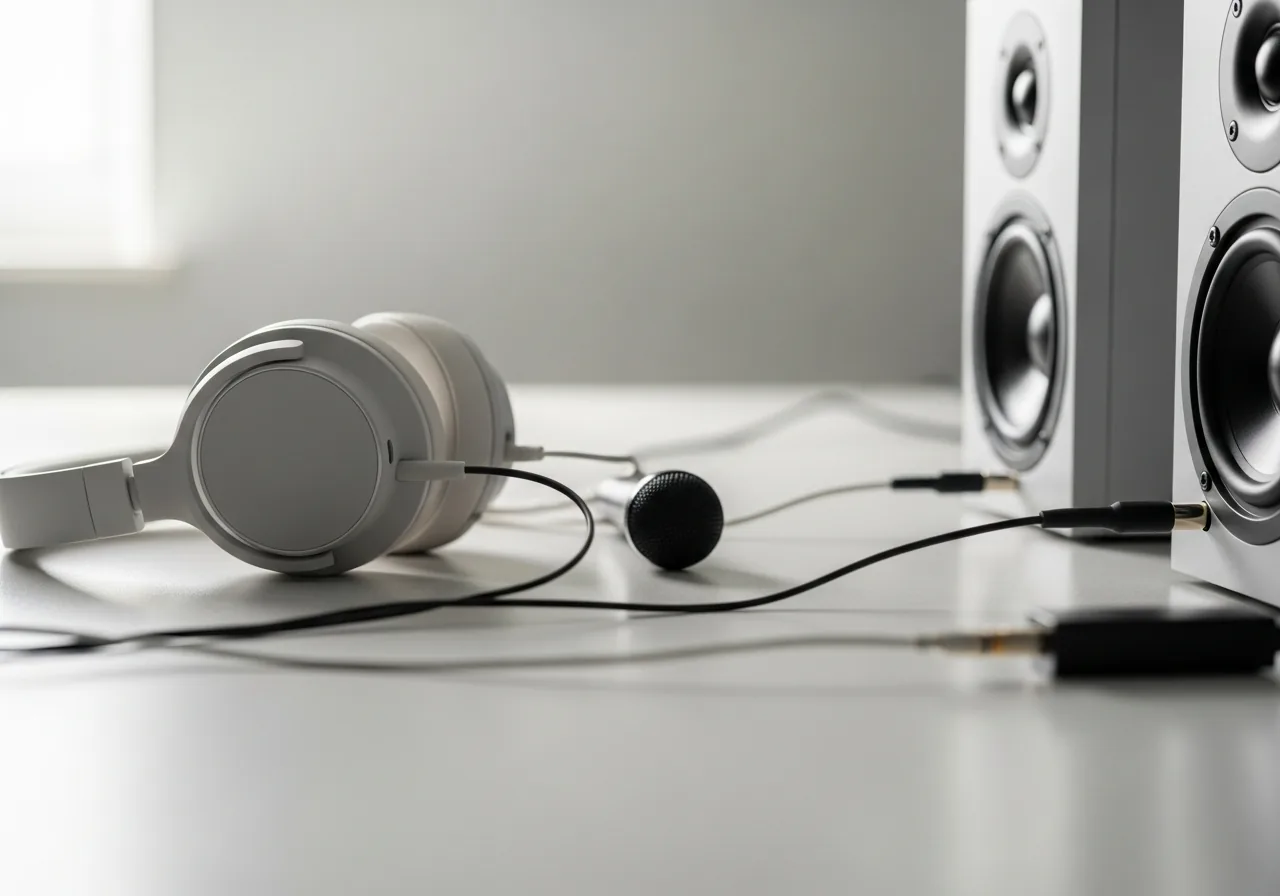
4Compare with headphones
Listen through headphones to learn whether the speaker element itself is failing or the fault lives upstream in software.
 5
5Confirm clear playback
Play a familiar track and check the sound is clean and open once volume, effects, and dust are addressed.
When to seek help
If distortion comes with a burning smell, heat, or visible damage to a speaker, stop using it and seek qualified help.
Reducing the chance it returns
Keep the volume within a comfortable range rather than pushing it to the very top, since sustained clipping strains the cone and tires the ear. Leave heavy audio effects switched off unless you genuinely want them, as they often overdrive the signal. Wipe speaker grilles gently from time to time so dust never builds into a muffling layer. Keeping sound software current avoids mismatched processing, and giving speakers room to breathe rather than pressing them against soft surfaces preserves the clean, open sound they were built to produce.
Repair110 is a free, informational resource. These steps describe a careful, general approach — every device is a little different, so work slowly, back up anything you value, and prioritise your own safety. If a step feels beyond your comfort, stop and consult a qualified technician.