Understanding the problem
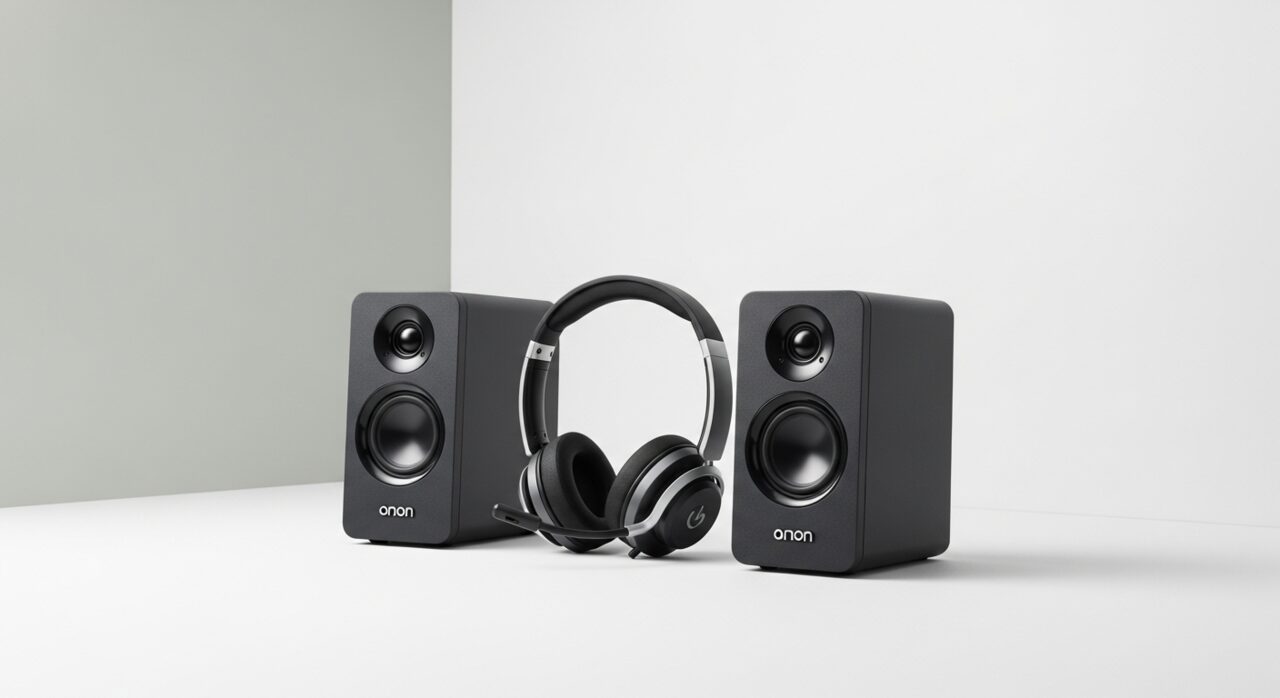
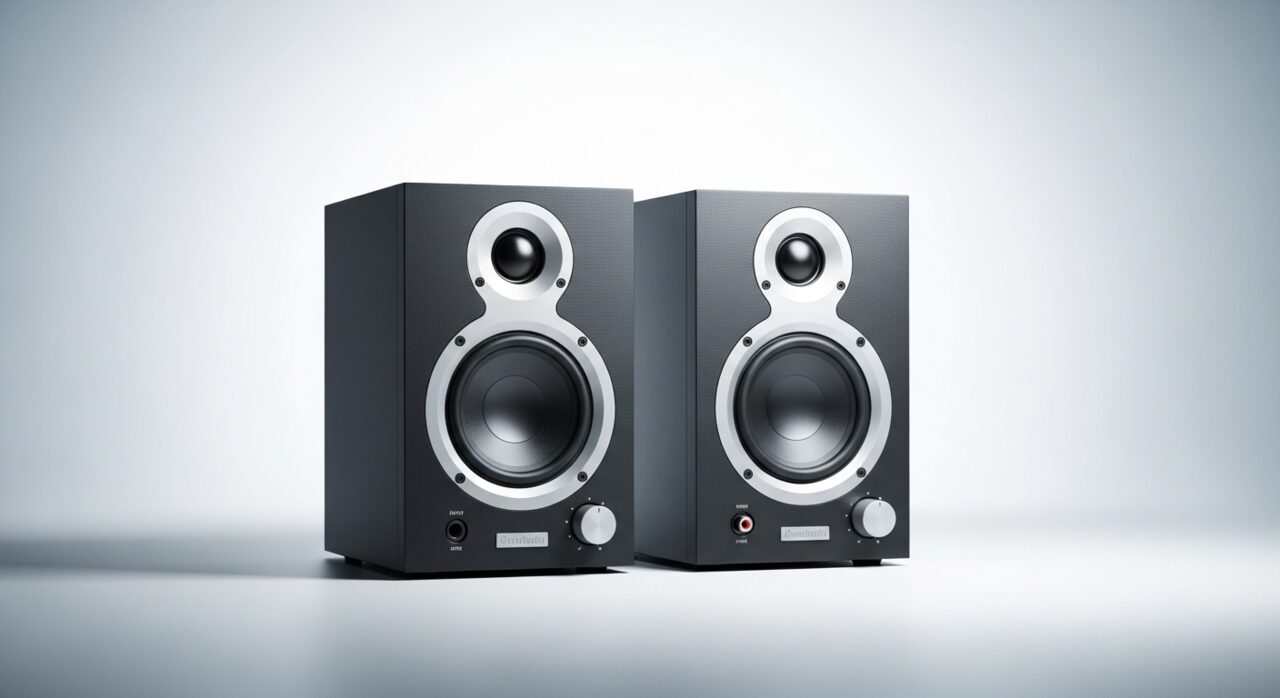
Inside the machine, sound travels as a digital stream that the operating system hands to one chosen output before a small amplifier drives the speaker cones. Total silence usually means that stream is being directed elsewhere, muted at some stage, or never started because the audio service has stopped. When a headphone or display connection is remembered, the system may keep routing there even after it is gone. The speaker itself is the last link, so genuine hardware failure is comparatively rare next to these quieter routing and software slips.
Symptoms
- Nothing plays even though video or music appears to be running
- The volume indicator moves but no sound emerges
- Headphones work yet the built-in speakers stay silent
- Sound is absent in every application, not just one
Likely causes
- 1Output directed to a different device than the speakers
- 2The system or application volume muted or set very low
- 3A disabled or stopped audio service in the operating system
- 4An outdated or corrupted sound driver
- 5A loose internal speaker connector or a failed speaker
What to observe and check
- Observe which output the system has selected before assuming hardware is at fault
- Note whether headphones produce sound, separating the speakers from the audio chain
- Watch whether the mute control or a low setting explains the silence
- Check whether every application is silent or only one, isolating the layer involved
Step-by-step repair
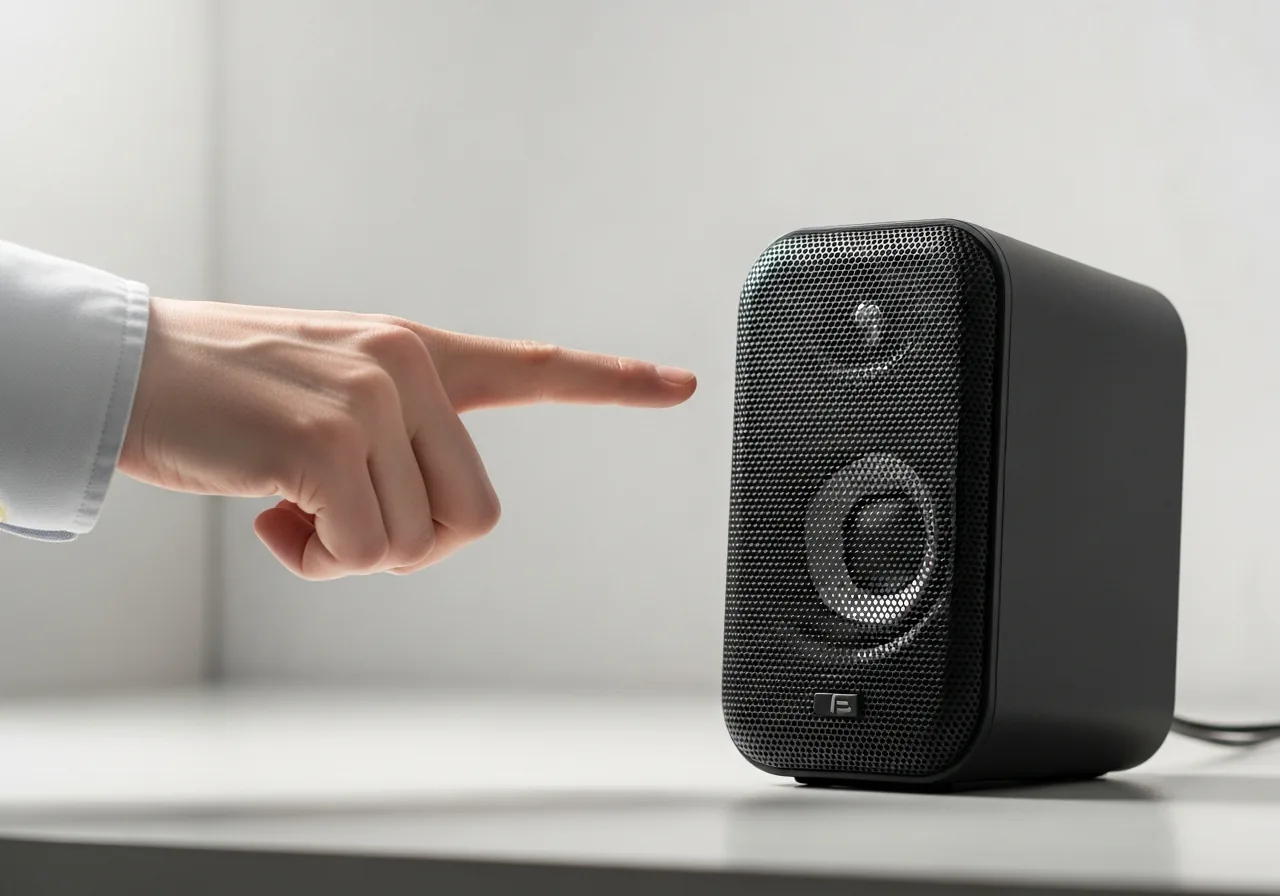 1
1Confirm sound is actually playing
Check that the video or track is genuinely running and not paused, so you are testing real output rather than a stopped source.
 2
2Check the selected output device
Open the sound settings and confirm the system is sending audio to the speakers rather than a remembered headphone or display device.
 3
3Clear any mute and raise volume
Make sure neither the system nor the active application is muted, and lift the level from the floor to a sensible setting.
 4
4Restart the audio service
If the stream still will not start, restart the machine to bring a stopped or stalled audio service cleanly back to life.
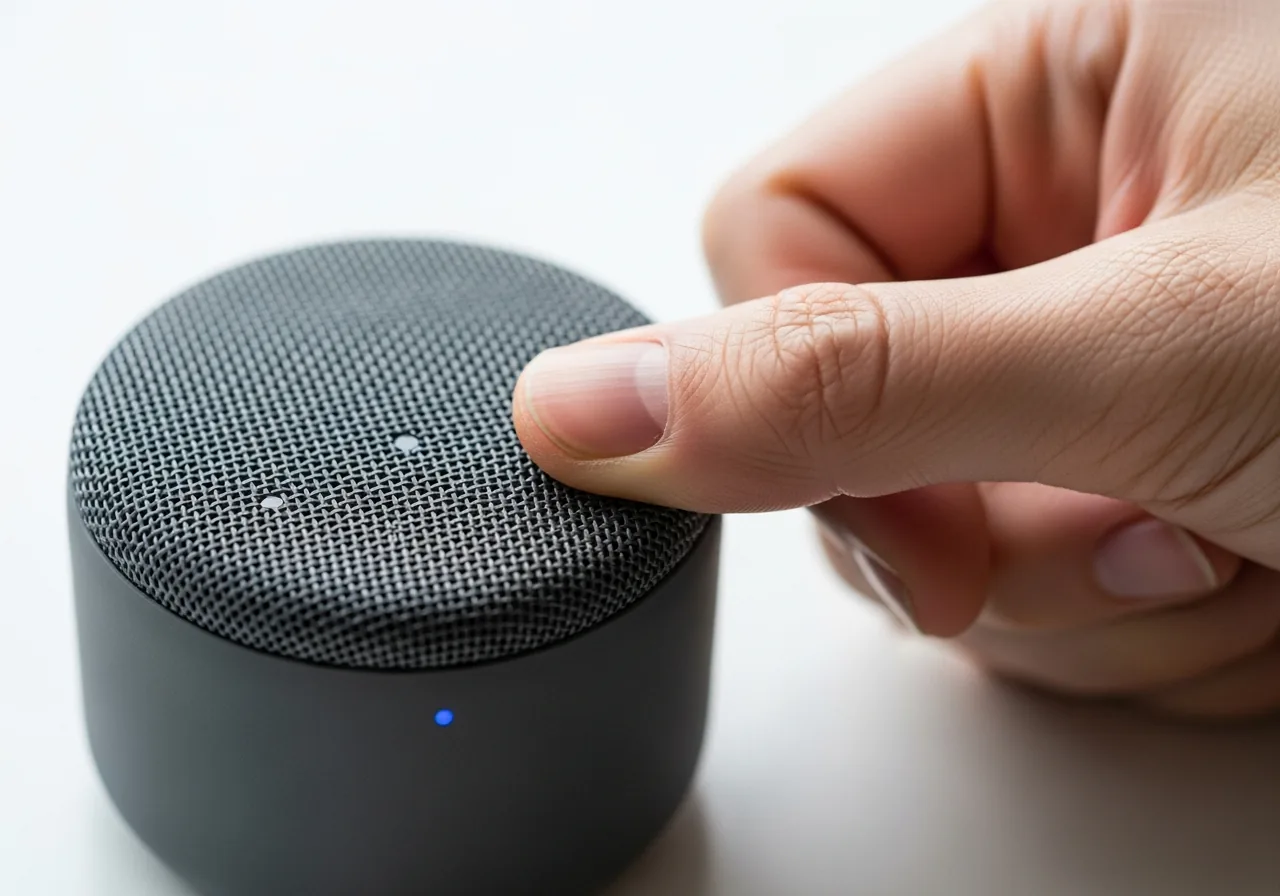 5
5Play a clip to confirm
Test with a short sound to verify the speakers respond once the output and volume are corrected.
When to seek help
If you smell burning near the speakers or hear them buzz harshly before going silent, stop and have the device inspected.
Reducing the chance it returns
Make a habit of glancing at the chosen output before assuming the worst, especially after a headphone or display has been unplugged. Keep the main volume at a sensible level rather than fully muted, and let the system finish waking before expecting sound. Allowing audio software to stay current helps the service start reliably, and restarting now and then clears a stalled audio service. Treating the output selection as the first thing to confirm turns most silent moments into a quick, reassuring adjustment rather than a worry.
Repair110 is a free, informational resource. These steps describe a careful, general approach — every device is a little different, so work slowly, back up anything you value, and prioritise your own safety. If a step feels beyond your comfort, stop and consult a qualified technician.