Understanding the problem
A microphone turns faint air movements into a small electrical signal, which the system then captures from whichever input it has been told to listen to. Modern systems also place a permission gate in front of that input, so an application can be blocked from hearing it entirely. When voice goes uncaptured, the cause is usually that gate, the wrong input chosen, or a level set to zero, rather than a failed element. A physical mute switch on a headset adds another silent barrier that is easy to overlook in the moment.
Symptoms
- Others cannot hear you on calls despite a working connection
- The input level meter stays flat when you speak
- One application captures your voice while another hears nothing
- Recording produces only silence or faint background hiss
Likely causes
- 1Microphone access blocked for the application in the operating system
- 2The wrong input device selected as the active microphone
- 3The input muted or its level set to zero
- 4An outdated or missing audio-input driver
- 5A physical mute switch or a damaged microphone connection
What to observe and check
- Observe whether the input meter responds at all when you speak
- Note if one application hears you while another does not, pointing at permissions
- Watch whether the correct device is chosen as the input
- Check for a hardware mute switch before assuming the microphone has failed
Step-by-step repair
 1
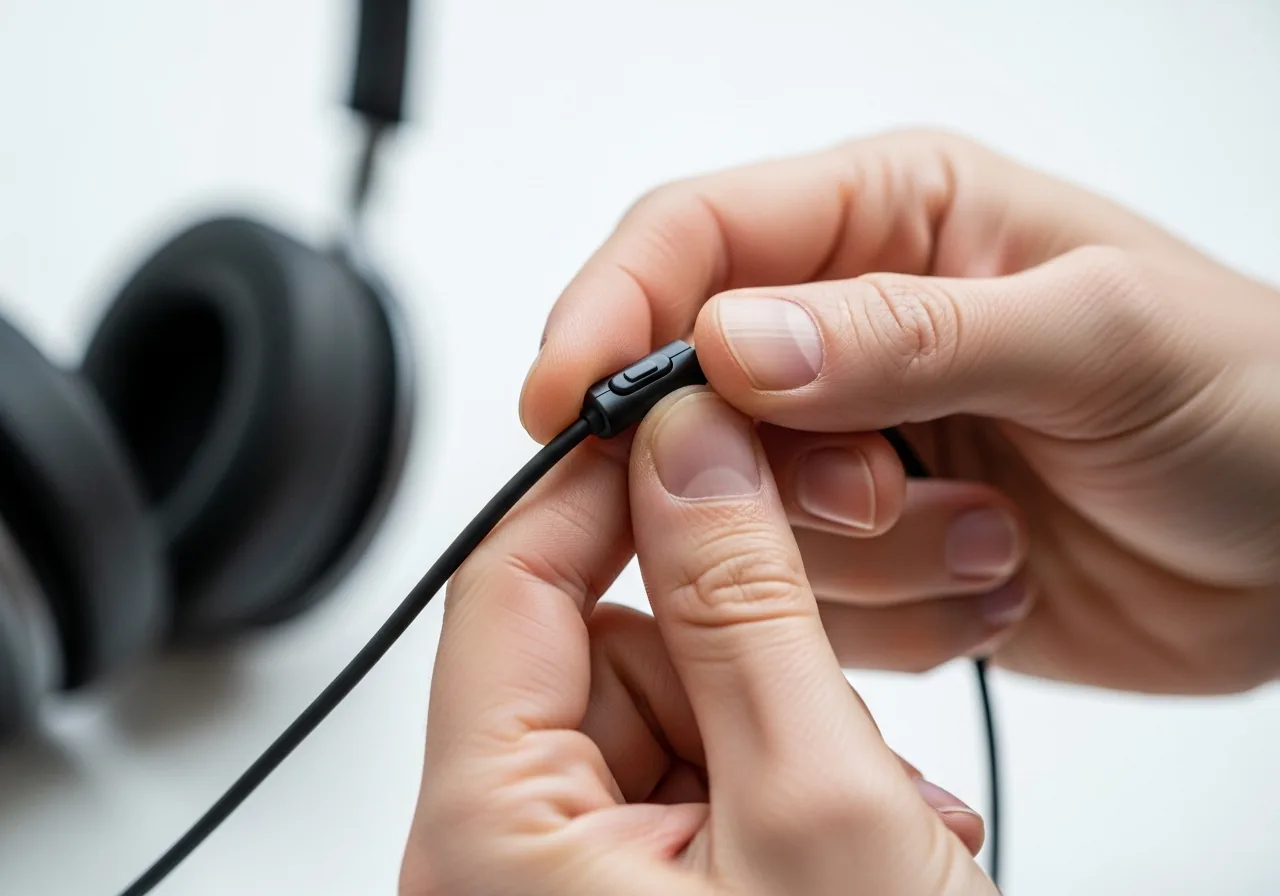
1Check for a physical mute switch
Look over the headset or device for a mute switch or button and make sure it is not silencing the input before anything else.
 2
2Allow microphone access
Open the privacy settings and confirm the application is permitted to use the microphone, since a blocked gate is a common cause.
 3
3Select the correct input
Choose the intended microphone as the active input and raise its level from zero so the system listens to the right source.
 4
4Update the audio-input driver
If the device is still not recognised, bring the audio-input driver to a current version so the system detects it cleanly.
 5
5Speak and watch the meter
Confirm the fix by talking and checking that the input meter now moves in response to your voice.
When to seek help
If a headset or microphone feels hot, shows damaged wiring, or smells scorched, stop using it and consult a professional.
Reducing the chance it returns
When you grant an application access to the microphone, make a mental note so the permission is easy to recall later. Keep the input level at a healthy setting rather than the floor, and confirm the intended device stays selected when you switch between headsets. Learn where any physical mute switch sits so a flick of it is the first thing you check. Keeping audio-input software current helps the system recognise devices cleanly. A quick test before an important call confirms everything is listening as expected.
Repair110 is a free, informational resource. These steps describe a careful, general approach — every device is a little different, so work slowly, back up anything you value, and prioritise your own safety. If a step feels beyond your comfort, stop and consult a qualified technician.