Understanding the problem
A drive stays visible only while it keeps an unbroken electrical link and a steady supply of power. A connector that has worked slightly loose, or a cable making contact only when held just so, will break the link the moment something shifts, vibrates, or warms enough to expand. The system reads that gap as the drive being unplugged and removes it, then sees it again when contact returns. Power-saving settings can mimic the same effect by sending an idle drive to sleep. The drive itself may be sound; what wavers is the connection feeding it.
Symptoms
- The drive appears and disappears without warning during use
- Files become briefly inaccessible then return moments later
- The system reports the drive being removed when it was untouched
- Activity stalls each time the drive drops out
Likely causes
- 1A connector that loosens with vibration or temperature changes
- 2A marginal cable making and breaking contact intermittently
- 3Power delivery to the drive faltering under load
- 4Driver or power-management settings putting the drive to sleep
- 5An early sign of the drive controller becoming unreliable
What to observe and check
- Note whether the drops coincide with movement or vibration
- Observe if the problem worsens when the device is warm or busy
- Consider whether power-saving settings are sending the drive to sleep
- Watch whether reseating the connection changes how often it drops
Step-by-step repair
 1
1Note when the drive drops
Watch whether the disappearances coincide with movement, vibration, or the device growing warm and busy, which points toward connection or power rather than total failure.
 2
2Copy important data promptly
While the drive is visible, move anything you value to separate storage, since intermittent dropouts can precede complete failure.
 3
3Power down before reseating
Shut the system off and disconnect power before touching the connectors, so the link can be remade safely.
 4
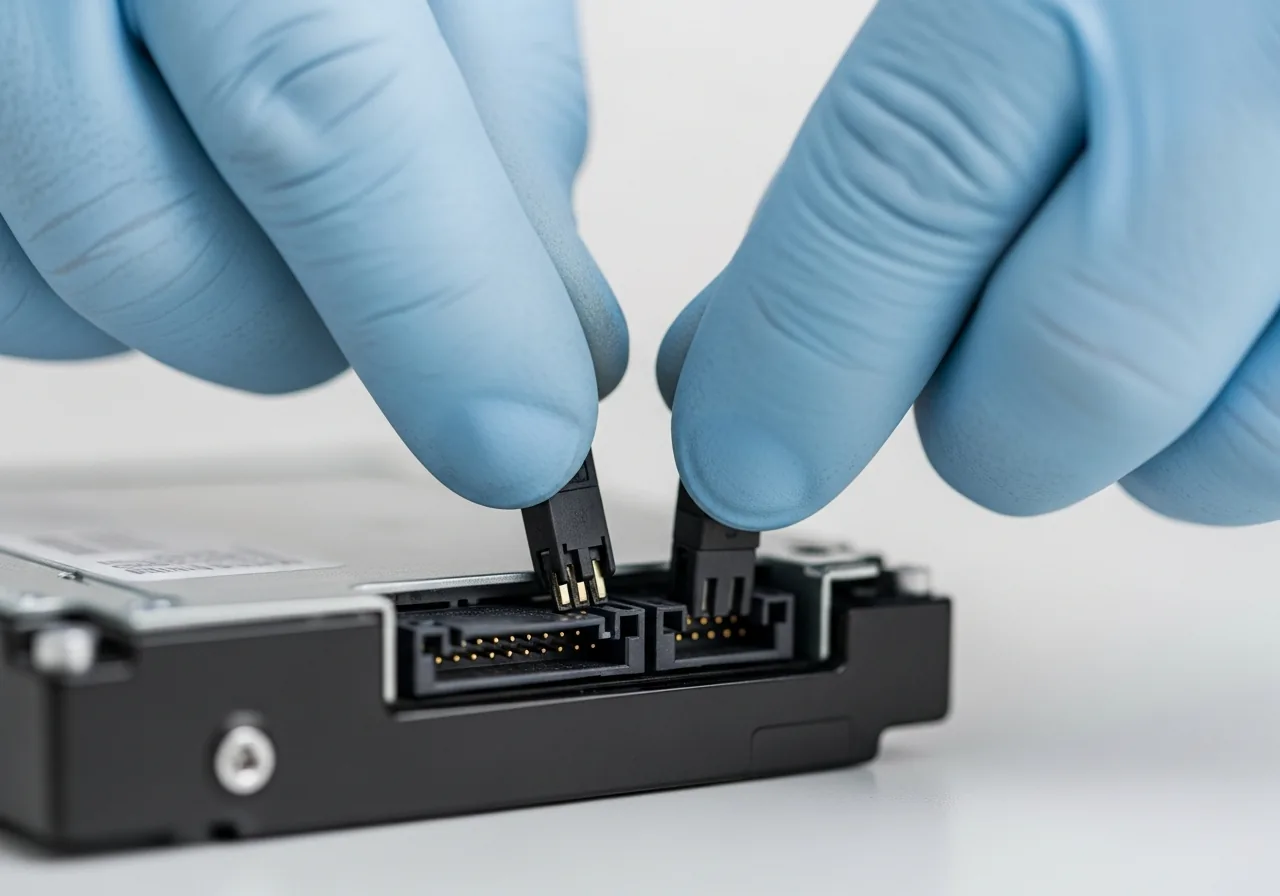
4Reseat the connectors firmly
Press the data and power connectors home until they sit secure, and replace any lead that only works held at a particular angle.
 5
5Review power-saving settings
Check whether power-management settings are sending an idle drive to sleep, and adjust them so a healthy drive stays available when you need it.
 6
6Confirm the drive stays visible
Use the device through movement and heavier work to check the drive now remains listed rather than dropping out without warning.
When to seek help
If an intermittently vanishing drive holds important data, copy it elsewhere promptly and seek qualified help, since these symptoms can precede complete failure.
Reducing the chance it returns
Press connectors home until they sit secure, and arrange cables so they are not strained, jostled, or tugged each time the device is used or moved. Replace any lead that only works at a particular angle, since a marginal contact rarely improves on its own. Reviewing power-saving settings can stop a healthy drive being put to sleep when you still need it. Keeping the device on a stable surface, away from constant vibration, helps a sound connection stay sound rather than slowly working itself loose.
Repair110 is a free, informational resource. These steps describe a careful, general approach — every device is a little different, so work slowly, back up anything you value, and prioritise your own safety. If a step feels beyond your comfort, stop and consult a qualified technician.