Understanding the problem
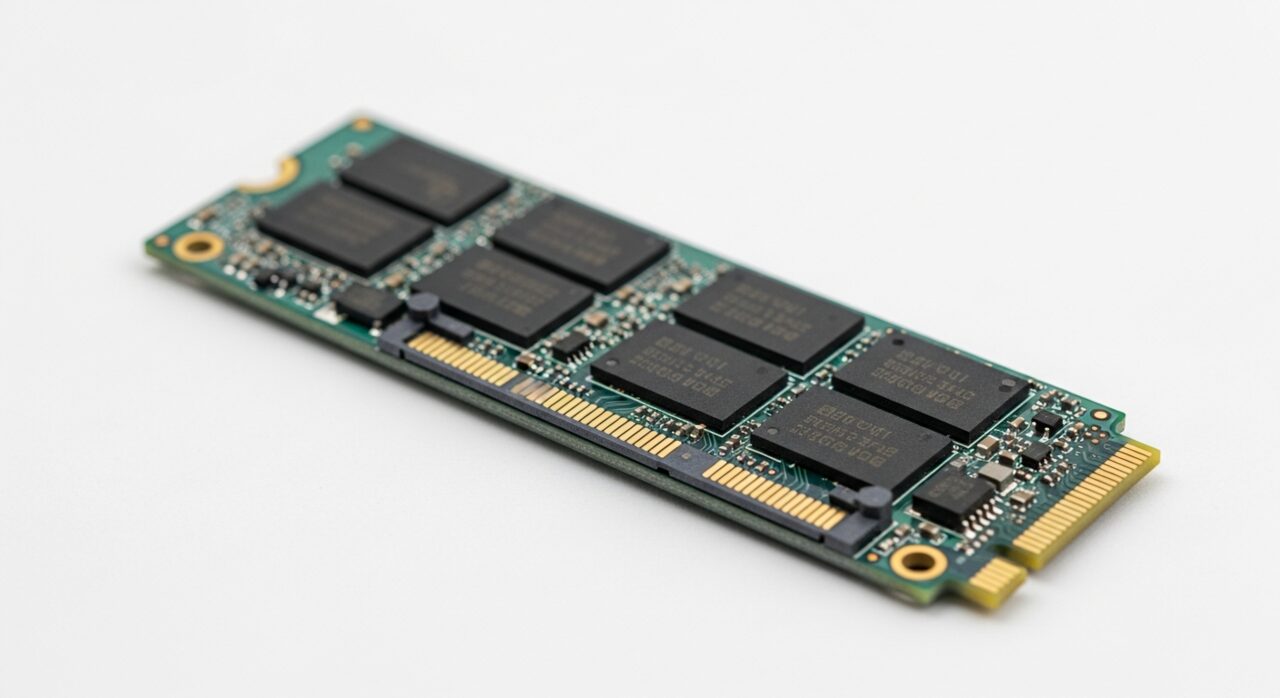
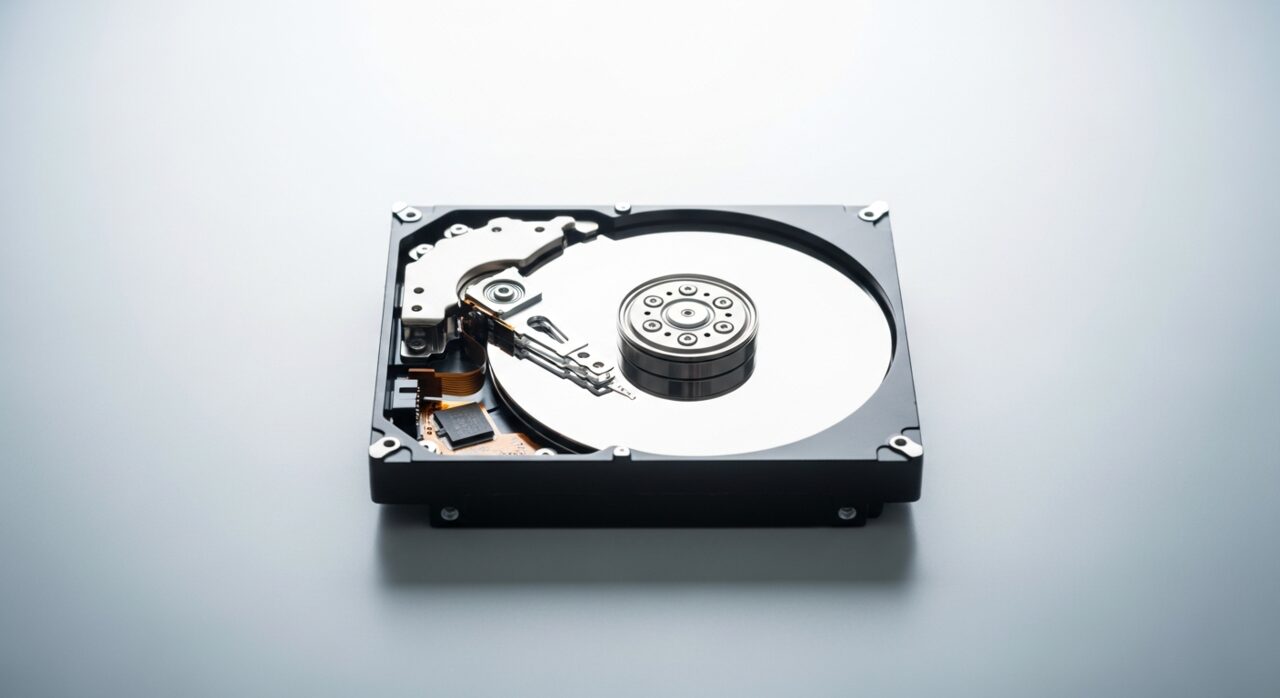
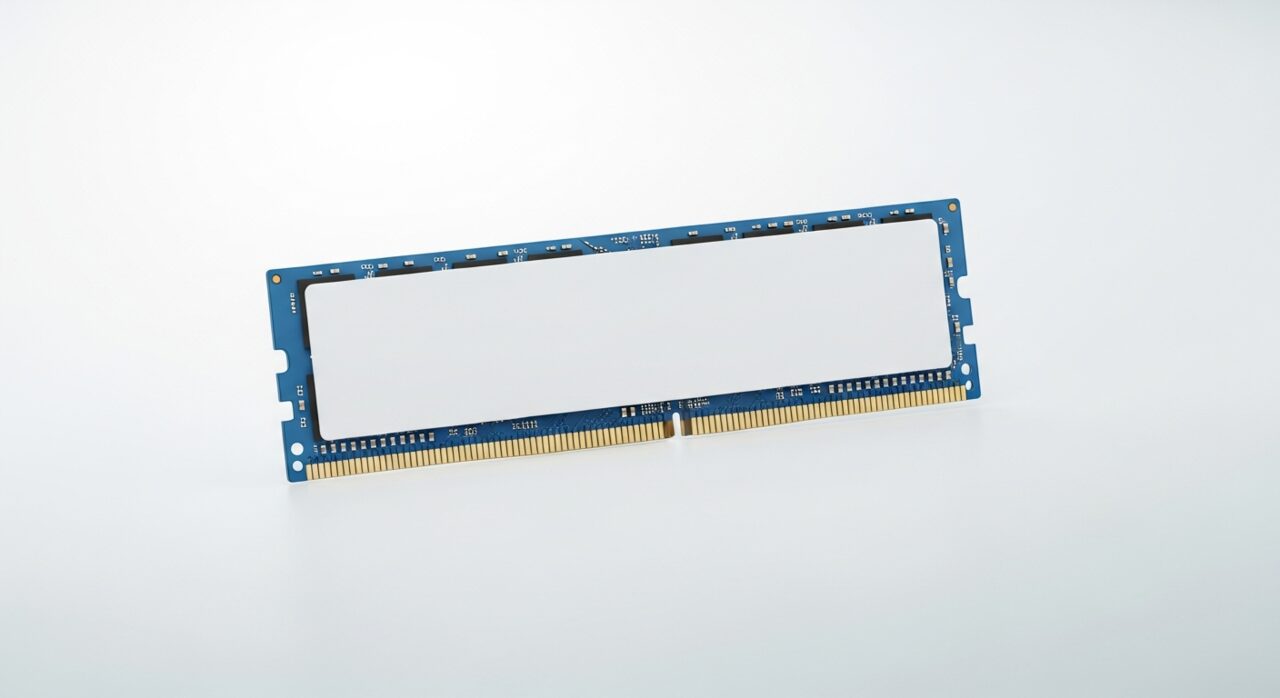
Working memory is the fast space where active tasks keep the data they need within easy reach. It is finite, and each open program claims a share. When demand exceeds what is available, the system does not simply stop; instead it shifts the overflow onto the much slower storage drive to free room. Reaching across to that drive for data the processor expected to find instantly is what causes the long pauses and stutter. The effect appears only under heavy load because that is the point at which memory finally runs short and the system is forced to improvise.
Symptoms
- Severe slowdown appears only when many tasks run at once
- The device becomes responsive again after closing programs
- Heavy multitasking leads to long pauses and stuttering
- Warnings about low memory surface during demanding work
Likely causes
- 1More programs and tasks open than the available memory can hold
- 2Individual applications consuming far more memory than expected
- 3Limited physical memory for the kind of workload being asked of it
- 4Background processes quietly occupying memory you assumed was free
- 5The system leaning heavily on slower storage when memory runs out
What to observe and check
- Note whether the slowdown only appears with many tasks running
- Observe which activities trigger the warnings most reliably
- Consider whether closing programs restores normal speed
- Watch whether the storage drive becomes busy as memory fills
Step-by-step repair
 1
1Find what triggers the slowdown
Confirm the stutter appears only with many tasks running and that the storage drive grows busy as memory fills, which marks memory pressure rather than a disk fault.
 2
2Close unused demanding programs
Shut down applications you are not actively using, especially unusually hungry ones, so active tasks regain the fast memory they need.
 3
3Reduce programs that auto-start
Trim the programs that launch automatically, freeing memory you never realised was taken before heavy work even begins.
 4
4Confirm heavy use runs smoother
Return to demanding multitasking and check the long pauses and low-memory warnings no longer appear as they did before.
When to seek help
If memory pressure persists even during light use, a qualified technician can determine whether the cause is software behaviour or a genuine hardware limitation.
Reducing the chance it returns
Keep only what you are actually using open, and close demanding programs once a task is finished rather than leaving many idling at once. Notice which applications are unusually hungry, and run them on their own when memory is tight. Trimming programs that launch automatically frees room you never realised was taken. Restarting now and then clears memory that lingering processes failed to release. If the workload genuinely outgrows the memory fitted, recognising that early lets you plan calmly rather than fighting the same slowdown repeatedly.
Repair110 is a free, informational resource. These steps describe a careful, general approach — every device is a little different, so work slowly, back up anything you value, and prioritise your own safety. If a step feels beyond your comfort, stop and consult a qualified technician.