Understanding the problem
Every keypress is just an electrical contact that the keyboard reports as a numbered position, and the operating system then translates that number into a character using whichever layout is currently active. If the chosen layout does not match the printed legends, the right key sends the wrong letter even though the hardware works perfectly. Repeats tell a different story: crumbs or dried spill residue can hold a contact partly closed, so the controller keeps seeing the key as pressed and faithfully sends the same character again and again.
Symptoms
- Pressing one key prints a different character than expected
- A single tap produces several repeated letters
- Some keys feel sticky or need extra pressure to respond
- Symbols appear in the wrong place compared with the printed legends
Likely causes
- 1An incorrect keyboard layout or language selected in the operating system
- 2Debris, dust, or spilled residue trapped under the affected keys
- 3A stuck modifier key that changes how other presses are interpreted
- 4A failing keyboard controller or worn membrane beneath the keys
- 5Accessibility or repeat-rate settings configured too aggressively
What to observe and check
- Note whether wrong characters follow a consistent pattern that points to a layout mismatch
- Observe if only a cluster of nearby keys is affected, suggesting localised debris
- Watch whether repeats happen on every key or just one, separating settings from hardware
- Check whether an external keyboard types correctly to isolate the built-in unit
Step-by-step repair
 1
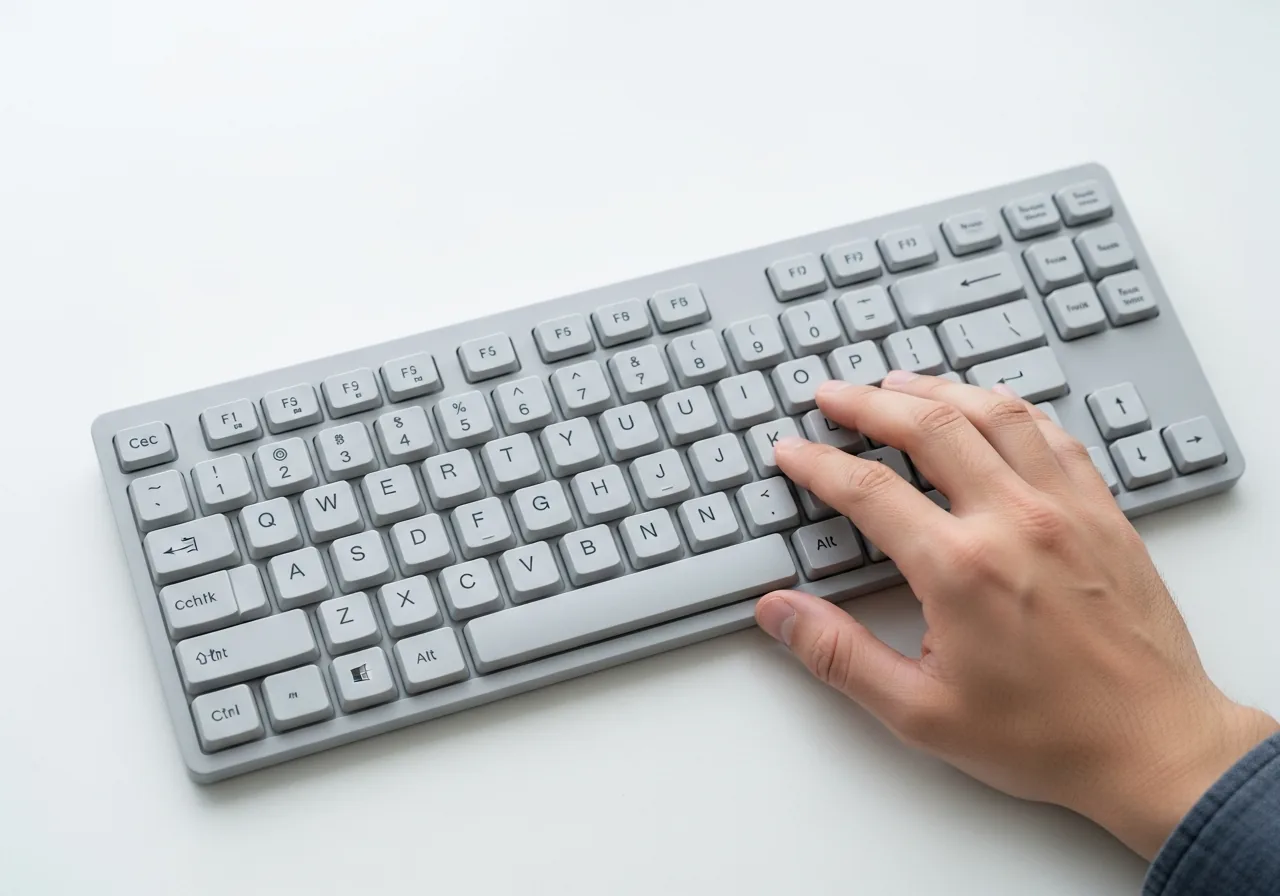
1Confirm the selected layout
Check that the active language and keyboard layout match the printed legends. A mismatch makes the right key send the wrong character even when the hardware is fine.
 2
2Compare with another keyboard
Attach a second keyboard and type the same keys. If it behaves correctly, the fault sits in the original unit rather than the system.
 3
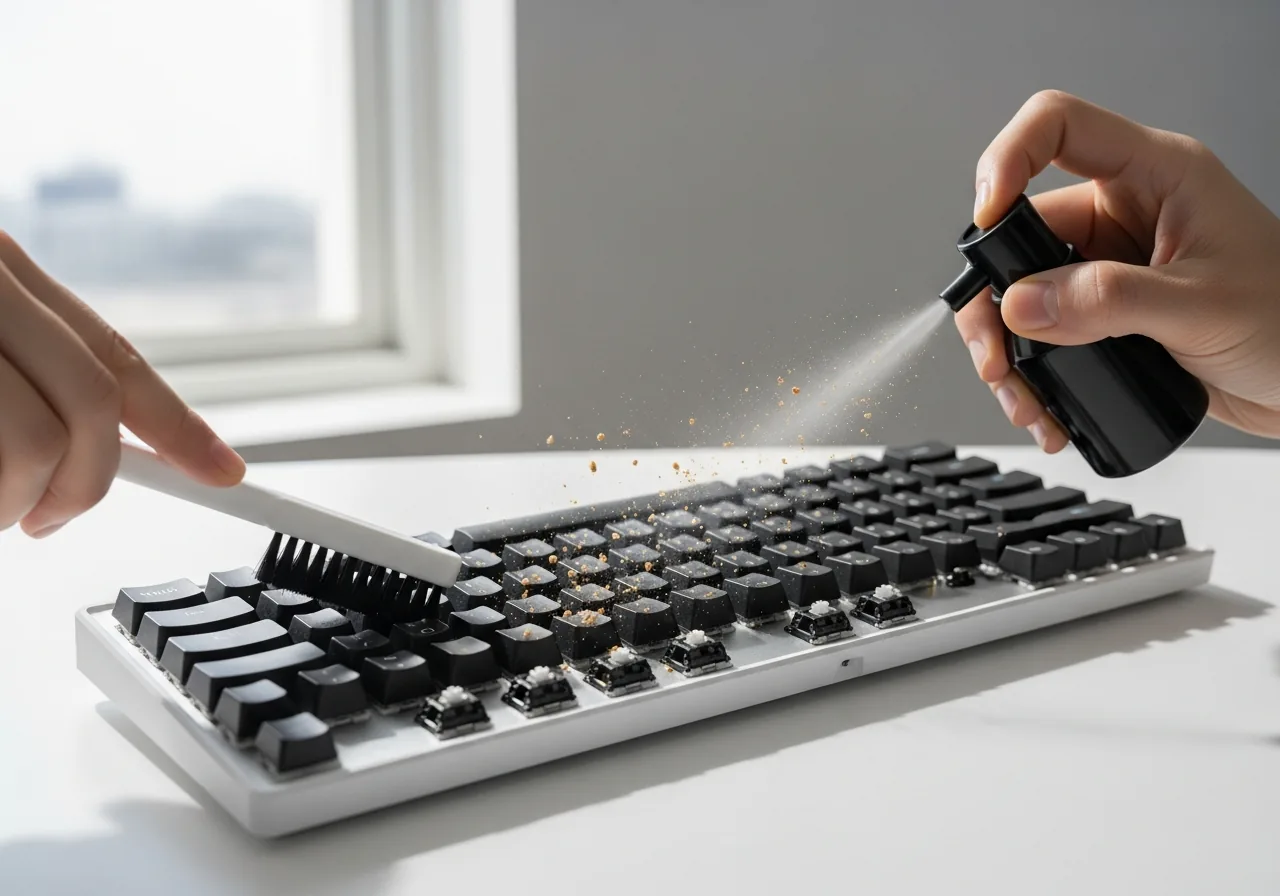
3Clear debris under the keys
Turn the keyboard over and give it a gentle puff of air to dislodge crumbs and dried residue that hold a contact partly closed and cause repeats.
 4
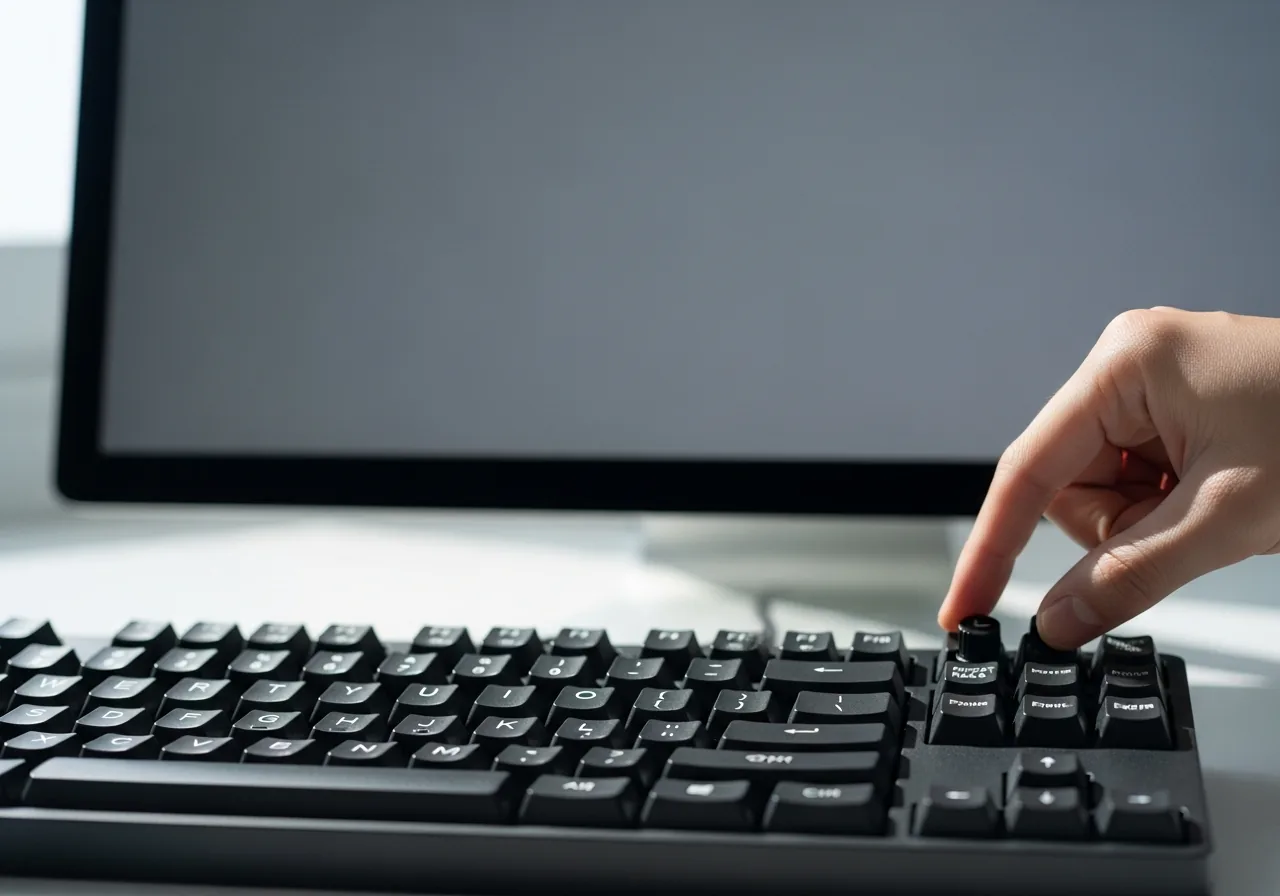
4Ease the repeat-rate settings
Bring the repeat-rate and accessibility options back to comfortable values so the system stops overreacting to ordinary presses.
 5
5Type a test line
Type a full sentence including the symbols that misbehaved and confirm each key prints the expected character once.
When to seek help
If liquid was recently spilled, keys feel hot, or you smell anything scorched, power the device down and consult a qualified technician.
Reducing the chance it returns
Most layout muddles never return once you confirm the selected language matches your physical keyboard and remove any extra layouts that a stray shortcut might switch to. Eating and drinking away from the keys spares the contacts from the crumbs and sticky residue that cause repeats and sticking. An occasional turn upside down and a gentle puff of air clears loose debris before it settles into a switch. Keeping repeat-rate and accessibility settings at comfortable values stops the system overreacting to ordinary presses.
Repair110 is a free, informational resource. These steps describe a careful, general approach — every device is a little different, so work slowly, back up anything you value, and prioritise your own safety. If a step feels beyond your comfort, stop and consult a qualified technician.