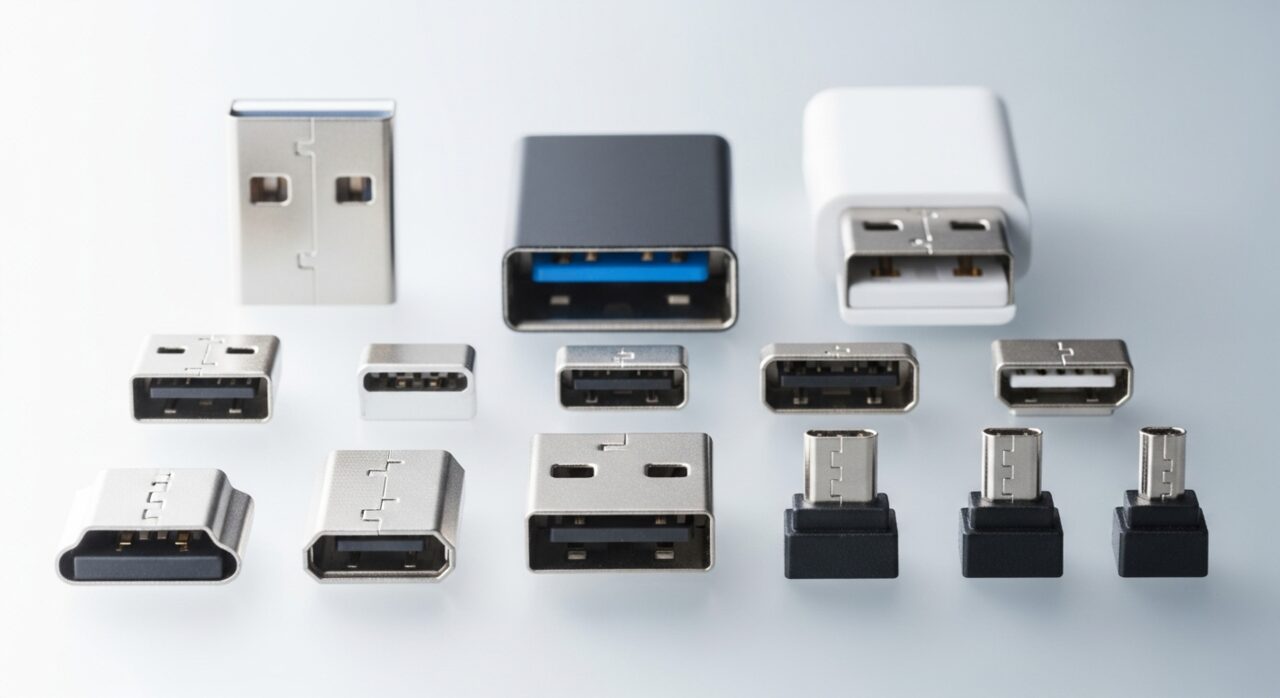
Understanding the problem
Underneath the device a tiny camera photographs the surface hundreds of times each second, and software compares those frames to judge how far you have moved. When the sensor window is fouled, or the surface is too smooth or reflective, the frames look almost identical and the maths guesses wildly, throwing the pointer across the screen. A wireless link adds another layer, since the receiver must rebuild a stream of position updates from radio packets, and any dropped or delayed packet appears as a stutter or sudden leap on screen.
Symptoms
- The pointer leaps across the screen instead of moving smoothly
- Movement pauses for a fraction of a second then catches up
- Tracking worsens on certain surfaces or in bright light
- Clicks sometimes register in the wrong place after a jump
Likely causes
- 1A dirty or scratched optical sensor window underneath the device
- 2An unsuitable surface that confuses the tracking sensor, such as glass or gloss
- 3Wireless interference or a weak signal between the device and its receiver
- 4An outdated or conflicting pointing-device driver in the operating system
- 5A worn or partly damaged cable on a wired unit
What to observe and check
- Observe whether the jumping only happens on a particular surface or in a specific room
- Note if the problem eases when the receiver is moved closer or to a different port
- Watch whether stutter coincides with heavy activity on the machine, hinting at a software load issue
- Check whether a second pointing device behaves normally to separate hardware from system settings
Step-by-step repair
 1
1Test on a matte surface
Move the device onto an even, slightly textured pad rather than glass or gloss. A surface with clear detail gives the tracking sensor something solid to read.
 2
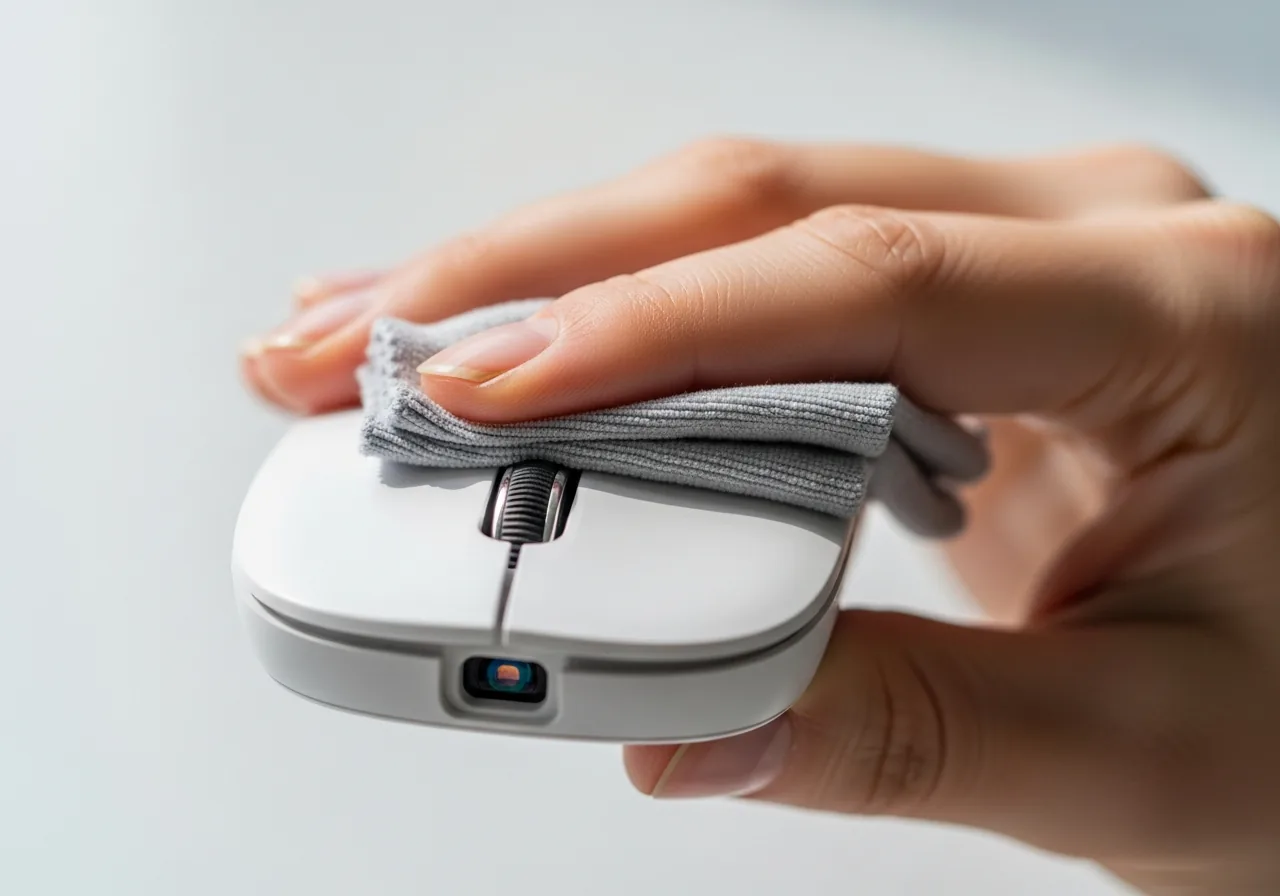
2Wipe the sensor window
Gently clean the small lens underneath with a soft, dry cloth to clear dust and skin oils. A hazy window makes the frames look identical and sends the pointer leaping.
 3
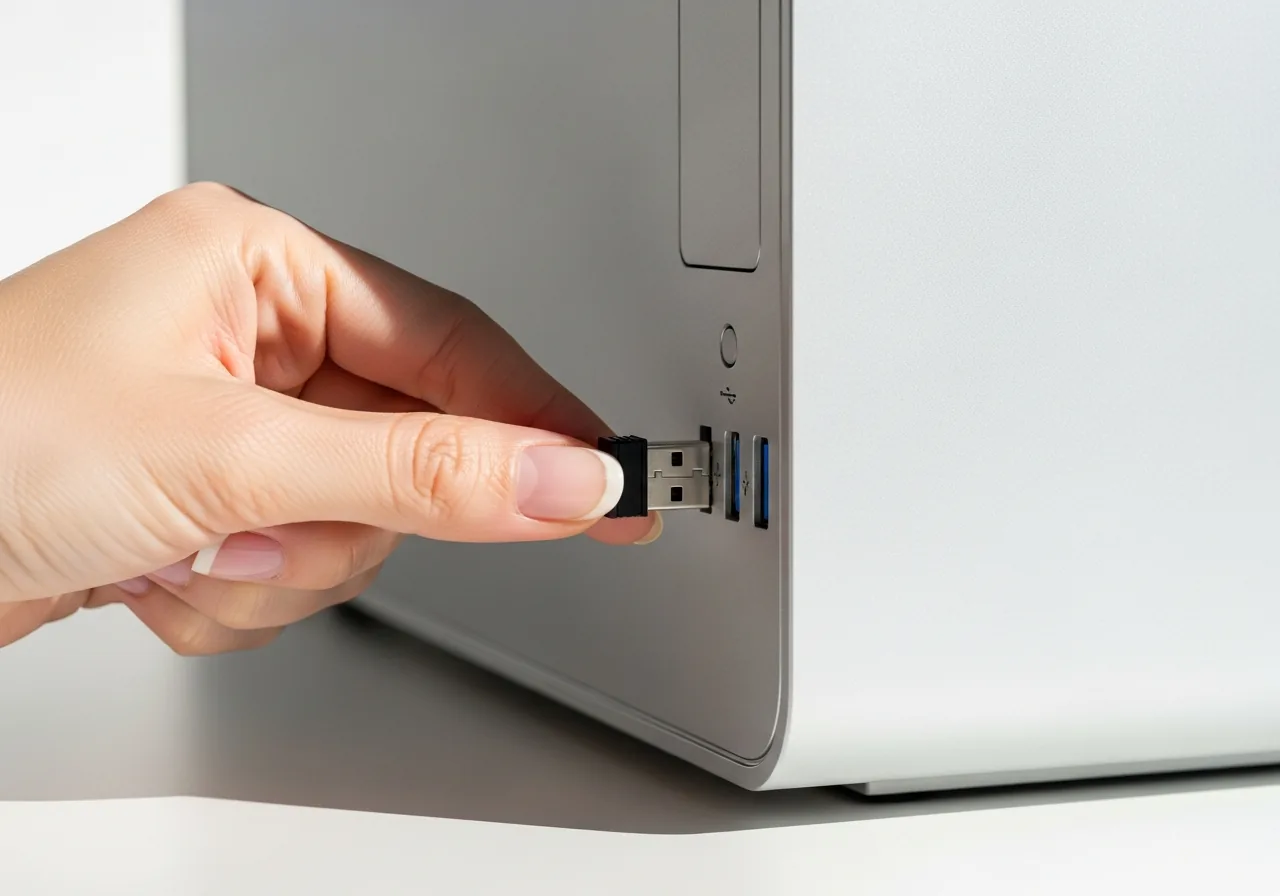
3Reposition the receiver
On a wireless unit, move the receiver to a front port or short extension out in the open, away from metal and other transmitters that scramble the signal.
 4
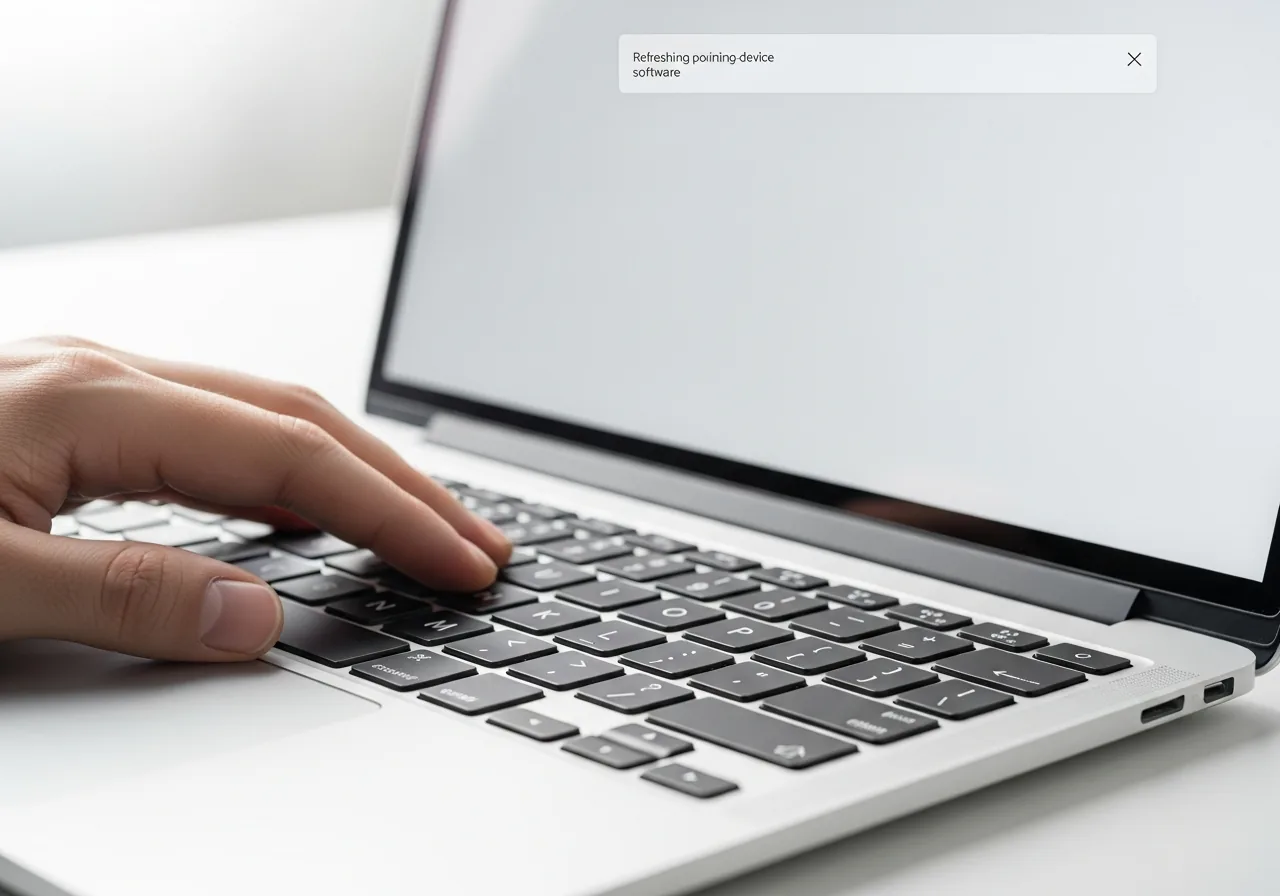
4Refresh the pointing-device software
Let the system update its pointing-device driver so tracking is handled cleanly. An outdated or conflicting driver can cause stutters even on a good surface.
 5
5Move the pointer to confirm
Glide the device slowly and quickly across the screen and watch for smooth, continuous motion with no sudden jumps before relying on it again.
When to seek help
If the cable shows exposed wires, the device runs warm, or any burning smell appears, stop using it and seek qualified help.
Reducing the chance it returns
Give the sensor a reliable, matte surface to read, since an even, slightly textured pad gives the tracking software clear detail to lock onto. Wipe the sensor window gently from time to time so dust and skin oils never build into a haze. Keep the receiver where the radio path is open rather than buried behind metal or other transmitters, and on wireless units fresh cells protect the steady link. Letting the system update its pointing-device software occasionally keeps tracking smooth and predictable as months pass.
Repair110 is a free, informational resource. These steps describe a careful, general approach — every device is a little different, so work slowly, back up anything you value, and prioritise your own safety. If a step feels beyond your comfort, stop and consult a qualified technician.