Understanding the problem
When an accessory is plugged in, a brief handshake takes place: the device announces itself, the system reads that introduction, and matching software is loaded so the two can work together. If the contacts inside the port are worn, dirty, or no longer spring against the connector, that handshake never completes and the system simply hears nothing. A marginal cable can pass enough power for a light yet corrupt the data, and a hungry device that needs more current than the port supplies may keep resetting, which is why it flickers in and out of view.
Symptoms
- Connecting the device produces no response at all
- The system shows a brief warning that a device was not recognised
- The accessory appears and vanishes repeatedly
- It works in one port but not another
Likely causes
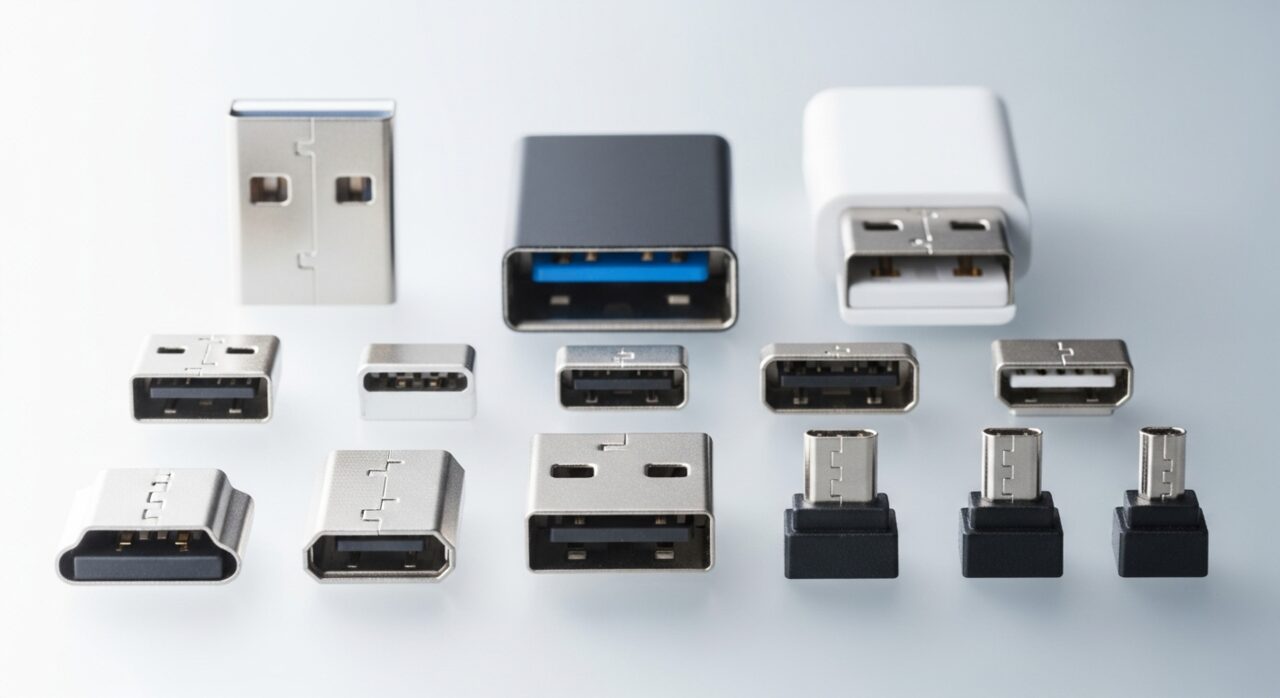
- 1A faulty cable or a connector that no longer seats firmly
- 2A worn or dirty port with bent or recessed contacts
- 3Insufficient power for a device that draws more than the port can supply
- 4A missing or corrupted driver preventing the operating system from loading it
- 5A failing controller inside the accessory itself
What to observe and check
- Observe whether the device works on another machine, separating it from the computer
- Note if a different cable restores recognition, pointing at the lead
- Watch whether powered accessories behave better when given their own supply
- Check whether the issue follows the port or the device when swapped around
Step-by-step repair
 1
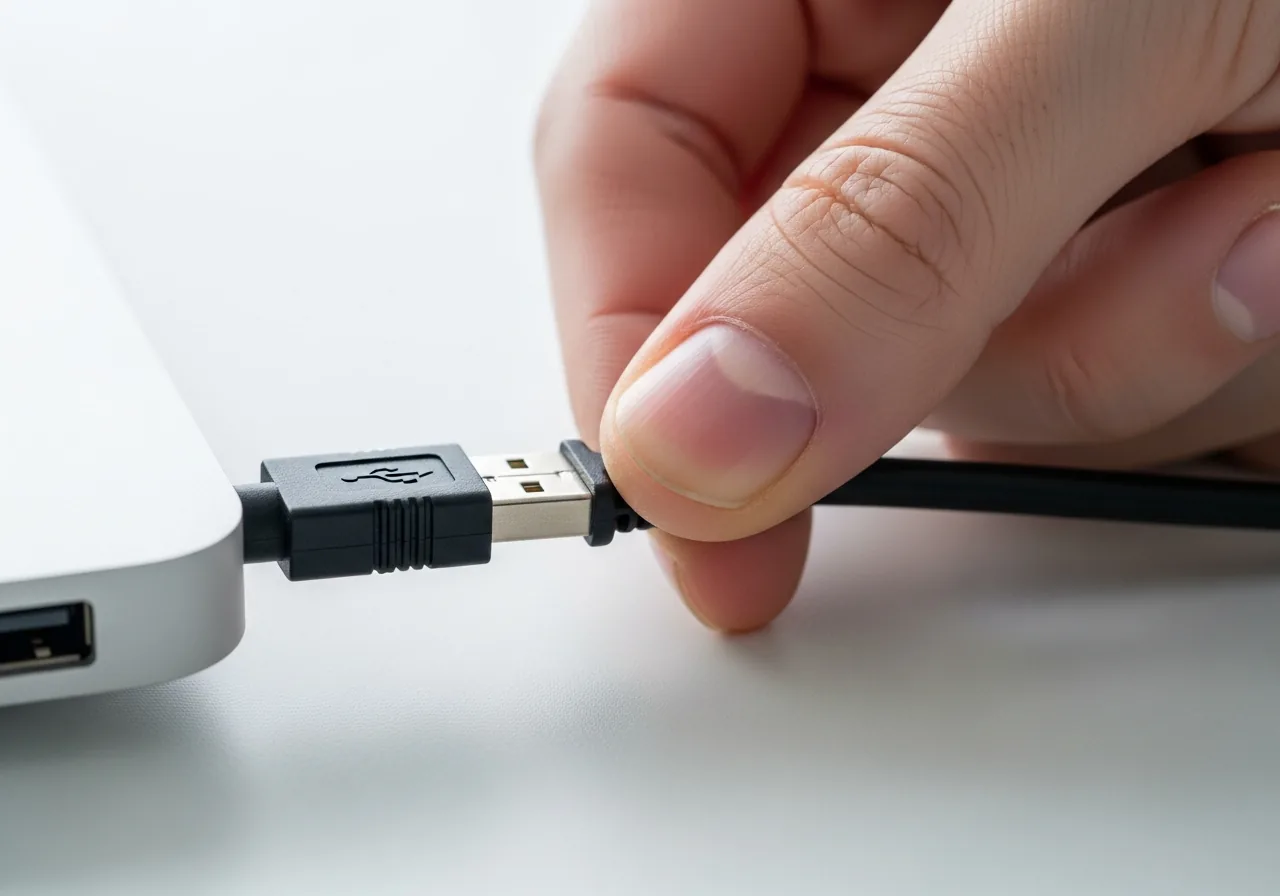
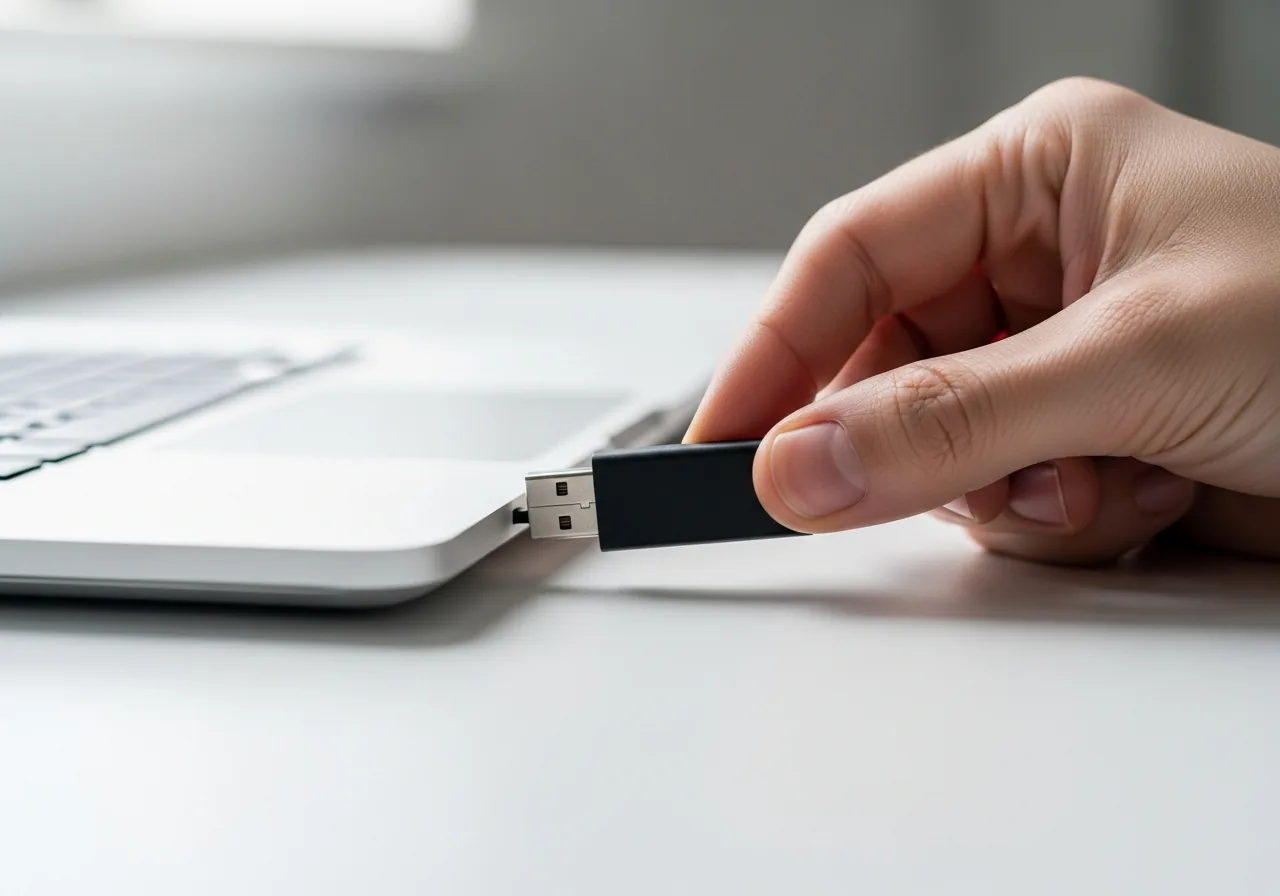
1Swap in a known-good cable
Replace the lead with one proven to carry data, not merely charge, since a marginal cable can power a light yet corrupt the handshake.
 2
2Try another port or machine
Connect the accessory to a different port and, if possible, a second computer to learn whether the fault follows the device or stays with the port.
 3
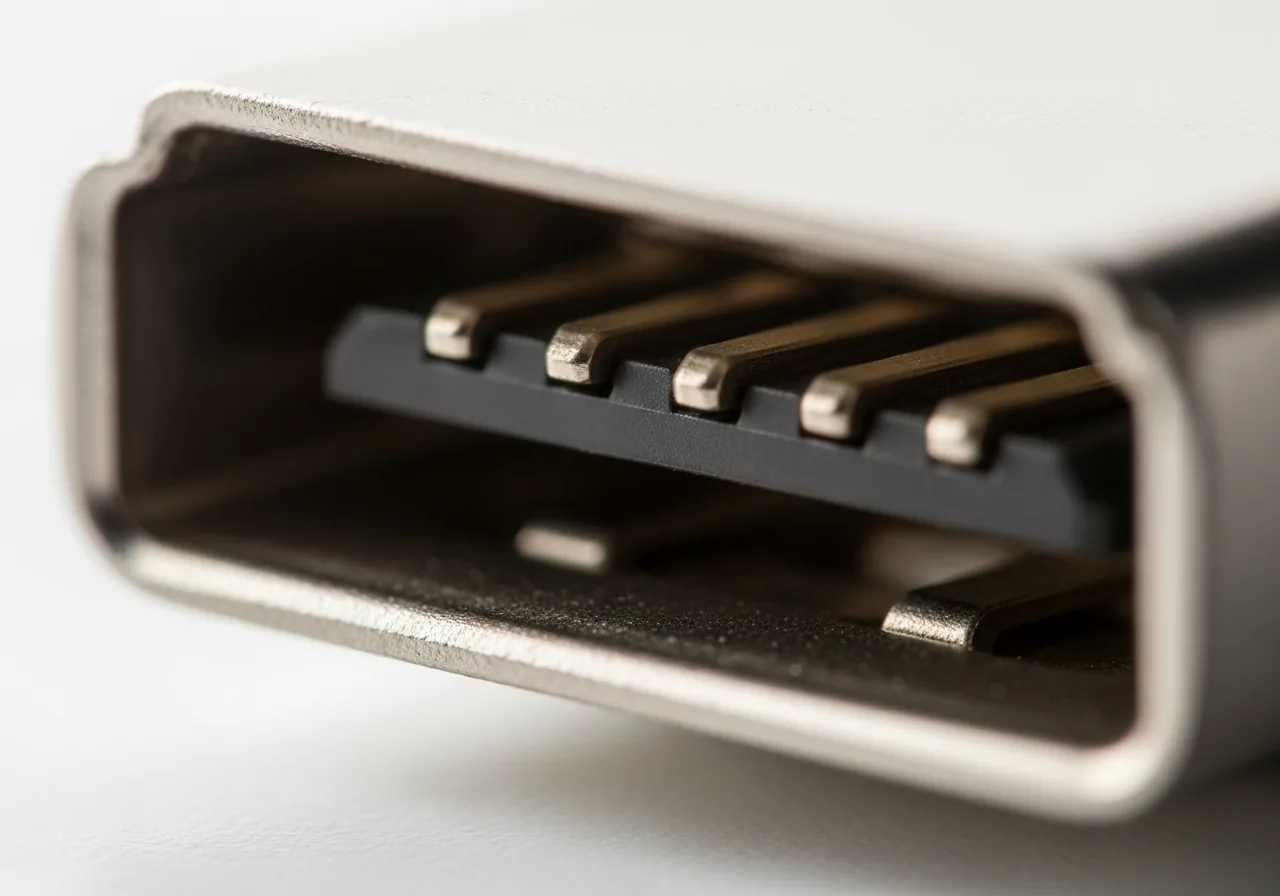
3Inspect the port contacts
Look into the socket for bent, recessed, or dirty pins that stop the connector seating. Insert plugs straight rather than forcing them at an angle.
 4
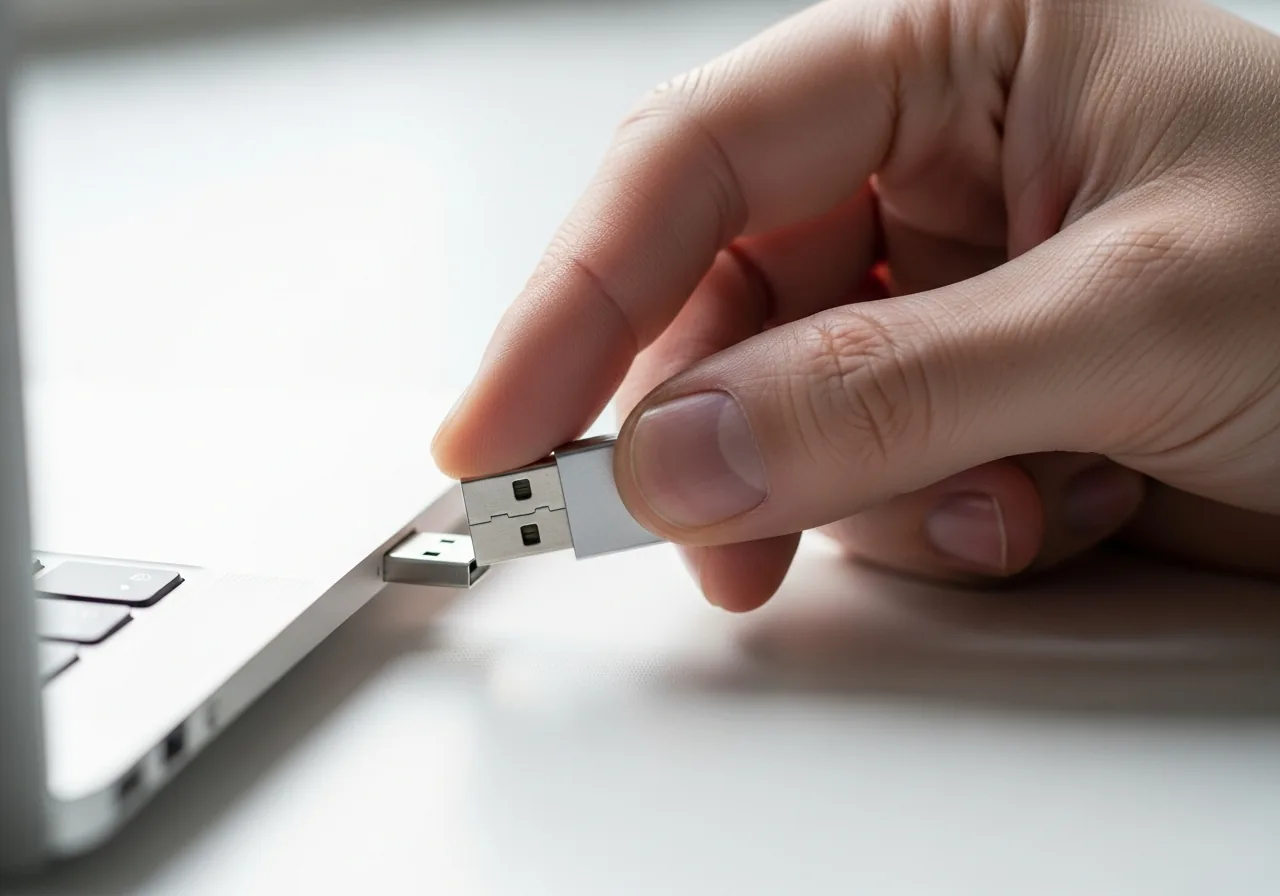
4Reinstall the device driver
Let the operating system load fresh software for the accessory so a missing or corrupted driver no longer blocks recognition.
 5
5Confirm it is recognised
Reconnect the device and check it appears and stays listed without flickering in and out of view.
When to seek help
If a port feels hot, looks scorched, or the device smells burnt when connected, disconnect it and seek qualified assistance.
Reducing the chance it returns
Ports last far longer when connectors are inserted straight and gently rather than forced at an angle, since bent or splayed contacts are a common reason recognition fails later. Keeping unused ports covered or simply free of pocket lint protects the delicate pins from dust. Choosing well-made cables that carry data, not merely charge, avoids the silent partial connections that confuse the handshake. Power-hungry accessories stay dependable when given their own supply rather than drawing everything from a single shared port, and letting their software update keeps recognition smooth.
Repair110 is a free, informational resource. These steps describe a careful, general approach — every device is a little different, so work slowly, back up anything you value, and prioritise your own safety. If a step feels beyond your comfort, stop and consult a qualified technician.