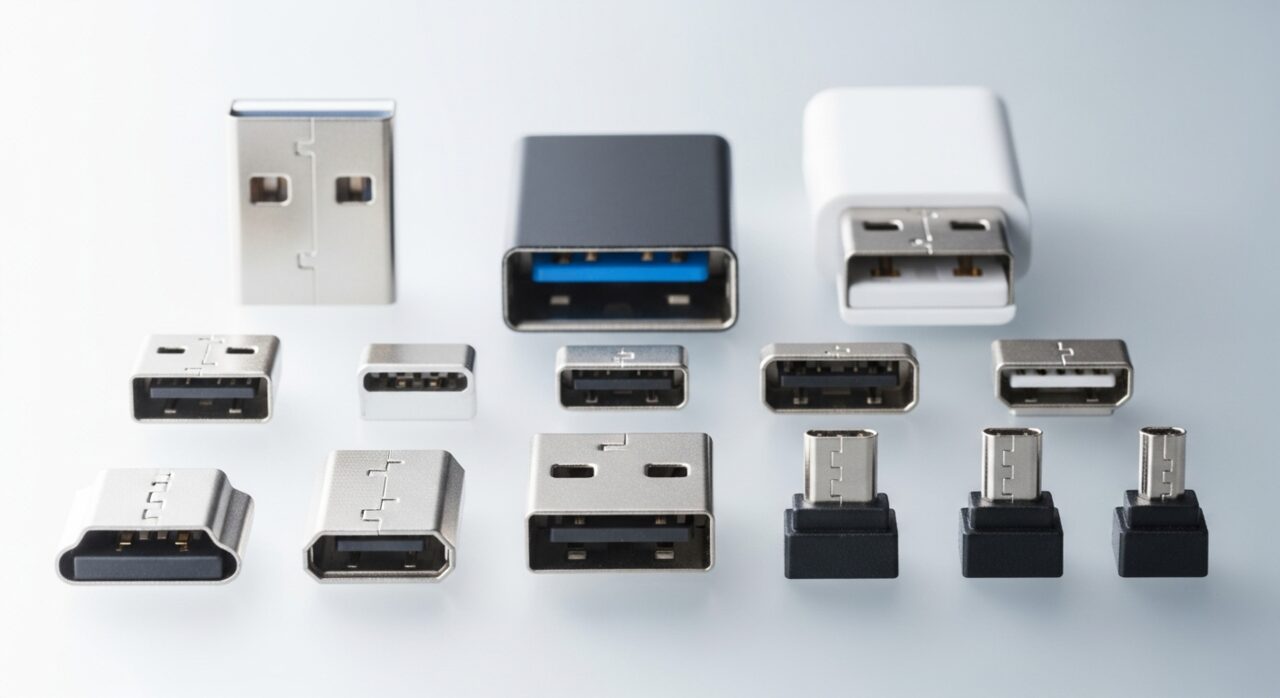
Understanding the problem
A wireless mouse keeps a quiet conversation going with its receiver, sending short bursts of position data on a shared radio band. Holding that link takes a steady trickle of power, so as a battery weakens the transmitter can no longer push a clean signal and the connection stumbles, especially during movement when more data flows. The same band is busy with other devices, and when one of them transmits nearby the bursts collide and some are lost. Power-saving features make matters worse by quietly suspending the port or the device between movements.
Symptoms
- The pointer freezes briefly then springs back to life
- The device needs a click or shake to wake before it responds
- Drops happen more often when the receiver is far away or hidden behind objects
- Connection becomes unreliable as the working session goes on
Likely causes
- 1A low or failing battery struggling to maintain a steady link
- 2Interference from other wireless devices or nearby electronics
- 3The receiver plugged into a crowded or shielded port
- 4Power-saving settings that suspend the device or its port too eagerly
- 5An ageing wireless module losing reliable range over time
What to observe and check
- Observe whether drops increase as the battery ages or after long use
- Note if moving the receiver to a front port or extension improves stability
- Watch for a pattern tied to other wireless gear switching on nearby
- Check whether disabling aggressive power saving keeps the link alive
Step-by-step repair
 1
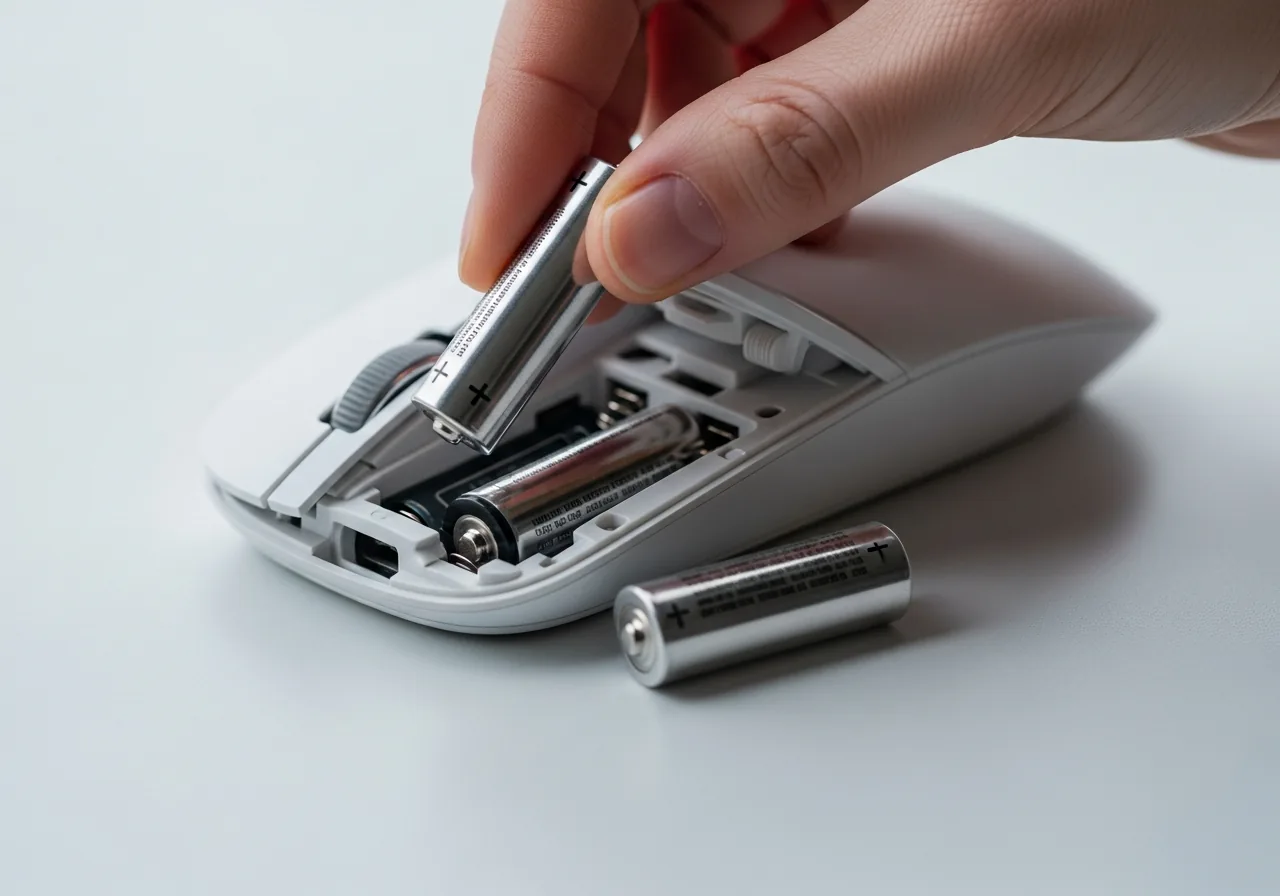
1Refresh or recharge the cells
Fit fresh batteries or charge the device fully, since a weakening cell can no longer push a clean signal and the link stumbles during movement.
 2
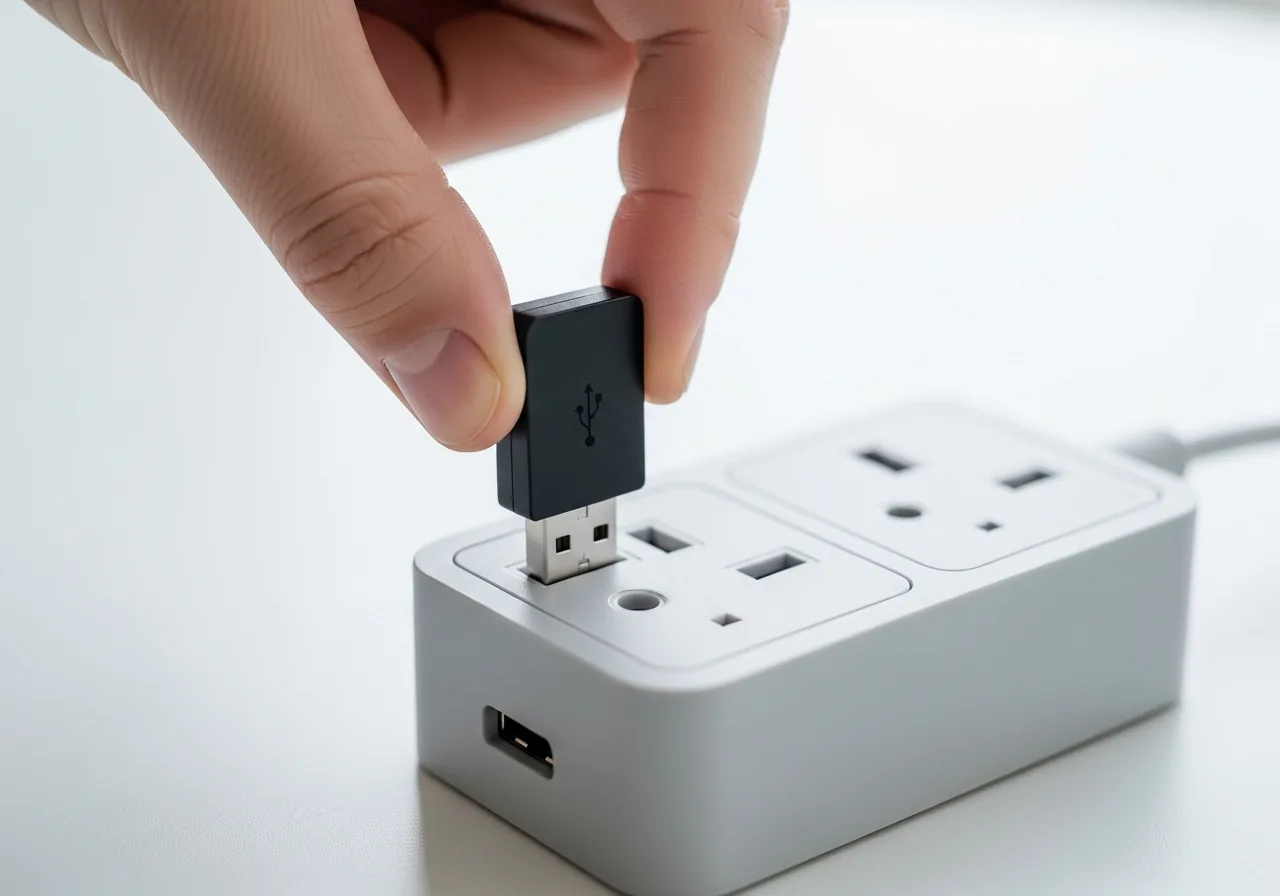
2Move the receiver into the open
Shift the receiver to a front port or short extension so it sits clear of metal and clutter, where the radio path to the device stays unobstructed.
 3
3Reduce nearby interference
Space the device away from other wireless gear and electronics, and note whether drops ease when those devices are switched off.
 4
4Turn off aggressive power saving
Disable the setting that suspends the port or device between movements, which otherwise quietly puts the connection to sleep mid-session.
 5
5Confirm a steady link
Use the device through a longer session and watch that the pointer no longer freezes or needs a shake to wake.
When to seek help
If a rechargeable cell looks swollen or grows hot while charging, stop immediately and have it handled by someone qualified.
Reducing the chance it returns
Reliable wireless behaviour starts with healthy power, so replacing or recharging cells before they run truly low keeps the transmitter strong enough to hold the link. Position the receiver out in the open, ideally on a front port or a short extension that lifts it clear of metal and clutter, where the signal travels freely. Spacing the device away from other transmitters reduces the collisions that cause drops. Turning off the most aggressive power-saving options for the port stops the system from quietly putting the connection to sleep.
Repair110 is a free, informational resource. These steps describe a careful, general approach — every device is a little different, so work slowly, back up anything you value, and prioritise your own safety. If a step feels beyond your comfort, stop and consult a qualified technician.