Understanding the problem
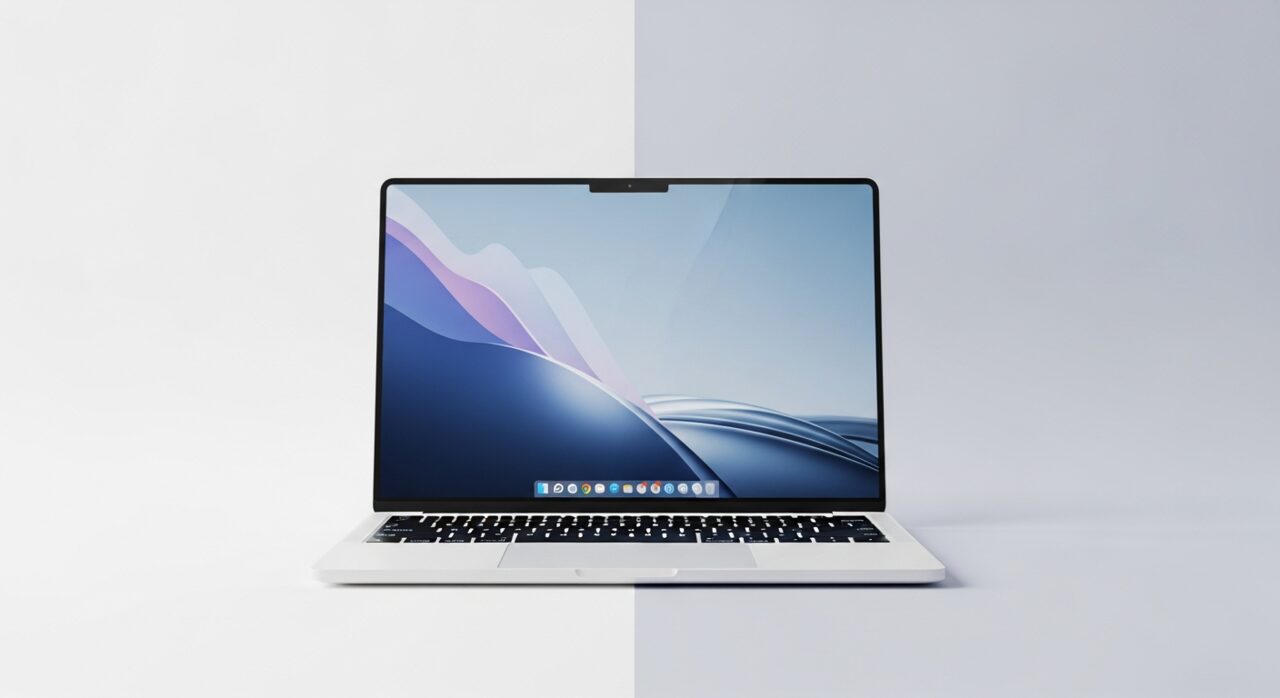
A working laptop image relies on two cooperating things: the graphics chip drawing a picture, and the panel lighting that picture so your eyes can see it. A fine cable runs from the board through the hinge to the screen, flexing every time the lid opens, and years of that movement can fatigue a wire until the signal drops. The backlight has its own circuit, so it can fail while the image still exists in the dark. When the output settles on an external display or start-up stalls early, the panel simply receives nothing to show.
Symptoms
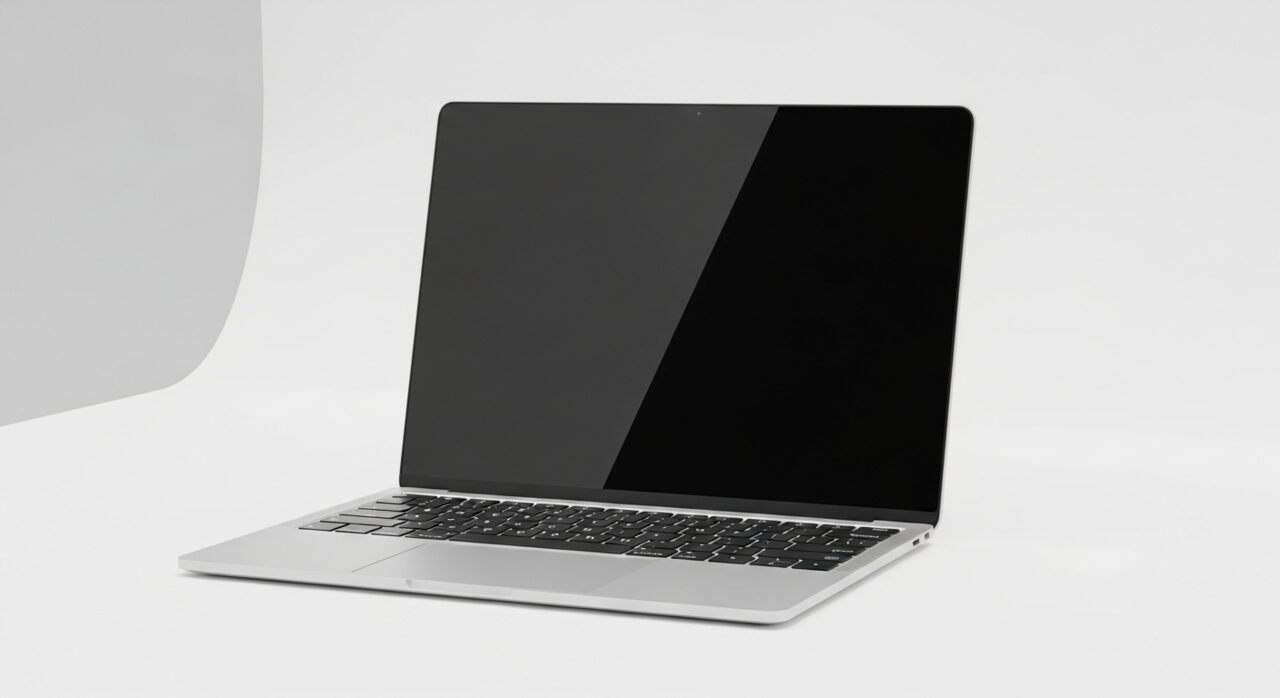
- Fans spin and keyboard lights glow, but the panel is pitch black
- A faint backlight glow appears with no image on top of it
- The system makes startup sounds you cannot see anything to match
- An external monitor, if attached, shows a normal picture
Likely causes
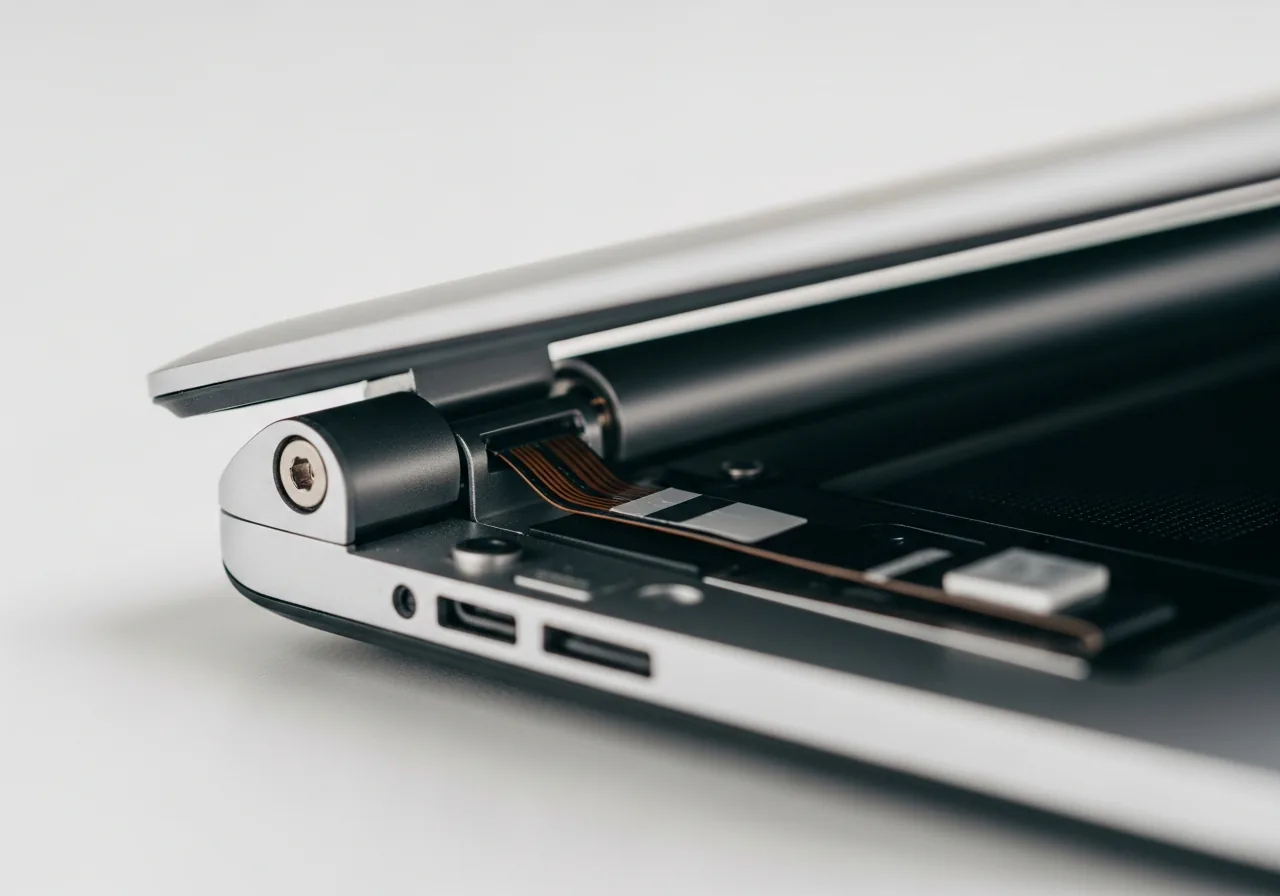
- 1A loose or damaged display cable running through the hinge
- 2A failed backlight circuit while the image itself is still generated
- 3A graphics chip or its driver settling on the wrong display output
- 4A panel that has failed while the rest of the laptop works
- 5A stalled startup that never reaches the point of drawing an image
What to observe and check
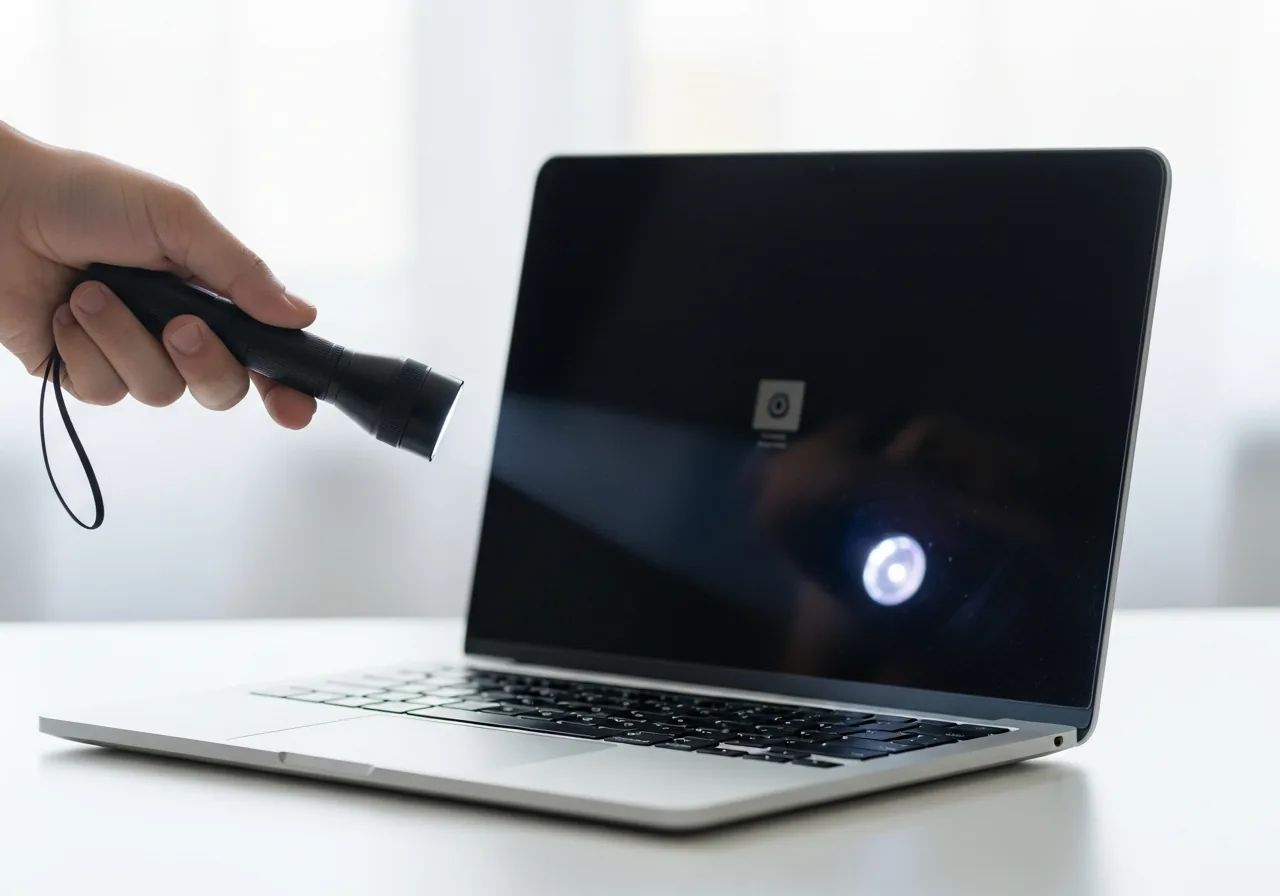
- Shine a bright light at an angle to see if a faint desktop is present
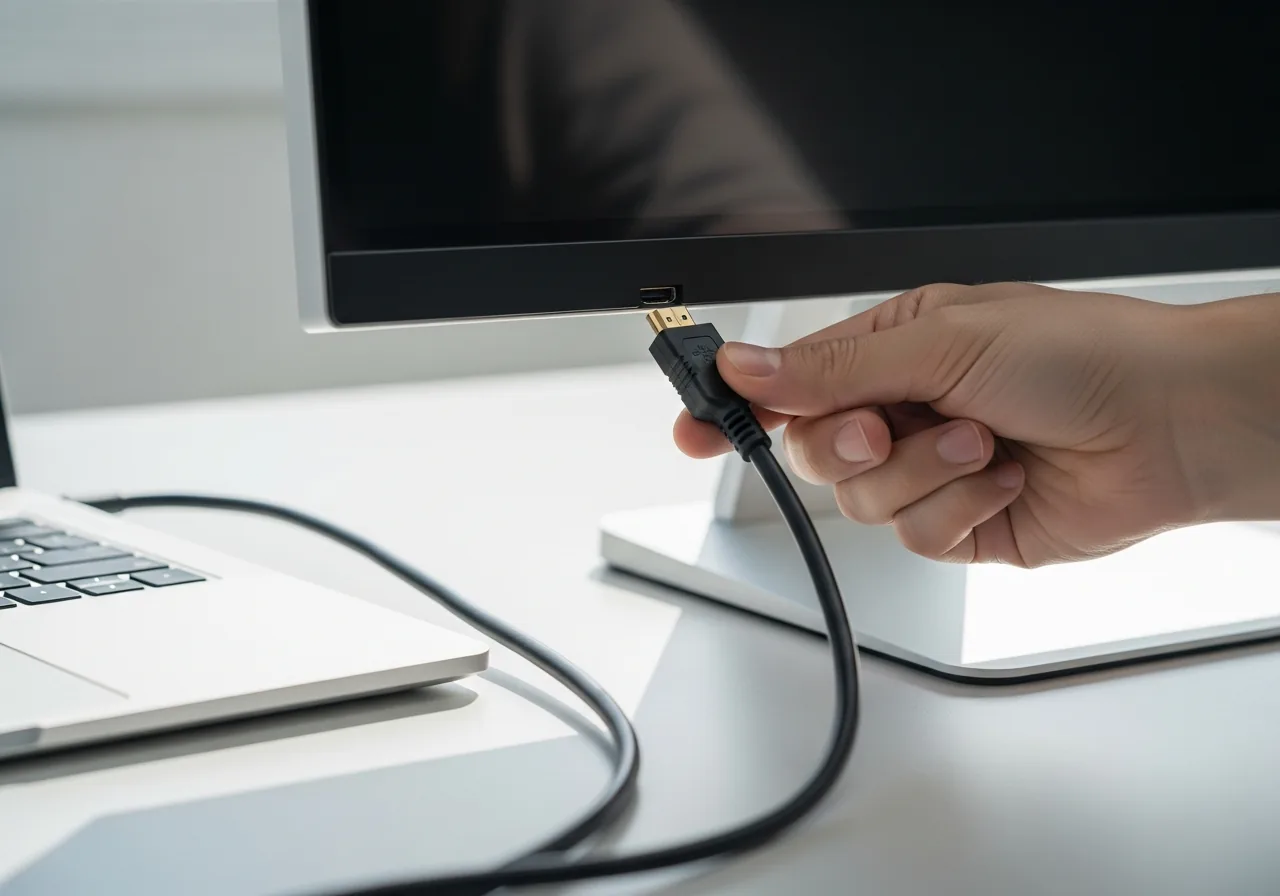
- Watch whether an external screen receives a clear, usable picture
- Note if the black screen began right after closing or moving the lid
- Observe whether brightness keys produce any change at all
- Consider if a recent display driver change preceded the problem
Step-by-step repair
 1
1Check for a faint image
Shine a bright light at an angle across the panel; if you can make out a dim desktop, the picture is being drawn and the backlight rather than the graphics chip is the suspect.
 2
2Connect an external monitor
Plug a second screen into the laptop's video output to see whether a clear picture appears, which separates a panel fault from a deeper graphics or startup problem.
 3
3Adjust brightness and output
Press the brightness keys and cycle the display-output shortcut, since the image may simply be turned down or directed to the external screen by mistake.
 4
4Inspect the hinge cable area
Gently open and close the lid and watch for the image flickering, which hints the display cable running through the hinge has worn; avoid forcing a stiff lid.
 5
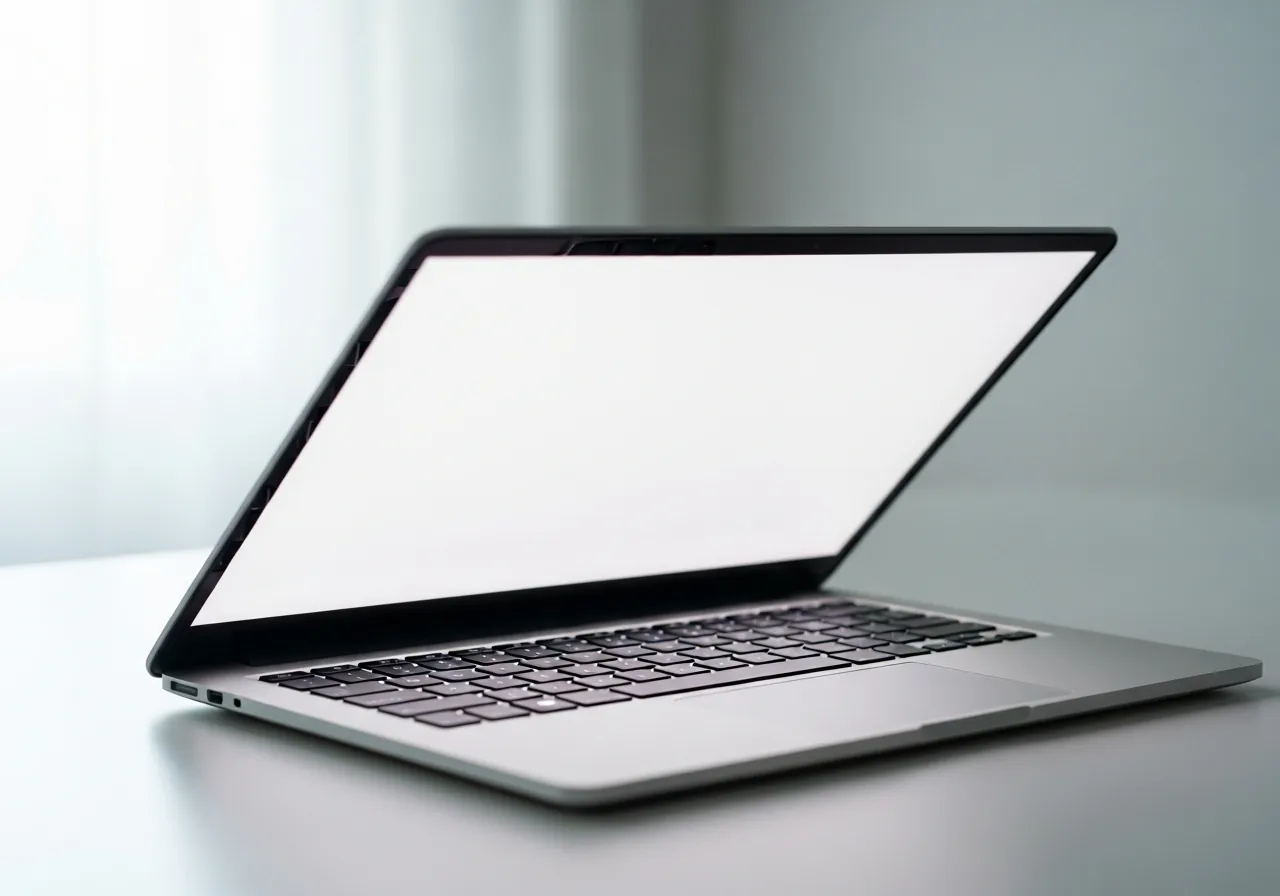
5Confirm the panel returns
After adjusting the output and ruling out the cable, restart and check that the built-in screen lights up with a steady, usable picture.
When to seek help
If you can see an image only on an external screen and the built-in panel stays dark after careful checks, a technician can confirm whether the cable, backlight, or panel is at fault.
Reducing the chance it returns
Because the screen cable lives on movement, gentle handling does most of the protective work. Open and close the lid in a smooth arc using both hands near the centre rather than yanking from one corner, which spreads the strain that wears the wire through the hinge. Keep the screen free of pressing weight when the lid is shut, and let display driver changes settle one at a time so an output rarely lands on the wrong screen. Carrying the machine closed and cushioned shields both the panel and the backlight circuit from the knocks that quietly shorten their life.
Repair110 is a free, informational resource. These steps describe a careful, general approach — every device is a little different, so work slowly, back up anything you value, and prioritise your own safety. If a step feels beyond your comfort, stop and consult a qualified technician.