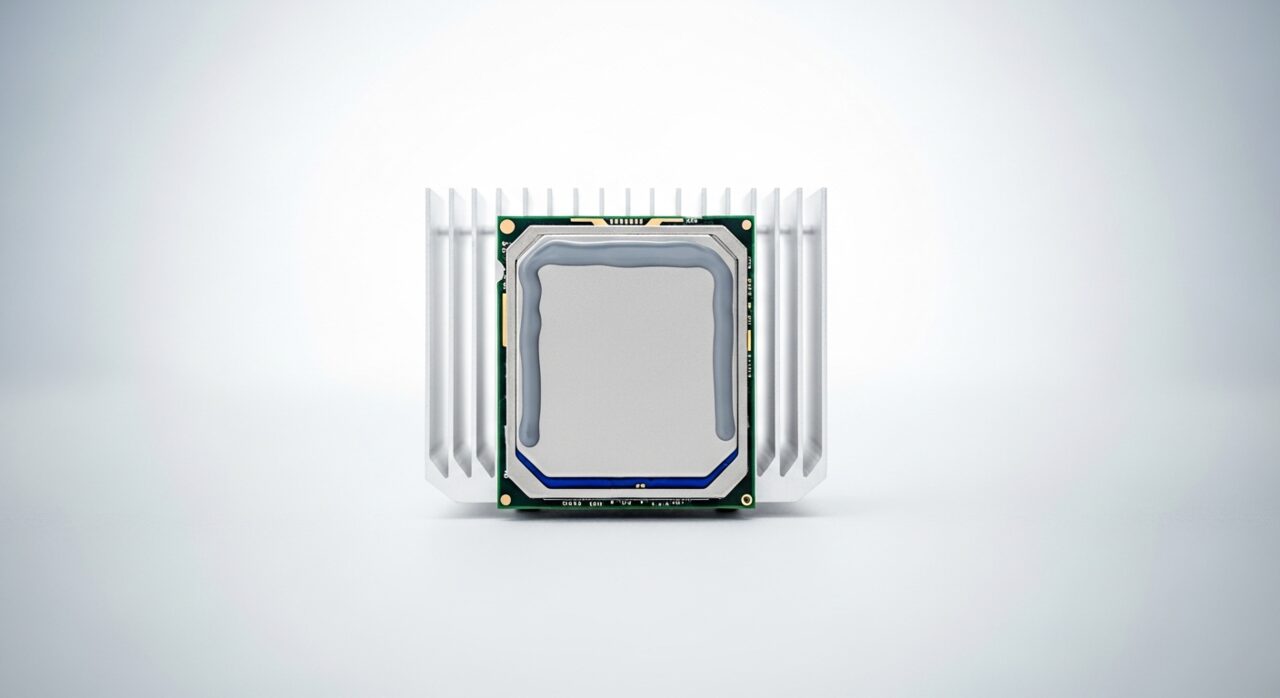
Understanding the problem
Starting a laptop depends on a tidy sequence: the adapter feeds the board, charging circuitry tops up the cell, and a tiny standby rail waits for the power button to wake the controller that brings the main rails to life. A break anywhere in that sequence leaves everything dark. A flat battery with a dead adapter offers nothing to begin with, while trapped static charge can confuse the controller into refusing to start. When the very first power-delivery stage falters, the machine never reaches the point where lights and fans would normally stir.
Symptoms
- No lights, fan noise, or charging indicator when the power button is pressed
- The screen stays fully dark with no faint backlight glow
- No vibration, click, or spin-up sound from inside the chassis
- The device feels cold and silent even after sitting on a charger
Likely causes
- 1A drained battery combined with a charger that is no longer delivering power
- 2A failed power adapter, cable break, or unseated internal power connector
- 3Static charge held in the board that prevents a clean start
- 4A faulty power button or its ribbon link to the mainboard
- 5A deeper mainboard fault on the early power-delivery stage
What to observe and check
- Notice whether any indicator light reacts at all when power is connected
- Observe if the charger brick warms slightly, hinting it is drawing current
- Try a known-good outlet to rule out the wall socket being dead
- Listen closely for any single click the moment the button is pressed
- Consider whether the failure followed a drop, spill, or power surge
Step-by-step repair
 1
1Disconnect and reset the power
Unplug the adapter from the wall and the laptop, then hold the power button for around thirty seconds to clear any trapped static charge that may be confusing the controller.
 2
2Test the charger and outlet
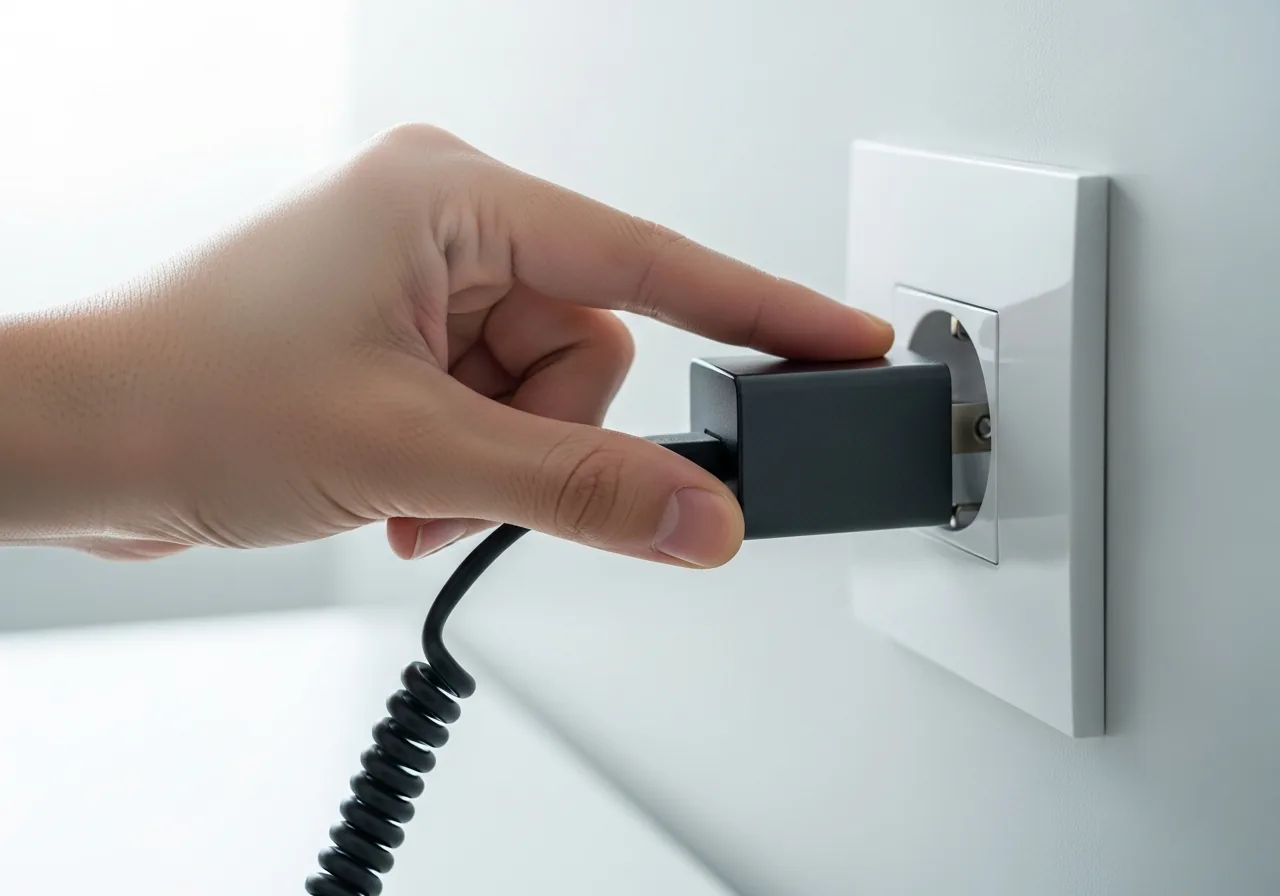
Plug into a known-good wall socket and feel whether the adapter brick warms slightly; swapping the cable or outlet rules out a dead lead before suspecting the laptop itself.
 3
3Watch for any sign of life
With power connected, look for a faint indicator light and listen for a single click when the button is pressed, which tells you how far the power chain is getting.
 4
4Inspect the battery and adapter
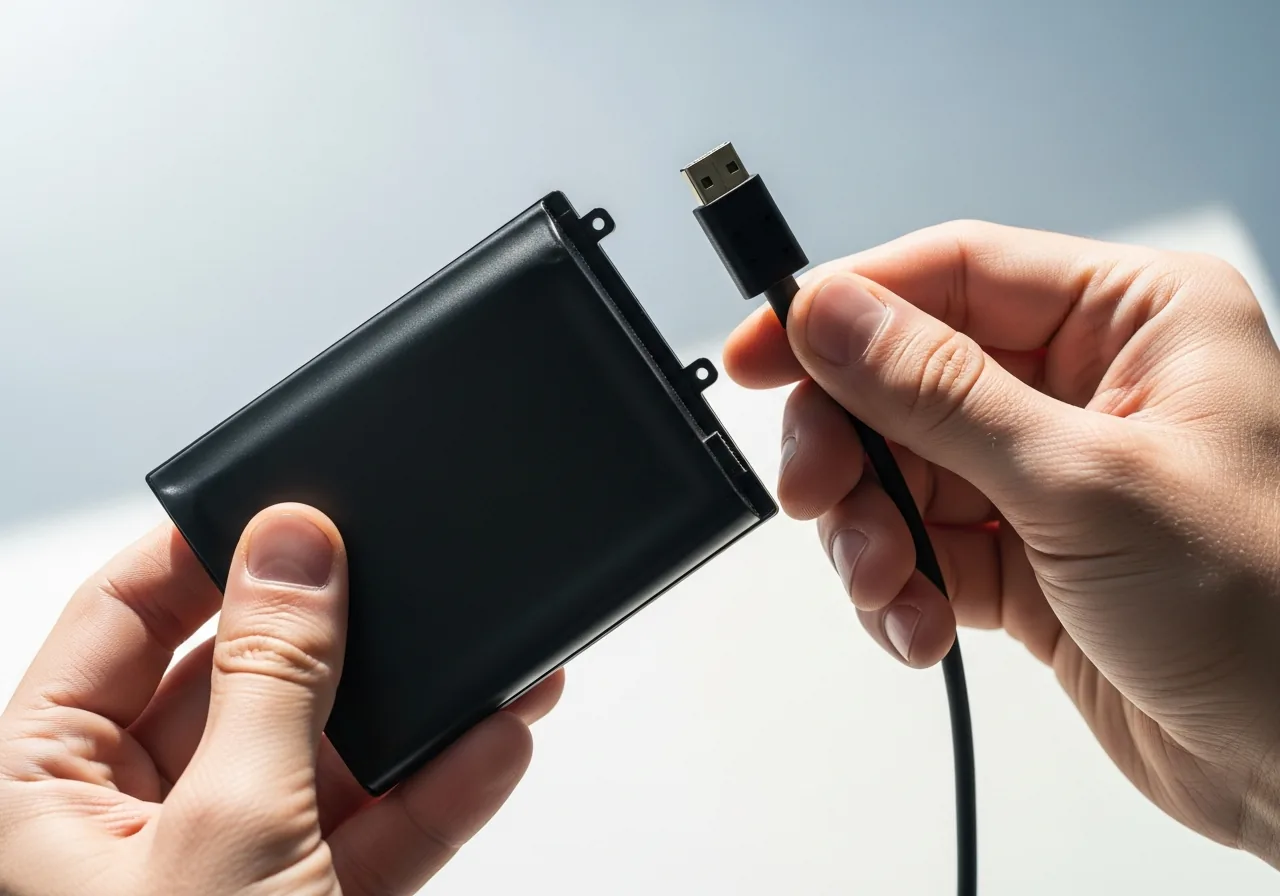
Check for a swollen battery, a damaged cable, or signs of a spill; if you see any swelling or smell burning, stop here and seek qualified help rather than retrying.
 5
5Attempt a clean start
After the static drain and a confirmed working charger, press the power button once and wait calmly to see whether lights and fans finally stir.
When to seek help
If you notice a swollen battery, signs of liquid, or any burning smell, stop immediately and seek qualified help. Internal power faults also need a technician rather than repeated forced power attempts.
Reducing the chance it returns
Most sudden no-power episodes are easier to avoid than to cure. Treat the charging cable gently, coiling it loosely and unplugging by the connector rather than tugging the lead, so the adapter keeps delivering clean power. Avoid letting the battery sit fully flat for long stretches, since a deeply drained cell strains the start-up circuitry. Protecting the machine from knocks, spills, and sudden surges keeps the early power stage healthy. If a start ever stalls, a calm pause before retrying often lets stray static settle rather than building frustration.
Repair110 is a free, informational resource. These steps describe a careful, general approach — every device is a little different, so work slowly, back up anything you value, and prioritise your own safety. If a step feels beyond your comfort, stop and consult a qualified technician.