Understanding the problem
A laptop battery stores energy in chemical cells that slowly lose capacity as they age, so each full charge holds a little less than it once did. How quickly it empties also depends on demand: a bright screen, busy radios, and software working hard in the background all pull steadily from the same store. A small gauge estimates the remaining charge, and over time its picture of full and empty can drift out of step with reality. Fast drain is usually these threads tangled together, where ordinary wear meets a system asking for more power than the task seems to need.
Symptoms
- Charge falls noticeably within an hour of light use
- The percentage drops in sudden jumps rather than smoothly
- The laptop runs warm even when little appears to be happening
- Run time has shortened steadily over many months
Likely causes
- 1Natural cell wear reducing the battery's true capacity over time
- 2Background processes keeping the processor busy and power-hungry
- 3Display brightness and active wireless radios drawing steady power
- 4Power settings configured for performance rather than endurance
- 5A miscalibrated charge gauge misreporting the remaining charge
What to observe and check
- Observe whether drain is fast even with the screen dimmed and idle
- Note the battery's age and how many years of daily use it has seen
- Watch for any single task that makes the fans rise and charge fall
- Consider whether run time worsened gradually or dropped suddenly
- Check if the reported percentage behaves erratically or inconsistently
Step-by-step repair
 1
1Observe the drain pattern
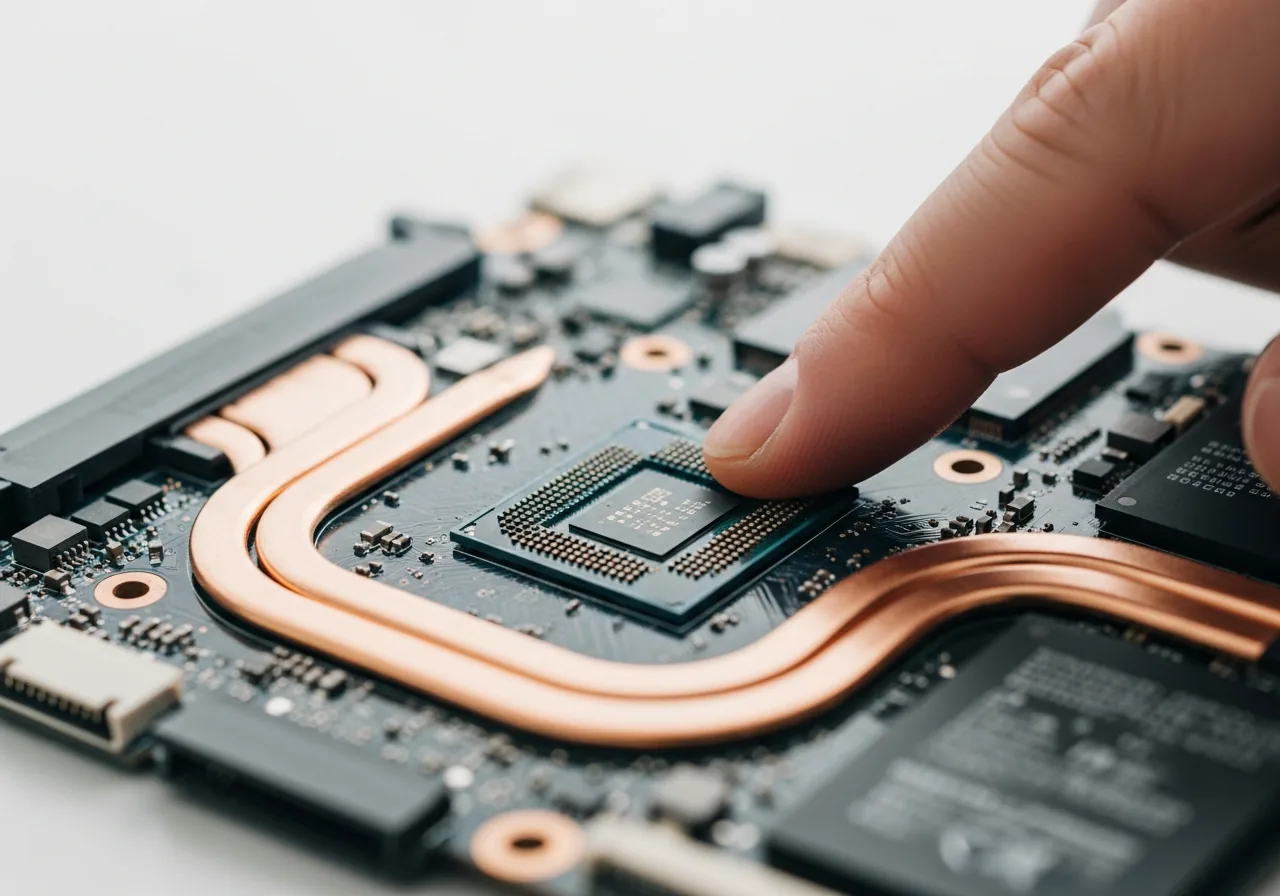
Note whether the charge falls fast even with the screen dim and idle, and how the percentage behaves, which helps separate genuine cell wear from heavy demand.
 2
2Close power-hungry background tasks
Look for processes keeping the processor busy and warm with little to show for it, and close the ones you do not need so the battery is not drained needlessly.
 3
3Choose an endurance power profile
Lower the screen brightness, switch off radios you are not using, and select a power setting tuned for endurance rather than maximum performance.
 4
4Recalibrate the charge gauge
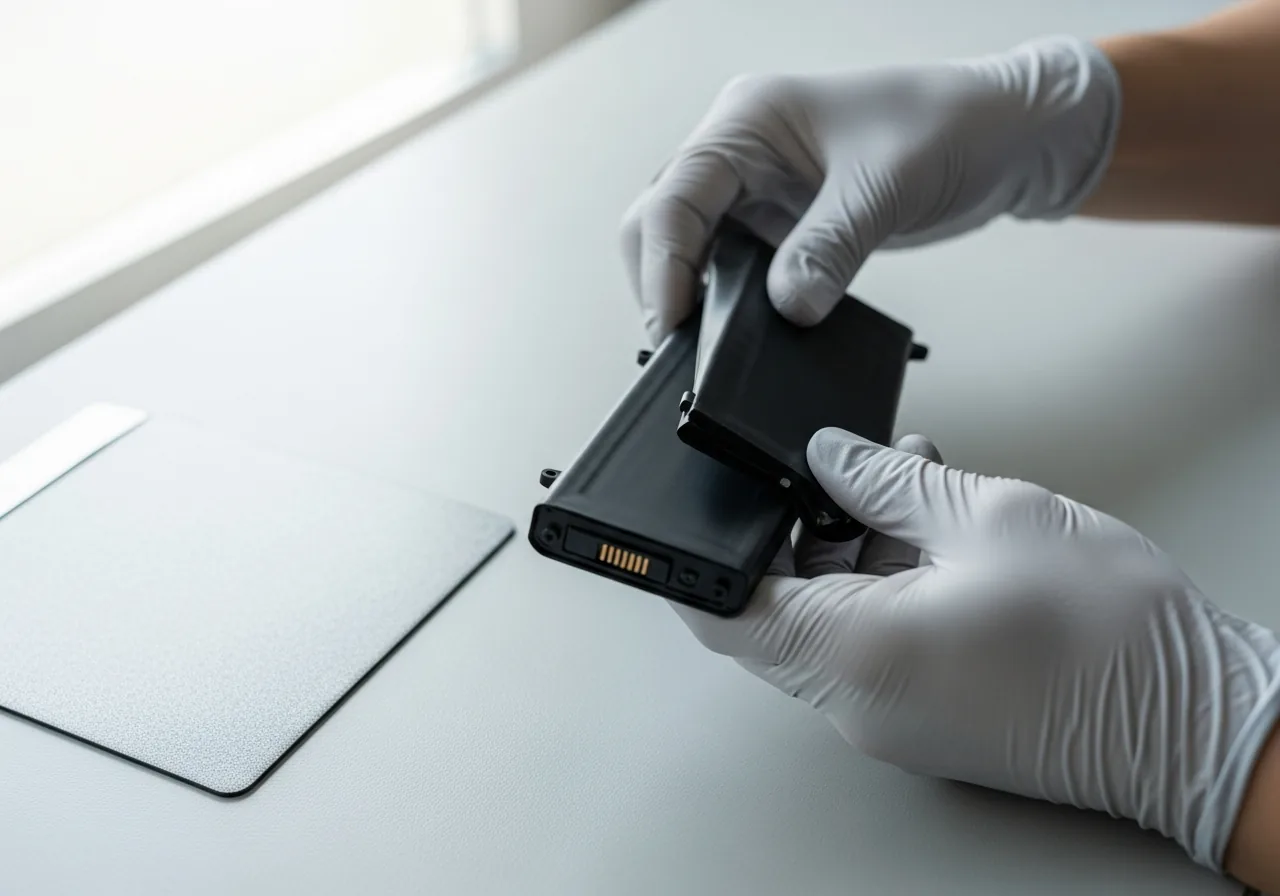
Run the battery through one full charge and discharge so the gauge can relearn true full and empty, correcting readings that have drifted out of step.
 5
5Confirm improved run time
Use the laptop normally for a while and watch whether the charge now falls smoothly and lasts longer than before the changes.
When to seek help
If the battery casing appears swollen, lifts the keyboard or trackpad, or grows hot while resting, stop using it and seek qualified help, as a damaged cell is a genuine safety hazard.
Reducing the chance it returns
Gentle charging habits help the cells age slowly and the gauge stay honest. Avoid leaving the battery at extremes for long, neither sitting empty for days nor held at a constant full charge in steady heat, since both quietly hasten wear. Dimming the screen a little, switching off radios you are not using, and choosing an endurance-minded power profile all ease the steady drain. Closing background tasks that keep the processor busy spares the cell needless work, and an occasional full charge-and-discharge lets the gauge recalibrate so its readings match what the battery truly holds.
Repair110 is a free, informational resource. These steps describe a careful, general approach — every device is a little different, so work slowly, back up anything you value, and prioritise your own safety. If a step feels beyond your comfort, stop and consult a qualified technician.