Understanding the problem
An image reaches the panel as orderly rows and columns of data, each driven by tiny conductors along the edges of the glass. When one of those conductors loses contact, an entire line of pixels stops receiving its instructions and freezes as a fixed streak. The break may be a hairline fracture in the panel, a connection working loose at the ribbon, or corrupted data leaving the graphics chip. Because the fault is in the wiring of the image rather than its content, the line stays put no matter what is displayed.
Symptoms
- Thin colored or black lines run vertically or horizontally
- The lines stay fixed regardless of what is on screen
- They shift or multiply when pressure is applied near the panel
- Whole bands of the image may distort or disappear
Likely causes
- 1A loose or damaged display cable disrupting part of the signal
- 2A failing panel with internal connection breaks
- 3A graphics chip fault sending corrupted image data
- 4Physical pressure or impact damage to the screen
- 5A driver fault occasionally producing artifacts
What to observe and check
- Note whether the lines persist across every image and screen
- Observe if gentle pressure near the panel changes them
- Watch whether an external monitor shows a clean picture
- Consider whether the lines followed a knock or drop
- Notice if the pattern stays identical from the moment of power-on
Step-by-step repair
 1
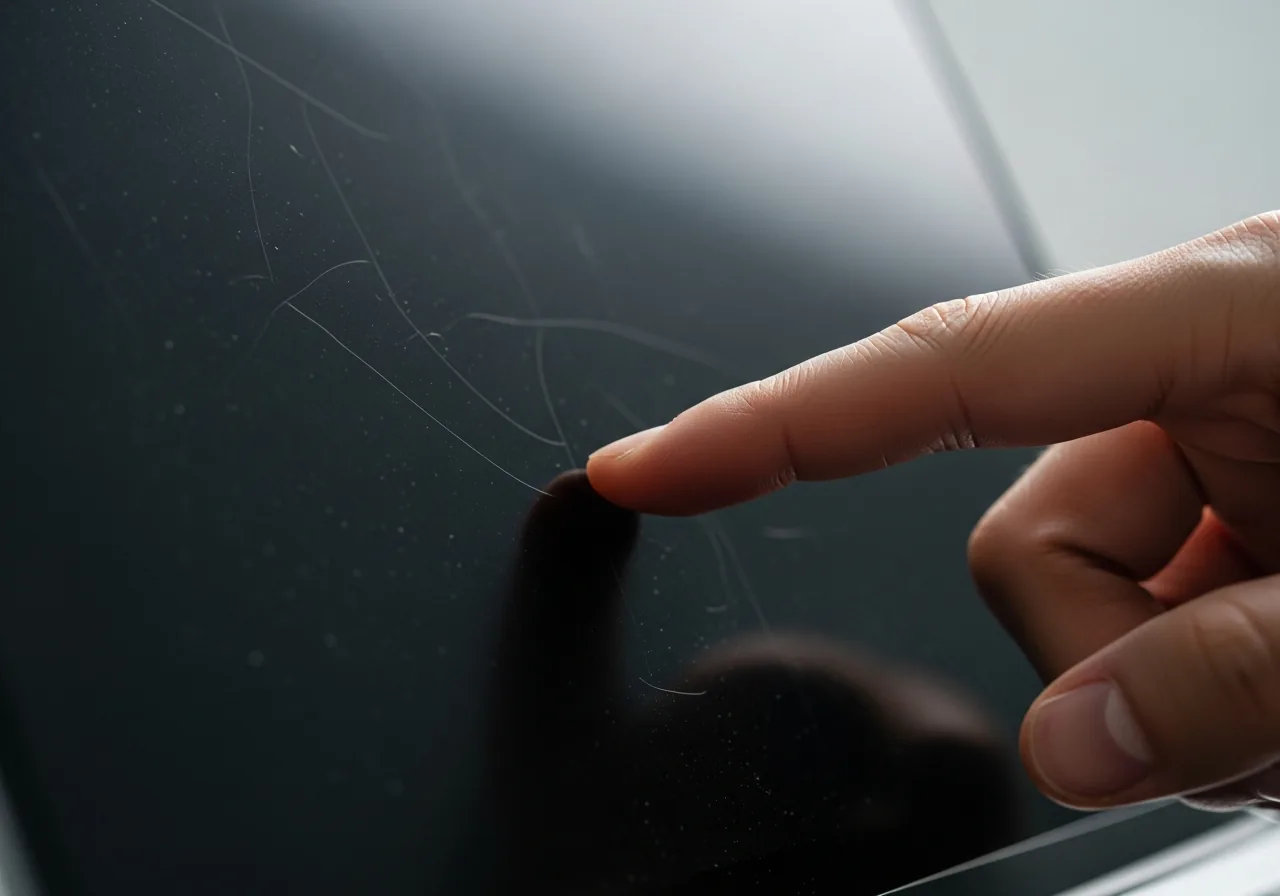
1Compare with an external screen
Connect another monitor; a clean external picture points the fault at the built-in panel or its cable rather than the graphics chip.
 2
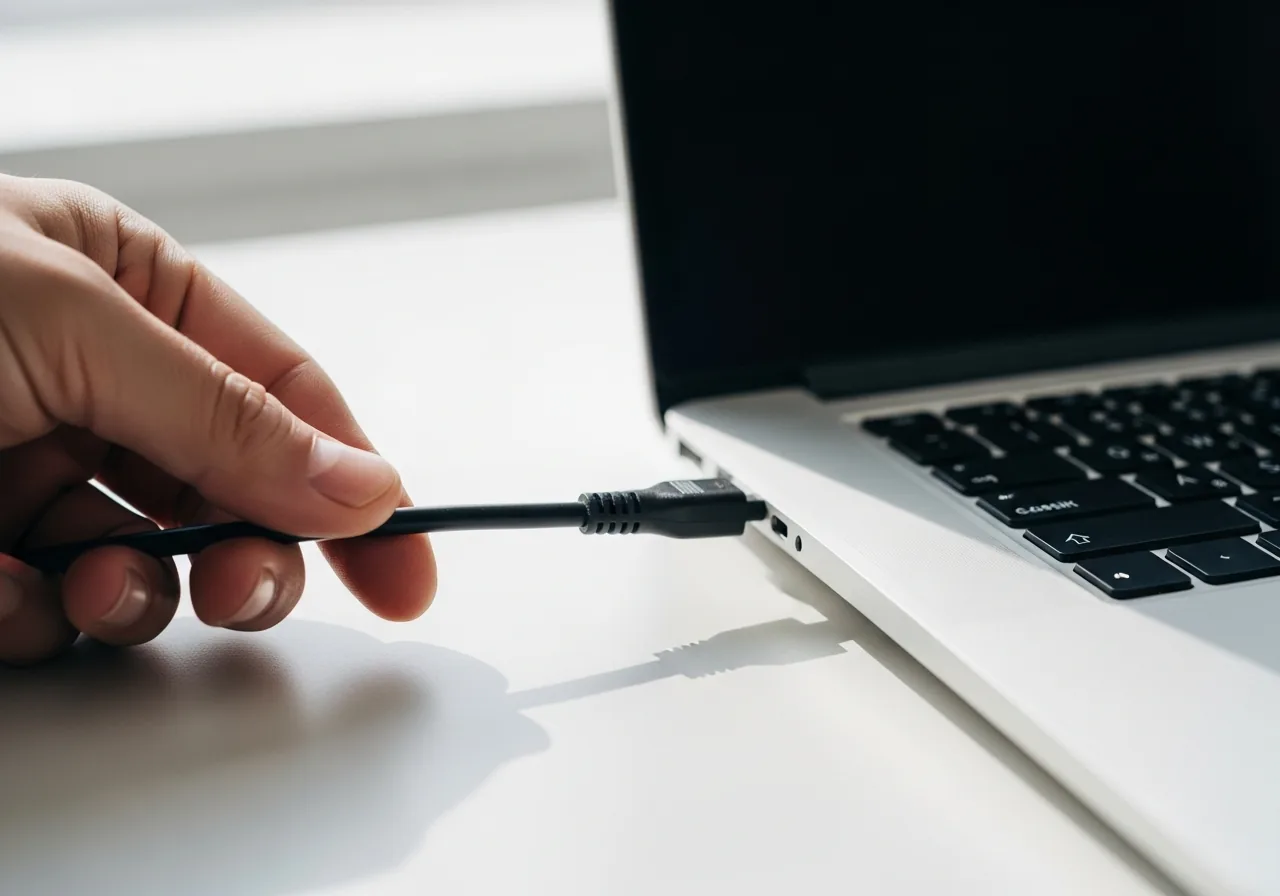
2Check for impact damage
Look for cracks or pressure marks and note whether the lines followed a knock, since physical damage shows as fixed streaks.
 3
3Power down before handling
Shut the device off and disconnect power before opening anything to examine the display cable, so the work stays safe.
 4
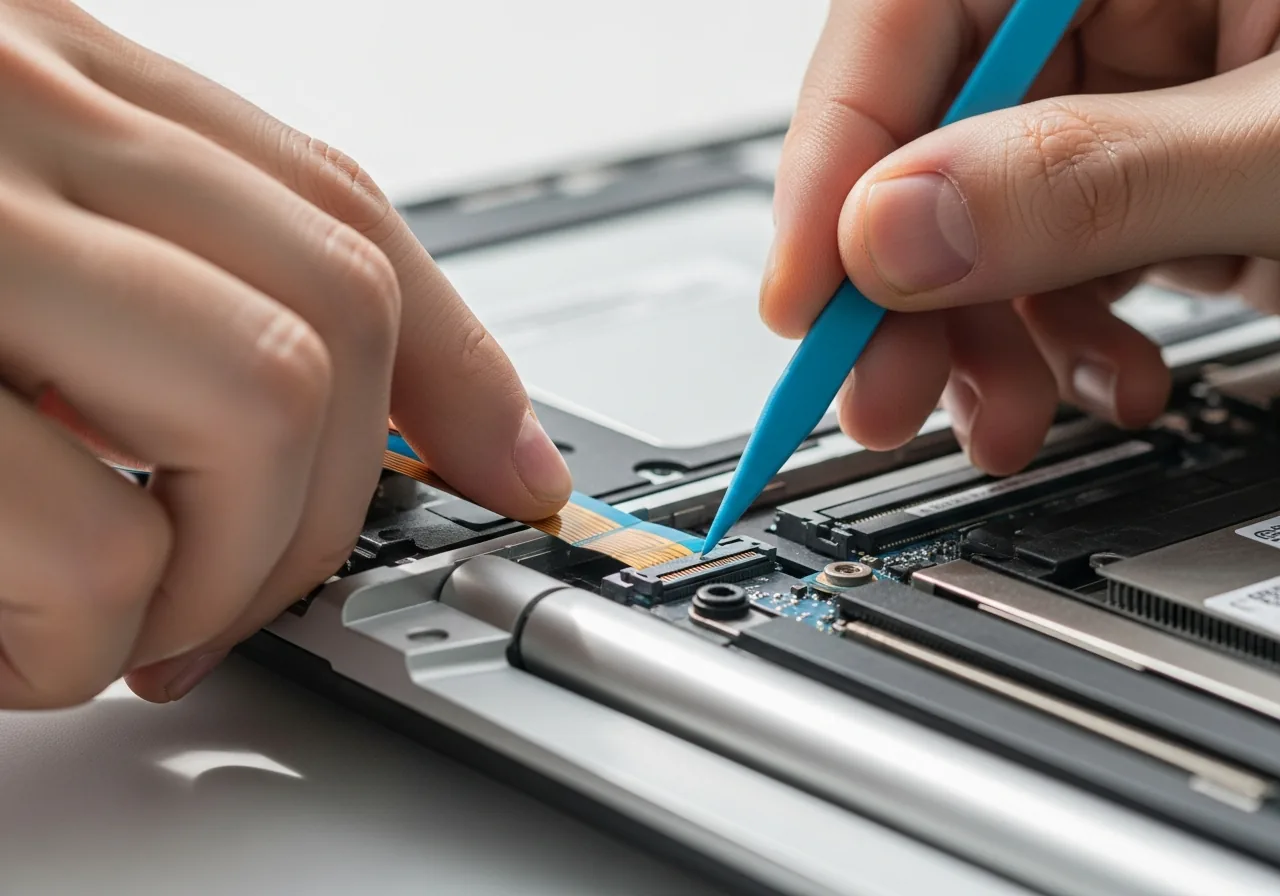
4Reseat the display cable
If you can reach it, gently unplug and firmly reconnect the panel's ribbon, as a loose link can drop a line of pixels; the connector is fragile.
 5
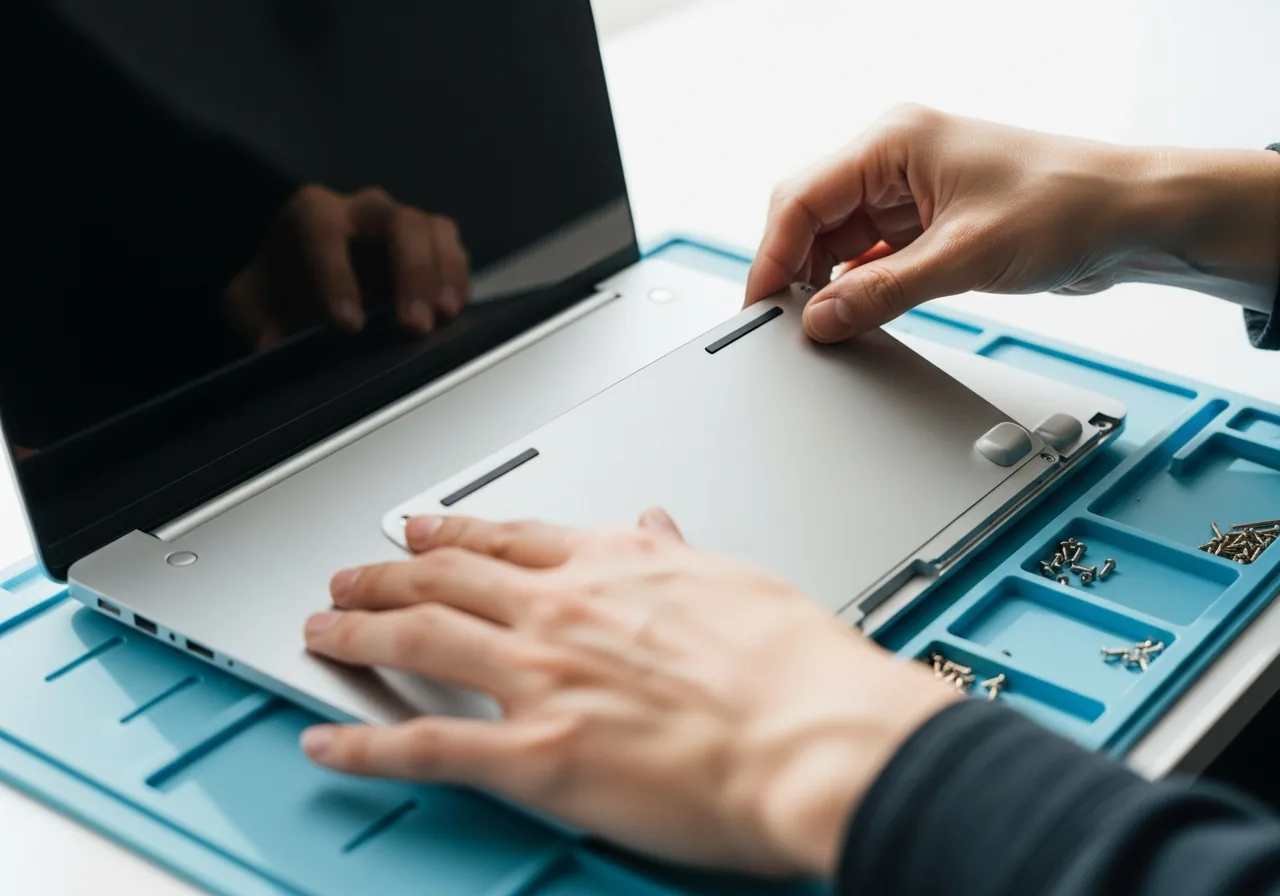
5Close everything back up
Refit any panel or cover removed for access before powering the device on again.
 6
6Check the lines are gone
Power on and confirm the streaks no longer appear across changing images and colours.
When to seek help
If an external screen is clean but the built-in panel shows fixed lines, the panel or its cable likely needs a technician, since these are delicate internal repairs.
Reducing the chance it returns
Lines that stem from physical stress are easier to avoid than to mend, so handle the screen as the fragile glass it is. Carry a laptop closed and supported from underneath rather than by the lid, and never set objects on top of a folded machine. Avoid pressing or wiping the surface firmly, and clean with a soft cloth and the lightest touch. Cushion the device during transport, keep it clear of edges where it might be knocked, and let it acclimatise gently if it has been somewhere very cold.
Repair110 is a free, informational resource. These steps describe a careful, general approach — every device is a little different, so work slowly, back up anything you value, and prioritise your own safety. If a step feels beyond your comfort, stop and consult a qualified technician.