Understanding the problem
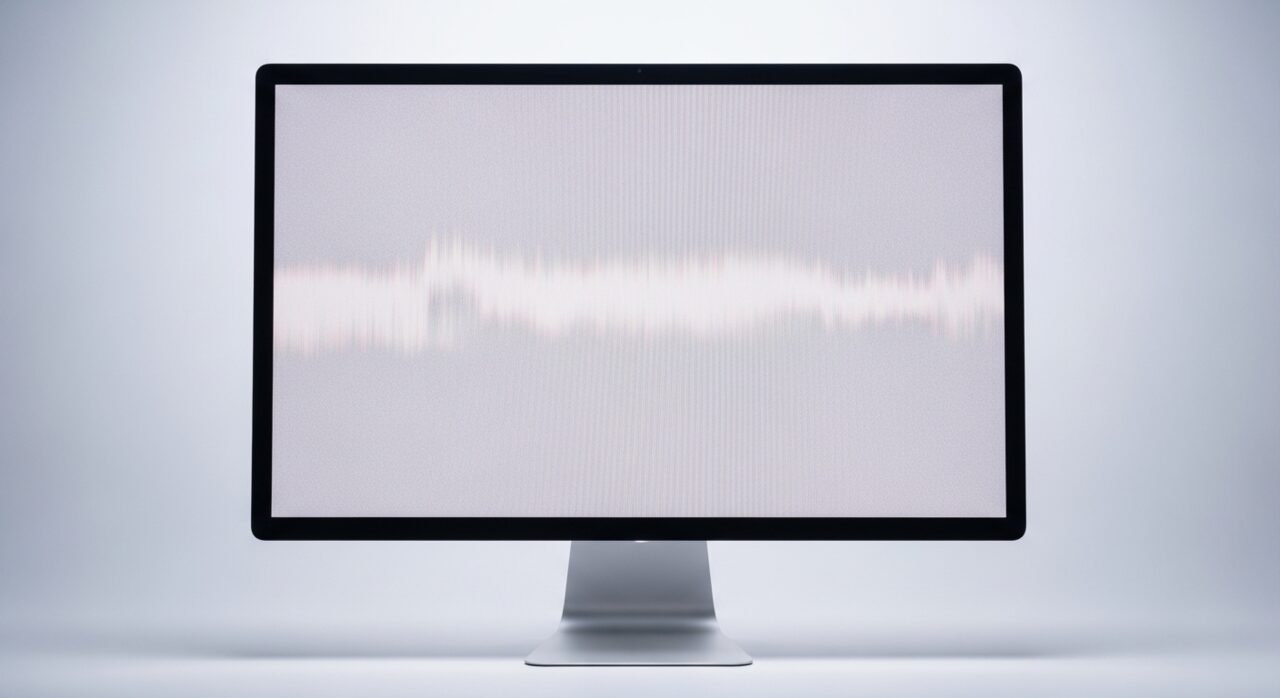
A screen redraws itself many times each second, and each redraw depends on a steady stream of timing signals and stable power reaching the panel. Flicker appears when that rhythm is disturbed. A driver may be requesting a refresh rate the panel cannot hold cleanly, a cable flexing in the hinge may interrupt the data for an instant, or the circuit feeding the backlight may pulse unevenly as it ages. Because the eye notices even brief gaps, a small fault anywhere along this timing-and-power chain shows up as a visible blink.
Symptoms
- The image blinks, pulses, or strobes at irregular intervals
- Flicker worsens at certain brightness levels or refresh settings
- The screen flashes when the lid or cable is moved
- Particular colors or regions shimmer more than others
Likely causes
- 1A display driver or refresh-rate setting that does not match the panel
- 2A loose or damaged display cable interrupting the signal
- 3A failing backlight circuit pulsing unevenly
- 4Electrical interference from nearby devices or wiring
- 5An aging panel whose internal connections are degrading
What to observe and check
- Note whether the flicker tracks a specific brightness or refresh setting
- Observe if moving the lid or cable triggers the disturbance
- Watch whether an external screen flickers in the same way
- Consider whether the trouble began after a driver update
- Notice if the flicker appears only after the device warms up
Step-by-step repair
 1
1Lower the refresh rate
Set the refresh to a value the panel comfortably holds, since a rate it cannot sustain cleanly can make the image blink.
 2
2Roll back or update the driver
If the flicker began after a driver change, return to the version that was stable or apply a newer one and note which behaves.
 3
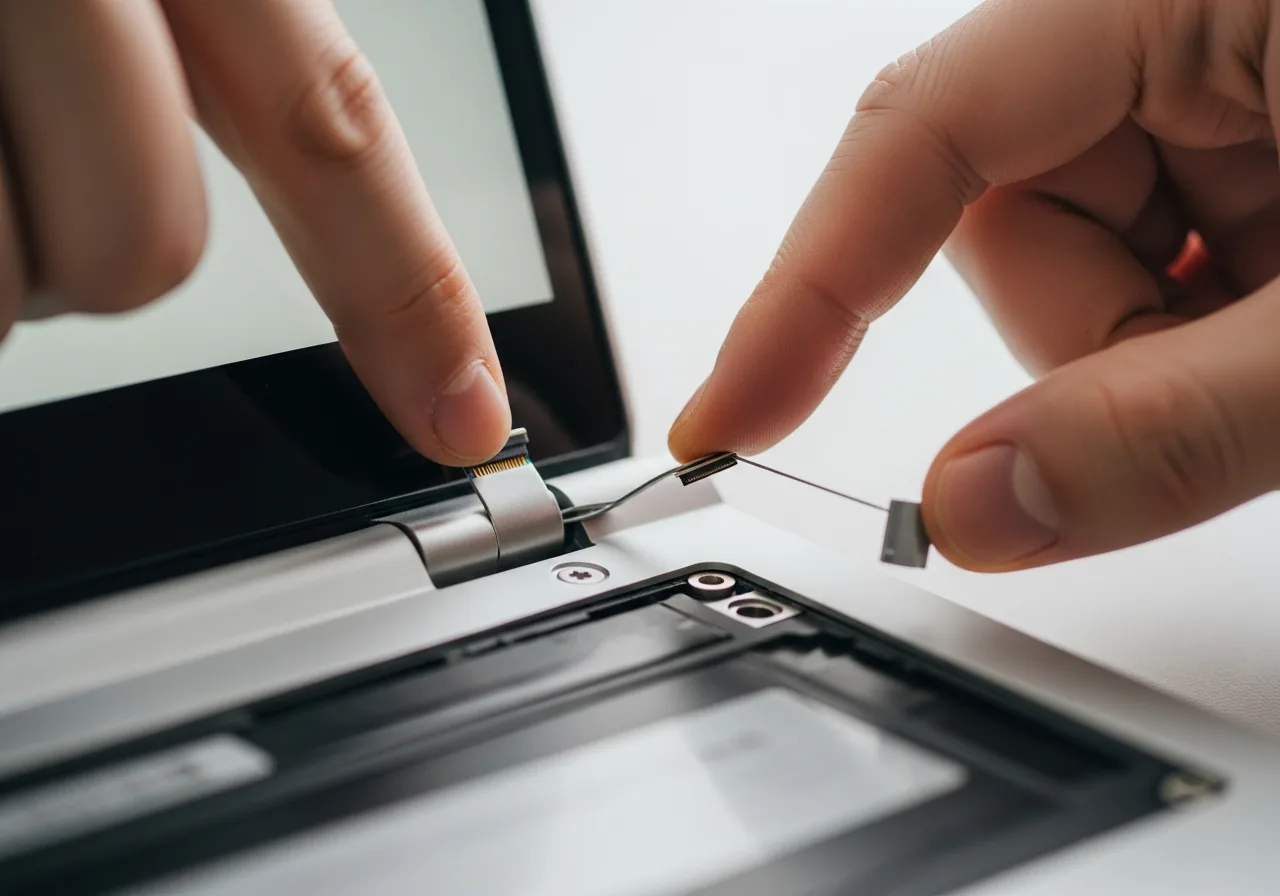
3Check the hinge and cable
Watch whether moving the lid or cable triggers the flicker, which points to a display cable flexing where it passes through the hinge.
 4
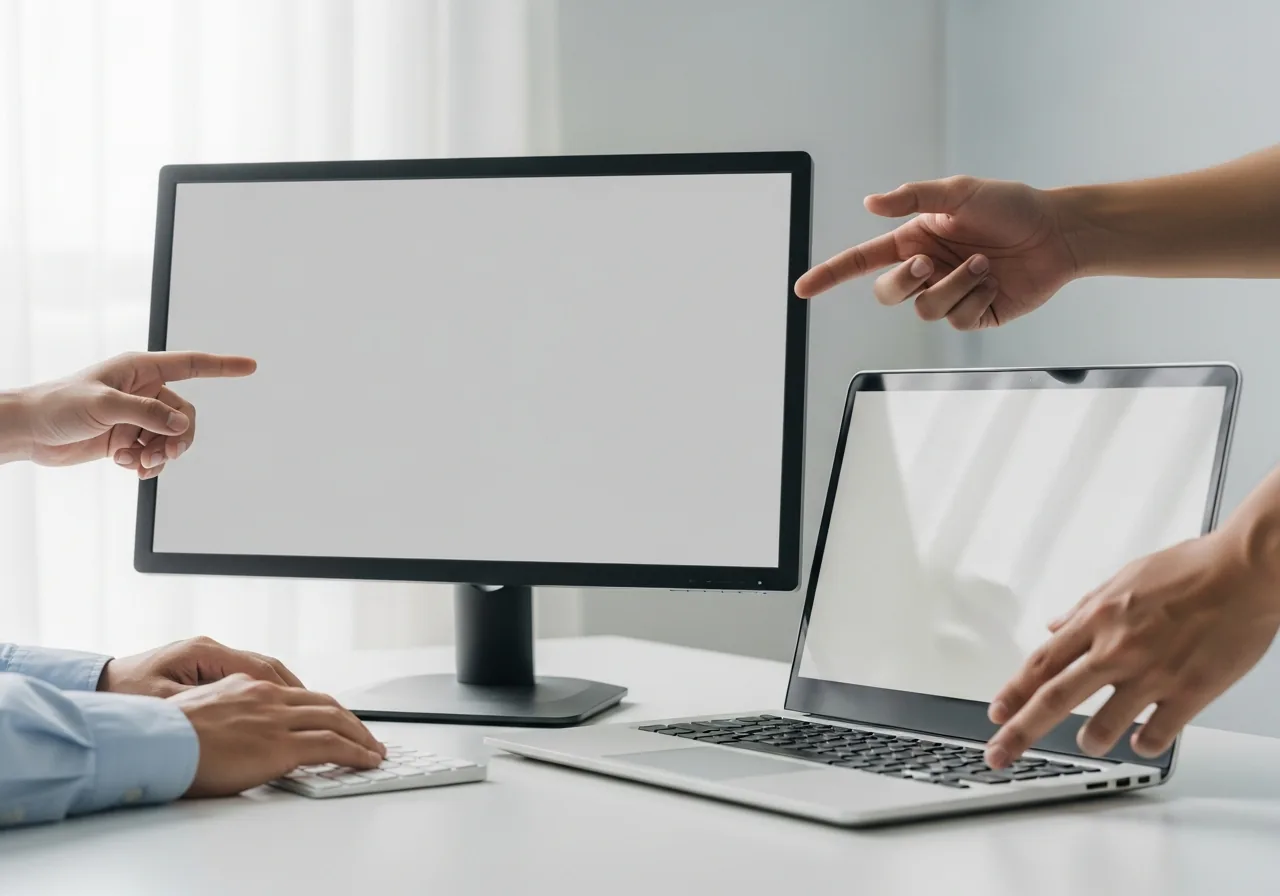
4Compare an external screen
Connect a second screen and see whether it flickers too, which helps separate a panel fault from a system or driver one.
 5
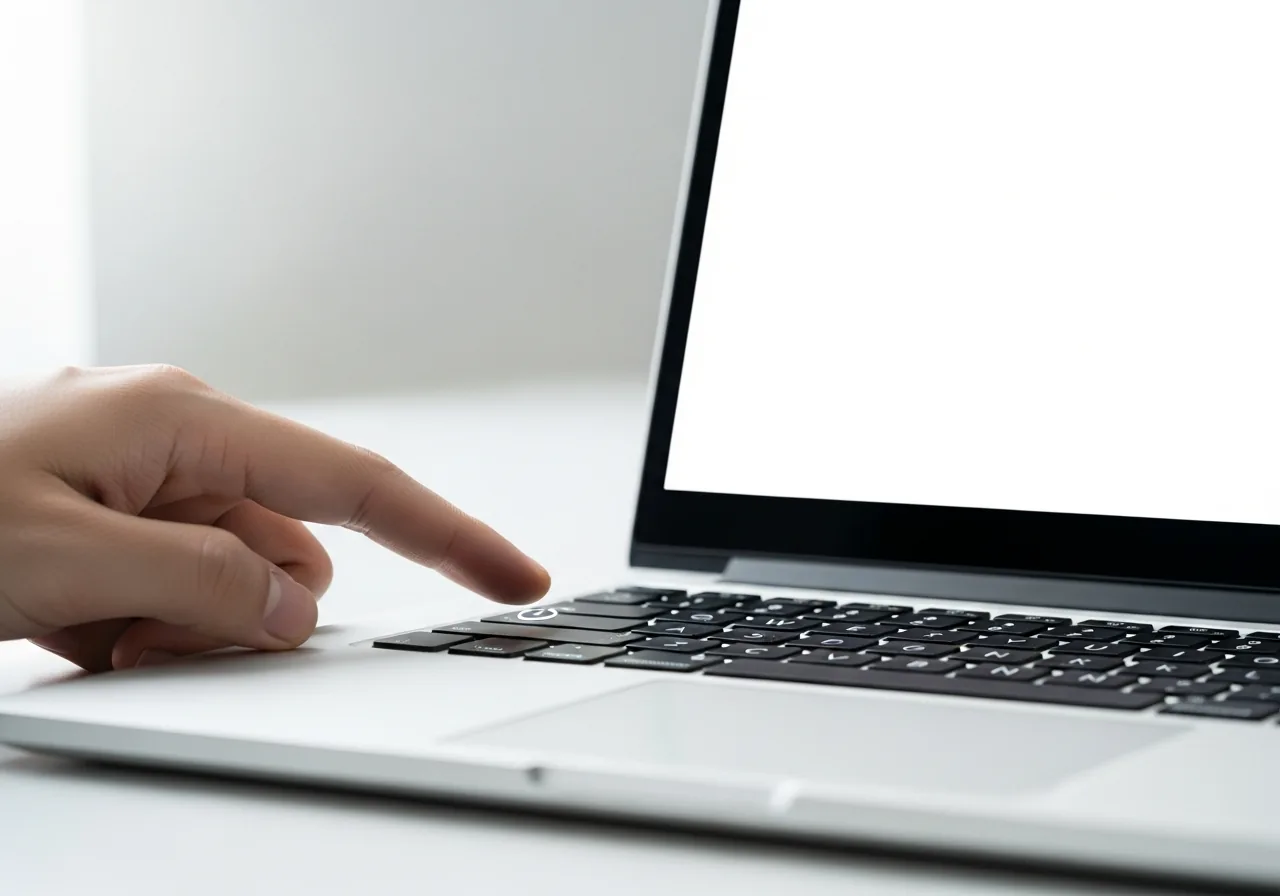
5Confirm a steady picture
After adjusting settings and drivers, check the image holds without pulsing across normal everyday use.
When to seek help
If the flicker is paired with a burnt smell, heat, or visible damage near the panel, stop and seek qualified help. Persistent flicker after software checks usually means an internal display fault for a technician.
Reducing the chance it returns
Once a stable picture returns, keep the refresh rate at a value the panel comfortably supports rather than pushing it to the highest figure on offer. Open and close a laptop lid gently so the cable in the hinge is not strained over time, and route any external cables so they are not pinched or bent sharply. Keep the device away from sources of electrical interference, and apply driver updates calmly, noting which version was stable so you can return to it if a later one reintroduces the blink.
Repair110 is a free, informational resource. These steps describe a careful, general approach — every device is a little different, so work slowly, back up anything you value, and prioritise your own safety. If a step feels beyond your comfort, stop and consult a qualified technician.