Understanding the problem
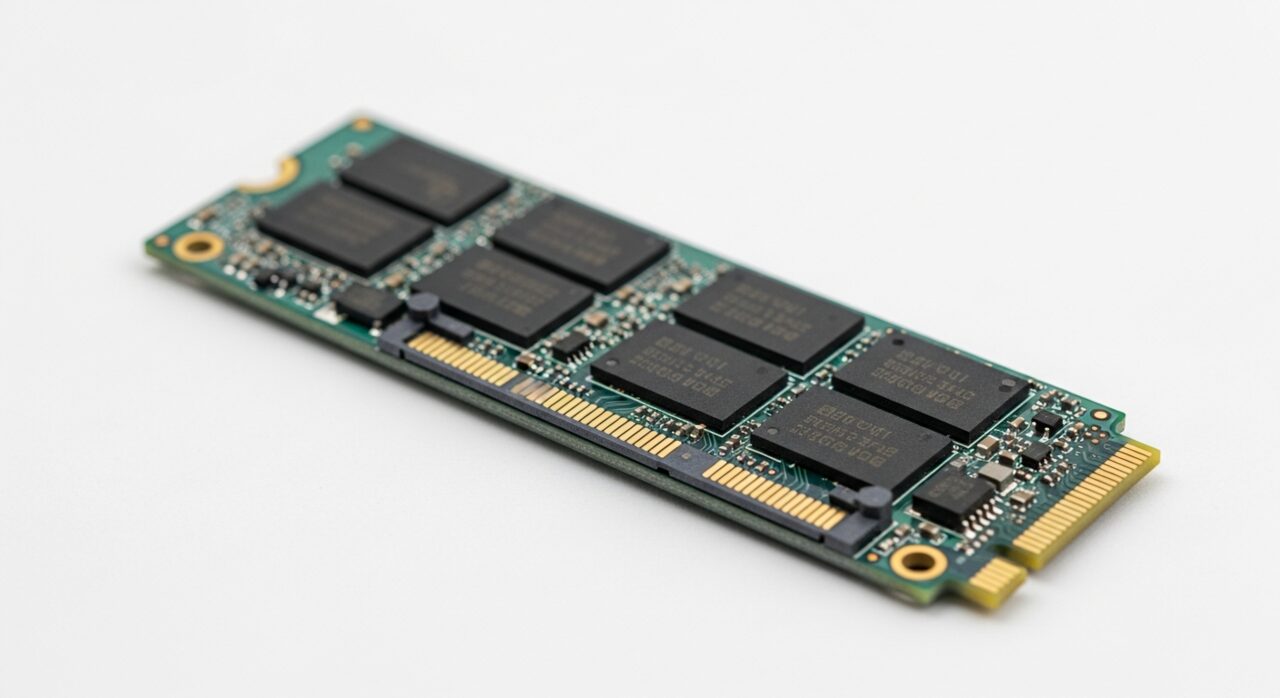
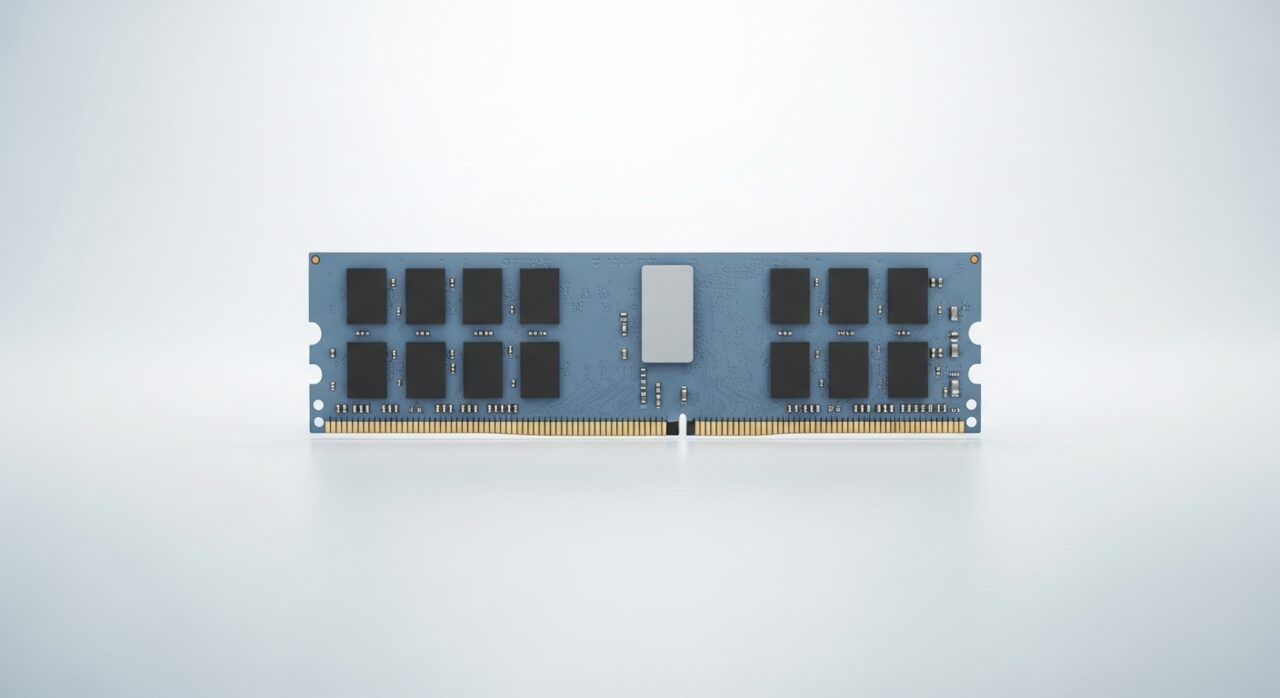
Working memory holds the data a device is actively using, and the system trusts every value it reads back to be exact. If a module sits slightly loose in its slot, or a single cell within the chip occasionally returns the wrong value, the corruption lands wherever that program happened to be working at the time. Because what occupies memory changes from moment to moment, the same fault strikes different tasks on different occasions. Heat and mismatched modules make these slips more likely, which is why the resulting crashes feel random and refuse to follow a tidy pattern.
Symptoms
- The system crashes at unpredictable moments with no clear trigger
- Error messages mention memory or refer to corrupted data in use
- Programs close unexpectedly during otherwise ordinary tasks
- Instability that comes and goes without a consistent pattern
Likely causes
- 1A memory module that has worked loose in its slot
- 2A failing memory chip producing occasional faulty reads
- 3Heat affecting memory stability during heavier use
- 4Driver or system software mishandling how memory is allocated
- 5Incompatible or mismatched memory modules working together poorly
What to observe and check
- Note whether crashes happen more often under heavy memory load
- Observe if the errors mention different locations each time
- Consider whether the problem followed a recent hardware change
- Watch whether instability worsens as the device warms up
Step-by-step repair
 1
1Save open work first
Because crashes strike without warning, save and copy anything important before investigating, so an unexpected freeze does not cost you unsaved work.
 2
2Power off and disconnect
Shut the device down and remove it from power before opening it, and earth yourself so a stray static charge cannot weaken a memory chip.
 3
3Open the device to reach memory
Remove the panel covering the memory slots so you can reach each module, handling the device gently on a clean, static-safe surface.
 4
4Reseat each memory module
Hold modules by their edges and press each firmly and evenly until it locks fully home, since a partial fit is a frequent cause of scattered errors.
 5
5Close the device back up
Refit the panel once the modules are secure, making sure nothing is loose or pinched as you close it.
 6
6Run normally to confirm stability
Use the device through ordinary and heavier tasks to check the random crashes and memory warnings no longer appear.
When to seek help
If crashes persist after the obvious causes are ruled out, a qualified technician can test the memory properly, which is safer than guesswork with internal components.
Reducing the chance it returns
When memory is installed or moved, make sure each module is seated firmly and evenly until it locks fully home, as a partial fit is a frequent cause of trouble. Keep the device cool and its interior free of dust, since heat makes marginal modules slip more often. Where memory is added, choosing matched modules avoids the friction of mismatched parts working together. Handle modules by their edges and earth yourself before touching them, so a stray static charge never weakens a chip that then fails unpredictably later.
Repair110 is a free, informational resource. These steps describe a careful, general approach — every device is a little different, so work slowly, back up anything you value, and prioritise your own safety. If a step feels beyond your comfort, stop and consult a qualified technician.