Understanding the problem
A headphone socket carries small spring contacts that press against the plug, and one of those contacts also senses when a plug is inserted so the system can switch away from the speakers. Detection fails when lint packs the socket and holds the contacts apart, when a plug sits only partway in, or when worn metal no longer makes a firm connection. The system then never receives the signal telling it to redirect sound. Because the sensing contact is delicate and exposed, debris and wear here explain most cases where headphones simply go unnoticed.
Symptoms
- Sound keeps coming from the speakers after plugging in
- The system never switches to the headphone output
- Audio cuts in and out as the plug is moved
- Only one channel plays until the plug is adjusted
Likely causes
- 1Lint or debris packed into the headphone socket
- 2A plug not fully seated or partly worn
- 3The system failing to detect the jack insertion
- 4An outdated audio driver mishandling output switching
- 5A damaged socket whose internal contacts no longer respond
What to observe and check
- Observe whether wiggling the plug briefly restores detection, hinting at the socket
- Note if a different set of headphones is detected, isolating the cable
- Watch whether the system offers the headphone output manually in its settings
- Check whether the socket looks clean and the plug seats fully
Step-by-step repair
 1
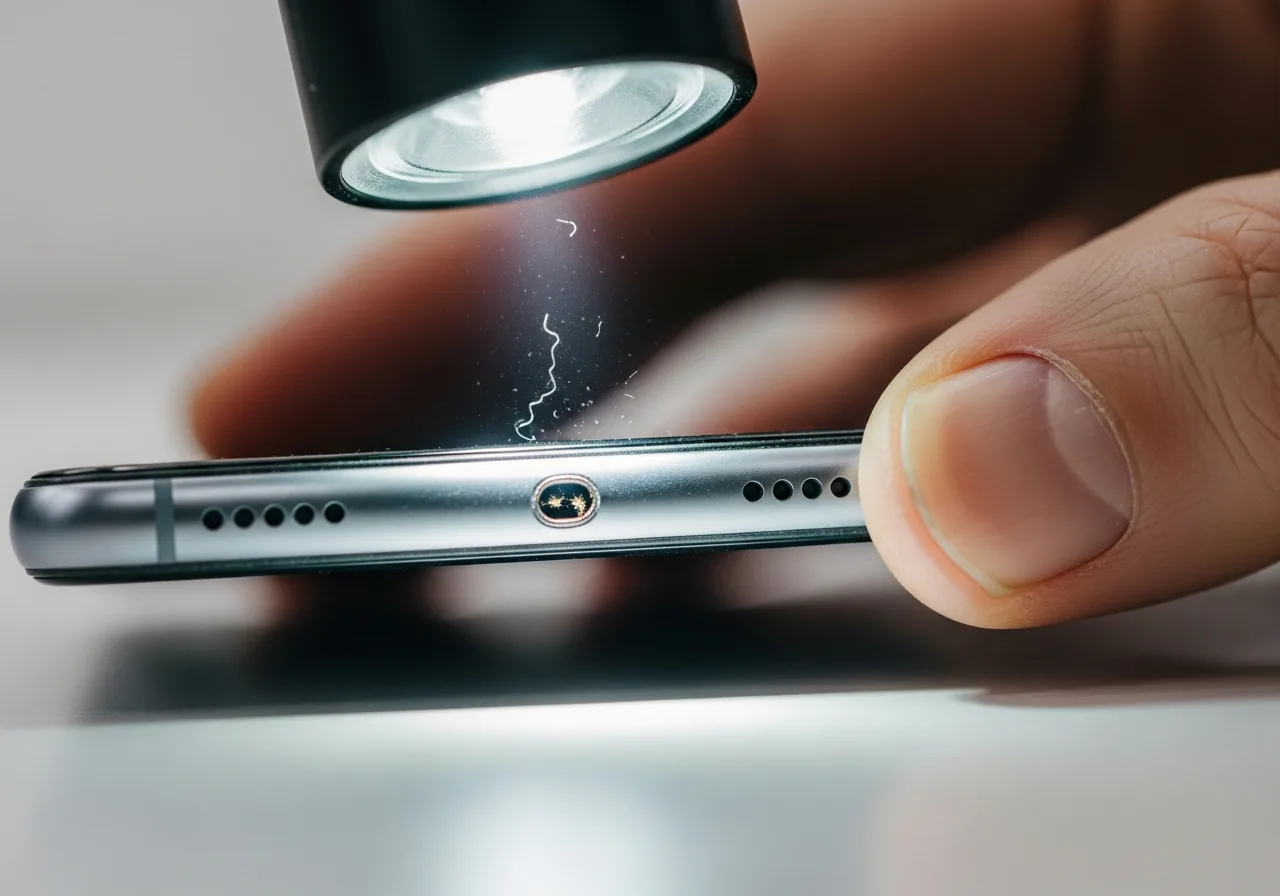
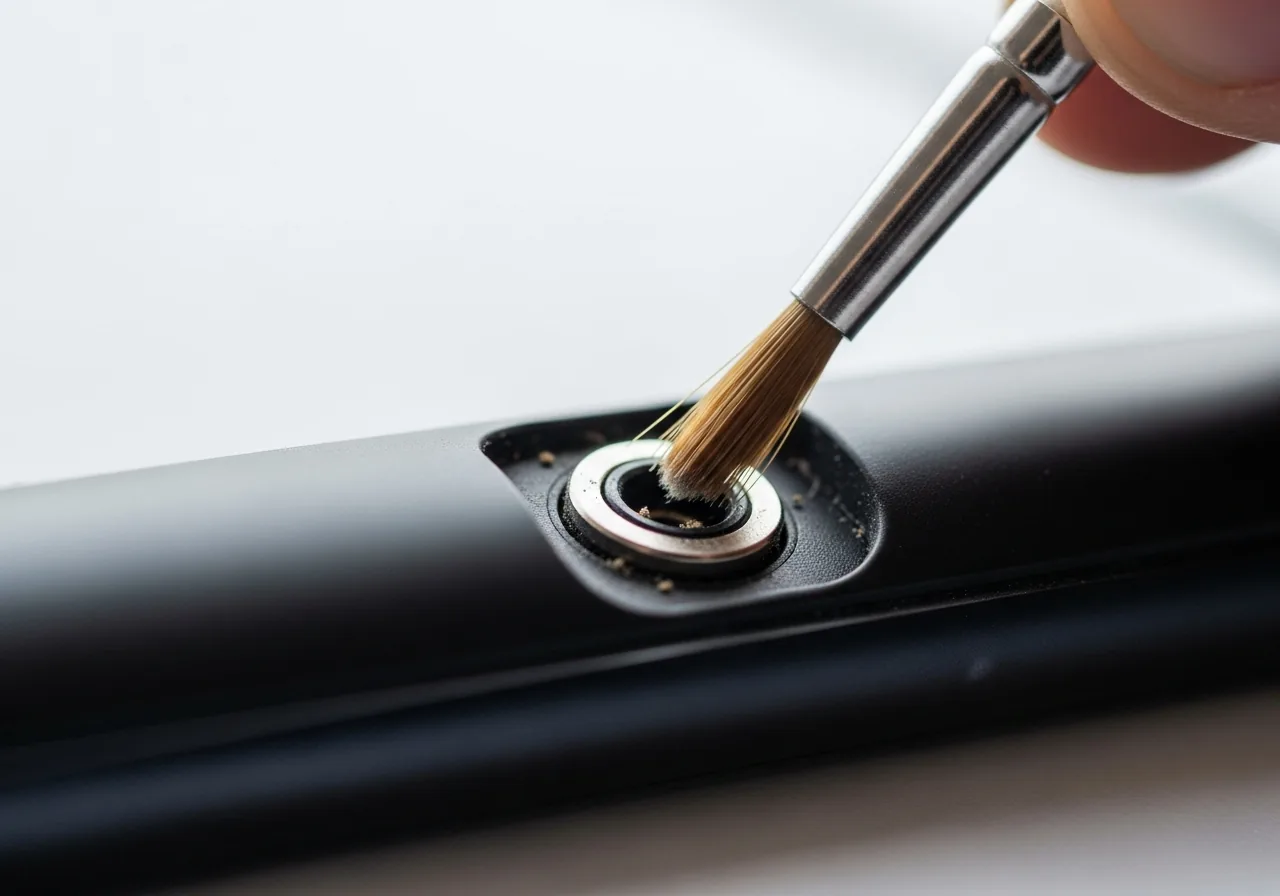
1Inspect the socket for debris
Look into the headphone socket for packed lint that can hold the sensing contacts apart and prevent detection.
 2
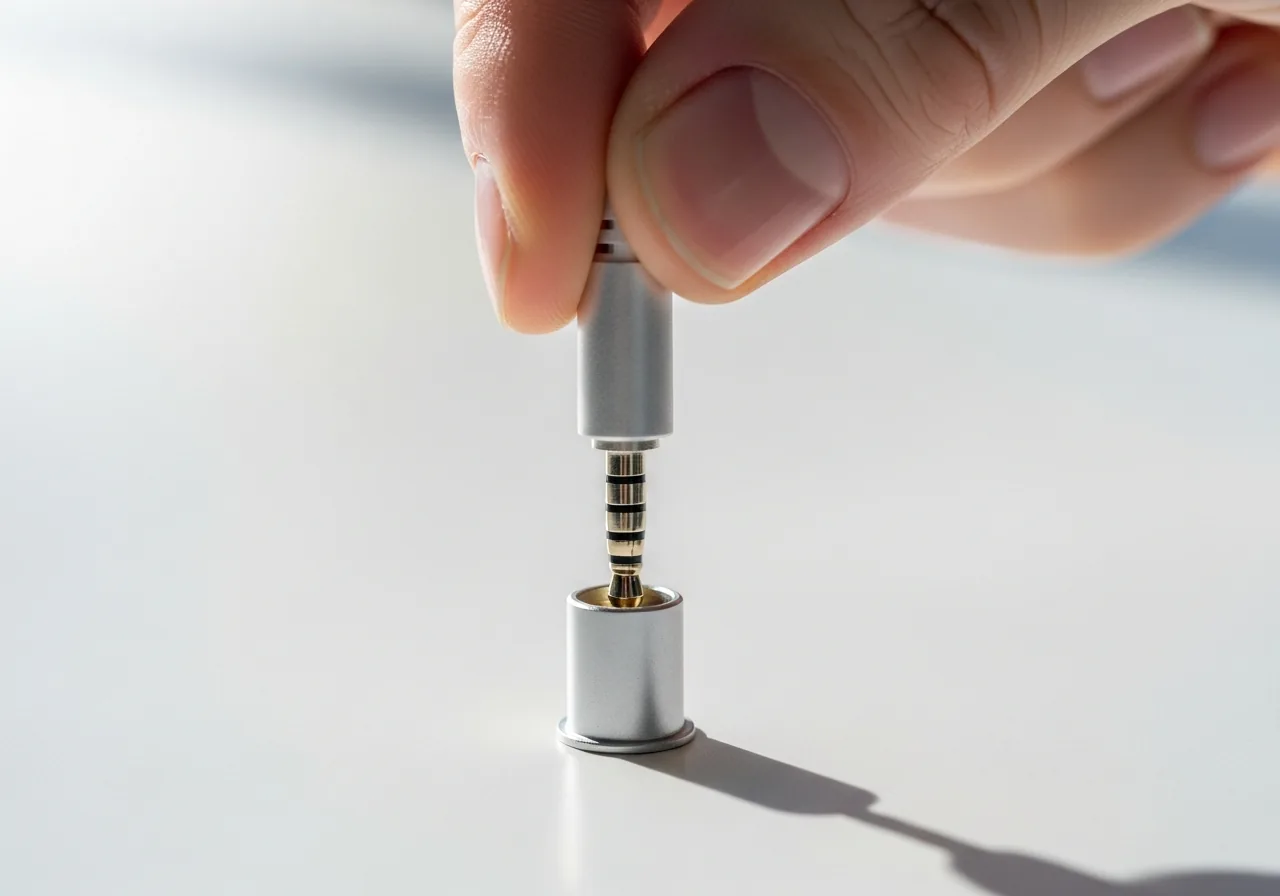
2Gently clear the socket
Remove any lint carefully with the device powered down, taking care not to bend the delicate spring contacts inside.
 3
3Seat the plug fully and try another
Push the plug in straight and all the way, then test a different set of headphones to rule out a worn plug or cable.
 4
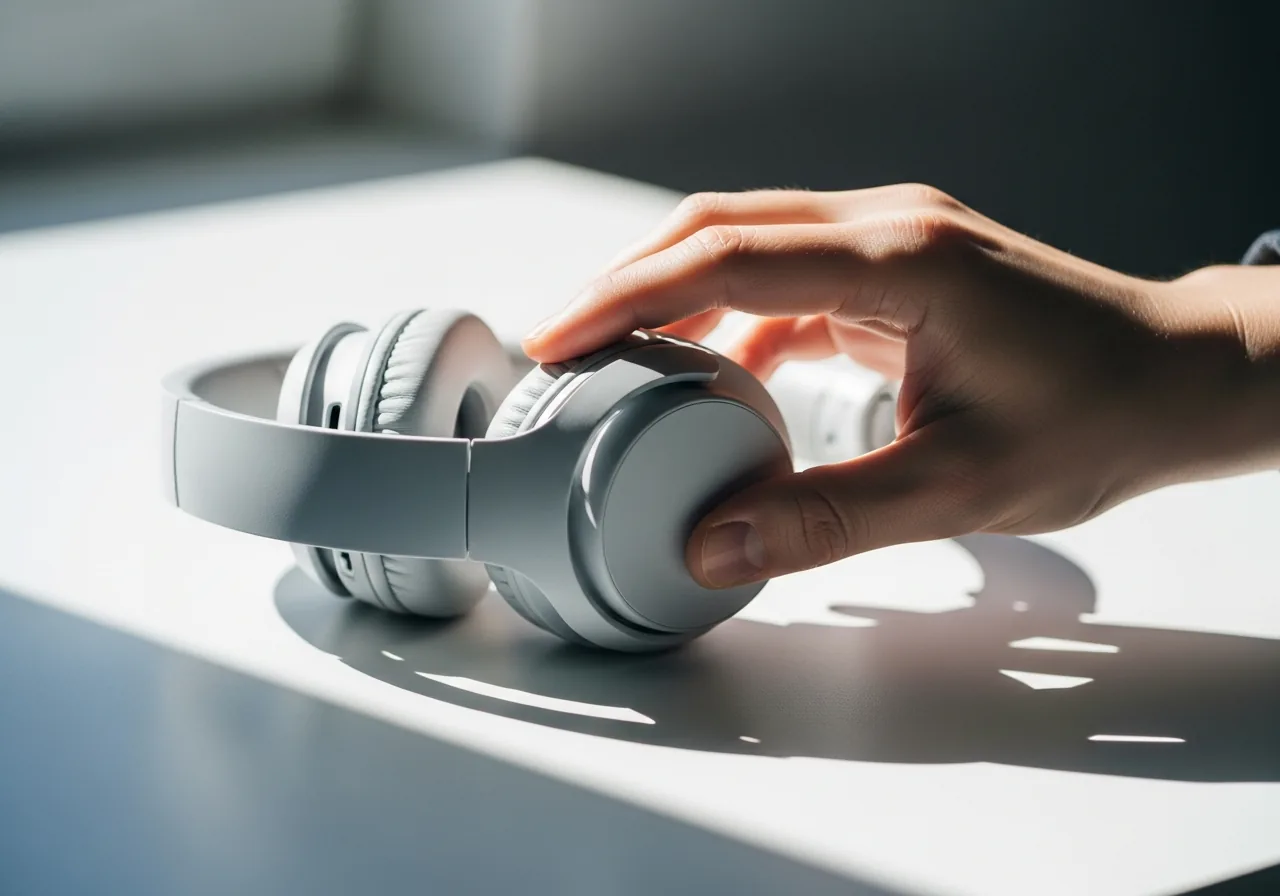
4Select the headphone output manually
If automatic switching hesitates, choose the headphone output by hand in the sound settings as a calm fallback.
 5
5Confirm sound switches over
Play audio and check the system now redirects from the speakers to the headphones as expected.
When to seek help
If the socket is scorched, the plug becomes hot, or you smell burning, stop using it and seek qualified assistance.
Reducing the chance it returns
Because lint is the quiet culprit, keep the socket clear by avoiding pocket fluff and giving it an occasional gentle clean with care. Push plugs in fully and straight rather than at an angle, and avoid tugging the cable sideways while listening, which slowly wears the contacts. Storing headphones without sharp bends near the plug keeps that end sound. If your system lets you select the headphone output manually, knowing where that setting lives gives a calm fallback when automatic switching hesitates after insertion.
Repair110 is a free, informational resource. These steps describe a careful, general approach — every device is a little different, so work slowly, back up anything you value, and prioritise your own safety. If a step feels beyond your comfort, stop and consult a qualified technician.