Understanding the problem
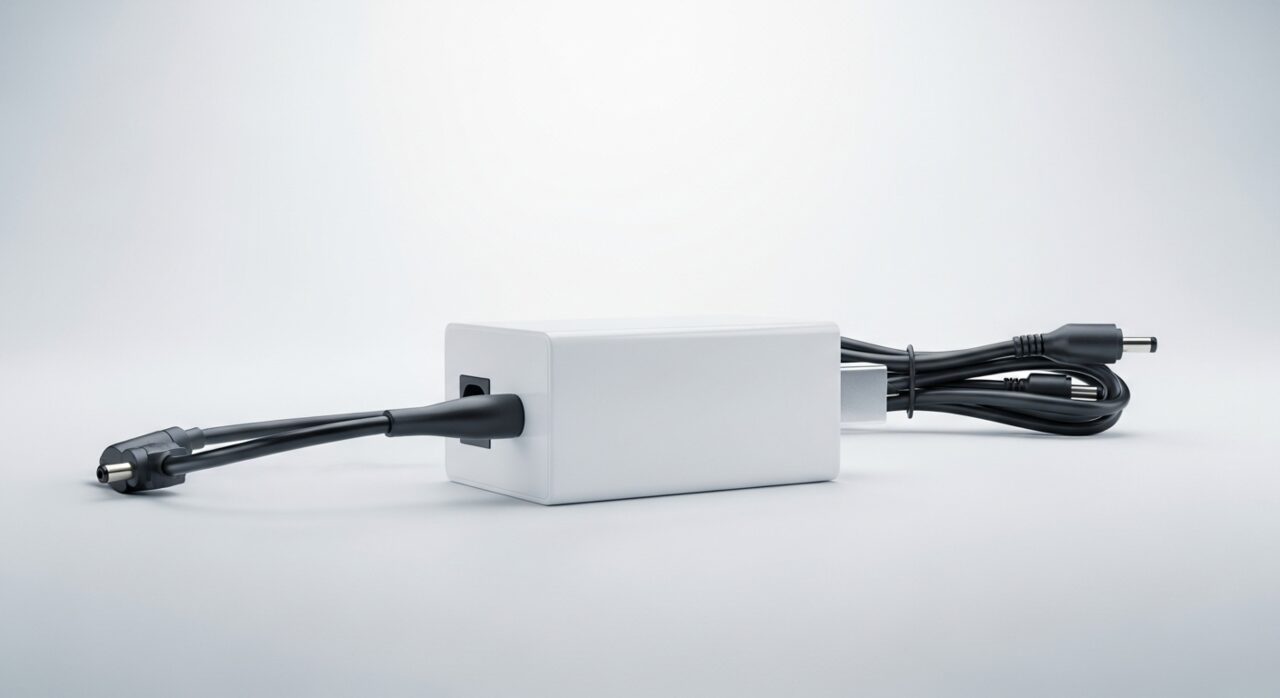
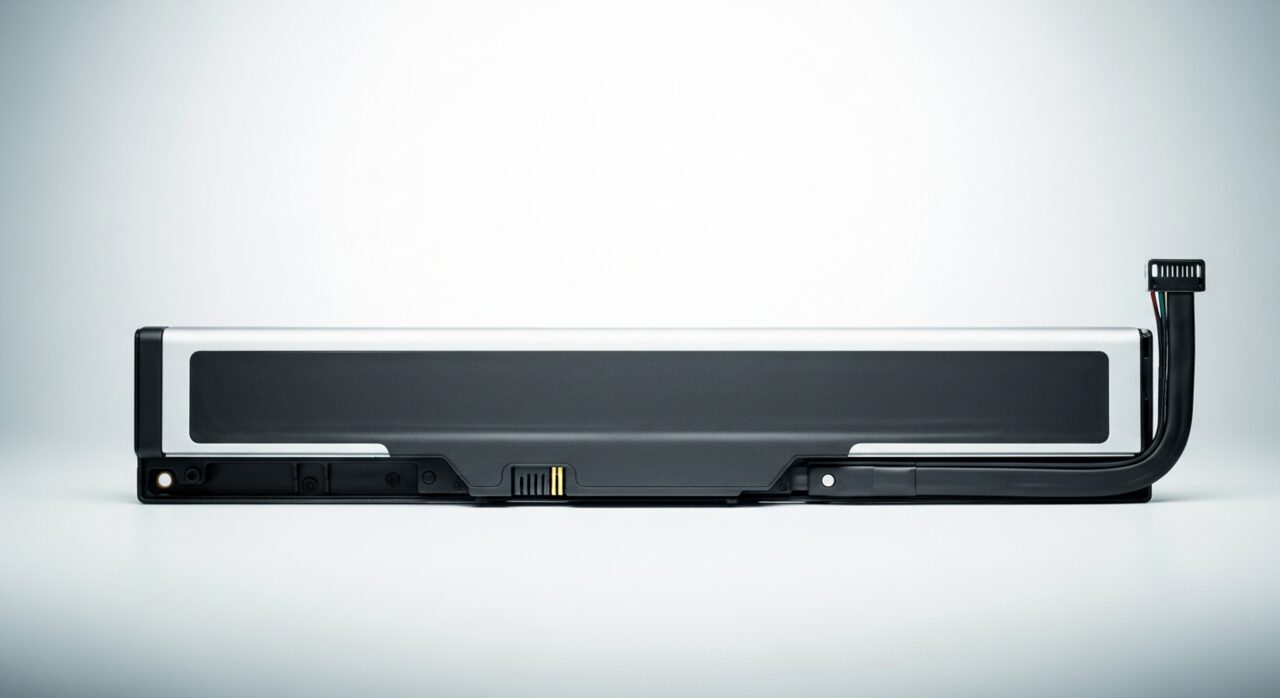
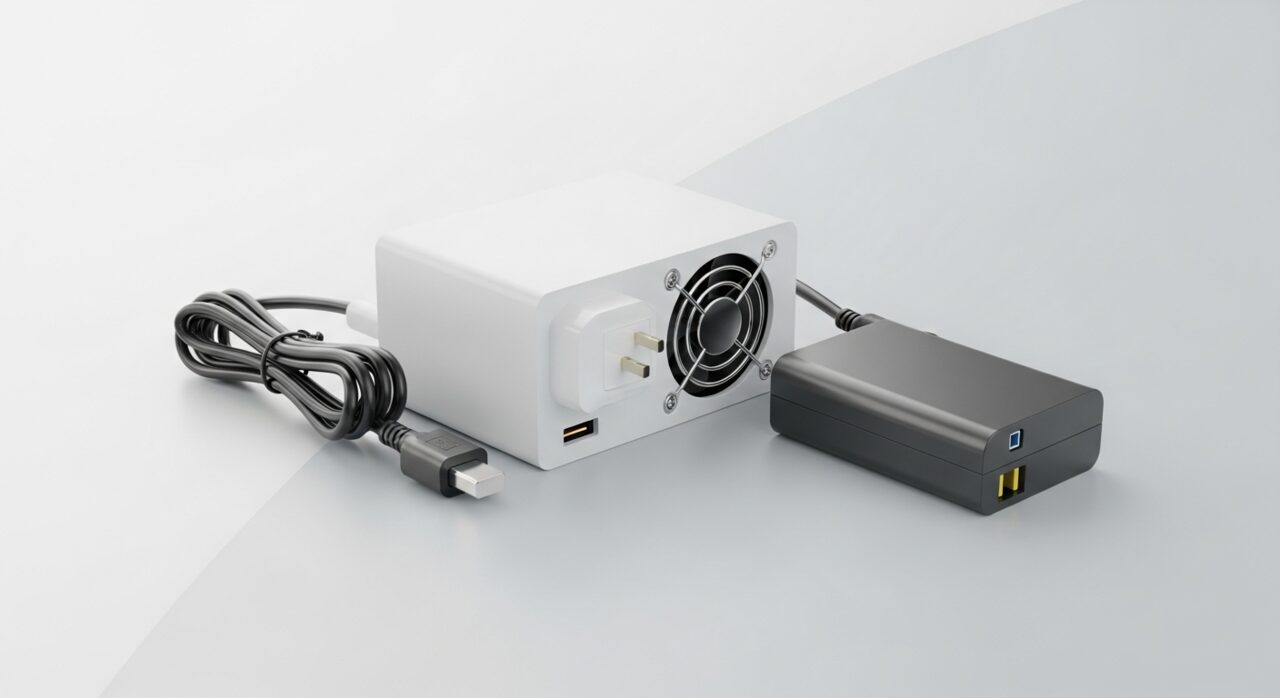
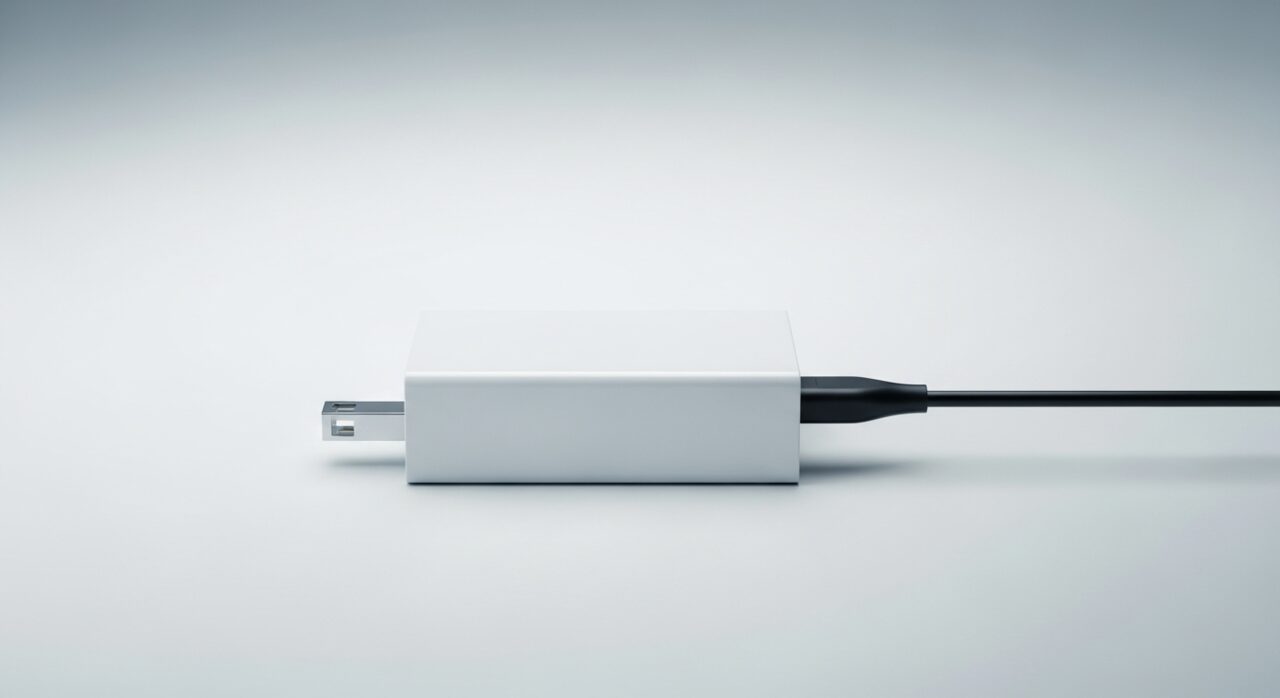
Charging is a chain of handshakes. Mains power passes through the adapter, which steps it down to a safe level, then travels along the cable into a port that must make firm contact with the board. A small chip negotiates how much current the cell should accept and watches its temperature. If any link is broken, dirty, or misreporting, the chip refuses to pass power rather than risk damage. So a stalled charge usually reflects a failed link in that sequence rather than the cell suddenly dying.
Symptoms
- No charging indicator appears when the cable is connected
- The charge percentage stays flat or keeps falling while plugged in
- A charging icon flickers on and off without making progress
- The device runs only from its dwindling internal charge
Likely causes
- 1A faulty cable, adapter, or dead wall outlet at the source
- 2Lint or debris packed into the charging port blocking contact
- 3A charge-management chip or its software layer misreporting state
- 4A worn or damaged charging port with poor internal connection
- 5A deeply depleted battery that no longer accepts a charge
What to observe and check
- Test a known-good outlet to rule out the wall socket
- Inspect the port opening for lint, dust, or visible damage
- Note whether a different cable or adapter changes the behavior
- Observe if the indicator reacts at all the moment power connects
- Consider whether the trouble began after a software update
Step-by-step repair
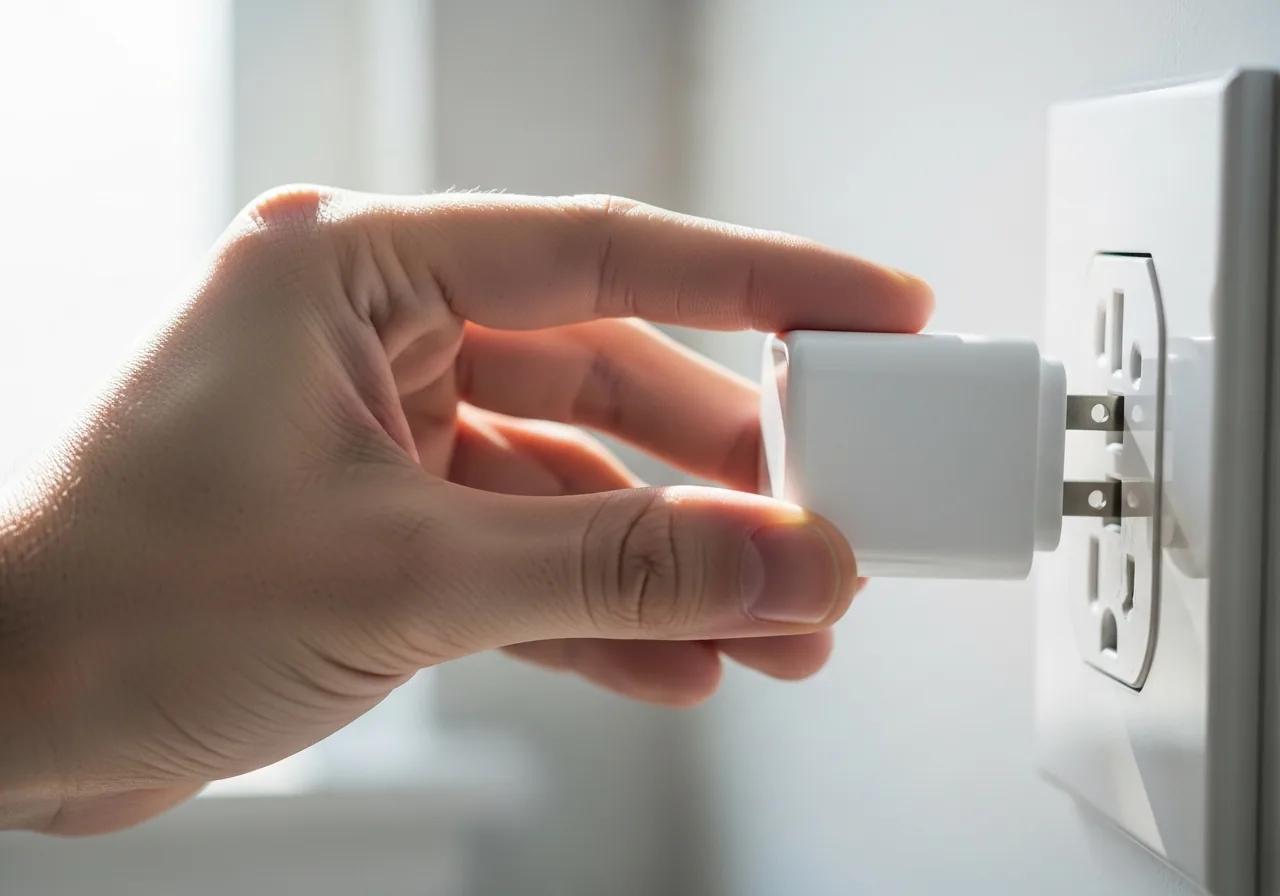 1
1Test a different wall outlet
Plug the adapter into a socket you know works to rule out a dead outlet before suspecting the device itself.
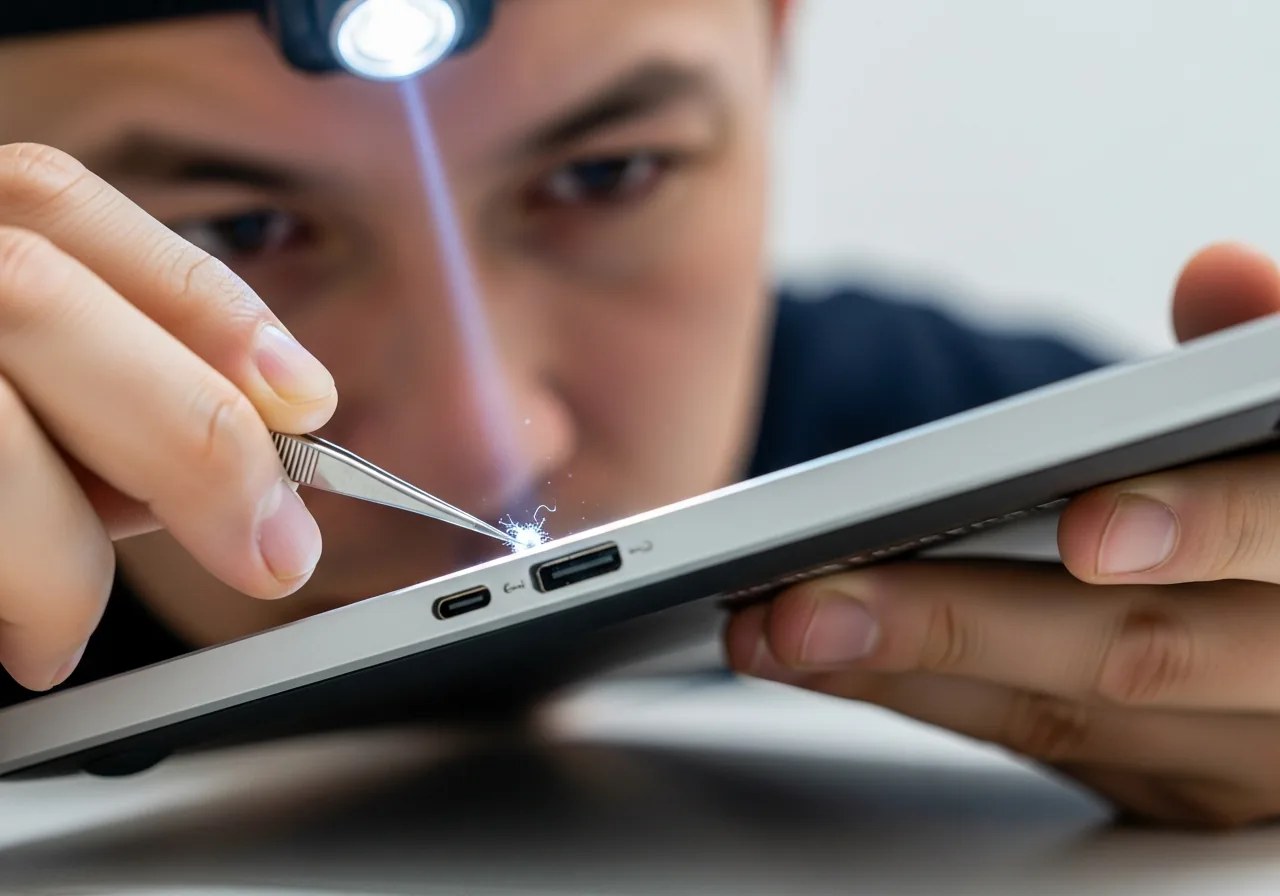 2
2Inspect and clear the port
Look into the charging port for packed lint or debris and gently clear anything blocking firm metal-to-metal contact.
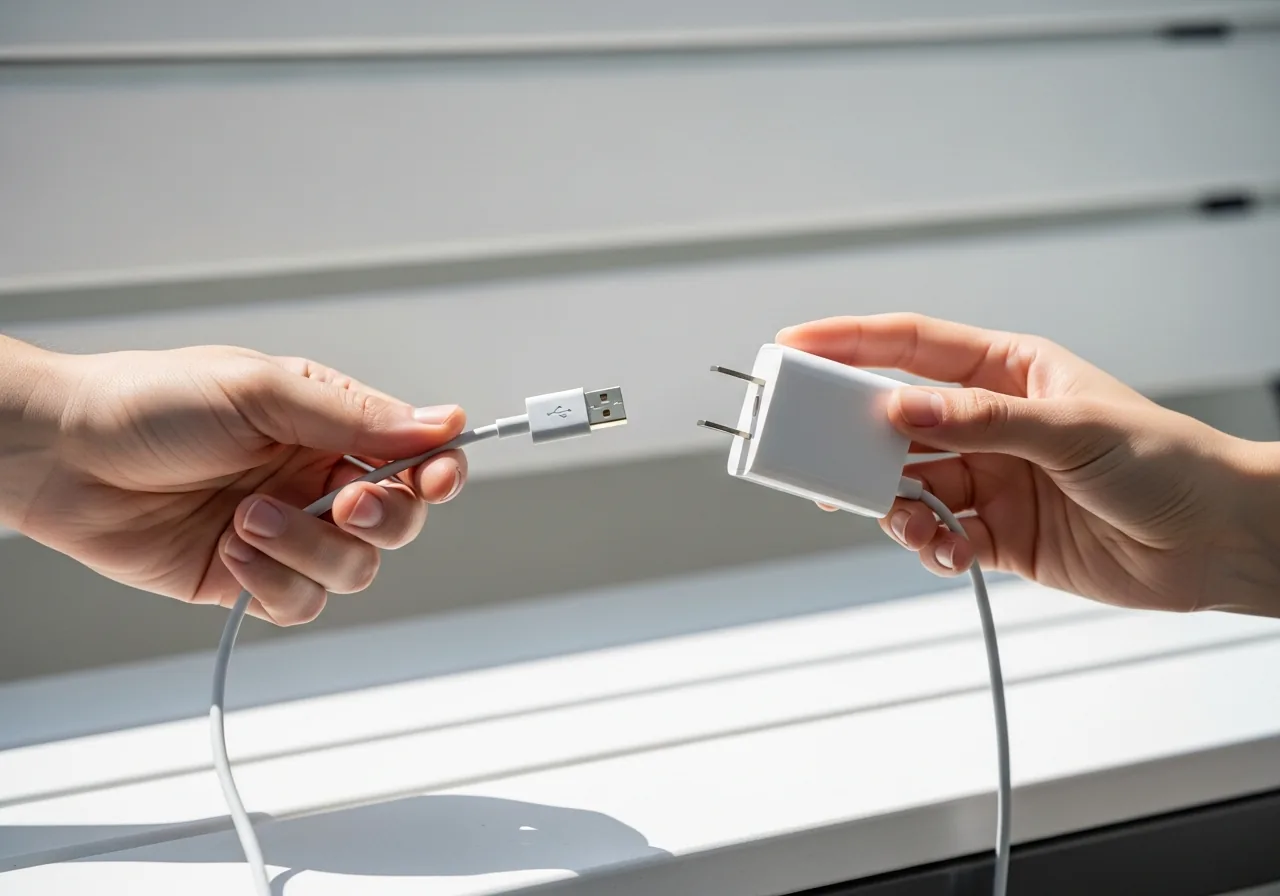 3
3Swap the cable and adapter
Try a known-good lead and adapter to see whether a worn cable or failed adapter is breaking the energy path.
 4
4Restart to reset charge logic
If charging stalled after an update, restart the device so the charge-management software can re-read the cell's state.
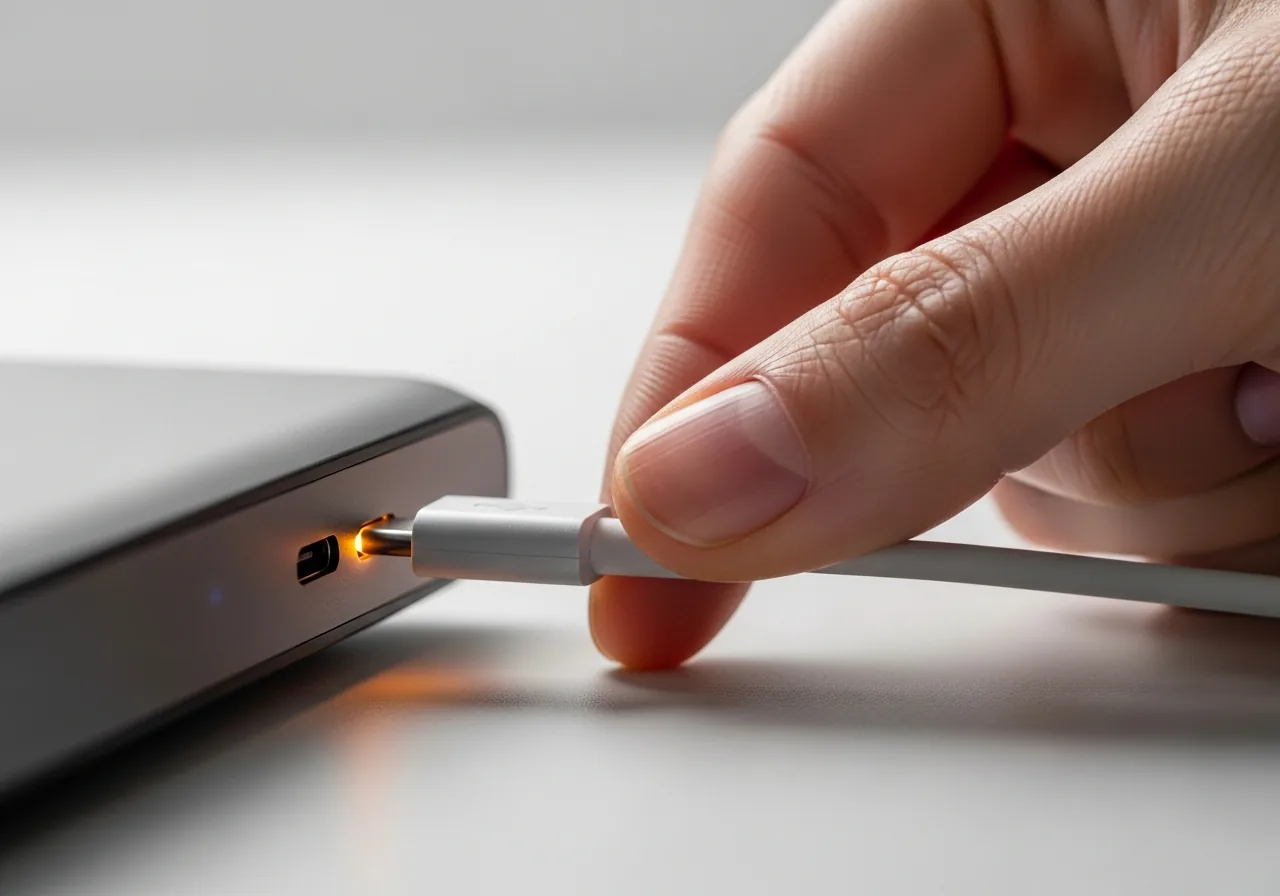 5
5Confirm charging resumes
Reconnect power and watch for the indicator to react, confirming energy now reaches and fills the cell.
When to seek help
If the device or charger grows hot, smells burnt, or the battery looks swollen, stop charging at once and seek qualified help, as these are genuine safety hazards.
Reducing the chance it returns
Treat the charging path gently and it tends to stay reliable. Unplug by gripping the connector rather than tugging the lead, and avoid sharp bends near either end where strands fatigue and break. Keep the port clear by blowing out pocket lint before it compacts into a plug. Let the device rest at moderate room temperature while charging, since extreme cold or heat makes the management chip pause. Keeping firmware current also helps the gauge and charge logic read the cell accurately rather than stalling.
Repair110 is a free, informational resource. These steps describe a careful, general approach — every device is a little different, so work slowly, back up anything you value, and prioritise your own safety. If a step feels beyond your comfort, stop and consult a qualified technician.