Understanding the problem
Pressing the button does not power anything directly; it sends a tiny signal that the device's control circuitry must read and act upon. For that to work, three things must hold: the switch and its wiring must carry the signal, there must be enough stored or supplied energy to wake the system, and the controller must be responsive rather than locked. A flat cell leaves nothing to start, a broken switch never delivers the signal, and a deep software freeze or trapped static charge can leave the controller unable to listen, so the press goes unanswered.
Symptoms
- Pressing the button produces no lights, sound, or response
- Neither a short tap nor a long hold has any effect
- The device gives no sign of life even on the charger
- No vibration or screen flash accompanies the press
Likely causes
- 1A completely drained battery leaving nothing to start
- 2A faulty power button or its connection to the board
- 3A system frozen so hard it ignores the button
- 4Static charge held in the device blocking a clean start
- 5An internal power fault before the button's signal is read
What to observe and check
- Note whether any light appears when the device is on a charger
- Observe if a long press eventually forces any response
- Watch for a faint click or vibration as the button is pressed
- Consider whether the device sat unused and fully discharged
- Notice whether the failure followed a freeze or crash
Step-by-step repair
 1
1Check for heat or swelling
Before persisting, feel for unusual heat or a swollen battery and stop at once if either is present, as these are safety warnings.
 2
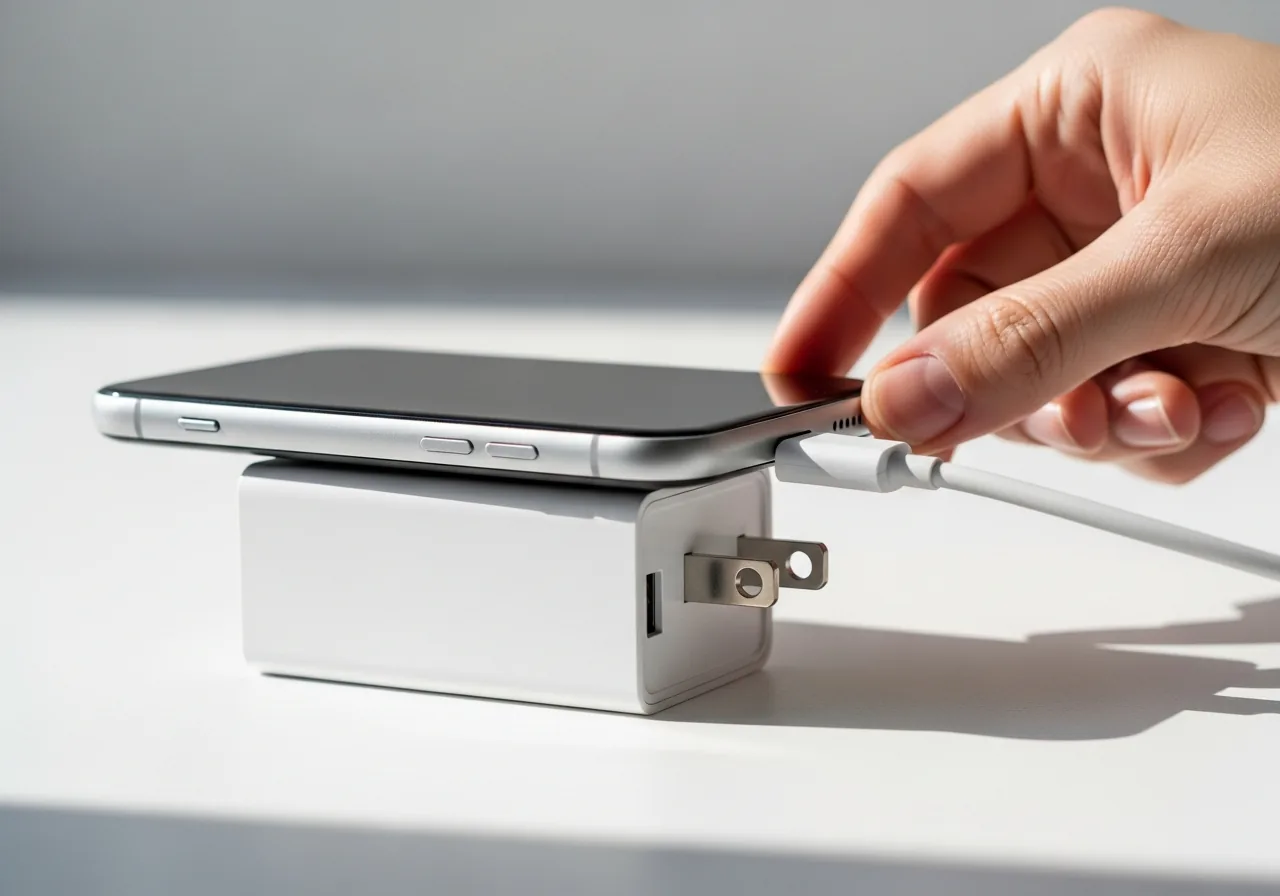
2Charge on a known-good supply
Leave the device on a charger you trust for a while, since a deeply flat cell leaves nothing for the button to start.
 3
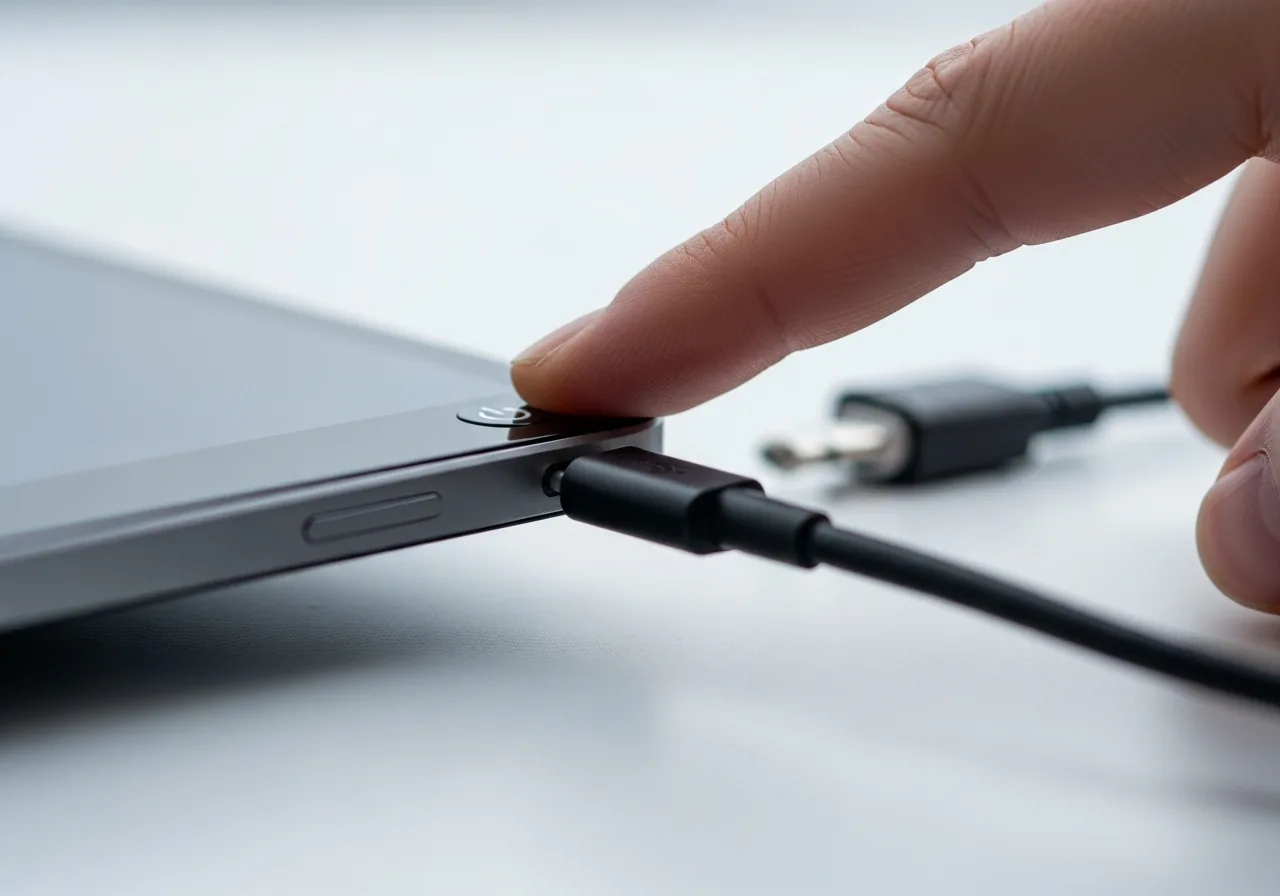
3Clear trapped static charge
Disconnect power and hold the button down for a long press to discharge residual static that can leave the controller unable to listen.
 4
4Watch for any sign of life
Press firmly and look for a faint light, click, or vibration that shows the switch and circuitry are responding at all.
 5
5Power on and confirm
After charging and a clean power cycle, press the button and check that the device wakes properly.
When to seek help
If the device feels hot, smells burnt, or shows a swollen battery while unresponsive, stop and seek qualified help. A dead button at the board level also calls for a technician.
Reducing the chance it returns
Keep the device from reaching the states that silence the button. Avoid letting it sit flat and forgotten for long stretches, since a deeply drained cell offers nothing to start; give it an occasional partial charge during storage. Shut down cleanly rather than forcing power off during a crash, as abrupt cuts make freezes more likely. Press the button deliberately instead of jabbing it, which spares the switch over time. When a stall does occur, a calm, full power cycle clears trapped charge before it hardens into a lockup.
Repair110 is a free, informational resource. These steps describe a careful, general approach — every device is a little different, so work slowly, back up anything you value, and prioritise your own safety. If a step feels beyond your comfort, stop and consult a qualified technician.