Understanding the problem
Processors are built to protect themselves: when a chip nears its safe temperature limit, it lowers its own speed and power so it produces less heat. That is throttling, and it explains why performance can start strong then fall away once the device has warmed up. It happens when heat is generated faster than the cooling can remove it, so the temperature creeps to the ceiling under sustained load. Weak thermal contact, a dusty airflow path, a hot room, or settings that push the hardware hard all bring that ceiling closer, forcing the slowdown sooner.
Symptoms
- Performance starts strong then drops sharply after a few minutes
- Demanding tasks stutter once the device has had time to warm up
- Speed recovers after a rest or once the device cools down
- The slowdown coincides with the fans reaching their loudest point
Likely causes
- 1Cooling unable to keep pace with sustained heavy workloads
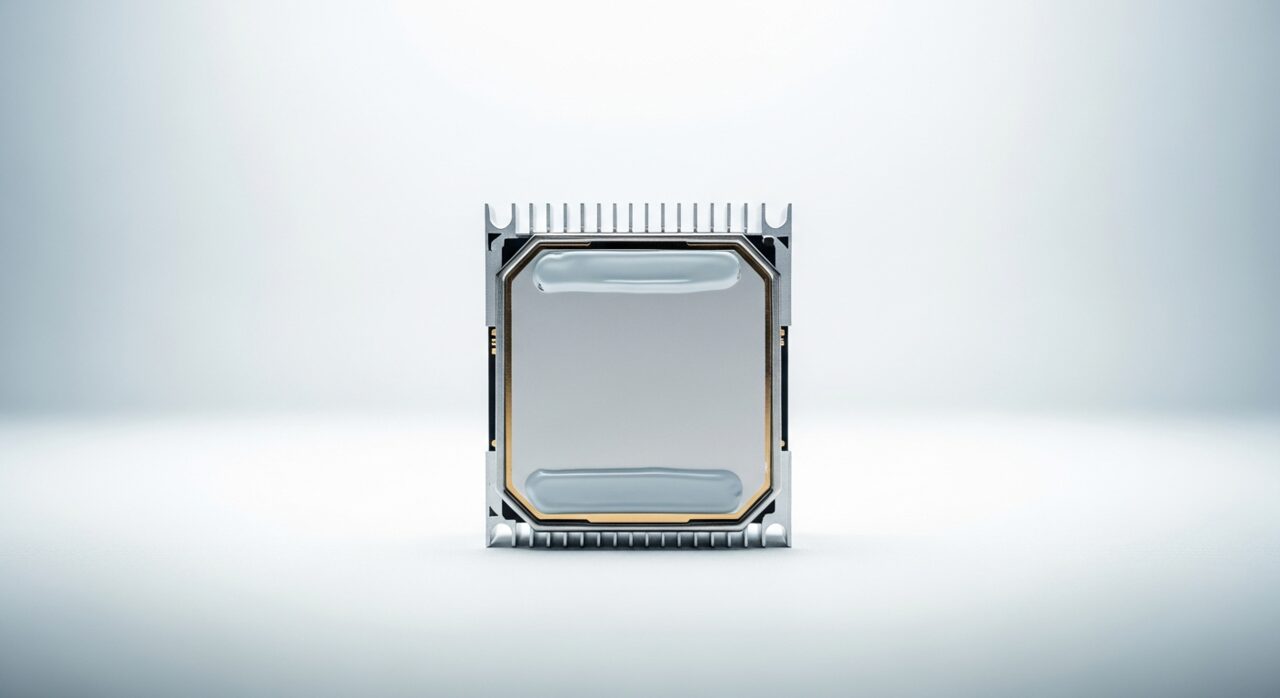
- 2Degraded thermal contact between the chip and its heatsink
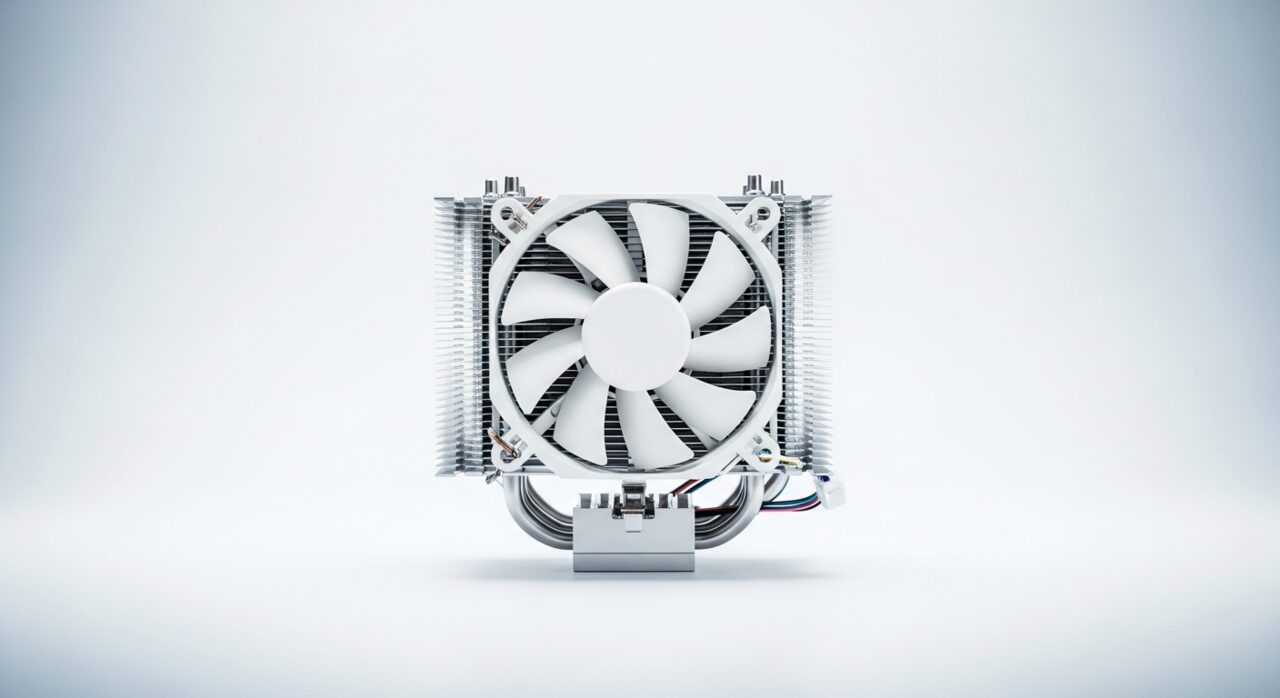
- 3Dust or blockage reducing the effectiveness of the airflow path
- 4Power or performance settings pushing the hardware harder than it can cool
- 5Software demanding constant peak output with no chance to recover
What to observe and check
- Note whether the slowdown always follows a predictable warm-up period
- Observe if lighter tasks run normally while heavy ones falter
- Consider whether improving airflow restores the lost speed
- Watch whether the same task throttles faster in a warmer room
Step-by-step repair
 1
1Confirm heat drives the slowdown
Check that performance falls only once the device has warmed up and recovers after a rest, which marks protective throttling rather than another fault.
 2
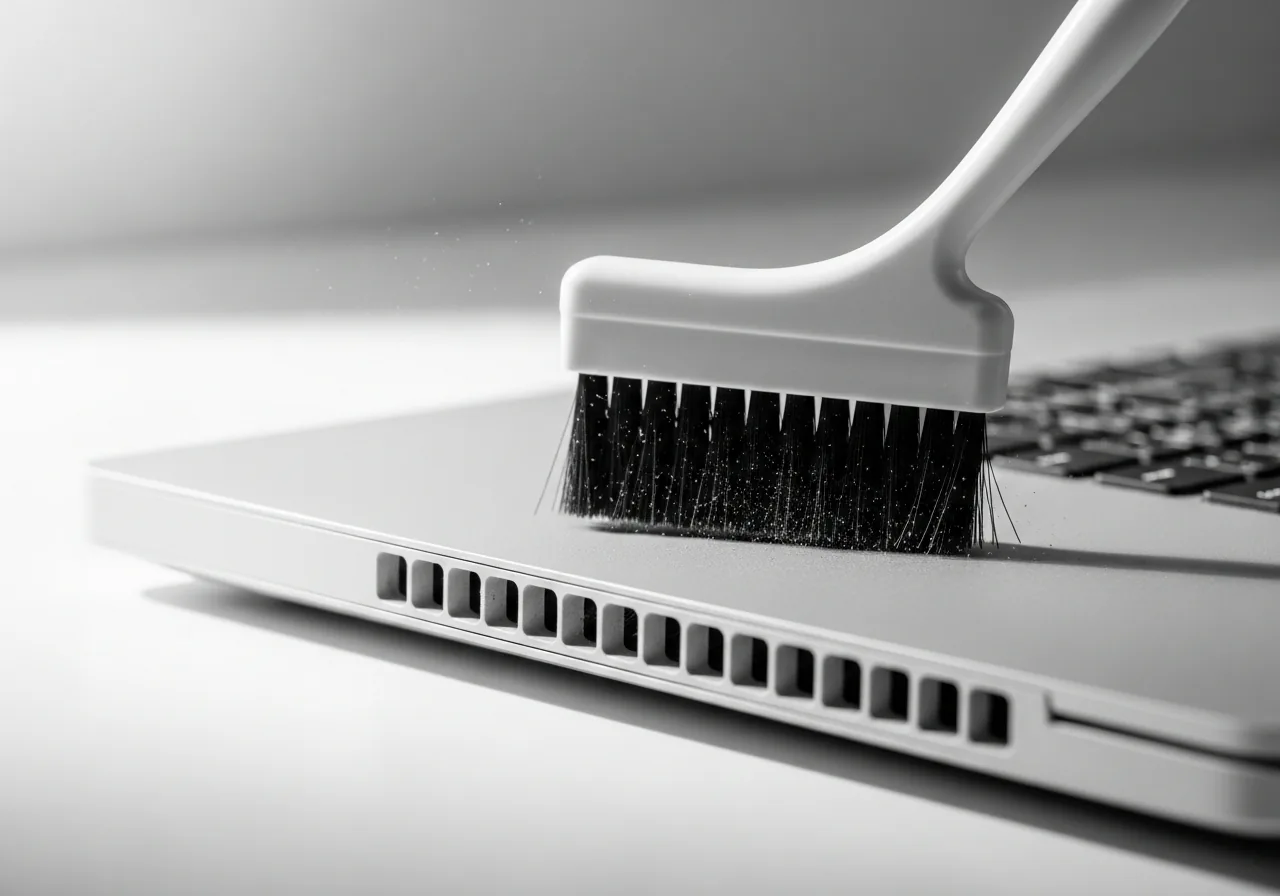
2Clear the airflow path
Make sure vents and the exhaust are unobstructed and free of dust so the cooling can remove heat as fast as a sustained workload creates it.
 3
3Choose a balanced power profile
Switch away from a profile that constantly pushes for peak output, so the hardware produces heat the cooling can realistically keep up with.
 4
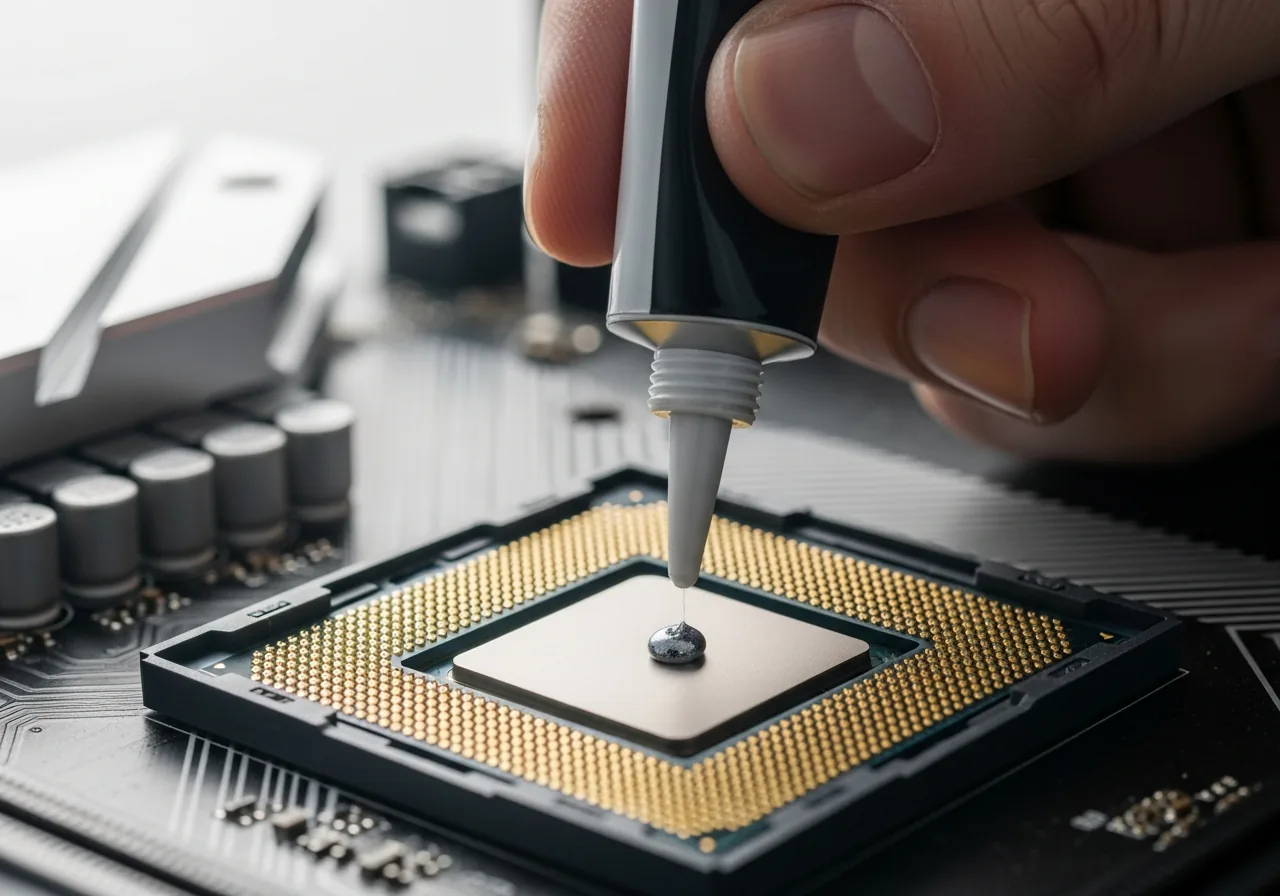
4Renew the thermal contact if needed
If contact between the chip and heatsink has degraded, refreshing the thermal paste can restore heat transfer; only attempt this powered off and if you are confident opening the device.
 5
5Confirm full speed lasts longer
Run a demanding task again and check that speed holds steady well past the point where it previously dropped away.
When to seek help
If throttling happens almost immediately or comes with shutdowns and excessive heat, have the cooling system inspected by someone qualified.
Reducing the chance it returns
Give sustained heavy work the best possible chance to stay cool: keep airflow paths clear, use the device in a comfortable room rather than a warm one, and make sure nothing blocks the exhaust. Where the work allows, let the hardware rest briefly between demanding stretches so temperatures can fall back rather than sitting at the limit. Choosing a balanced power profile instead of pushing constantly for peak output keeps heat within reach of the cooling. Tended this way, the system rarely needs to reach for its protective slowdown, and full speed lasts far longer.
Repair110 is a free, informational resource. These steps describe a careful, general approach — every device is a little different, so work slowly, back up anything you value, and prioritise your own safety. If a step feels beyond your comfort, stop and consult a qualified technician.