Understanding the problem
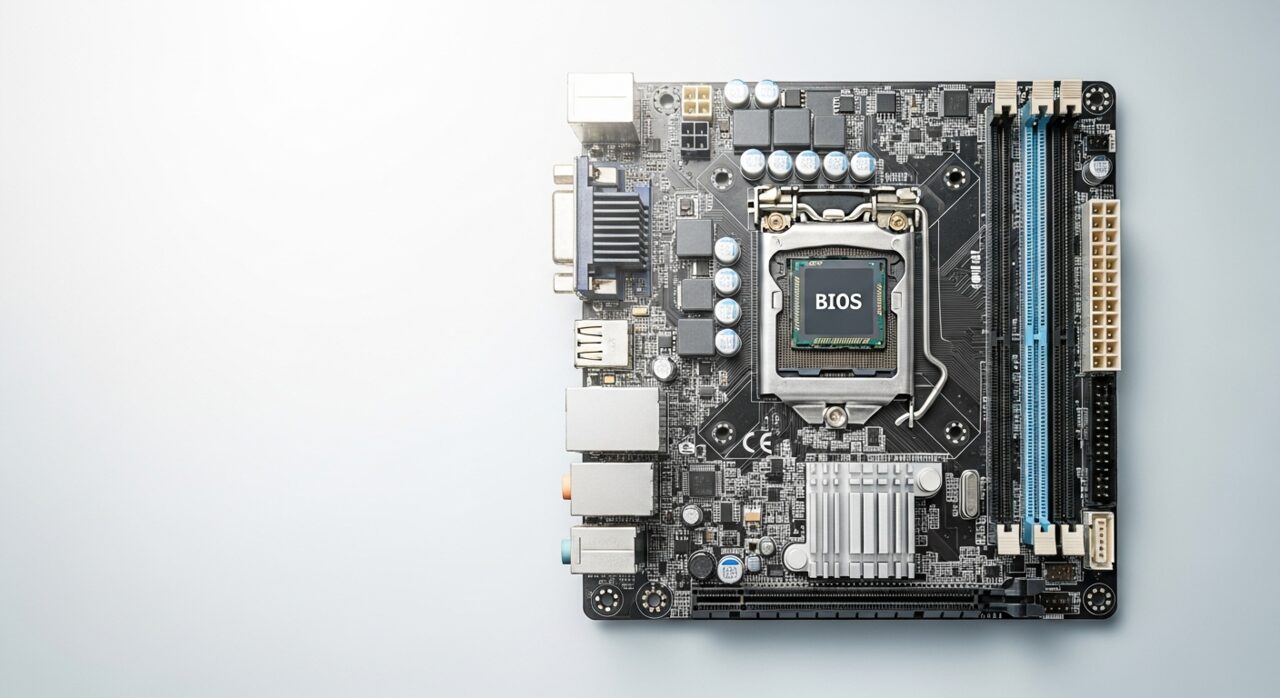
The firmware keeps an ordered list of where to look for start-up instructions and tries each entry from the top. Normally the internal drive sits first, but anything connected that looks startable can be placed ahead of it. When an external drive or memory device holds that higher position, the firmware tries it first and either stalls or reports a problem, even though the real system sits untouched on the internal drive. A power event or configuration change can also reset this list to defaults, quietly demoting the drive you actually rely upon.
Symptoms
- The device tries to start from an external drive instead of the internal one
- Start-up behaves differently depending on what is plugged in
- A message appears only when a particular device is connected
- Removing an external drive lets the system start normally
Likely causes
- 1The start-up priority list placing the wrong device first
- 2A connected external drive being chosen ahead of the main one
- 3Settings reset to defaults after a power or configuration change
- 4A removable device left attached that the system tries to use
- 5The intended drive dropping in priority after a hardware change
What to observe and check
- Note whether the problem only appears with something plugged in
- Observe if disconnecting external storage restores normal start-up
- Consider whether the settings changed after losing power
- Watch which device the system reports trying to start from
Step-by-step repair
 1
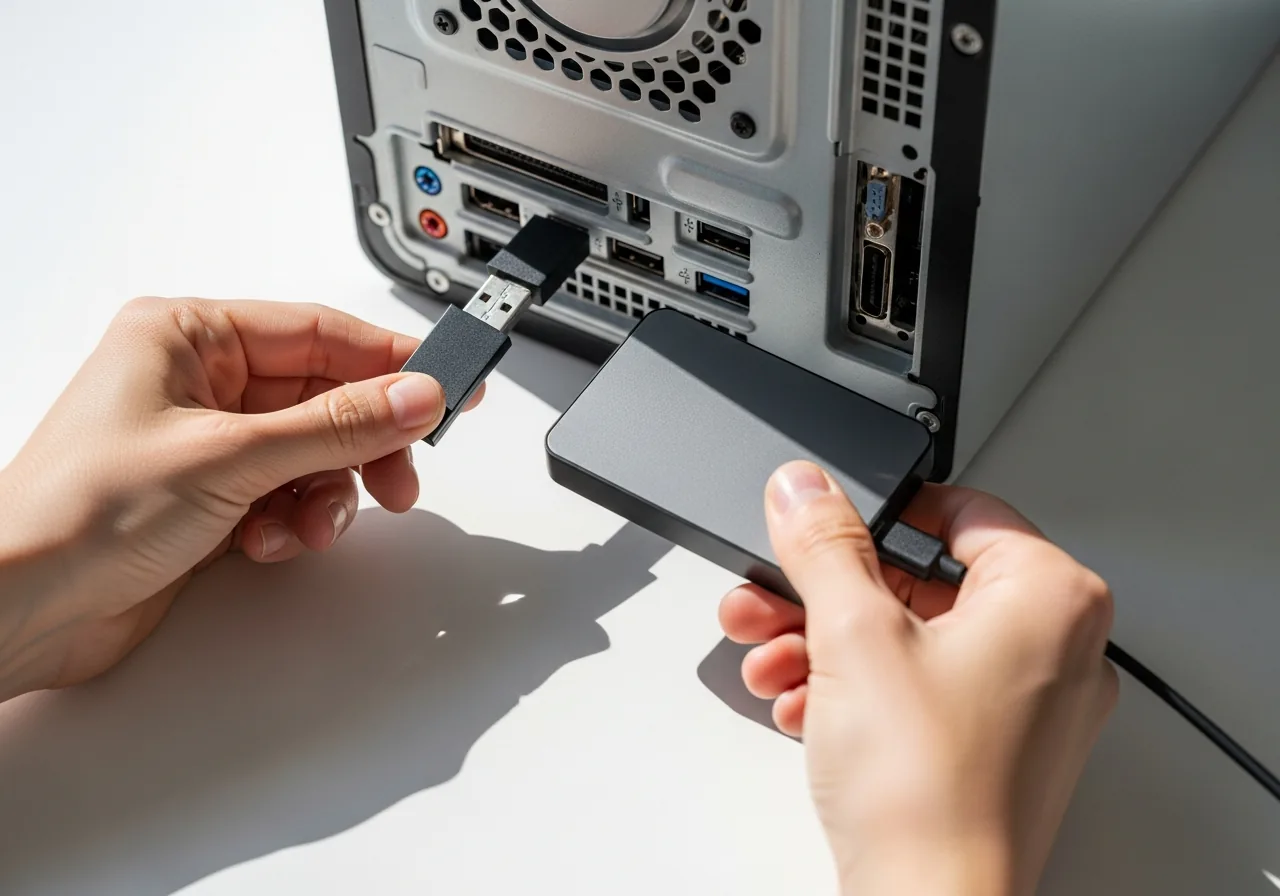
1Remove external drives and sticks
Unplug memory devices and external drives so the firmware is not tempted to start from one of them ahead of the internal drive.
 2
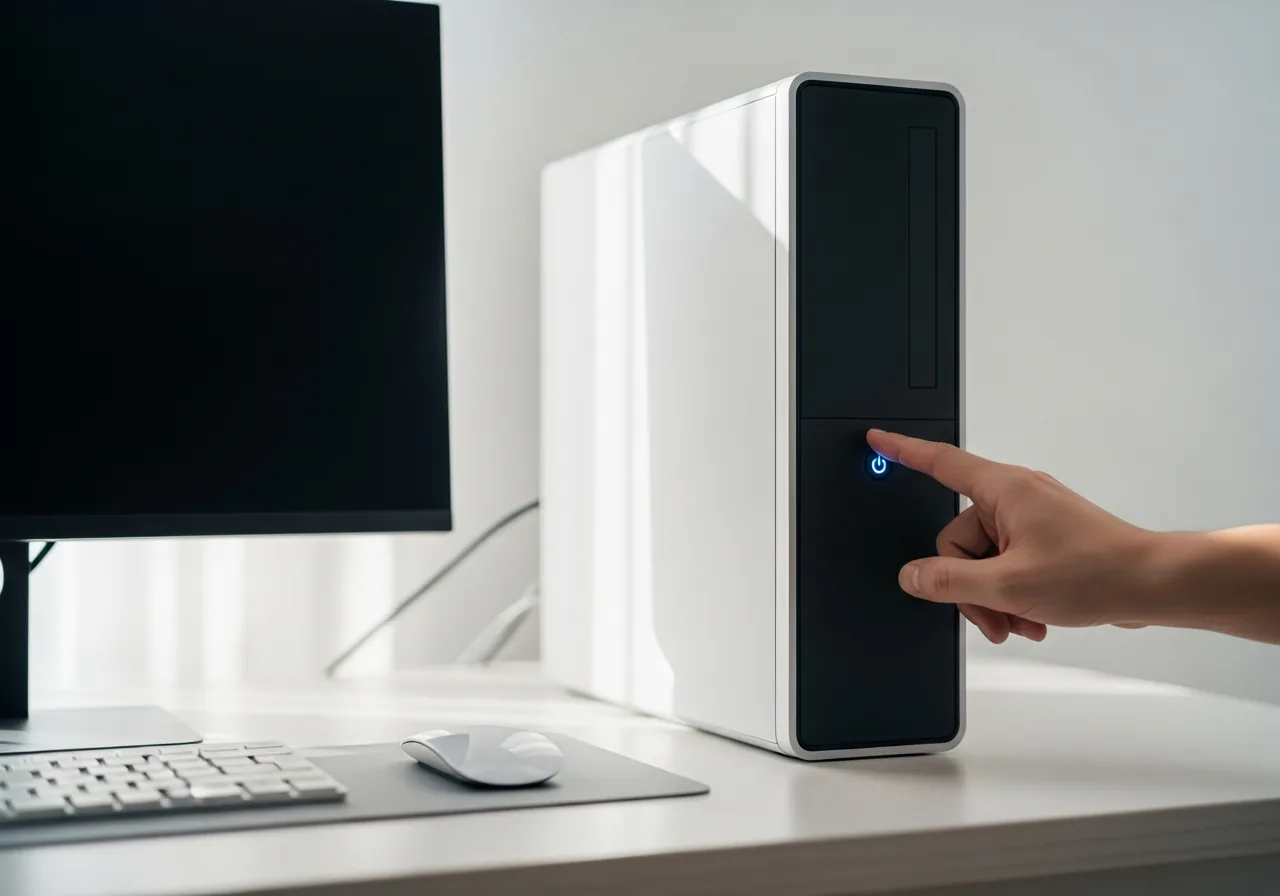
2Restart and observe
Start the device with the extras removed and see whether it now boots normally from the internal drive on its own.
 3
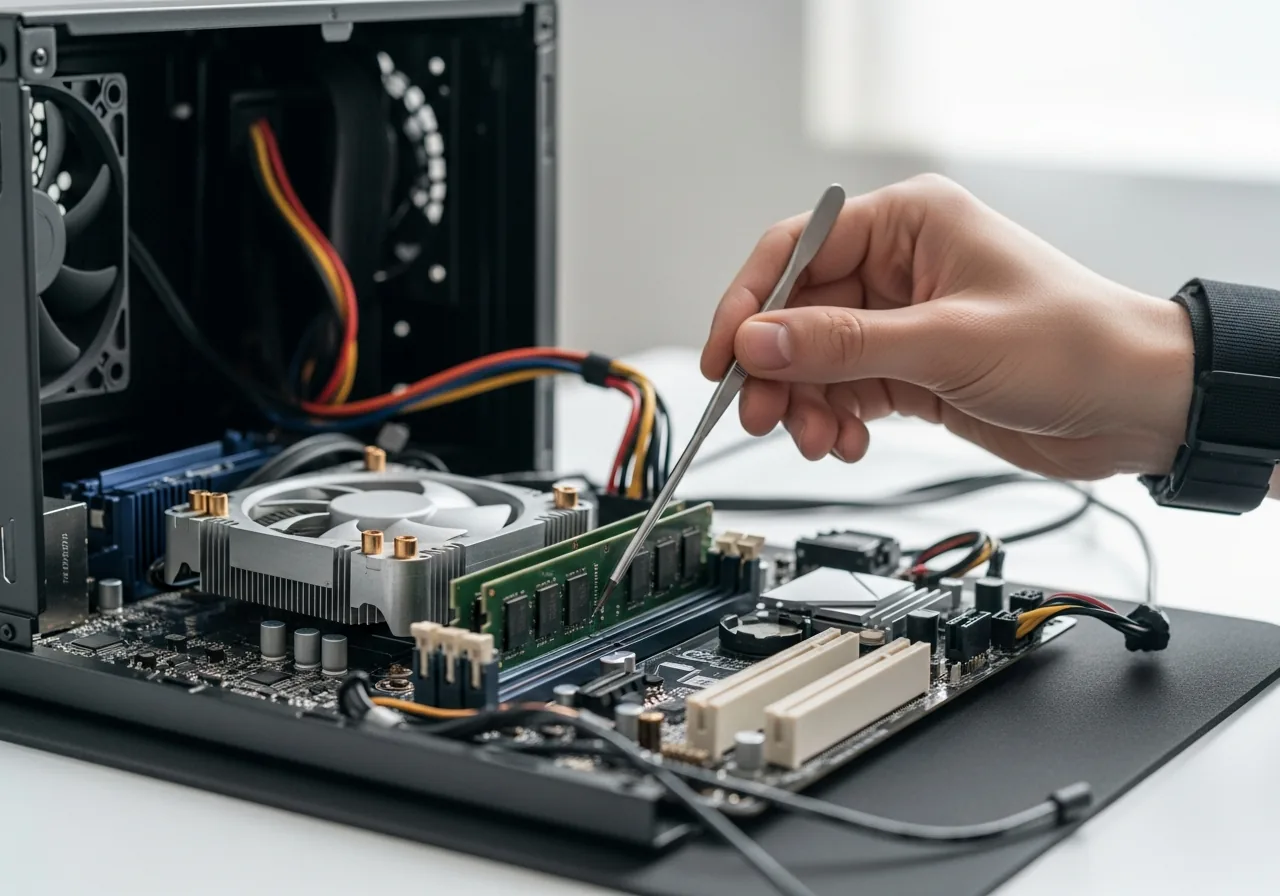
3Note which device it tries
Watch which device the system reports starting from, confirming whether the priority list is pointing at the wrong place.
 4
4Set the internal drive first
Enter the firmware start-up settings and move the internal drive to the top of the priority list so it is chosen first.
 5
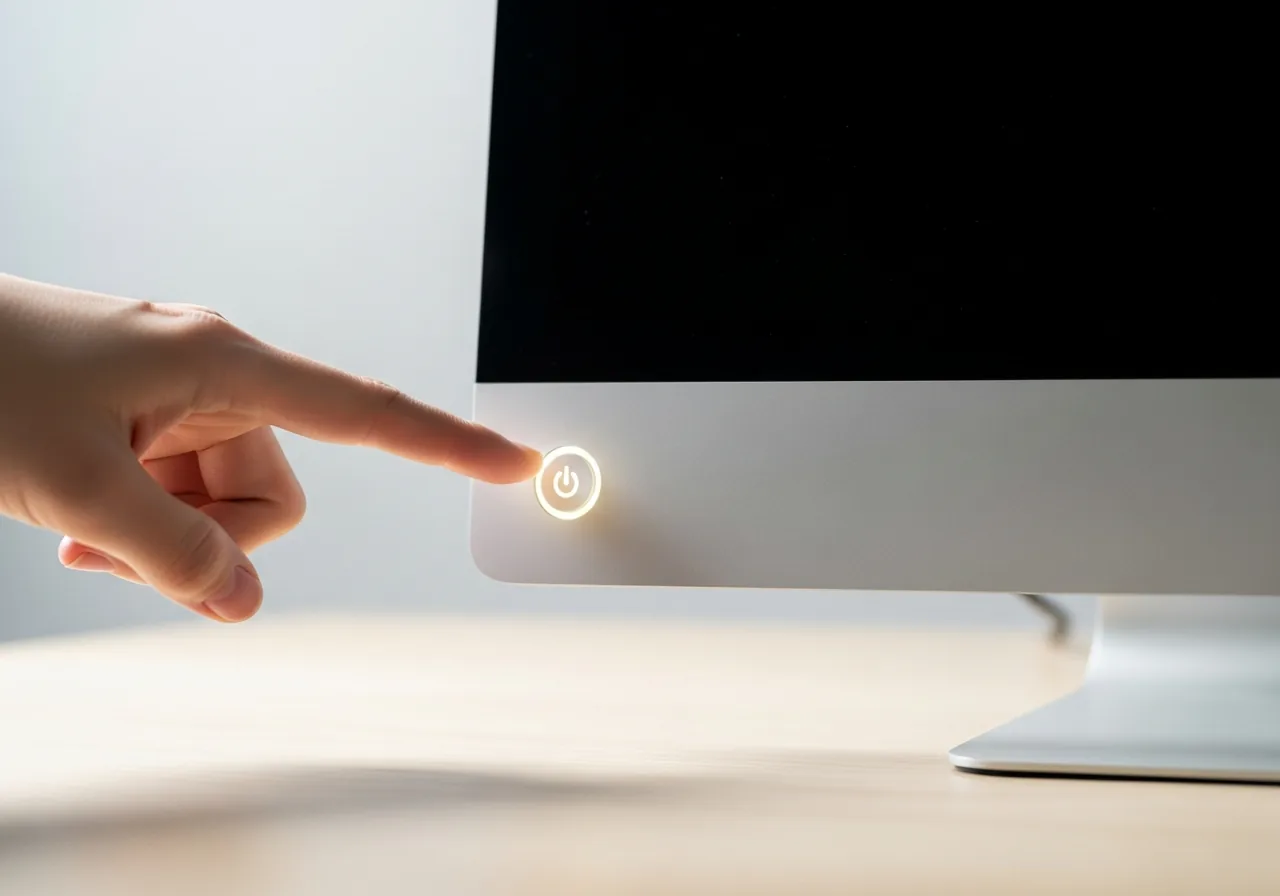
5Save and confirm normal start-up
Save the order, restart, and check the device starts from the correct drive each time.
When to seek help
If the correct drive cannot be selected or no longer appears in the start-up list, a qualified technician can check whether the drive itself has developed a fault.
Reducing the chance it returns
Remove memory sticks and external drives before restarting, so the firmware is not tempted to start from them by mistake. If you have set the start-up order yourself, note what it should be, which makes it simple to restore after any reset to defaults. Where the device offers it, a one-time menu lets you start from an external source occasionally without disturbing the saved order. Treating the internal drive as the settled first choice keeps everyday start-up predictable and free of these avoidable detours.
Repair110 is a free, informational resource. These steps describe a careful, general approach — every device is a little different, so work slowly, back up anything you value, and prioritise your own safety. If a step feels beyond your comfort, stop and consult a qualified technician.