Understanding the problem
Picture and sound are processed along separate paths, and each takes a little time to prepare before it reaches you. Lip-sync drift appears when those two paths fall out of step. A wireless audio link is a common source, because compressing and sending sound over the air adds a small but real delay the picture does not share. A system under heavy load can also let one stream slip behind the other, and an external display or sound system may add buffering of its own. The mismatch is timing, not a broken component.
Symptoms
- Voices arrive noticeably after lips move on screen
- The gap grows the longer a video plays
- Delay appears with wireless audio but not wired
- Some sources stay in sync while others drift
Likely causes
- 1Processing delay added by a wireless audio link
- 2The system under heavy load struggling to keep streams aligned
- 3A playback application or driver handling synchronisation poorly
- 4Different processing paths for sound and picture introducing offset
- 5An external display or sound system adding its own delay
What to observe and check
- Observe whether the lag only appears over wireless audio, isolating that link
- Note if the delay grows over time or stays constant from the start
- Watch whether heavy system activity coincides with the drift
- Check whether different sources stay in sync, narrowing the cause to one path
Step-by-step repair
 1
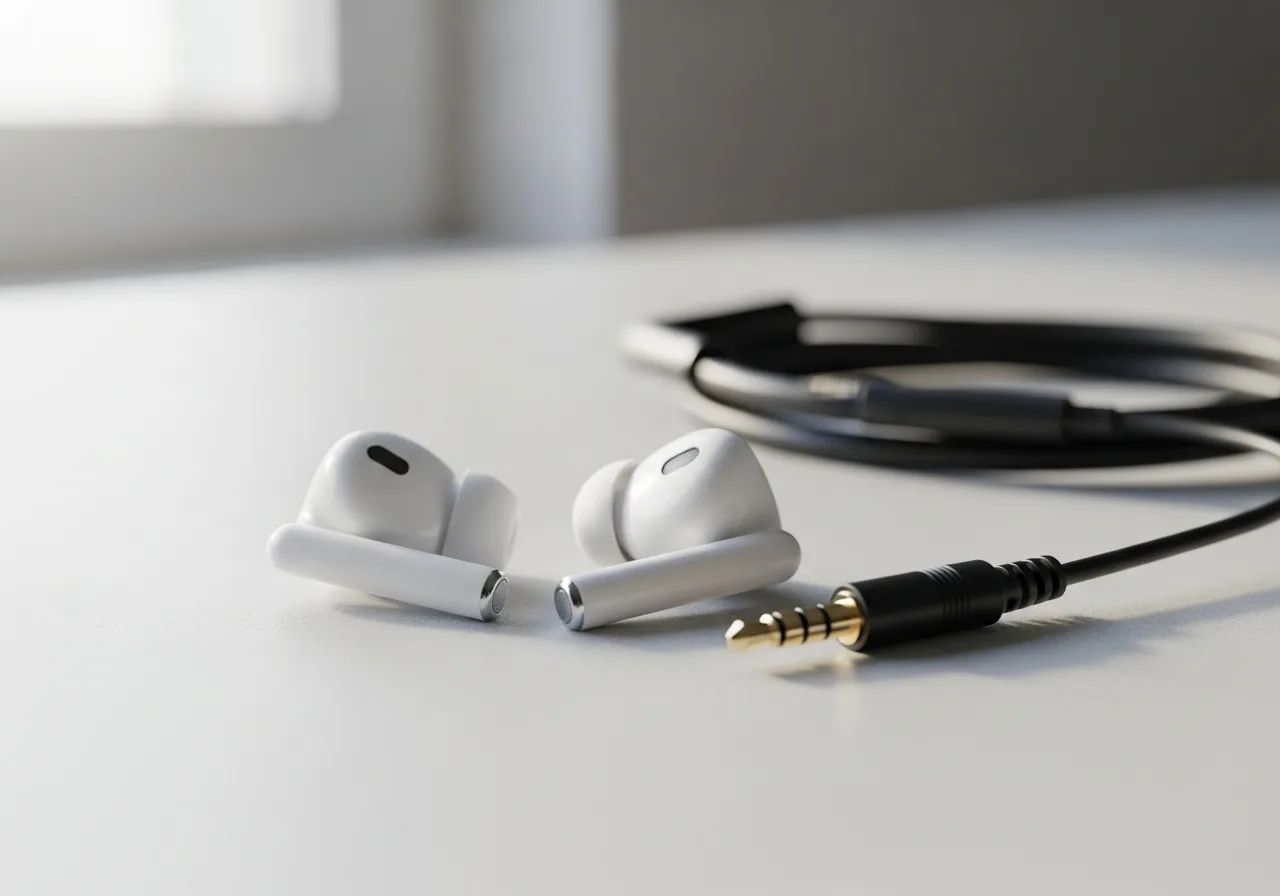
1Compare wireless against wired
Play the same video over a wired output to see whether the delay disappears, isolating a wireless link as the source.
 2
2Close demanding tasks
Free the system by ending heavy background work, since a stretched machine can let one stream slip behind the other.
 3
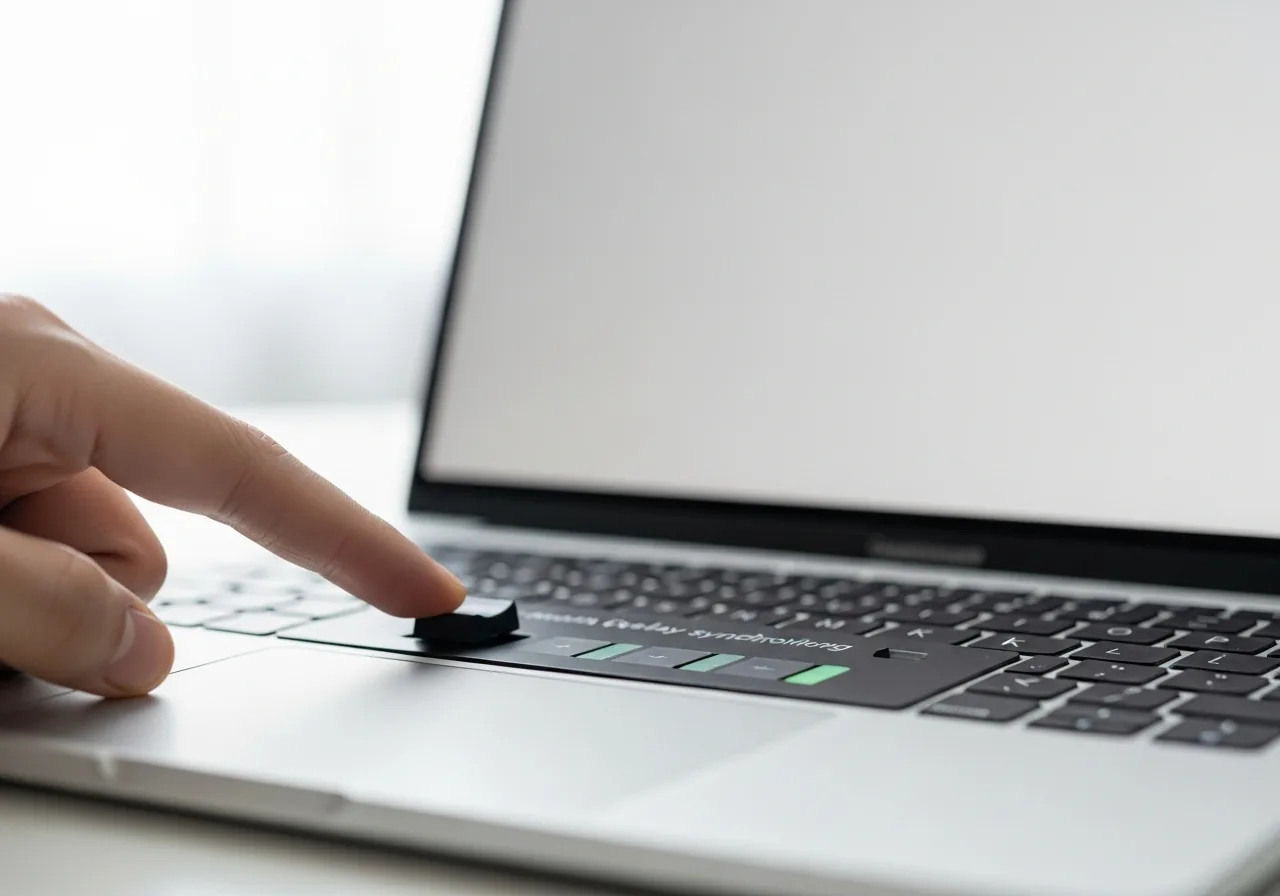
3Apply an audio delay offset
If your player offers a synchronisation control, nudge the sound offset until voices line up with the moving lips.
 4
4Update the playback software
Bring the playback application and its driver to a current version so they handle synchronisation more gracefully.
 5
5Watch a clip to confirm sync
Play a scene with clear speech and check that sound and picture now stay together throughout.
When to seek help
Audio delay is rarely a safety matter, but if it accompanies overheating or erratic behaviour, have the device examined by qualified support.
Reducing the chance it returns
When precise timing matters, a wired connection sidesteps the delay that wireless audio inevitably adds. Closing demanding tasks before watching keeps the system free to hold both streams in step. If a delay setting is offered, a small adjustment can nudge sound back into line with the picture. Allowing playback software to stay current helps it manage synchronisation gracefully, and giving an external display or sound system a moment to settle after connecting avoids early drift. These habits keep voices and lips moving together as they should.
Repair110 is a free, informational resource. These steps describe a careful, general approach — every device is a little different, so work slowly, back up anything you value, and prioritise your own safety. If a step feels beyond your comfort, stop and consult a qualified technician.