Understanding the problem
Fans take their power from the supply the moment it wakes, so they can spin happily even when the brain of the machine never comes to life. Booting is a separate, more demanding step: the board must find a responsive processor, working memory, and a usable graphics path before it can begin the self-check. If any of these stays silent, the board stalls at that point, yet the fans, blind to the failure, keep turning at full pace. The constant whir is simply power without progress, which is why nothing appears on screen.
Symptoms
- Fans run at full speed yet there is no display or boot
- No startup beep, logo, or drive activity follows power-on
- The machine appears alive but never reaches the operating system
- Fans may run loud and constant without ramping down
Likely causes
- 1Memory modules unseated, stopping the board before it can post
- 2A processor power connector not fully attached
- 3A graphics card or critical component not detected
- 4A board fault preventing the start-up self-check from completing
- 5Corroded or dusty contacts breaking an essential link
What to observe and check
- Note whether any drive light or beep accompanies the spinning fans
- Observe if the fans stay at full speed rather than settling down
- Watch whether the fault appeared after recent work inside the case
- Consider whether all power connectors look fully seated
- Listen for any sign of the system attempting to post
Step-by-step repair
 1
1Listen for any post attempt
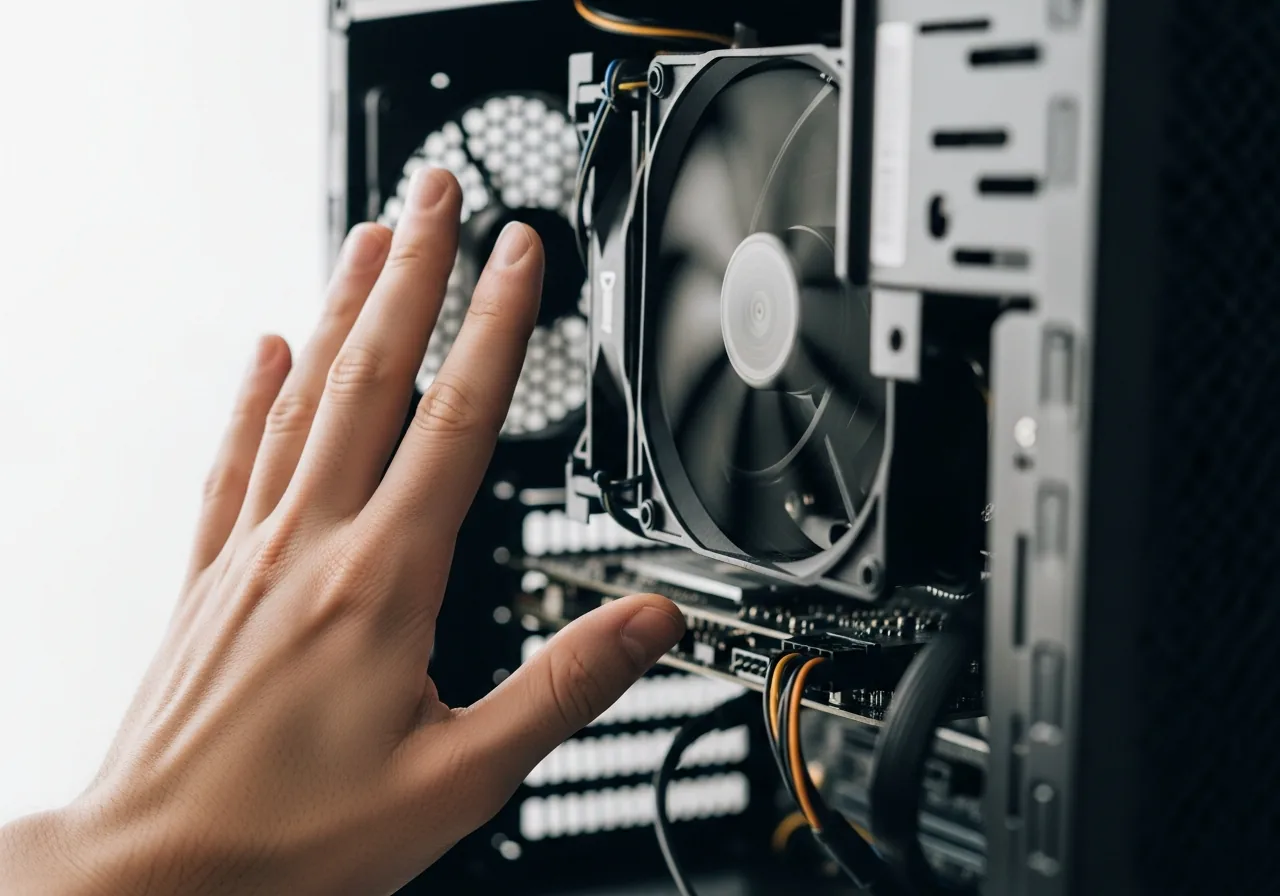
Note whether a beep or drive light ever accompanies the spinning fans, which tells you the board is stalling before the self-check rather than simply having power.
 2
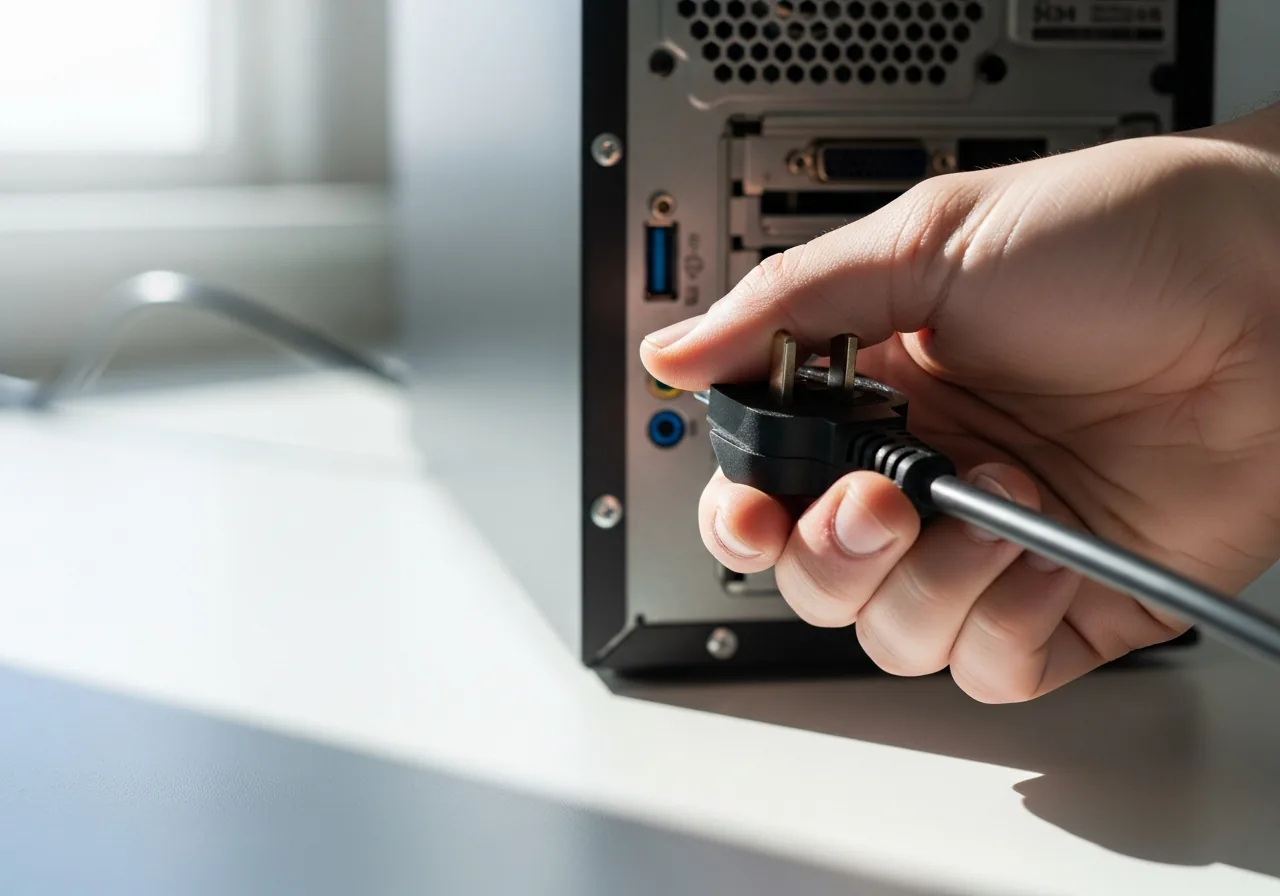
2Unplug before opening the case
Switch off and disconnect the mains lead, then work with grounded hands, since the supply can hold dangerous charge even after the cable is pulled.
 3
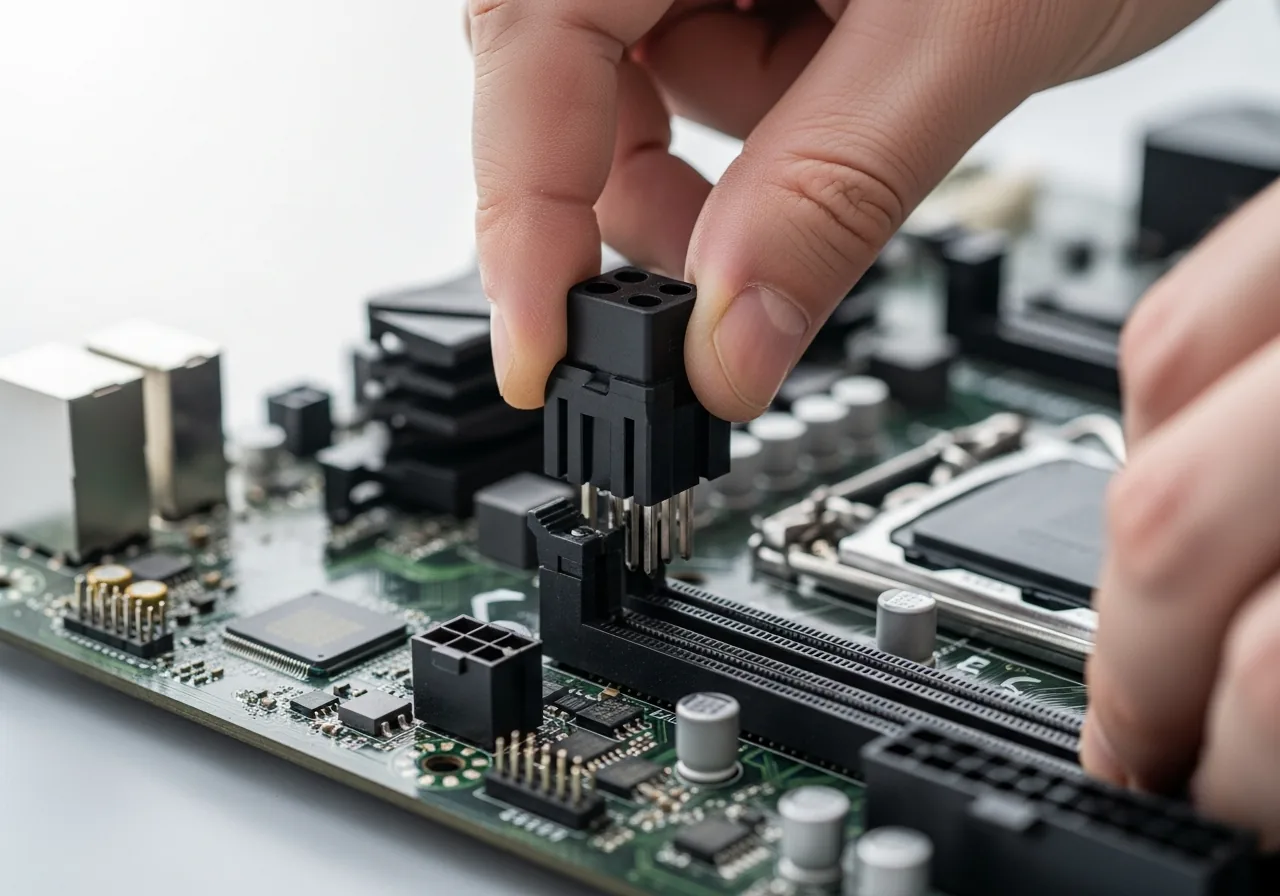
3Reseat the processor power connector
Press the separate processor power connector firmly back onto the board, as one resting loose lets the fans spin while the machine never begins to post.
 4
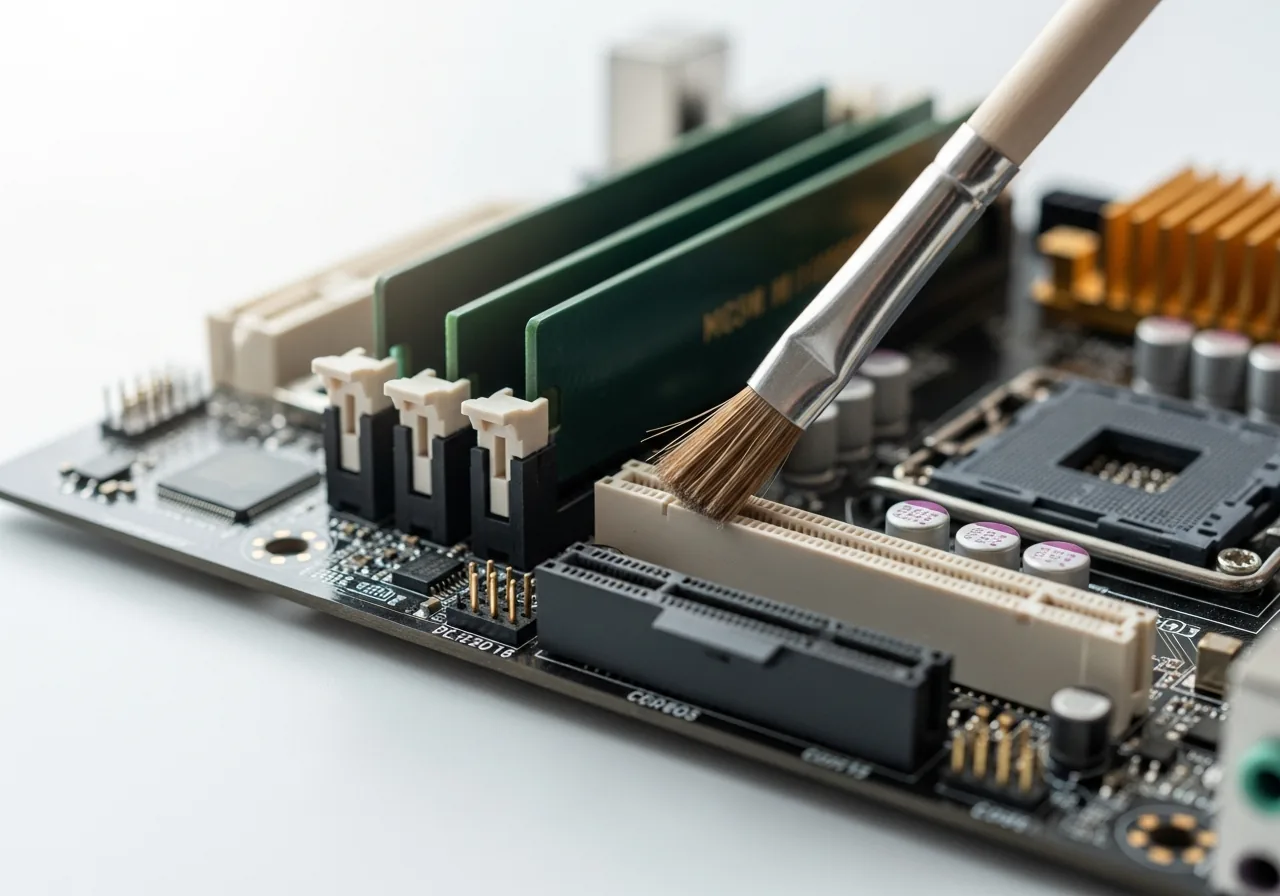
4Clean dusty contacts
Gently clear dust from the memory and card slot contacts before reseating, since corroded or dusty contacts can break an essential link the board needs.
 5
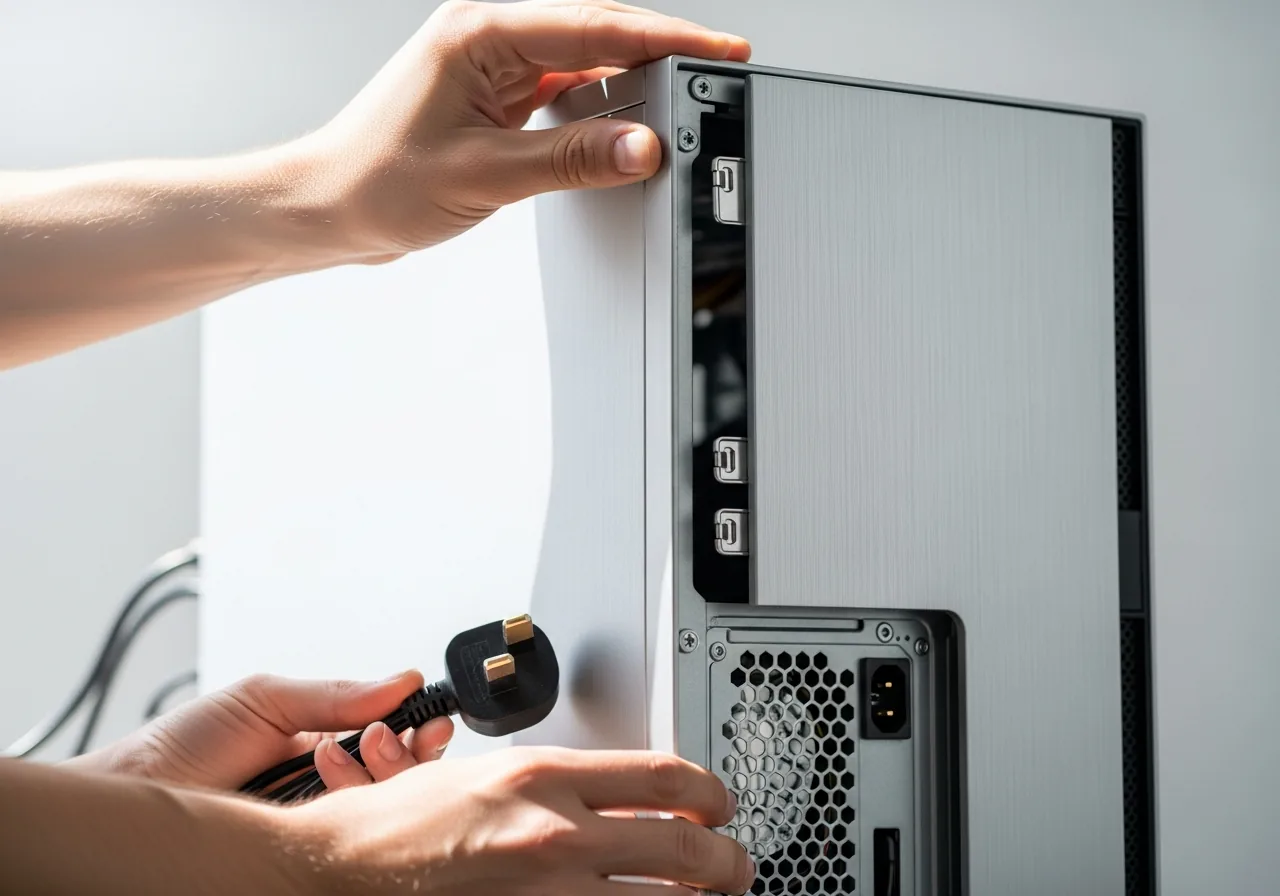
5Reassemble and reconnect
Refit the side panel and reconnect the mains lead in a calm, deliberate order, checking no cable obscures a half-seated plug.
 6
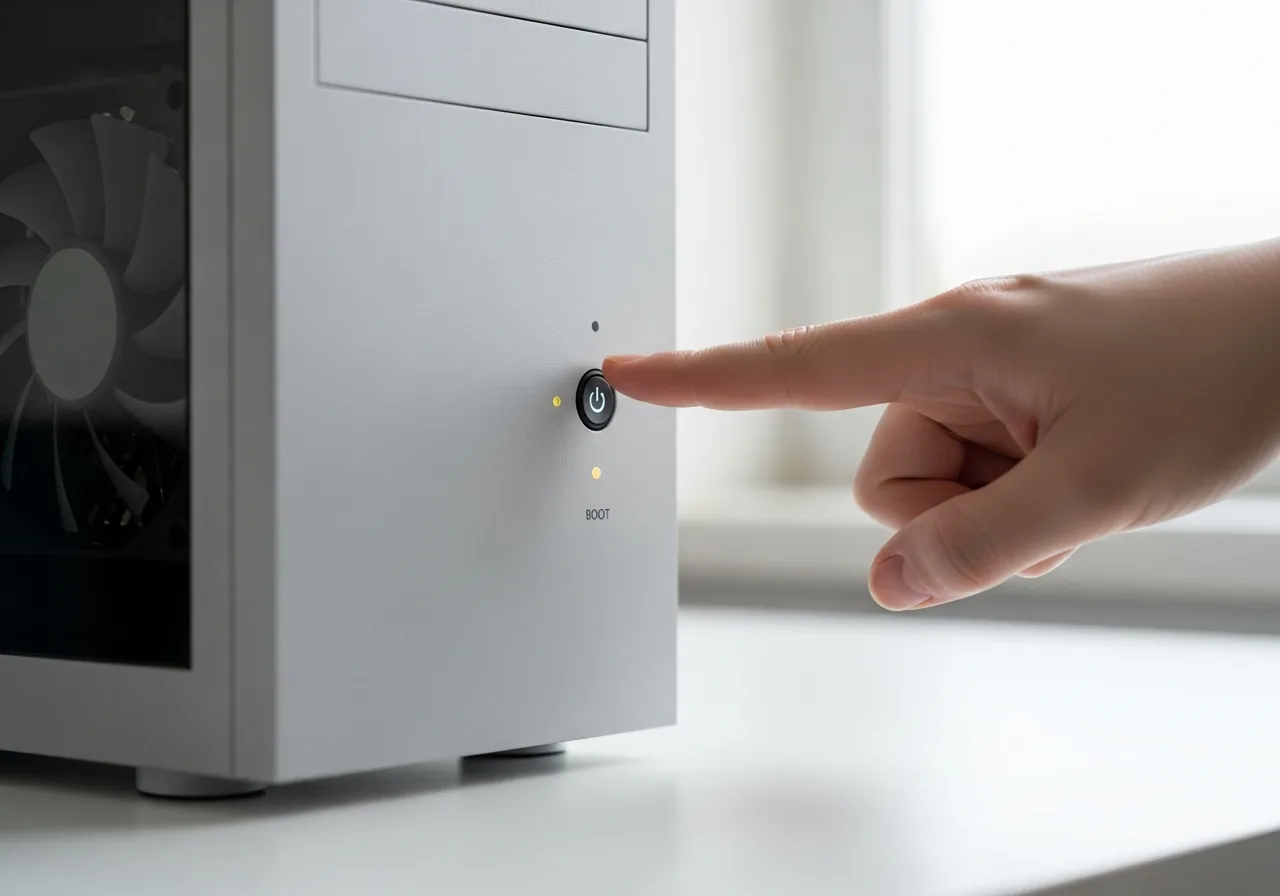
6Test for a successful boot
Power on and watch for a beep, drive activity, or display, confirming the machine now posts rather than simply spinning its fans.
When to seek help
If fans run but nothing posts after careful checks, a technician can test the processor, memory, and board in isolation, which is safer than repeatedly forcing power.
Reducing the chance it returns
Since this fault often follows work inside the case, build a simple checklist for any time the side panel comes off. Confirm the processor power connector is clipped firmly home, not just resting in place, and that memory and the graphics card are pressed fully into their slots. Tidy cables away from where they could obscure a half-seated plug. After cleaning, reconnect everything in a calm, deliberate order before the first power-on. Keeping contacts free of dust and handling parts with grounded hands helps every essential link stay reliable.
Repair110 is a free, informational resource. These steps describe a careful, general approach — every device is a little different, so work slowly, back up anything you value, and prioritise your own safety. If a step feels beyond your comfort, stop and consult a qualified technician.