Understanding the problem
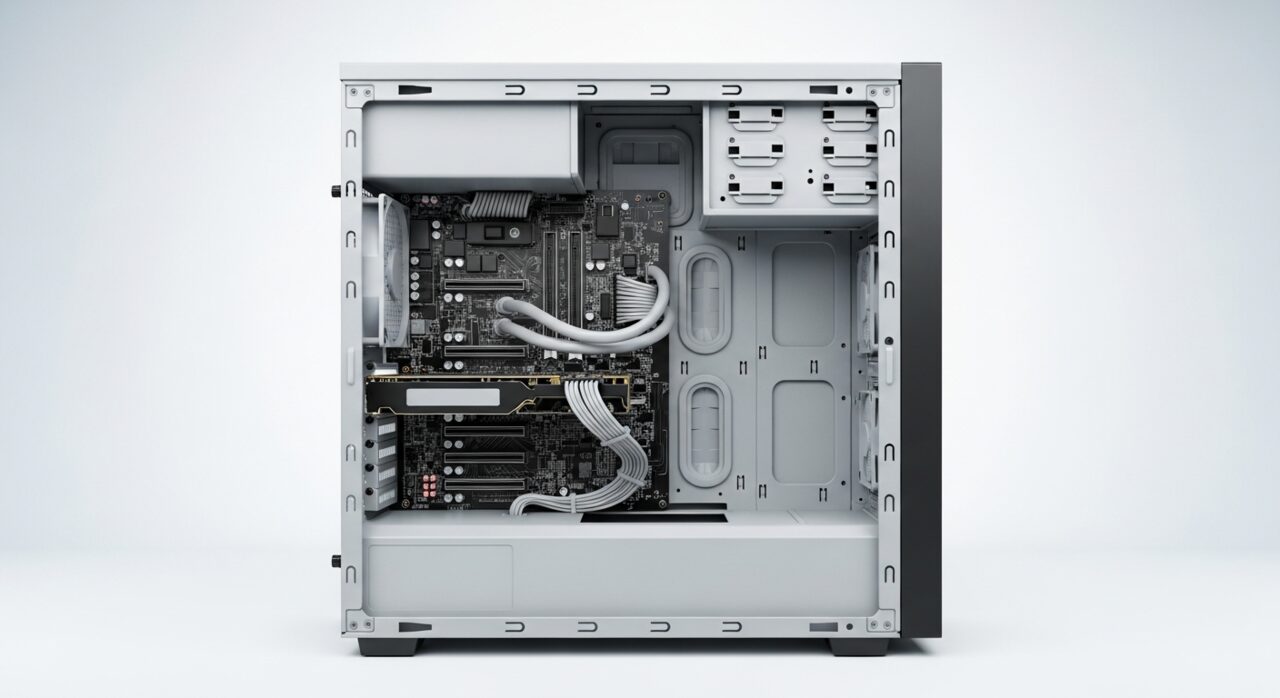
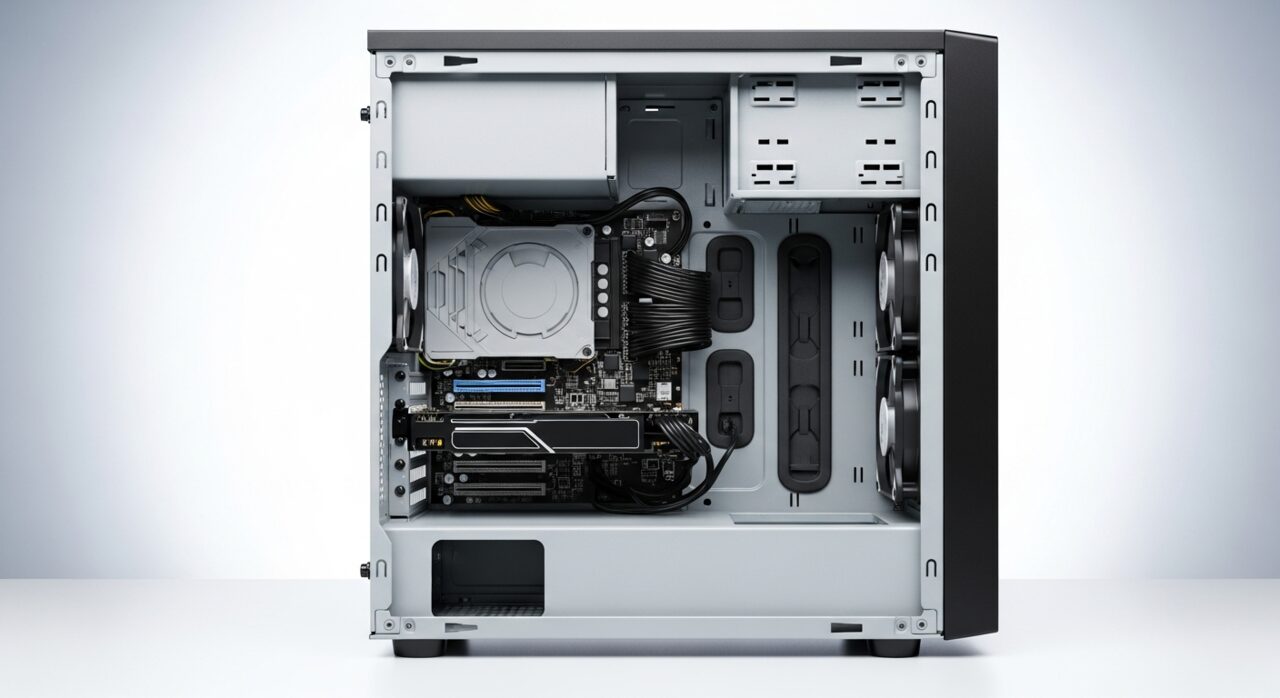
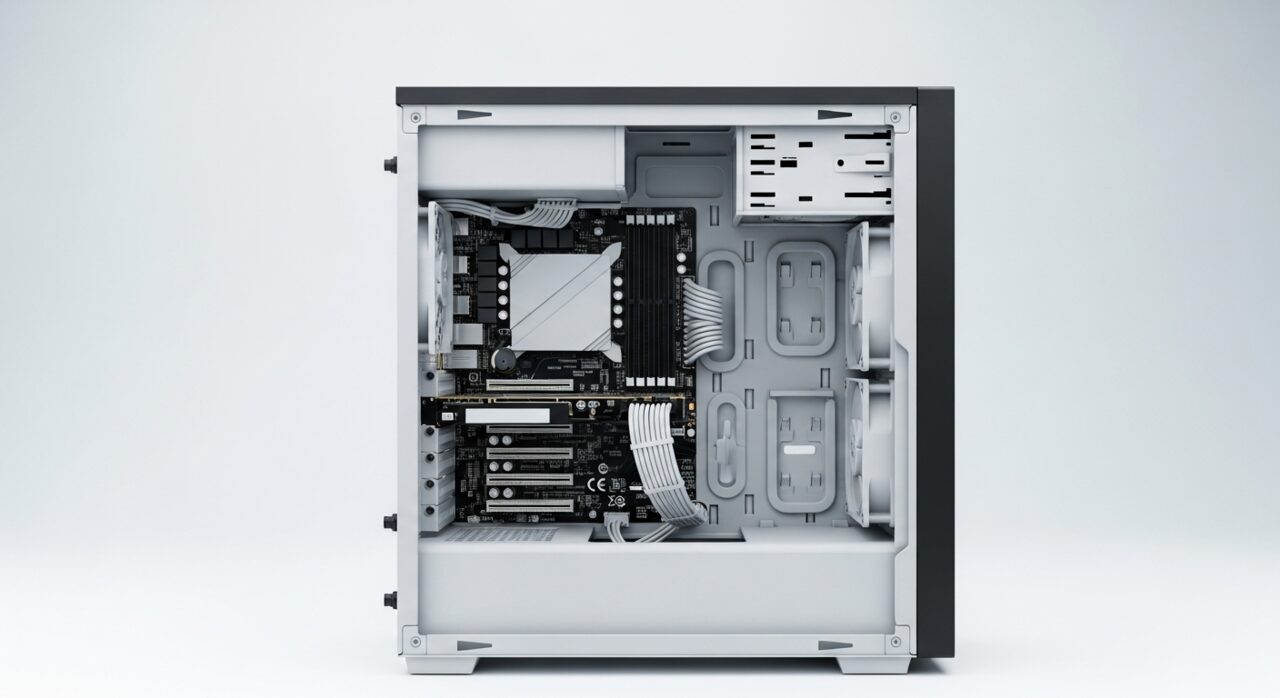
Every spinning fan and drive sets up a faint vibration that travels through the frame. Normally the case absorbs it, but when a screw loosens, a panel sits slightly proud, or a fan bearing wears, that vibration finds a free edge to rattle against and the energy becomes audible. The pitch follows fan speed because faster spinning means stronger vibration. A blade brushing a stray cable, or a fan thick with dust spinning off-balance, adds its own buzz. The case is not breaking; it is simply amplifying movement that has found something loose to shake.
Symptoms
- A buzzing or rattling sound rises and falls with fan speed
- The noise changes when a panel is gently pressed
- A specific fan grows louder or sounds rough
- Vibration can be felt through the case panels
Likely causes
- 1A fan blade catching a cable or worn bearing creating noise
- 2A loose side panel or screw vibrating against the frame
- 3An unbalanced or dust-laden fan spinning unevenly
- 4A mechanical drive vibrating in its mount
- 5Cables resting against a moving fan blade
What to observe and check
- Press gently on each panel to hear if the buzz stops
- Note which fan speeds up just as the noise begins
- Observe whether the sound is constant or comes and goes
- Watch for cables sitting close to any spinning blade
- Consider whether the noise started after recent cleaning or moving
Step-by-step repair
 1
1Trace the buzz to its source
Note which fan speeds up just as the noise begins and whether the pitch rises and falls with it, narrowing the rattle to a particular part.
 2
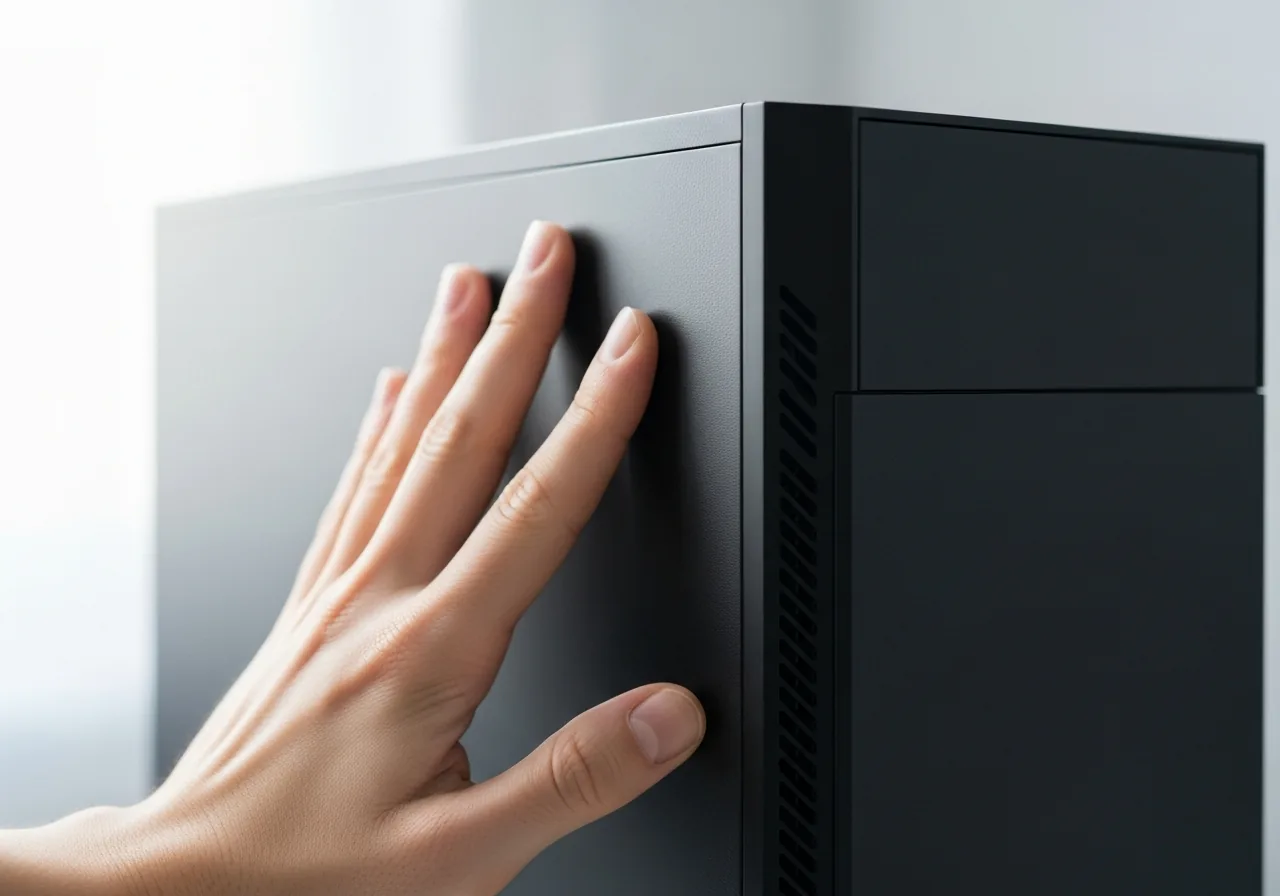
2Press each panel to test
Gently press on the side panels in turn and listen for the buzz stopping, which reveals a loose panel resonating against the frame.
 3
3Power off before reaching inside
Switch off and unplug the tower before touching anything inside, so no fan can spin against your hand while you work.
 4
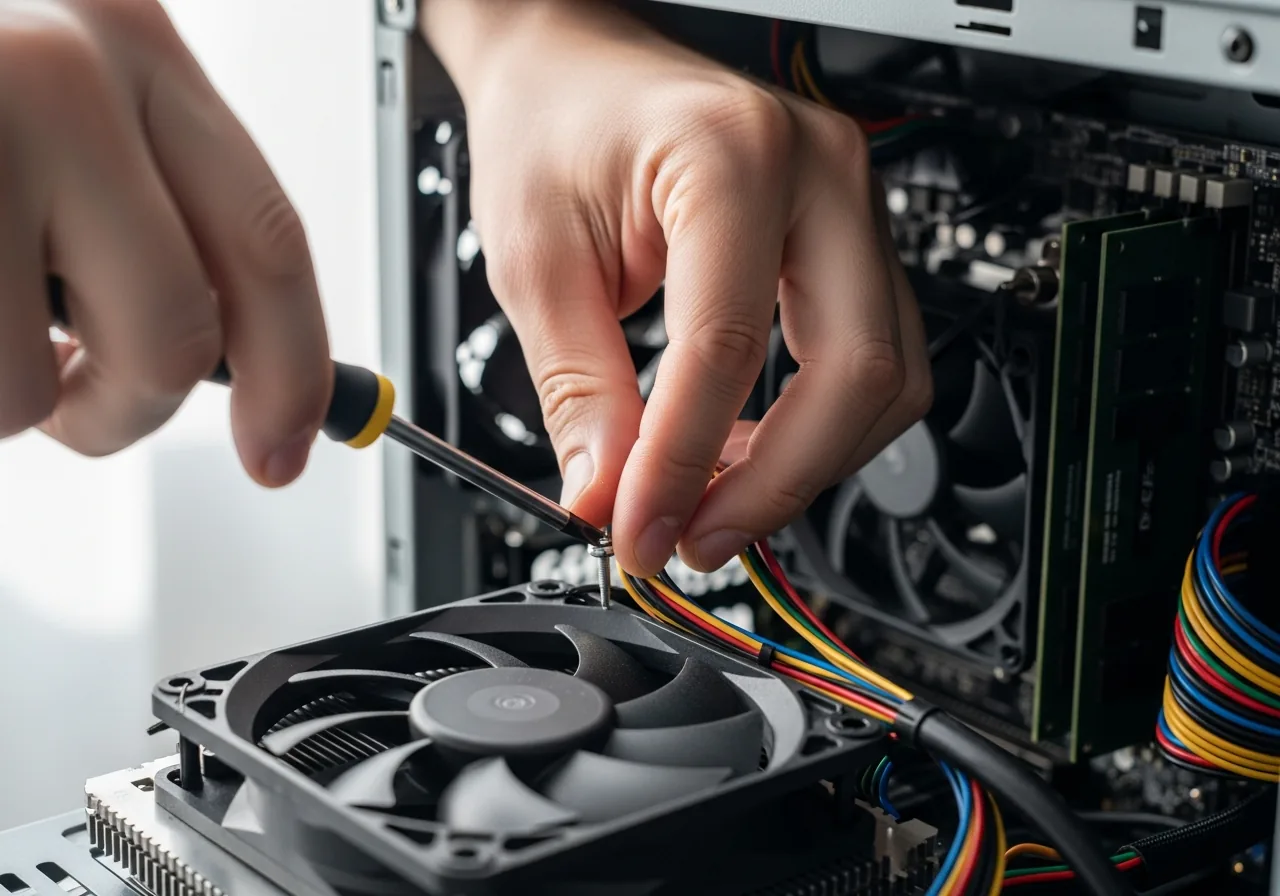
4Tighten panels and route cables
Snug up loose panel and fan screws and tie any cable clear of the spinning blades, removing the slack edges that the vibration was shaking.
 5
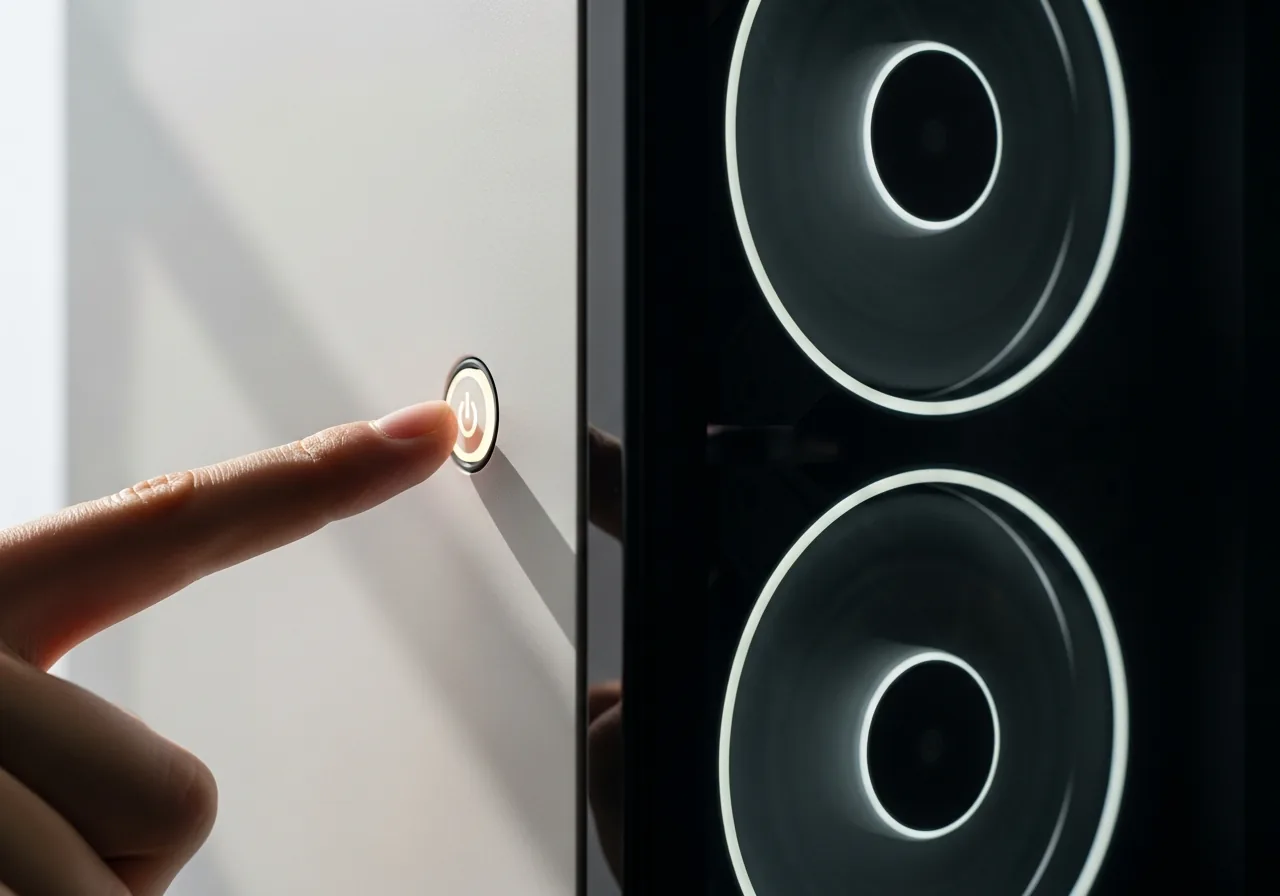
5Confirm the noise is gone
Reconnect and power on, listening across fan speeds to confirm the buzzing has settled; a remaining grinding fan may need replacing before it worsens.
When to seek help
If the noise is paired with burning smells or a grinding that suggests a failing part, power down and seek qualified help rather than letting a damaged component keep running.
Reducing the chance it returns
A quiet case is mostly a well-tended one. Tighten panel and fan screws periodically so nothing has room to rattle, and route cables with ties so none can drift into a spinning blade. Clear dust from fan blades before it builds enough to throw them off balance. Stand the tower on a firm, level surface rather than a hollow shelf that can amplify hum. When a fan starts to sound rough or gritty, treat it as an early warning that its bearing is wearing, and plan to replace it before the noise grows worse.
Repair110 is a free, informational resource. These steps describe a careful, general approach — every device is a little different, so work slowly, back up anything you value, and prioritise your own safety. If a step feels beyond your comfort, stop and consult a qualified technician.