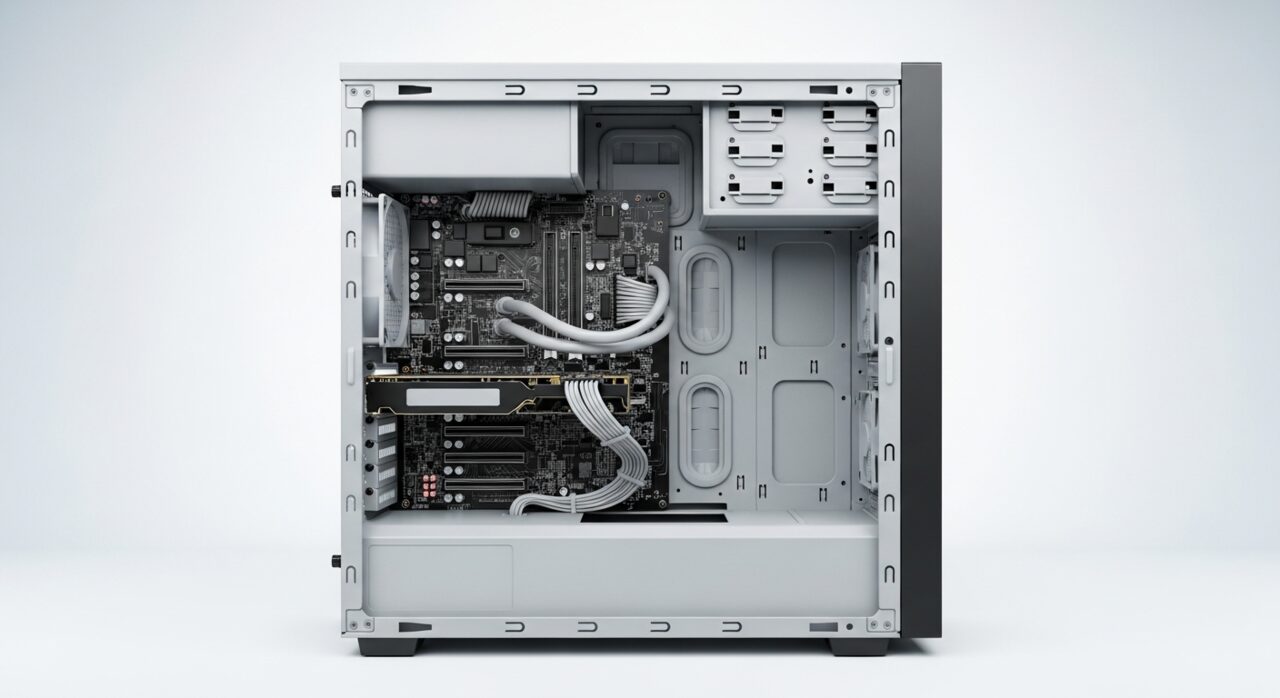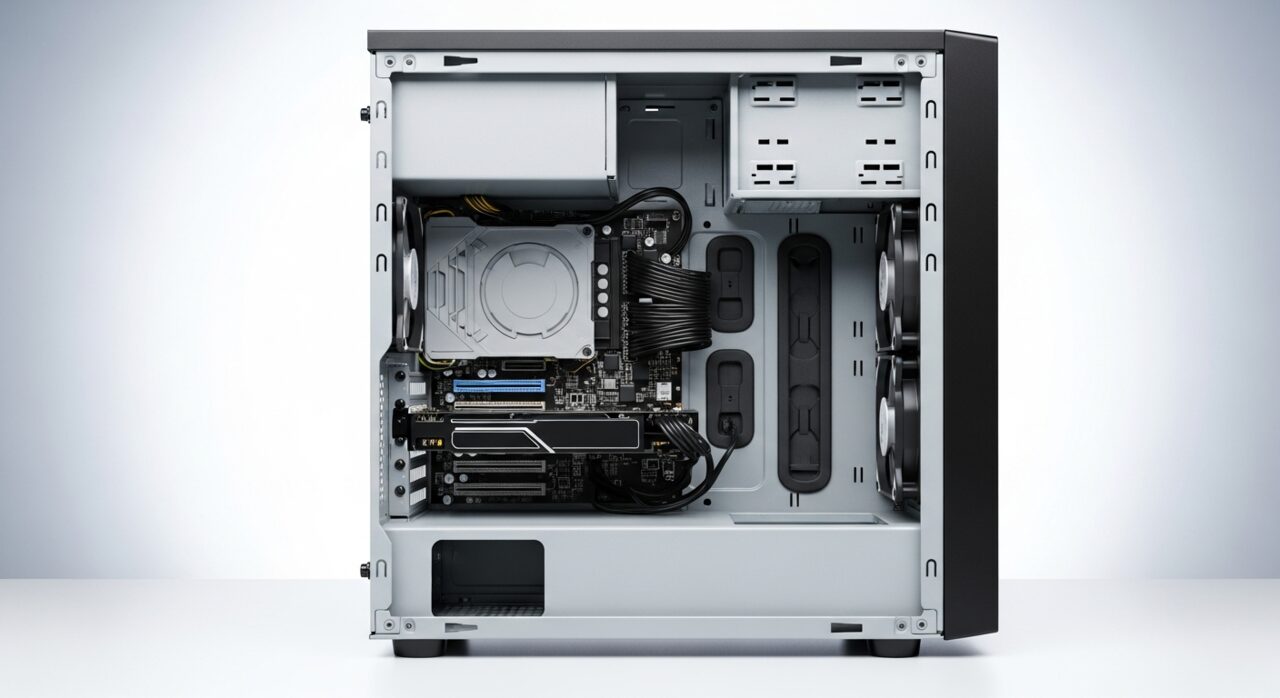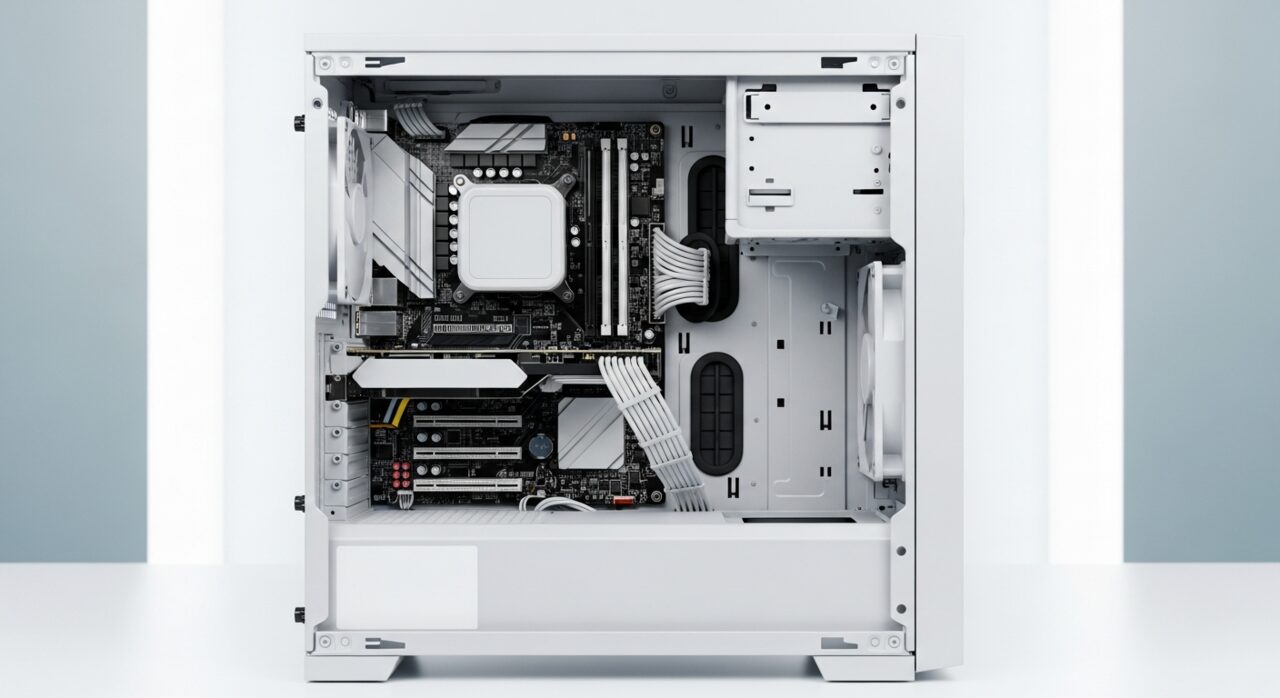
Understanding the problem
At idle the machine draws little current and produces little heat, so faint weaknesses stay hidden. Demanding work changes that in seconds: the processor and graphics chip pull far more power and pour out far more heat. If the supply cannot deliver that peak cleanly, its protection trips and cuts everything instantly. If a clogged cooler or dried thermal paste cannot carry heat away fast enough, temperatures race past a safety limit and the system halts to protect itself. An instant power-off under heavy use is the machine refusing to push past a boundary it has just met.
Symptoms
- The system cuts out only during demanding tasks or gaming
- Light use is stable while heavy use triggers a shutdown
- The power-off is instant, with no warning or error
- The fault grows more frequent as the session continues
Likely causes
- 1A power supply unable to deliver peak demand cleanly
- 2An overheating processor or graphics chip hitting a safety cutoff
- 3Dried thermal paste or a clogged cooler reducing heat removal
- 4Dust restricting airflow so temperatures climb under load
- 5An unstable component that only fails when fully stressed
What to observe and check
- Note whether shutdowns happen only when the system is pushed hard
- Observe if the fault appears sooner once the case has warmed up
- Watch whether fans surge loudly just before the power-off
- Consider whether the supply is undersized for added components
- Feel whether exhaust airflow is strong or weak during heavy use
Step-by-step repair
 1
1Confirm heavy load triggers it
Note whether the instant power-off happens only when the system is pushed hard and appears sooner once the case has warmed, which points to power or cooling at the edge.
 2
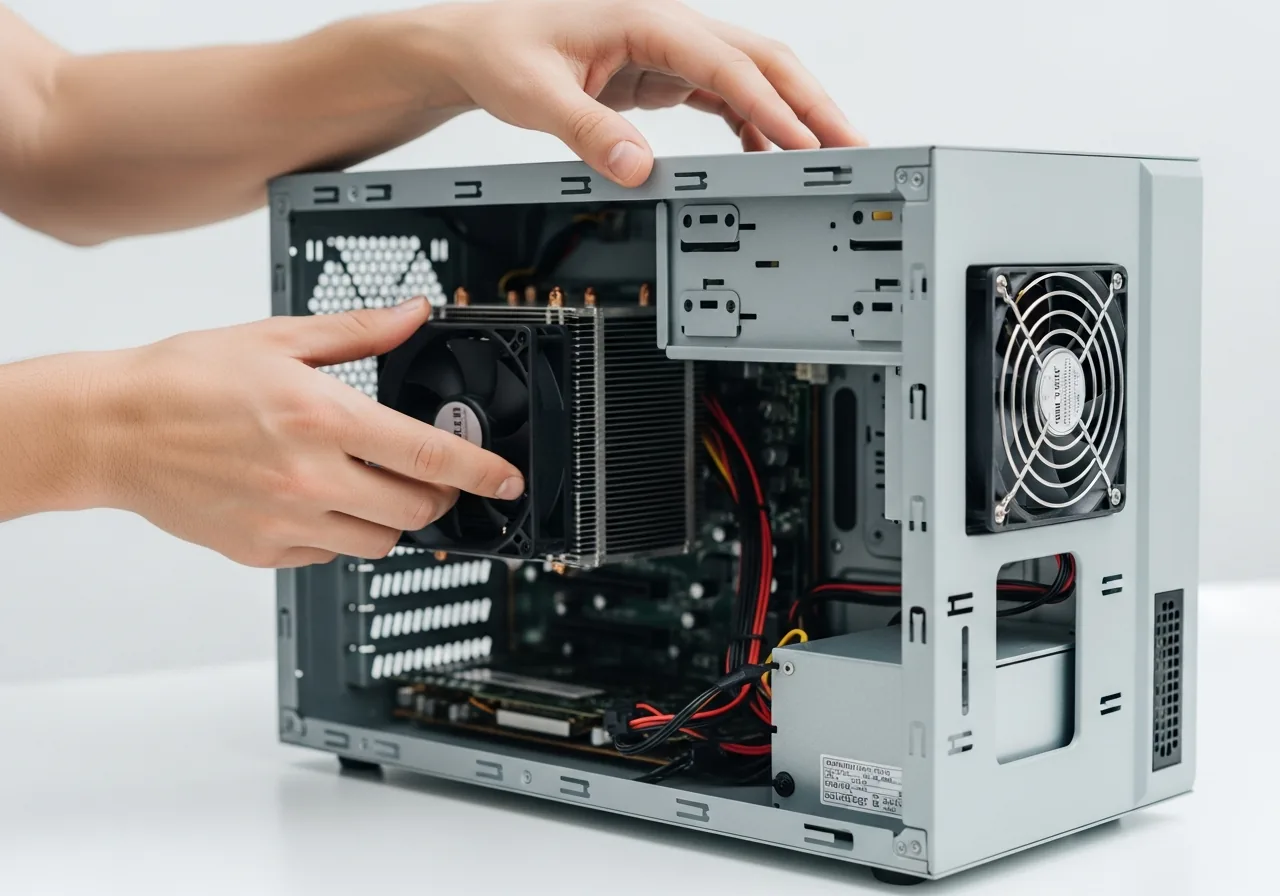
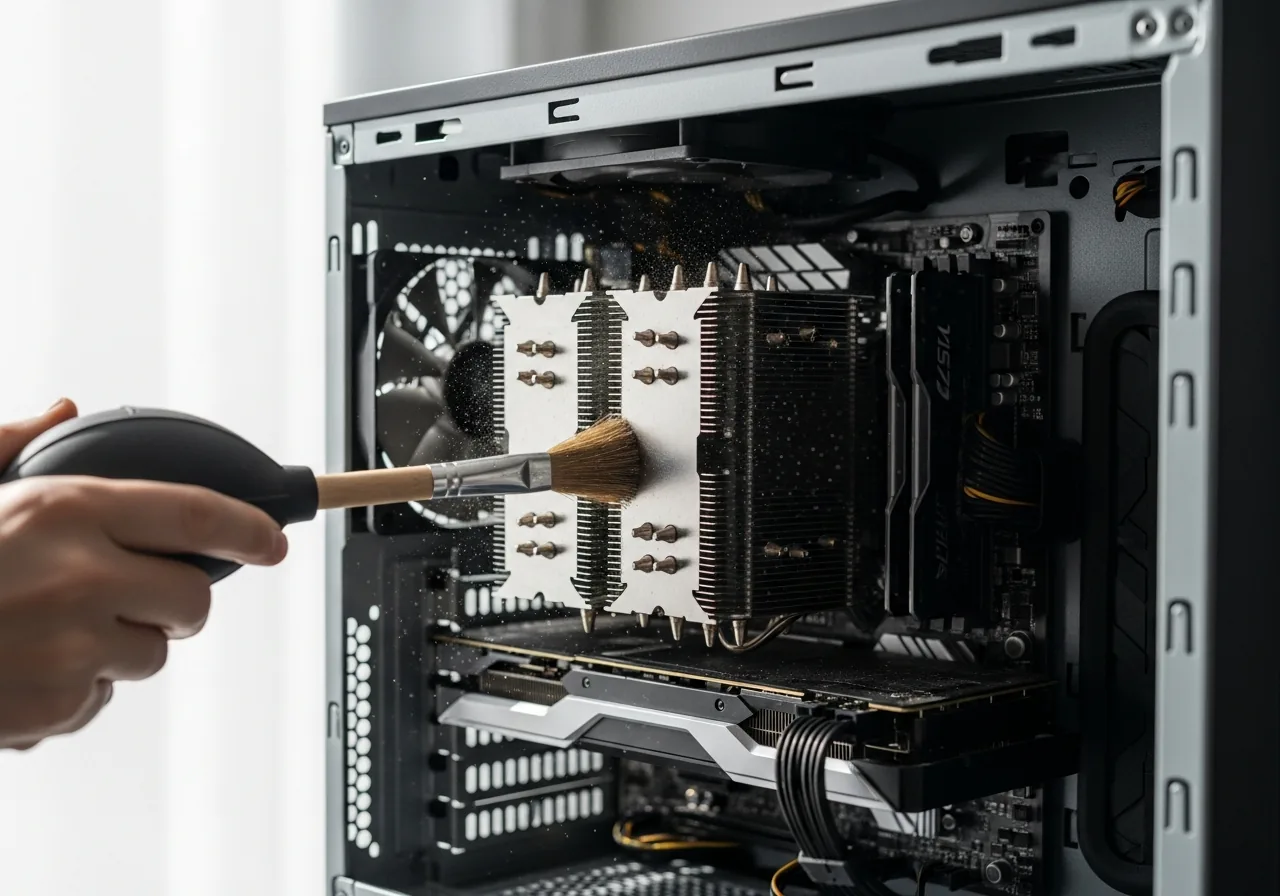
2Power off and clear airflow dust
Switch off and unplug the tower, then clear dust restricting the fans and cooler so heat can leave fast enough during demanding work.
 3
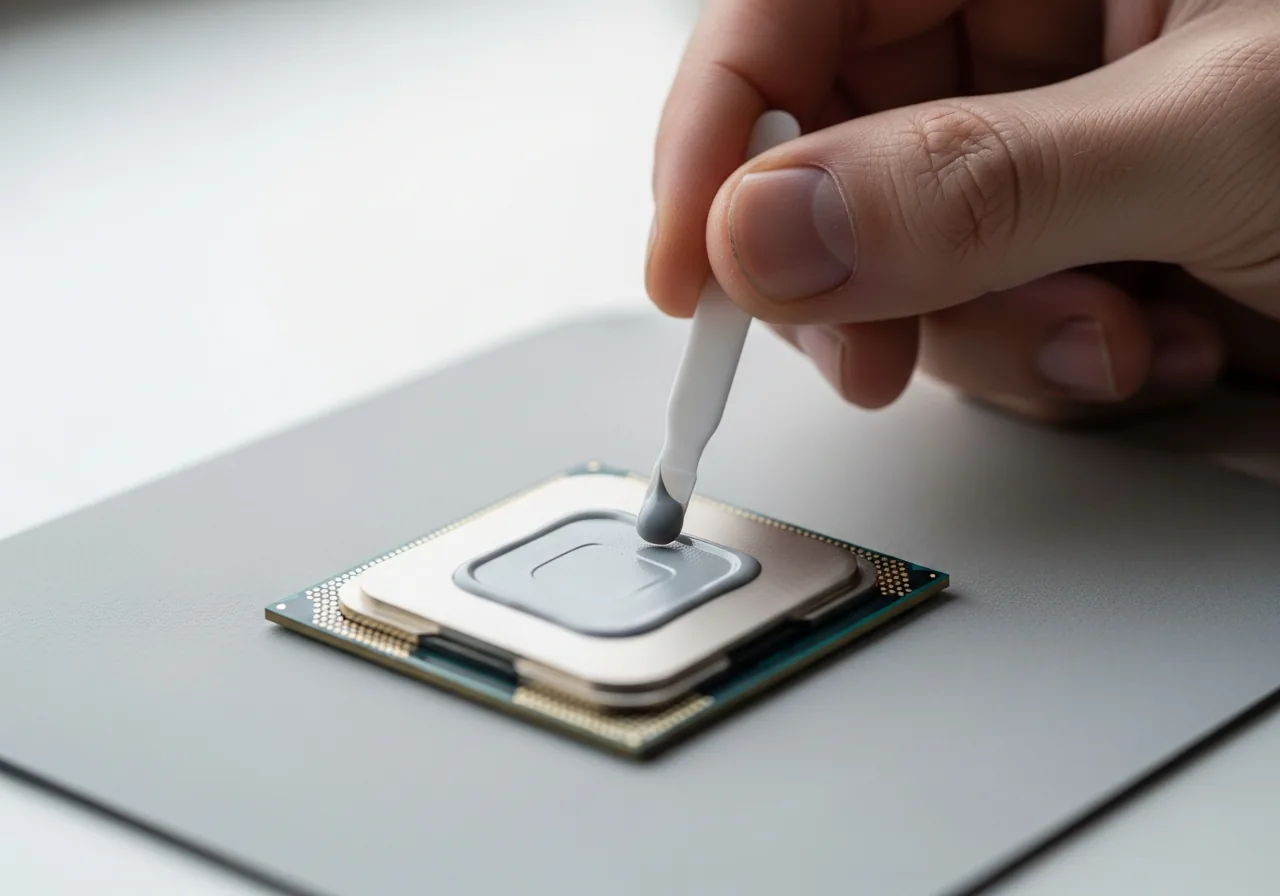
3Refresh the thermal contact
Where dried paste is slowing heat removal, carefully clean the old film and apply a thin, even fresh layer so the cooler can carry the load again.
 4
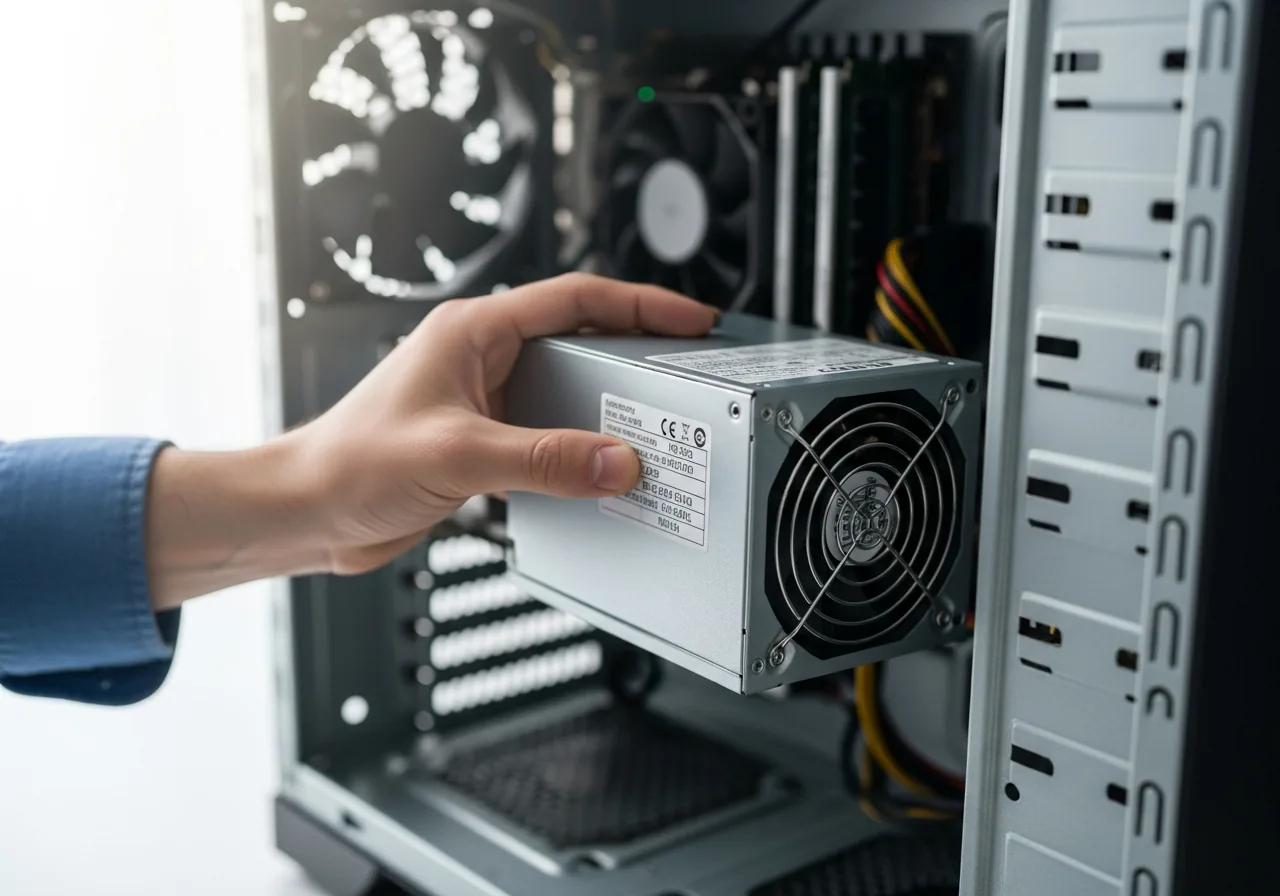
4Weigh the supply's headroom
Consider whether the power supply is undersized for the parts it feeds; if it buzzes or smells hot, stop and seek help, as a failing supply is a safety concern.
 5
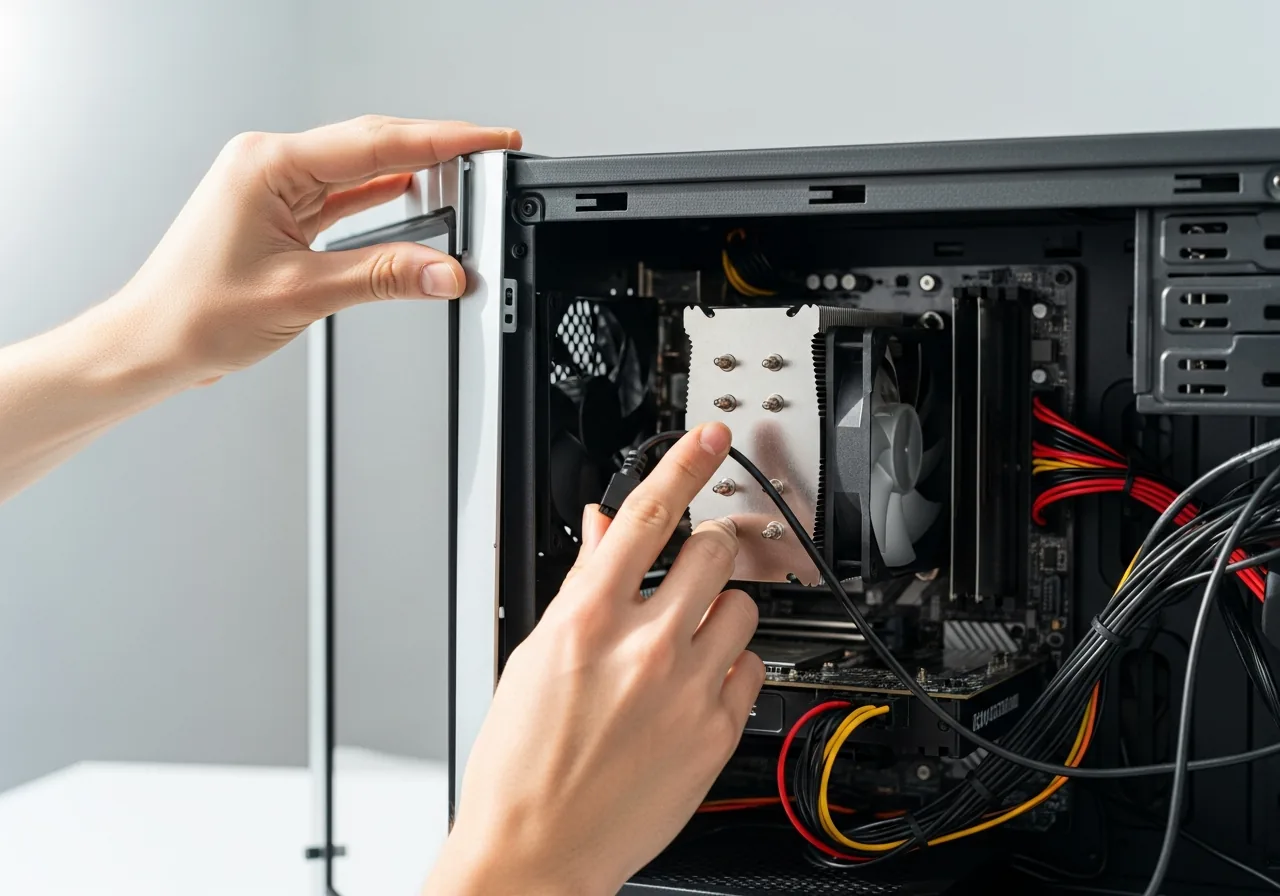
5Close the case
Refit the side panel and reconnect the mains lead, checking no cable has drifted into a fan before powering on.
 6
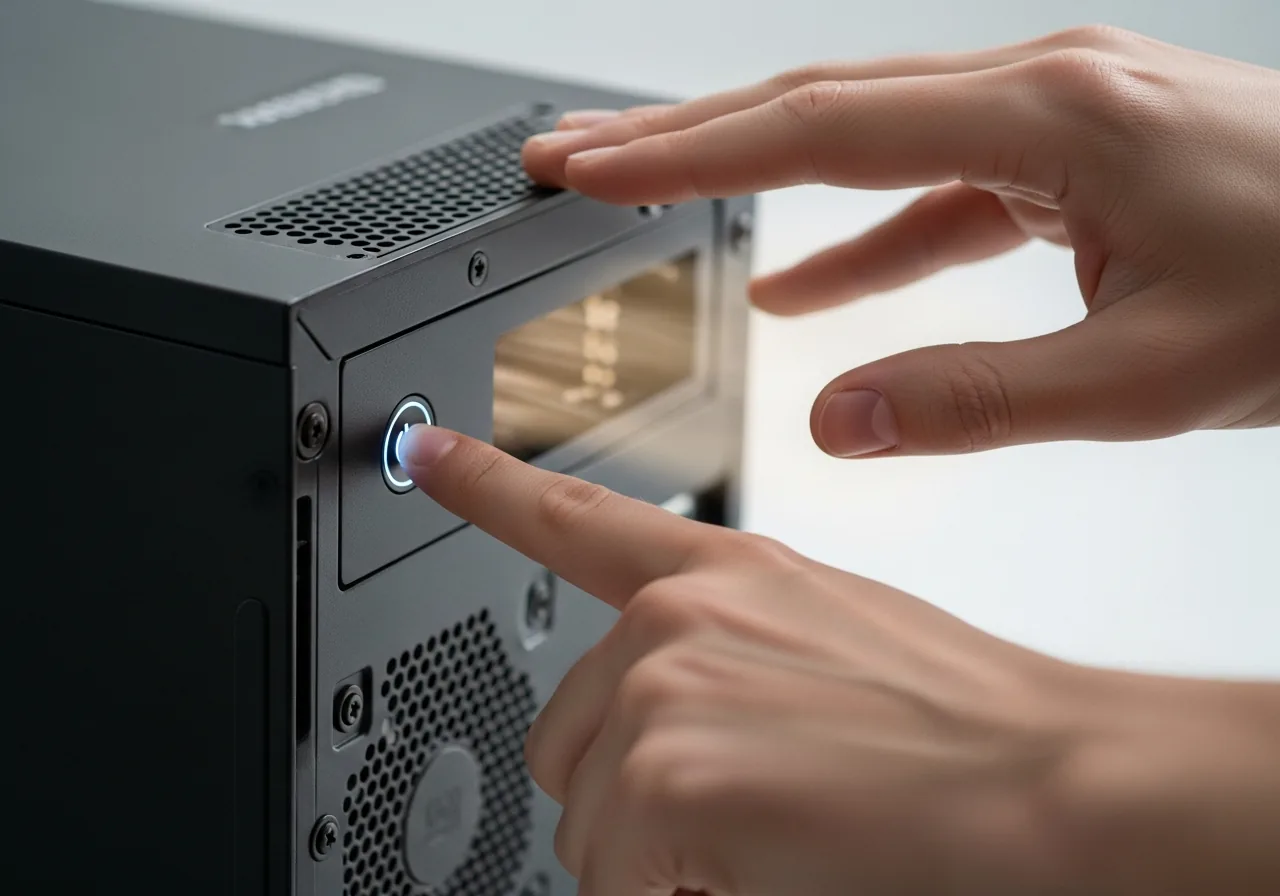
6Test under sustained load
Run a demanding task for a while and feel the exhaust airflow, confirming the machine now holds up instead of cutting out under pressure.
When to seek help
If the power supply buzzes, smells hot, or shows scorch marks, stop using it and seek qualified help. A failing supply under load is a genuine safety concern and can damage other parts.
Reducing the chance it returns
Build in headroom so demanding work never reaches the edge. Match the supply to the parts it feeds, leaving a comfortable margin for peaks rather than choosing one that only just copes. Keep cooling in good order by clearing dust, ensuring fans run freely, and refreshing thermal paste when temperatures begin creeping upward over the years. Place the tower where warm air can escape and fresh air can enter, away from carpets and tight corners. When you add a power-hungry component, reassess whether the supply and cooling can still carry the new load comfortably.
Repair110 is a free, informational resource. These steps describe a careful, general approach — every device is a little different, so work slowly, back up anything you value, and prioritise your own safety. If a step feels beyond your comfort, stop and consult a qualified technician.