Understanding the problem
Connecting a second screen sets off a quiet handshake. The computer sends a video signal out of a port, the cable carries it intact, and the monitor reads a small block of identifying information so it knows what is arriving. The display software then decides whether to extend or mirror onto the new screen. A blank result means the handshake broke somewhere: the port may be disabled or failed, the cable or an adapter may not be passing data, the monitor may be on the wrong input, or the software never registered the new screen.
Symptoms
- The external monitor reports no signal when connected
- The system does not list the second display as present
- The monitor wakes briefly then returns to sleep
- Only one of several connected screens is recognized
Likely causes
- 1A loose or faulty video cable, or the wrong input selected
- 2A display driver not detecting or enabling the second screen
- 3A display output port that has failed on the computer or monitor
- 4Display settings not configured to extend or mirror
- 5An adapter between mismatched connectors not passing the signal
What to observe and check
- Confirm the monitor is set to the input the cable uses
- Note whether the system detects the screen when settings are opened
- Observe if a different cable or port changes the result
- Watch whether the monitor briefly wakes then sleeps again
- Consider whether the issue followed a driver or settings change
Step-by-step repair
 1
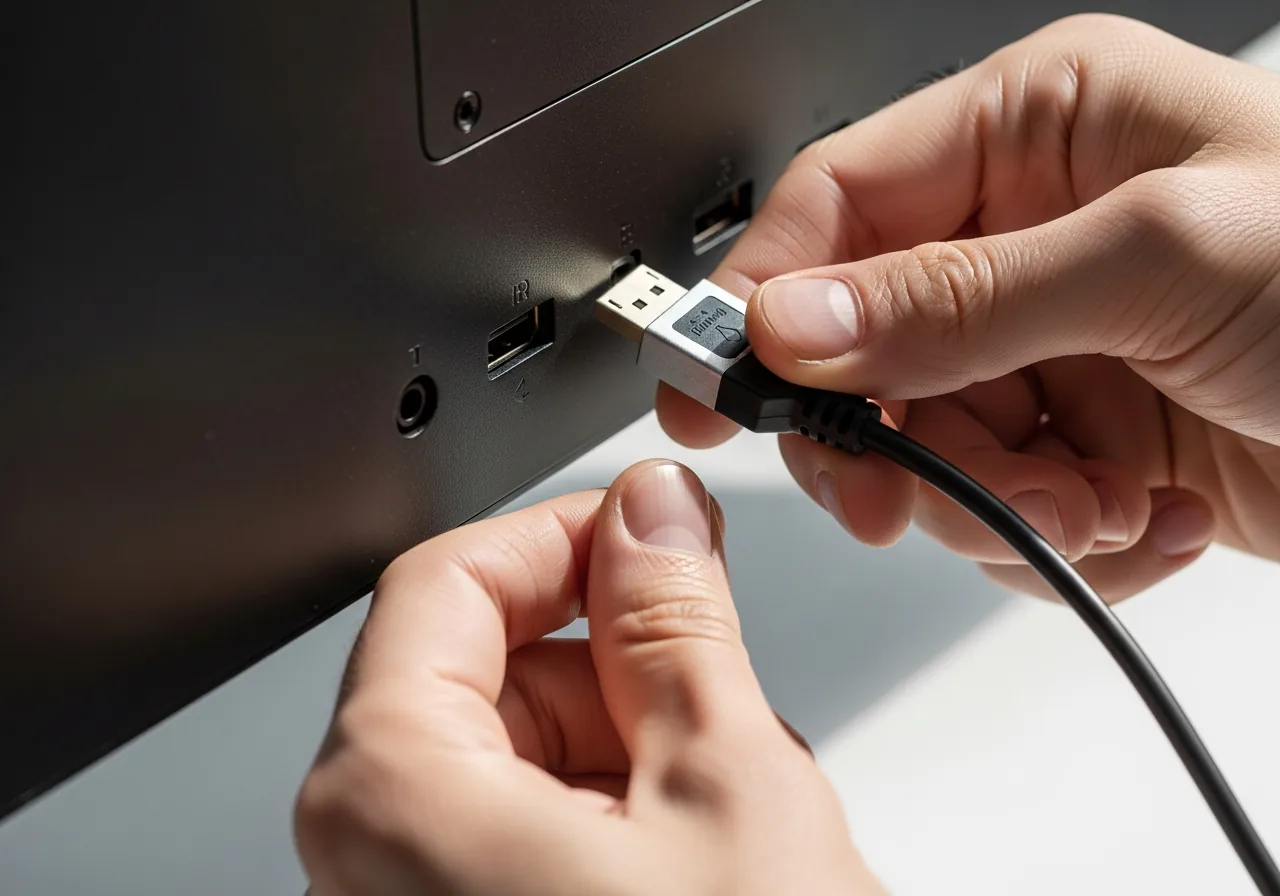
1Reseat the video cable
Seat the lead firmly at both the computer and the monitor, inserting it squarely to avoid bending the delicate port pins.
 2
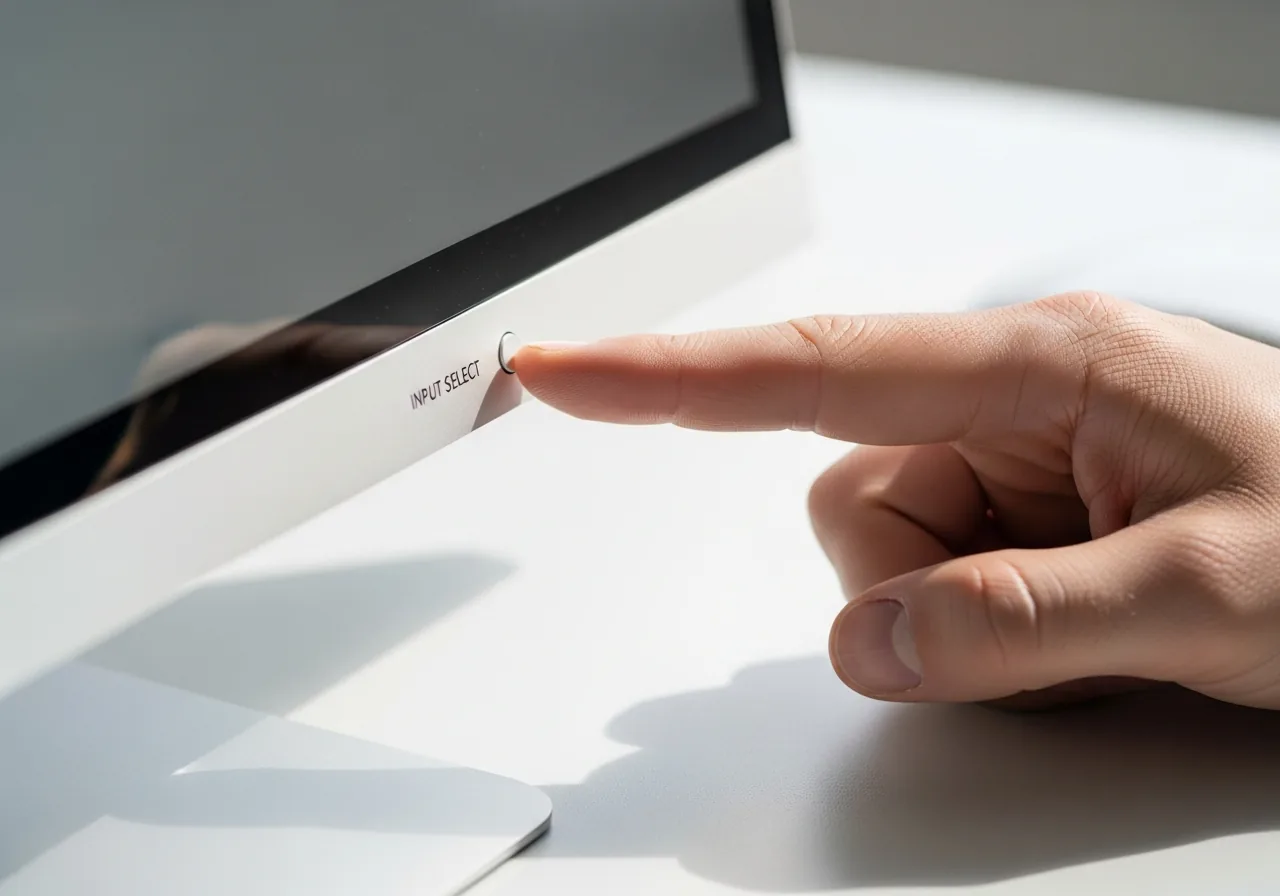
2Select the correct input
Set the monitor to the input the cable actually uses, since the wrong source shows as no signal even when all is connected.
 3
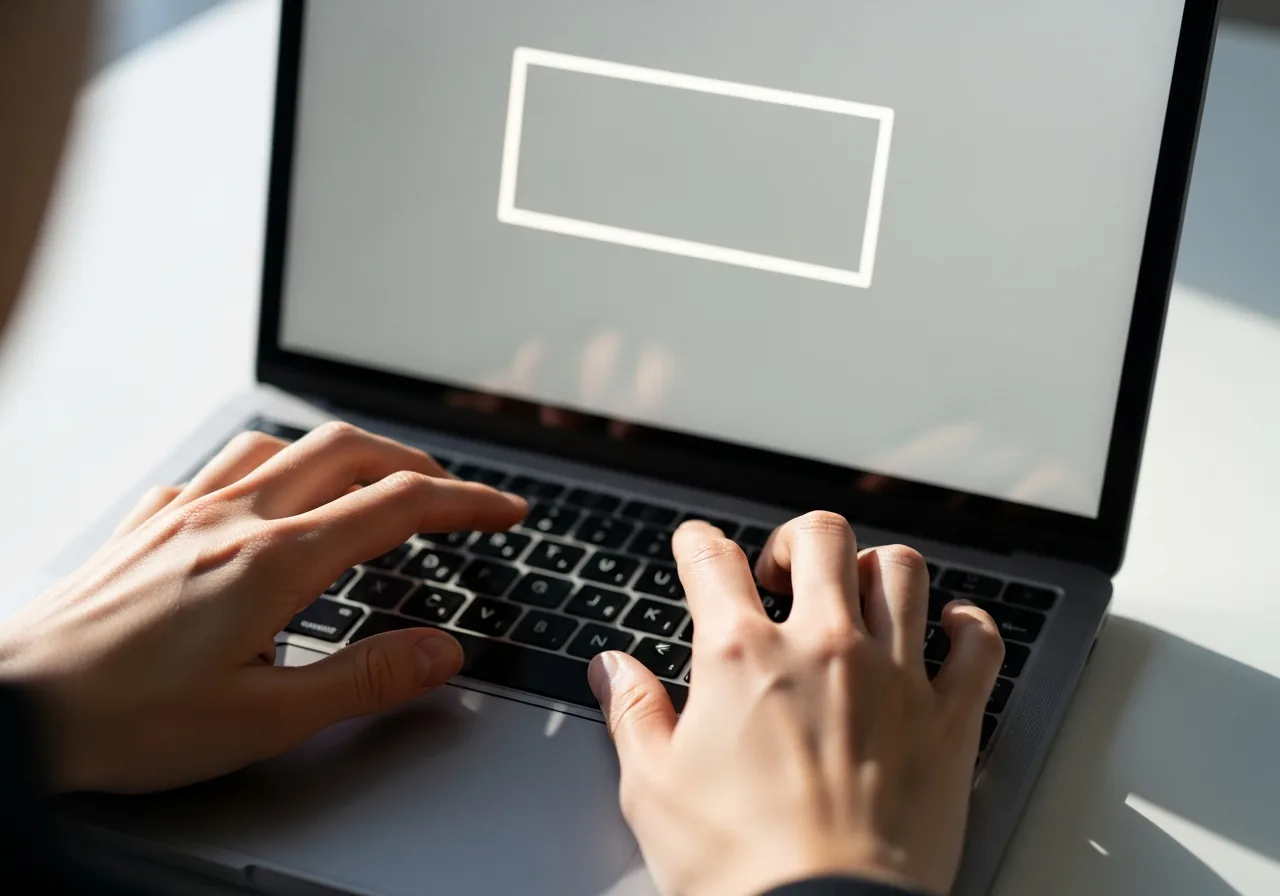
3Set extend or mirror
Open display settings and choose to extend or mirror so the system actively enables and uses the second screen.
 4
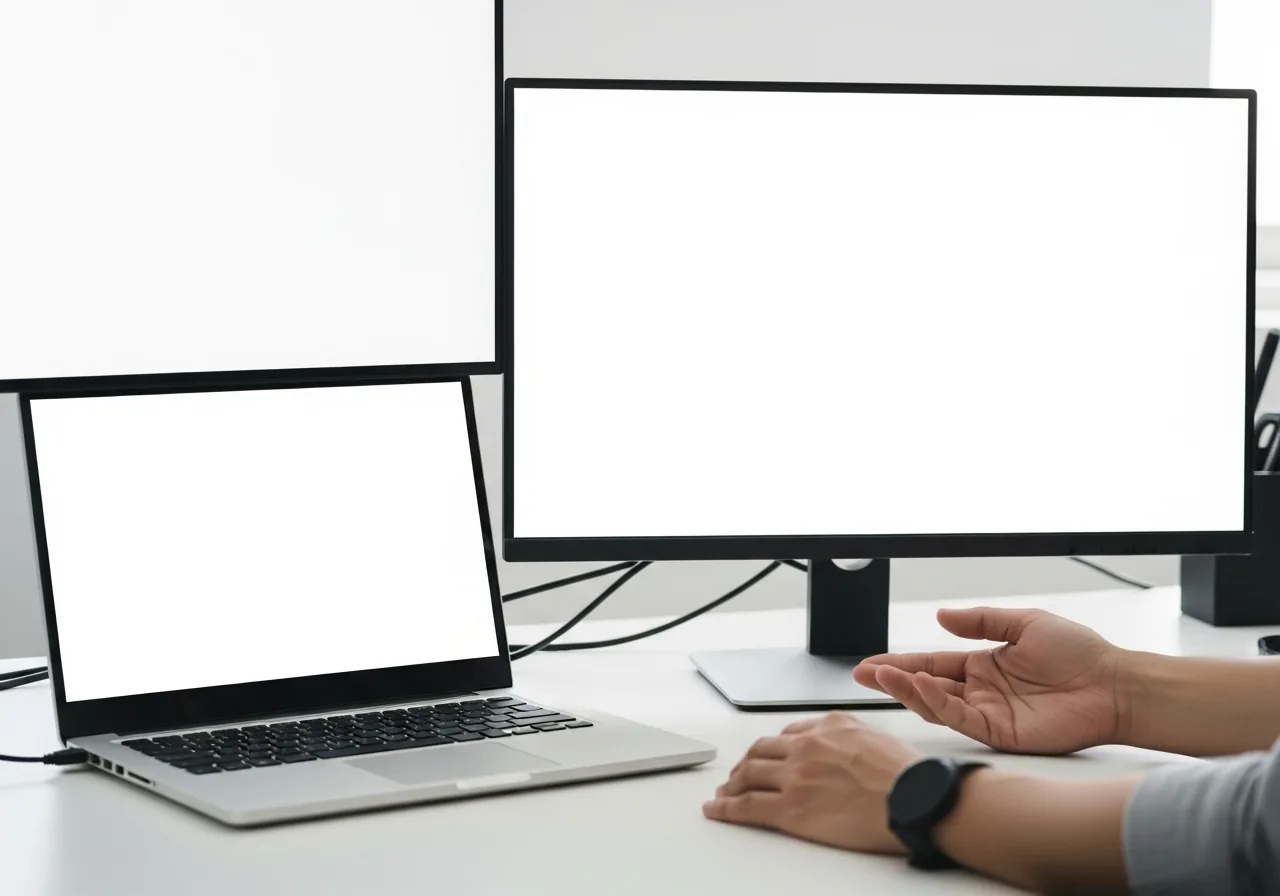
4Refresh the display driver
Update or reinstall the display driver so it detects and enables the newly attached screen.
 5
5Confirm the screen appears
Reconnect and check that the second display is listed and showing the picture rather than waking and sleeping.
When to seek help
If careful checks of cable, input, and settings still leave the monitor undetected, a technician can test whether the output port on the computer or the monitor itself has failed.
Reducing the chance it returns
A reliable second screen starts with sound connections, so seat each cable fully at both ends and choose a cable rated for the resolution you intend to use. Insert and remove plugs squarely rather than at an angle, since wiggling loosens the delicate pins inside a port over time. Keep the monitor set to remember the correct input, and label cables if several look alike. Where an adapter bridges two connectors, keep it firmly attached, and update display drivers steadily.
Repair110 is a free, informational resource. These steps describe a careful, general approach — every device is a little different, so work slowly, back up anything you value, and prioritise your own safety. If a step feels beyond your comfort, stop and consult a qualified technician.