Understanding the problem
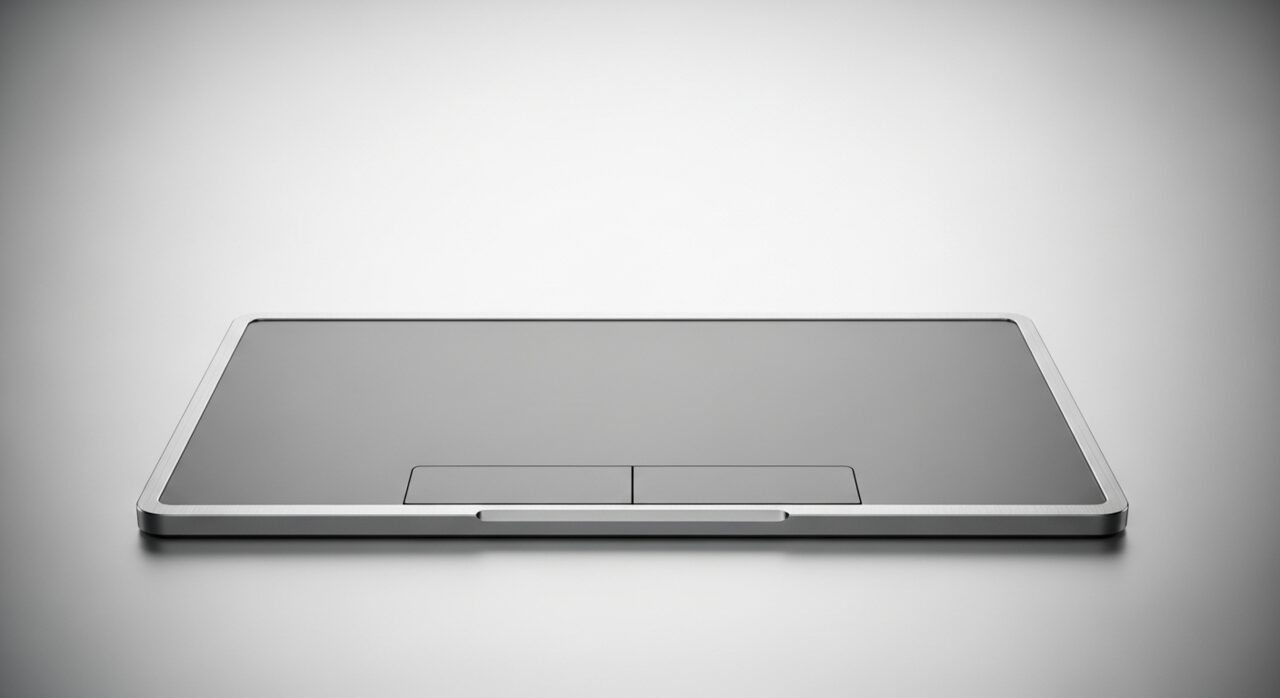
A trackpad senses the faint electrical change your fingertip makes as it nears the surface, then passes that reading through a driver that turns it into pointer movement. Because it reacts to such tiny signals, anything that muddies them causes trouble. A film of oil, sweat, or moisture can register as phantom touches, making the pointer drift or jump. A driver with the wrong sensitivity misreads honest input, and a connector working loose interrupts the reading entirely. More worryingly, a cell swelling beneath the pad can press up against it, distorting the surface and the steady signal it depends on.
Symptoms
- The pointer jumps, drifts, or moves on its own
- Taps and clicks register intermittently or not at all
- The cursor freezes briefly then races to catch up
- Gestures such as scrolling stop working as expected
Likely causes
- 1A trackpad driver or sensitivity setting that has gone awry
- 2Moisture, oil, or grime on the touch surface confusing the sensor
- 3A loose internal connector between the trackpad and the board
- 4Electrical interference from a swelling battery pressing beneath it
- 5Accidental disabling through a keyboard shortcut or setting
What to observe and check
- Observe whether an external mouse behaves perfectly at the same time
- Wipe the surface clean and note if accuracy improves
- Watch whether the cursor drifts more as the laptop warms up
- Note if the trackpad bulges or feels raised, hinting at pressure beneath
- Consider whether a recent driver or setting change preceded the trouble
Step-by-step repair
 1
1Compare with an external mouse
Plug in a known-good mouse and see whether it behaves perfectly; if it does, the trouble lies with the trackpad surface or its settings rather than the system.
 2
2Wipe the trackpad surface
Clean the pad and your fingertips of oil and moisture, since a thin film is easily mistaken by the sensor for phantom touches that make the pointer drift.
 3
3Check driver and sensitivity
Review the trackpad sensitivity and gesture settings, adjusting one at a time, and confirm it has not been disabled by an accidental shortcut.
 4
4Watch for a raised surface
Feel whether the pad sits raised or unusually firm; if it does, a swelling battery may be pressing beneath it, so stop using the laptop and seek qualified help.
 5
5Confirm a steady pointer
After cleaning and adjusting the settings, move the cursor and test taps and gestures to confirm it now tracks smoothly without jumping.
When to seek help
If the trackpad sits raised or unusually firm, a swelling battery beneath it may be the cause; stop using the laptop and seek qualified help, as a swollen cell is a safety hazard.
Reducing the chance it returns
A steady trackpad rewards a clean, dry touch and settled software. Wipe the surface and your fingertips of oil and moisture before long sessions, since residue is what the sensor mistakes for phantom touches. Make sensitivity and gesture changes one at a time so you can recognise the setting that helps rather than guessing later. Let driver updates settle and keep a note of any that change the behaviour. Watch for the surface ever feeling raised or firm, an early hint of a swelling cell beneath, and act on it before pressure distorts the readings.
Repair110 is a free, informational resource. These steps describe a careful, general approach — every device is a little different, so work slowly, back up anything you value, and prioritise your own safety. If a step feels beyond your comfort, stop and consult a qualified technician.