Understanding the problem
Documents do not travel straight to a printer; they wait in a queue managed by a background service that hands them over one at a time. If a single job becomes corrupted or stalls partway, it blocks the queue behind it, so every later document waits silently while the device sits ready and idle. The link itself can also lapse without notice, particularly over wireless, where the printer may keep its address only briefly and quietly fall offline. The computer still believes it is connected, which is why nothing appears to be wrong.
Symptoms
- Print jobs sit in the queue without ever starting
- The device reports ready but nothing emerges
- Jobs disappear from the queue but no page prints
- Status flips between online and offline on its own
Likely causes
- 1A stalled print job blocking everything behind it
- 2The print service or spooler on the computer stuck or stopped
- 3A wireless or wired connection that has dropped without warning
- 4An outdated or mismatched printer driver in the operating system
- 5The printer paused, offline, or set as the wrong default
What to observe and check
- Observe whether clearing the queue lets a fresh job proceed
- Note if the printer responds to its own controls, separating it from the link
- Watch whether the connection drops at the same times each day
- Check whether the system is pointing at the intended printer rather than another
Step-by-step repair
 1
1Clear the print queue
Cancel the waiting jobs, since a single corrupted or stalled document blocks everything queued behind it while the device sits idle.
 2
2Set the correct default printer
Confirm the intended printer is selected as the default so work no longer vanishes toward a device that is switched off or elsewhere.
 3
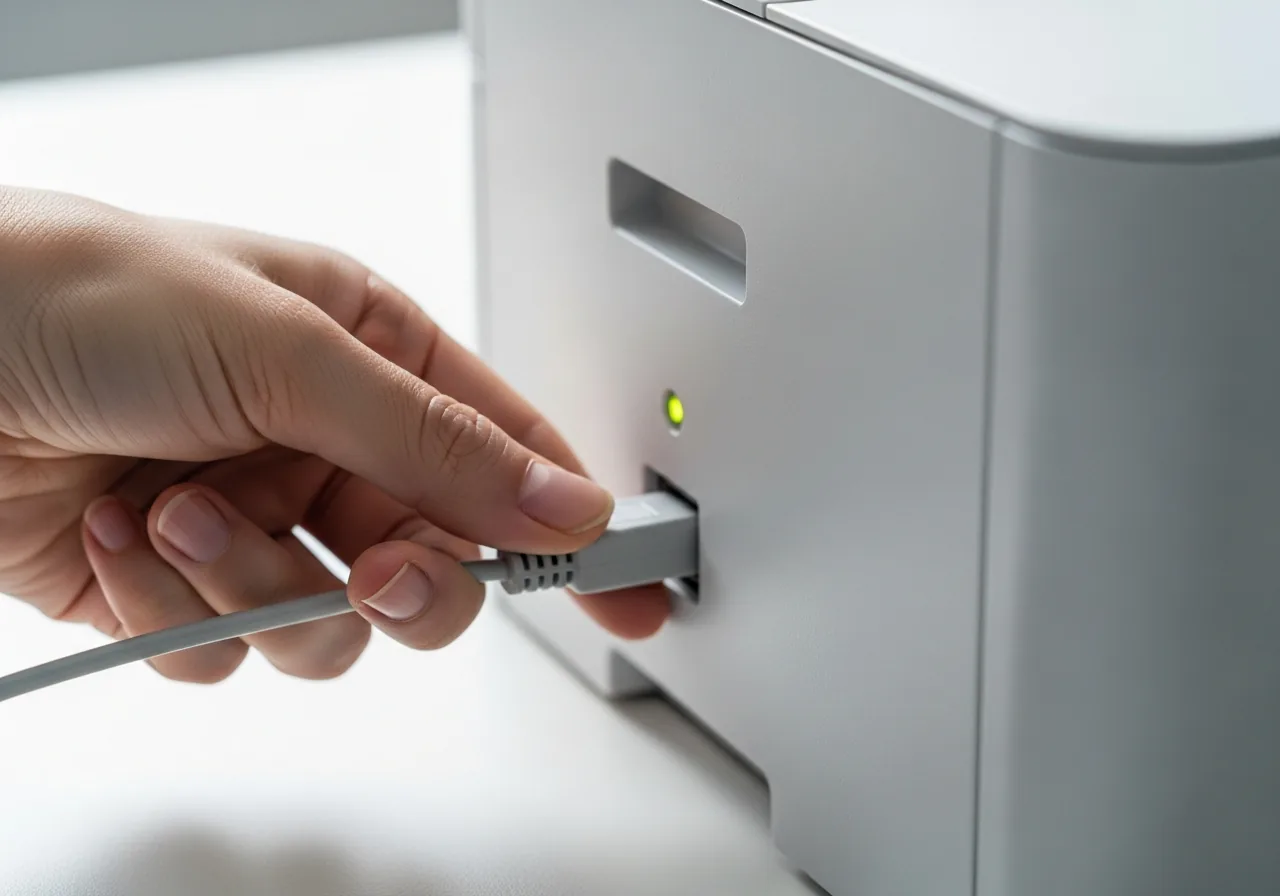
3Check the device's connection
Make sure the printer is powered, awake, and within good wireless range, as a link can lapse quietly while the computer still believes it is connected.
 4
4Refresh the printer driver
Update the printer software so an outdated or mismatched driver no longer leaves jobs stuck in the queue.
 5
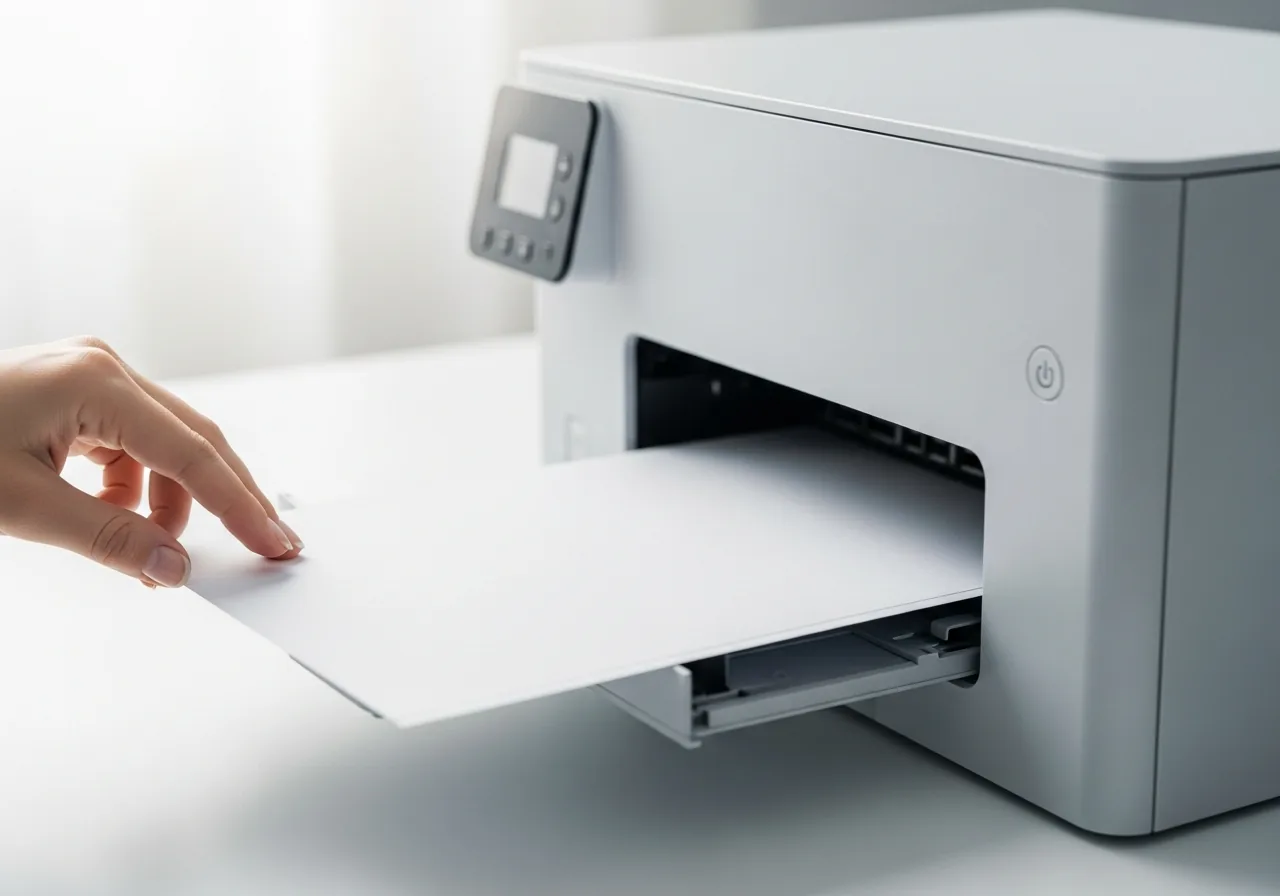
5Print a test page
Send a single test document and confirm a page emerges and the queue clears as expected.
When to seek help
If you smell burning, see smoke, or notice anything overheating inside the printer, switch it off at the wall and seek qualified help.
Reducing the chance it returns
Silent queues become rare once you clear a failed job promptly rather than piling new ones on top of a document that will never print. Confirming the intended printer is set as the default stops work vanishing toward a device that is switched off or elsewhere. A printer given a steady place on the network, rather than a fluctuating address, holds its connection far more dependably. Leaving the device powered and within good wireless range during use, and refreshing its software now and then, keeps the communication path open and responsive.
Repair110 is a free, informational resource. These steps describe a careful, general approach — every device is a little different, so work slowly, back up anything you value, and prioritise your own safety. If a step feels beyond your comfort, stop and consult a qualified technician.