Understanding the problem
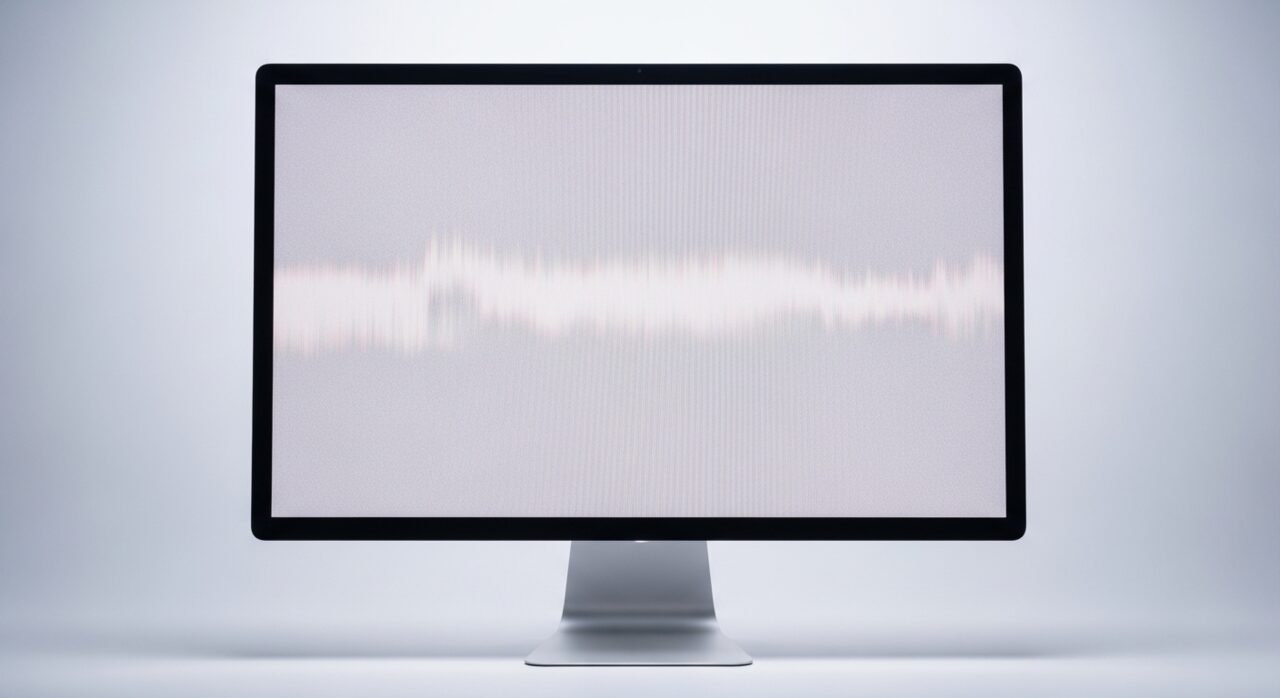
The graphics hardware paints fresh frames into memory, and the panel reads from that memory on its own fixed schedule. When the two are not coordinated, the panel can begin drawing a new frame partway down the screen while the previous one is still above it, leaving a visible seam where the halves meet. This happens most during fast motion because frames are changing quickly and the mismatch in timing becomes obvious. Synchronisation features exist to align the two clocks, and tearing returns when that alignment is switched off or overwhelmed.
Symptoms
- A horizontal split appears during scrolling or fast motion
- The top and bottom of the image seem misaligned for an instant
- Tearing is most visible in video or moving content
- The fault vanishes when the screen is still
Likely causes
- 1The frame output not synchronized with the display's refresh
- 2A graphics driver setting that disables frame synchronization
- 3A refresh rate mismatched to the content being shown
- 4A graphics chip under heavy load struggling to keep pace
- 5A display cable not carrying the signal cleanly during motion
What to observe and check
- Note whether tearing appears only during fast motion or scrolling
- Observe if it disappears entirely when the image is static
- Watch whether the issue tracks a particular refresh setting
- Consider whether it began after a graphics driver change
- Notice if an external screen shows the same tearing
Step-by-step repair
 1
1Enable frame synchronization
Turn on the frame-sync option so the graphics output aligns with the panel's refresh, removing the seam that appears in motion.
 2
2Review the graphics driver
If tearing began after a driver change, return to a known-good version or apply a steady update and note which behaves.
 3
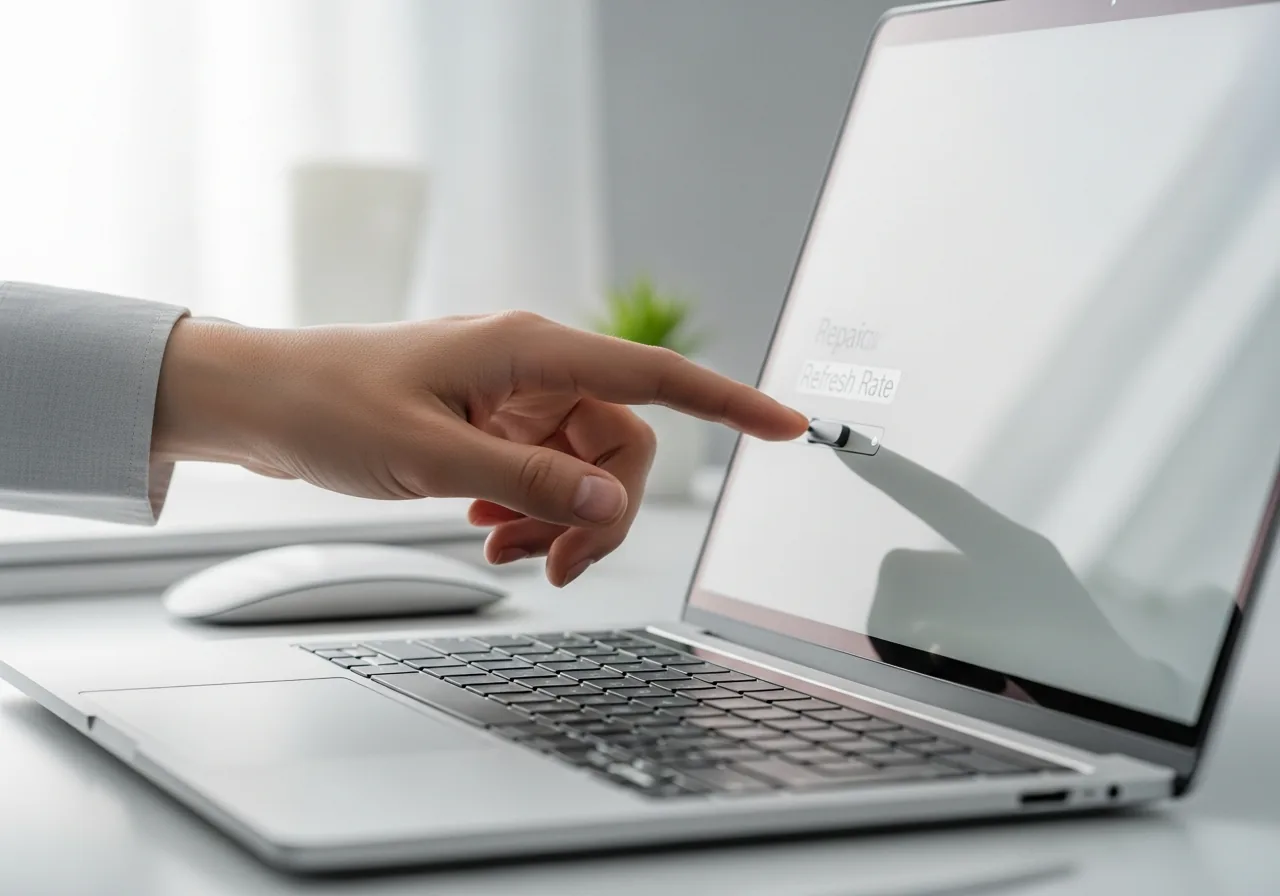
3Match a supported refresh rate
Choose a refresh the display genuinely supports and let the system match its output to it rather than chasing raw speed.
 4
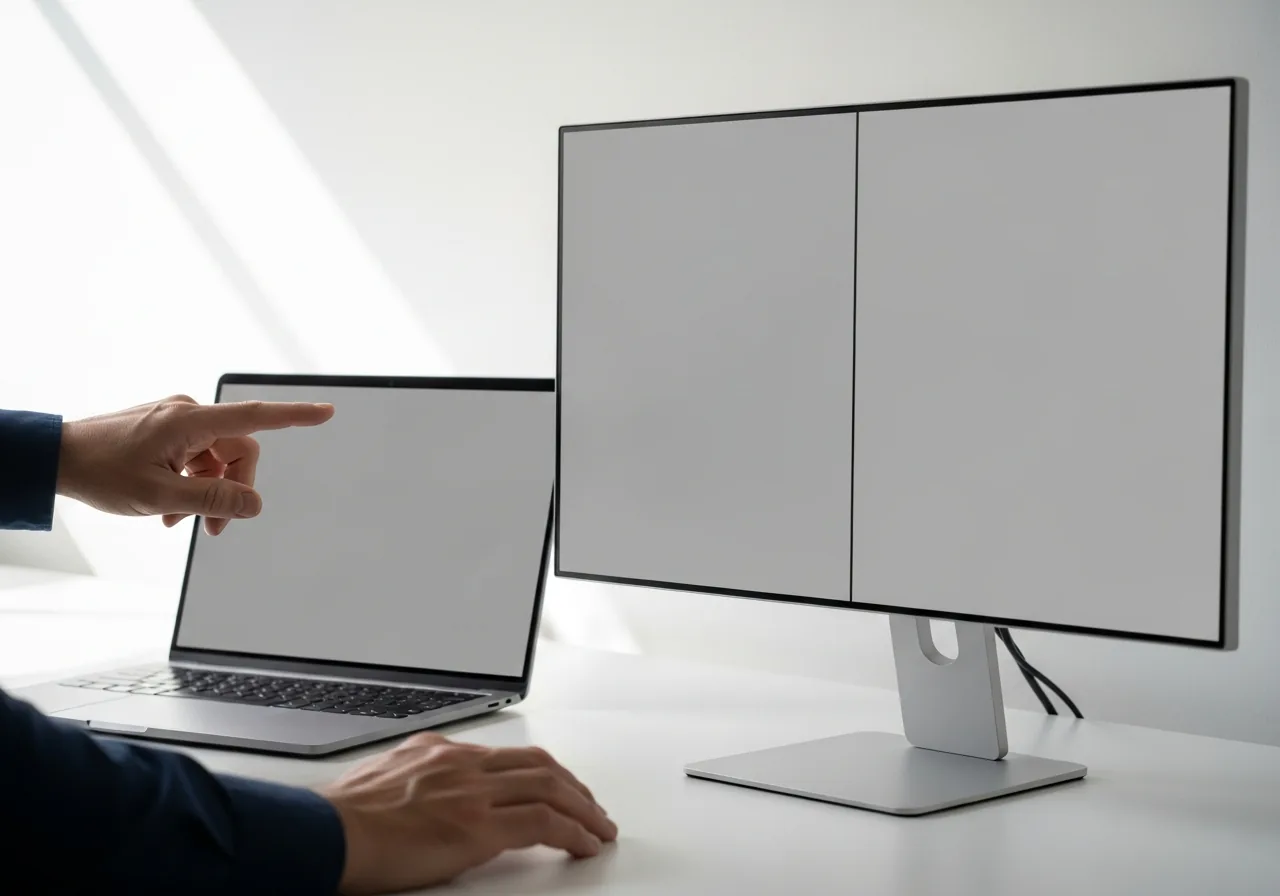
4Compare an external screen
Watch whether a second display tears the same way, separating a system timing issue from the panel or its cable.
 5
5Check motion is clean
Scroll and play moving content to confirm the horizontal split no longer appears during fast movement.
When to seek help
If tearing persists alongside artifacts, crashes, or overheating of the graphics chip, a technician can determine whether the graphics hardware itself, rather than synchronization, is the cause.
Reducing the chance it returns
Tearing stays away when the two clocks remain aligned, so leave any frame-synchronisation option enabled rather than turning it off in pursuit of raw speed. Choose a refresh rate the display genuinely supports and let the system match output to it. Avoid pushing the graphics chip into territory it cannot sustain, since an overwhelmed chip slips out of step, and keep it cool and free of dust so it holds a steady pace. Keep graphics drivers in a known-good state and revert calmly if a change brings the seam back.
Repair110 is a free, informational resource. These steps describe a careful, general approach — every device is a little different, so work slowly, back up anything you value, and prioritise your own safety. If a step feels beyond your comfort, stop and consult a qualified technician.