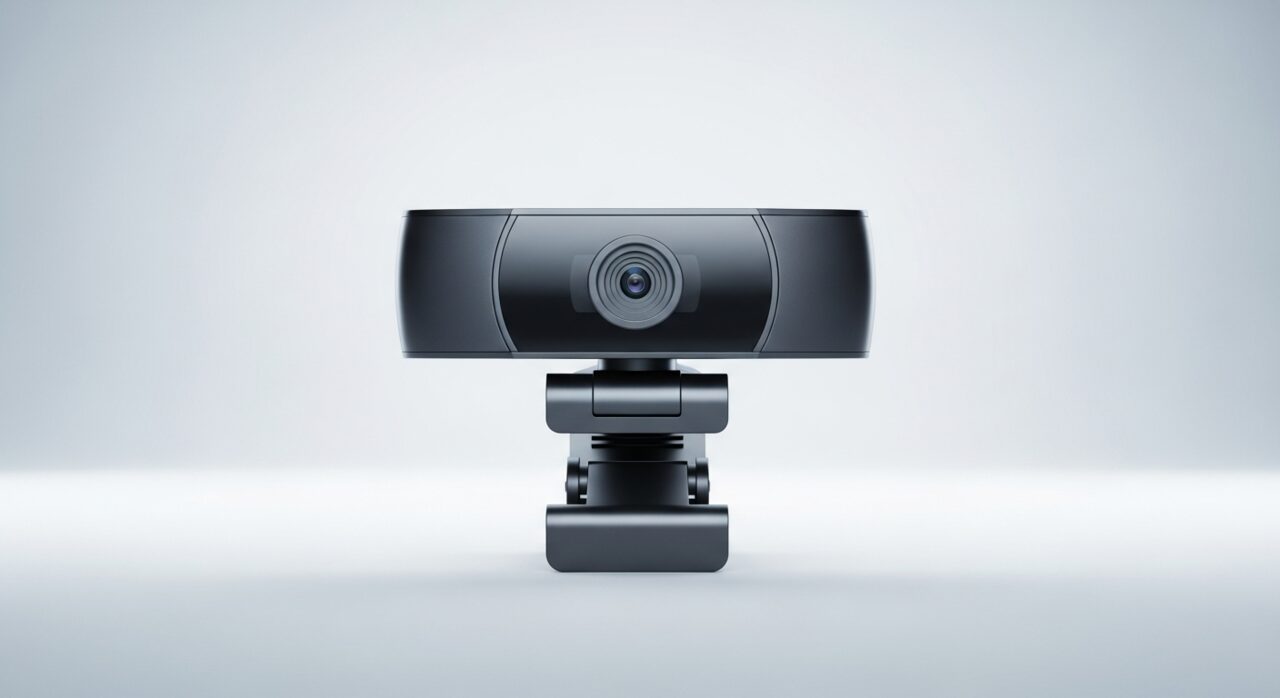
Understanding the problem
A camera can usually be opened by only one program at a time, and the operating system stands guard, granting or refusing each application access through a permission setting. When permission is withheld, or another program already holds the camera open in the background, a second application receives a valid but empty stream and paints it as black even though the sensor is healthy. The simplest cause of all is a privacy shutter or stick-on cover physically blocking the lens, so the sensor faithfully captures the darkness in front of it.
Symptoms
- Video appears as a solid black or grey rectangle
- The camera indicator light may or may not come on
- One application sees the camera while another shows nothing
- The image briefly flashes then goes dark
Likely causes
- 1A privacy shutter or physical cover left closed over the lens
- 2Camera permissions blocked for the application in the operating system
- 3Another program holding exclusive control of the camera
- 4A missing, outdated, or conflicting camera driver
- 5A loose internal connector or a failing camera module
What to observe and check
- Observe whether the indicator light activates, showing the camera is being powered
- Note if the feed works in one application but not another, hinting at permissions
- Watch whether closing other programs frees the camera for use
- Check for a physical shutter or sticker over the lens before assuming a fault
Step-by-step repair
 1
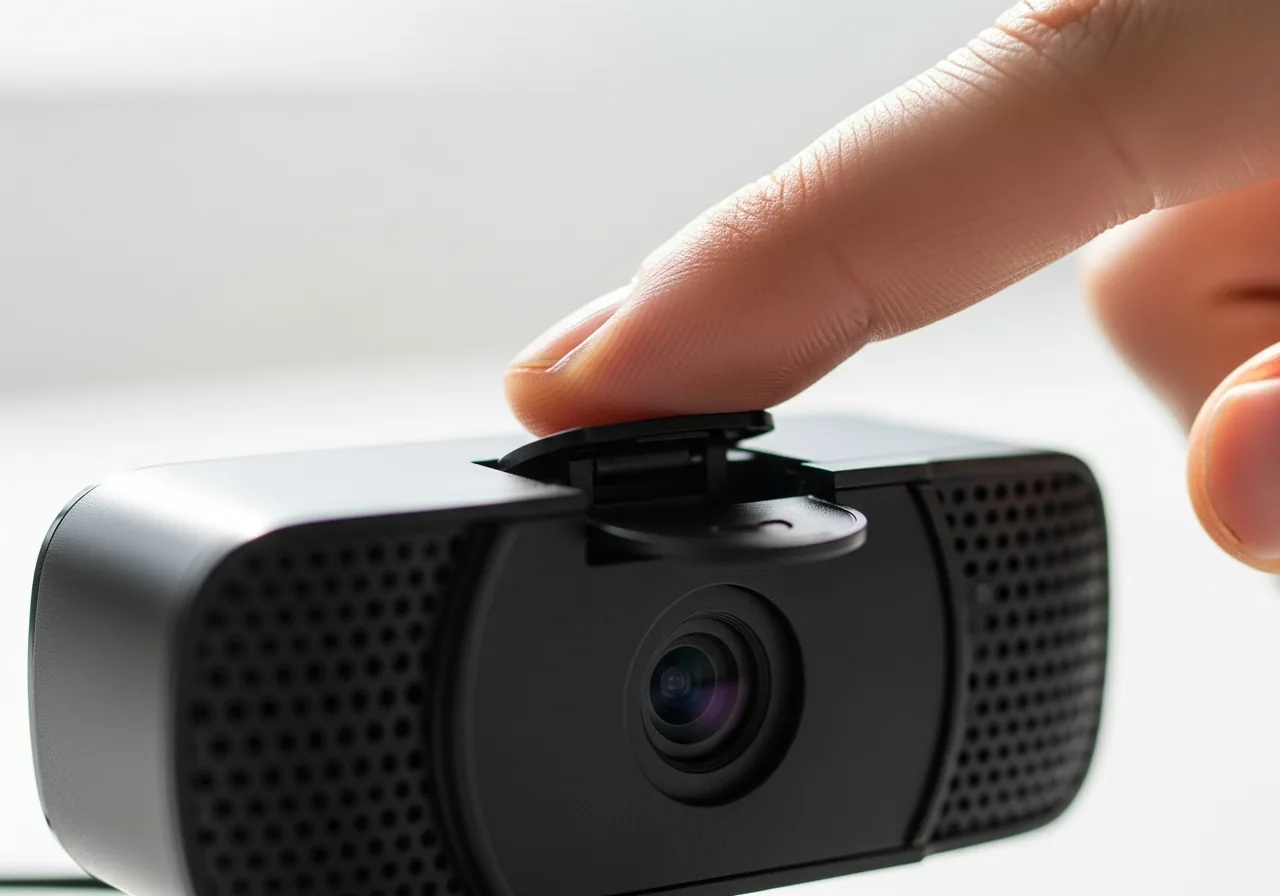
1Check for a privacy shutter
Look for a sliding cover or stick-on shutter over the lens and open it. The sensor faithfully captures the darkness in front of it when blocked.
 2
2Review camera permissions
Open the operating system's privacy settings and confirm the application you are using is allowed to access the camera.
 3
3Close other camera apps
Fully exit any video calls or recording tools running in the background, since a camera can usually be held open by only one program at a time.
 4
4Update the camera driver
Let the camera's software update so it cooperates cleanly with whichever application requests the stream.
 5
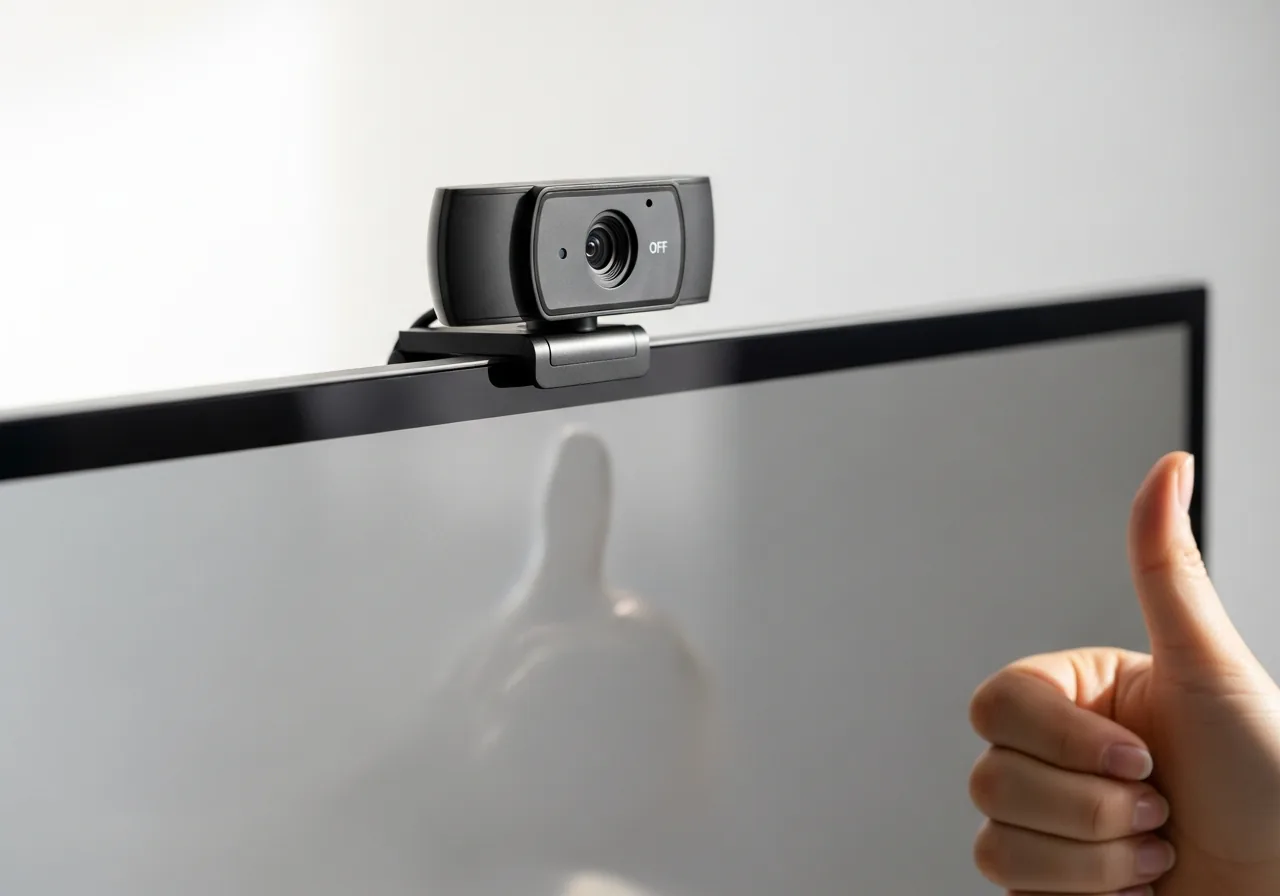
5Open a preview to confirm
Launch a camera preview and check that a live picture appears rather than a black or grey rectangle.
When to seek help
If the camera area feels warm to the touch or you notice any liquid behind the lens, stop and have it inspected by a professional.
Reducing the chance it returns
A clear feed stays reliable when only the application you are actually using is allowed to hold the camera, so closing video calls and recording tools fully when you finish frees the sensor for the next program. Reviewing which applications have camera permission now and then keeps access deliberate rather than accidental. Remembering to slide a privacy shutter open before a call saves a great deal of needless worry. Letting the camera's software update occasionally helps it cooperate cleanly with whichever application requests the stream.
Repair110 is a free, informational resource. These steps describe a careful, general approach — every device is a little different, so work slowly, back up anything you value, and prioritise your own safety. If a step feels beyond your comfort, stop and consult a qualified technician.